


If you’ve been wanting to do WooCommerce tiered pricing on your store, you have probably encountered the common roadblocks:
- Standard coupons in WooCommerce aren’t powerful enough to do it, they don’t have the option
- Pricing rule & discounts plugins are complicated and slow and no other reason to install them (big cost for little benefit)
- Put-together solutions are hard for the customer to understand (eg. have to remember coupon codes based on what they added to the cart and manually apply) which leads to lots of support questions making it hardly worth the effort
This article will teach you a tiered discount strategy for a customer’s cart based on the subtotal, but without those hassles. It will also show you how to do it with an automatically applied coupon, which means your customers don’t have to lift a finger.
And the beauty is when customers don’t have to do anything, they’re more likely to accept and convert.
Giving Automatic Discounts Isn’t Something That’s New
Advanced Coupons has had this auto-apply coupon feature since the beginning:
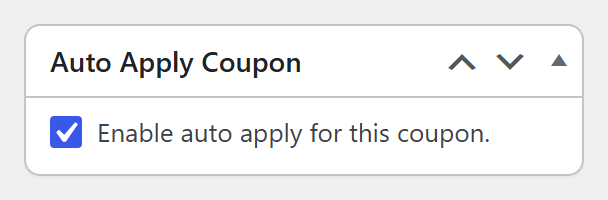
If you want to run WooCommerce tiered pricing without any hassle, this is a must! This strategy is used by hundreds of our users to make giving coupons to their customers less work for the customer.
I’ve personally used this strategy as well on my own stores for automatically:
- Giving renewal discounts for people who are due based on their purchase history
- Applying holiday-themed discounts for scheduled times throughout the year
- Applying discounts for specific products when we have one thing we are trying to promote
When applying a deal like a tiered discount automatically, or any kind of deal for that matter (as you can see with what I’ve done), you will experience a much higher take-up rate compared to promotions where you don’t use it.
The automatically applied part is just one part though. So what is the rest?
The Other Part You Need To Get Right Is Your Conditions
You don’t want to be giving away discounts like tiered discounts in the wrong circumstances. The obvious restriction is to ensure you only apply the discount with the correct cart subtotal ranges.
For example:
Tier
- 1: $50 to $100 – give the customer 10% off
- 2: $100 to $150 – give the customer 15% off
- 3: $150 to $200 – give the customer 20% off
- 4: $200 and above – give the customer 25% off
We call these “Cart Conditions”. It’s a set of conditions that must be true in their shopping cart before they can claim a deal. The above are the minimum cart conditions you would need for a tiered discount structure. But are there other conditions that you can test for in addition to these? You bet.
You might also want to only give the deal to existing customers with an account, not guest customers. Or you might only want to give the deal to someone who is buying from a particular category. Or you might want to only give the deal to someone who is buying again within a certain period.
You can even get specific about who gets the deal. WooCommerce’s built-in Allowed emails field (under the coupon’s Usage restriction tab) limits a coupon to the customer emails you list. And if you’d rather block certain customers, Advanced Coupons Premium adds Disallowed Customers and Disallowed Customer Emails fields to the same tab.
All of these things are possible to do in conjunction with your WooCommerce tiered pricing coupon deal.
Who Is This Strategy For?
Specifically, this WooCommerce tiered pricing discount strategy is for WooCommerce store owners that want to reward their customers for buying more in a single order.
Additionally, it is particularly well suited if you run a store selling multiple products, especially those that you need to ship to a customer. Physical products as opposed to digital products.
Goal Of The Strategy: Why Would You Do A WooCommerce Tiered Pricing Deal?
The big goal of the strategy is to increase the Average Revenue Per Order (also called Average Revenue Per User, or ARPU for short). By continually dangling the carrot of additional discounts just in front of them, the customer is tempted to spend more on their order to claim the next discount level.
How many tiers should you use?
You can, of course, do this strategy with fewer tiers. But I recommend you consider 4 tiers because it makes the amounts for the levels closer together.
That has the flow-on effect of your customer seeing that they’re “oh so close” to hitting the next tier and that bit more likely that they will add something else to their cart to unlock the next discount level. It’s more achievable in their minds, which is the key to making this work.
How To Set Up Your Tiered Discount Strategy In WooCommerce
To make this work you’ll need:
- A WooCommerce store
- A copy of Advanced Coupons Premium – our popular coupon feature extension plugin
Setting it up is quicker than ever, too. Advanced Coupons Premium now includes a Tiered Cart Discount coupon type, so you can build all four tiers inside a single coupon. Here’s how.
1. Setting up your tiered coupon
Go to WordPress dashboard > Marketing > Coupons and add a new coupon. In the General tab, set the Discount type to Tiered Cart Discount and the Tier discount type to Percent (%).
Then, add one row for each level, using the Spend at least and Discount columns and the + Add tier link. Here are the levels in our example setup:
- #1: Spend at least $50 – give the customer 10% off
- #2: Spend at least $100 – give the customer 15% off
- #3: Spend at least $150 – give the customer 20% off
- #4: Spend at least $200 – give the customer 25% off
Once your tiers are in, click Save Tiers:
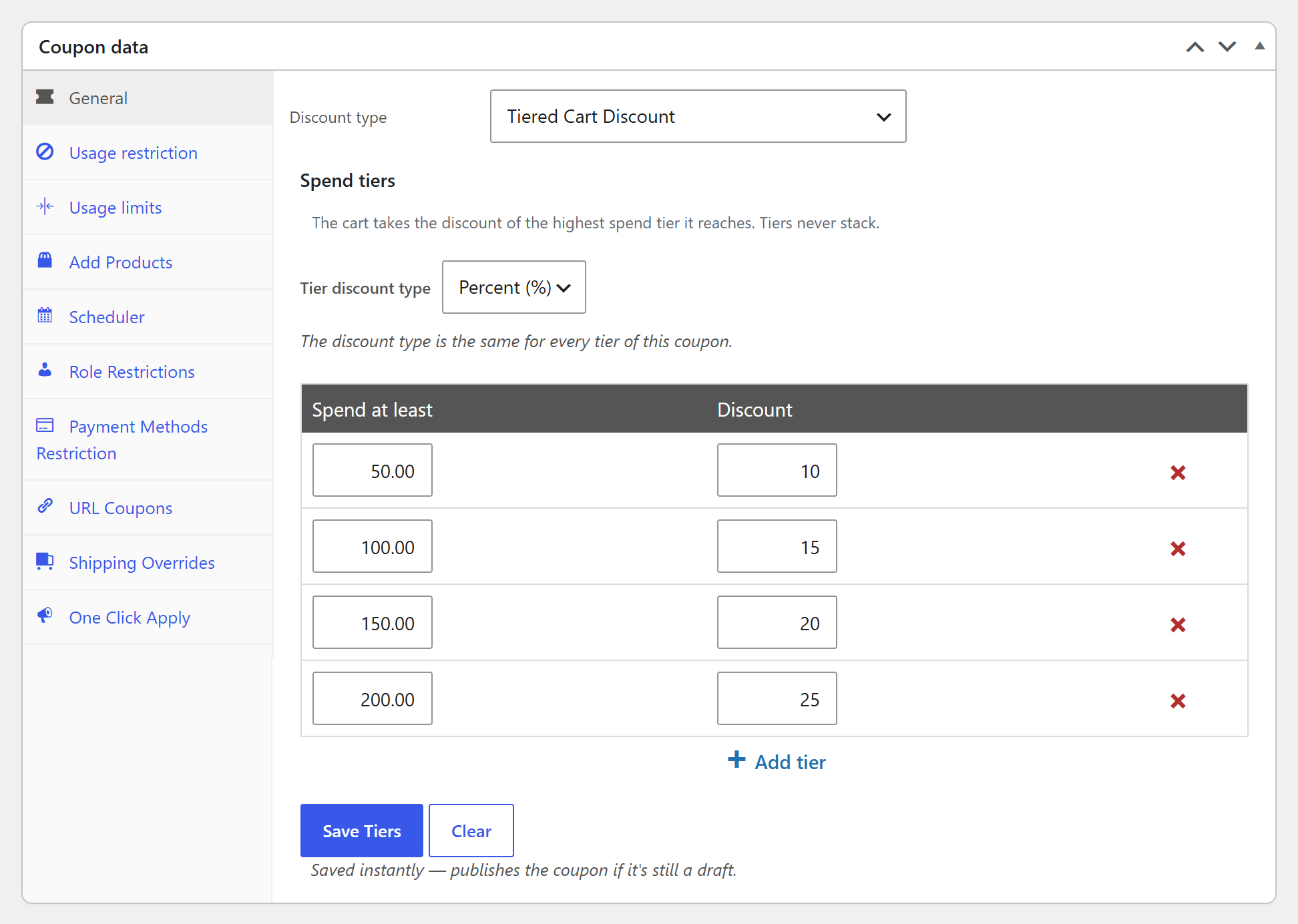
Remember, the code doesn’t need to be decipherable by humans because it is going to be automatically applied. But for visual reference, it is still nice to name it something that makes sense to the end user.
2. Let the tiers handle your subtotal ranges
With a Tiered Cart Discount, you don’t need to set up Cart Subtotal conditions for each range. The coupon checks the cart subtotal (before other coupon discounts) and applies the highest tier the customer reaches. Tiers never stack, so there are no overlapping ranges to worry about.
If a customer applies the coupon before reaching your first tier, they’ll see a message like “Spend $10.00 more to use this coupon.” That’s one more little nudge toward the next discount level.
3. Set it to automatically apply
Finally, we get to do the “magic” part.
In the Auto Apply Coupon box in the coupon editor sidebar, tick Enable auto apply for this coupon (the same checkbox shown earlier) and save the coupon. The coupon stays off the cart until the customer reaches your first tier, then applies automatically and moves up the tiers as their cart grows.
That’s it – you’ll have an auto-applied WooCommerce tiered pricing discount strategy in place!
Need different rules for each tier?
A Tiered Cart Discount uses the same discount type for every tier and applies to the whole cart. If you’d like each tier to have its own rules (for example, tiers based on item quantity, a specific category, or a mix of percentage and fixed discounts), you can still create one auto-applied coupon per tier with its own cart conditions. With this setup, you can also add a Percentage discount cap (Advanced Coupons Premium) to each percentage coupon to limit the maximum discount an order can get.
We walk through both approaches step-by-step in our guide, Boost Your Sales With Tiered Coupons: A Beginner’s Guide.
Final Step: Test
Oops! Before you can run your WooCommerce tiered pricing, you’ll need to test.
The last step when setting up any kind of coupon deal is to test it on the front end.
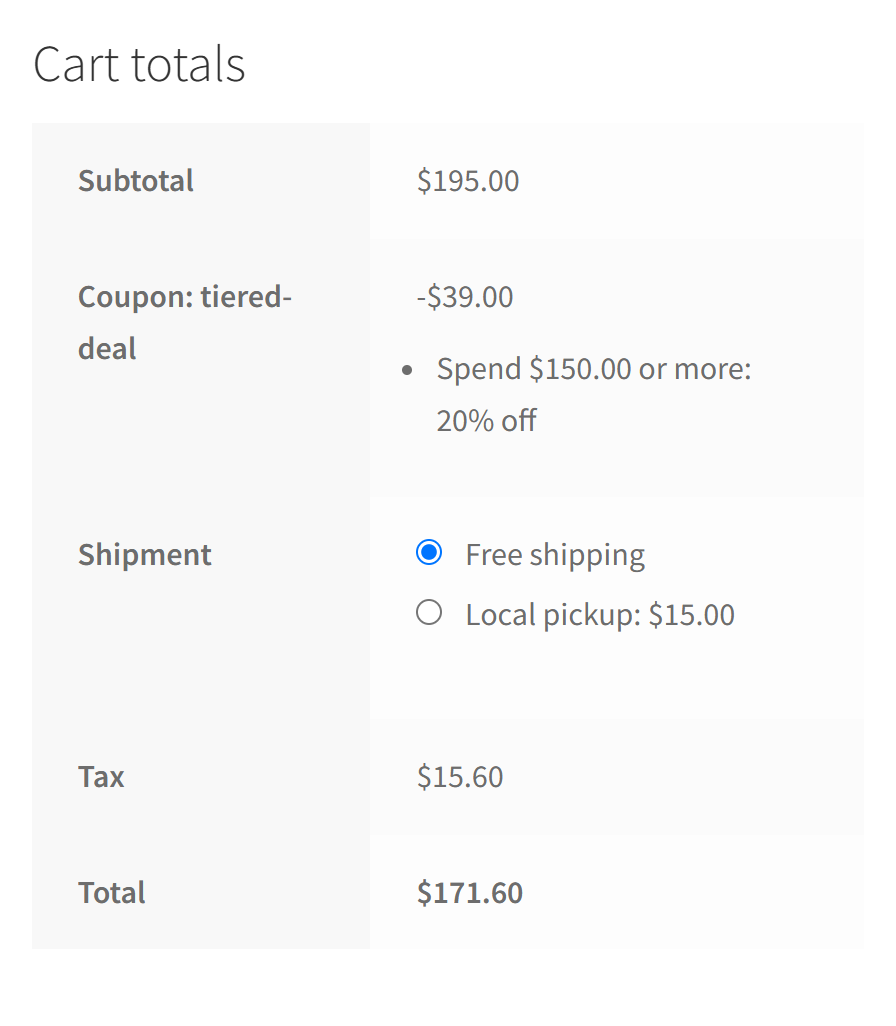
In the example above, the cart subtotal is $195. That reaches the third tier, so the coupon applied itself and took 20% off, and the cart shows exactly which tier was unlocked.
Try a few different cart totals to make sure each tier kicks in where you expect. And so on and so forth.
Frequently Asked Questions
What is a tiered discount strategy?
A tiered discount strategy gives customers a bigger discount the more they spend in a single order, like 10% off at $50, 15% off at $100, and so on. The goal is to raise your average order value by showing shoppers how close they are to the next discount level.
How many tiers should a tiered discount have?
There’s no fixed rule, but around four tiers works well for many stores. It keeps the spending levels close together, so the next discount always feels within reach. Fewer tiers are simpler to explain, while too many can make the offer confusing.
Conclusion
The coupon features in WooCommerce aren’t capable of doing this kind of deal. You will need a coupon feature extension plugin called Advanced Coupons. You can view all the features and get Advanced Coupons for WooCommerce here.
In this article, we discussed how to create a WooCommerce tiered pricing discount offer using Advanced Coupons. And check this: all it takes is three easy steps:
- Setting up your tiered coupon
- Let the tiers handle your subtotal ranges
- Set it to automatically apply
Do you have any questions about WooCommerce tiered pricing? Let us know in the comments below!





Just the info I needed, thanks!
Great Brenden thanks for stopping by!
Thanks for the valuable post.
You’re very welcome Rocky 🙂
Looks Pretty Cool and easy to use. I am currently building a WooCommerce site – will definitely consider your plugin after it’s done!
Looking forward to having you on board Cato!
Well this is something new. I will give it some thought
Thanks for stopping by Tammy 🙂
Hi Josh! Is it possible to set User as one of the conditions for a particular coupon? In other words, the coupon only gets applied at the checkout if a certain user is doing the shopping?
Hey Kim, we don’t have specific user as a cart condition yet, but its something we will likely add in the near future.
The other way you might be able to do this is by using the Email Restriction in WooCommerce itself found on the Usage Restrictions tab.