
If your WooCommerce store uses Elementor to design the checkout page, Advanced Coupons for WooCommerce Free can load its checkout scripts there automatically when the layout includes Elementor Pro’s Checkout widget and the prerequisites below are met.
Use Advanced Coupons for WooCommerce Free 4.7.1 or later on that checkout page. Advanced Coupons reads the page’s saved Elementor layout data, looks for the Checkout widget type Elementor Pro registers, and then loads the same checkout script bundle it uses on the standard WooCommerce checkout template.
Customers see the same WooCommerce coupon prompt as on the default template (for example Have a coupon? with Click here to enter your code, then Apply coupon). If you also run Advanced Coupons Premium with the Store Credits module enabled, logged-in customers with an allowed balance see the same store credits redemption checkout UI as on the default template.
Prerequisites
- WooCommerce is installed and active
- Advanced Coupons for WooCommerce Free 4.7.1 or higher is active
- Elementor Pro is installed and active — the Checkout widget used for this integration is part of Elementor Pro
- A checkout page built in Elementor using the Checkout widget
- To verify store credits on checkout: Advanced Coupons Premium (which includes the free base plugin) is active and the Store Credits module is enabled under Coupons → Settings → Modules. Coupon entry alone does not require Premium.
Setting up and verifying Elementor checkout compatibility
When a customer loads your Elementor-built checkout page, Advanced Coupons reads the page’s saved Elementor layout data and checks whether it includes Elementor Pro’s Checkout widget. If that widget type is present, Advanced Coupons loads its checkout scripts — the same ones that power coupon entry and, when the Store Credits module is active, the store credits redemption UI on a standard WooCommerce checkout page.
In the WordPress admin (Plugins)
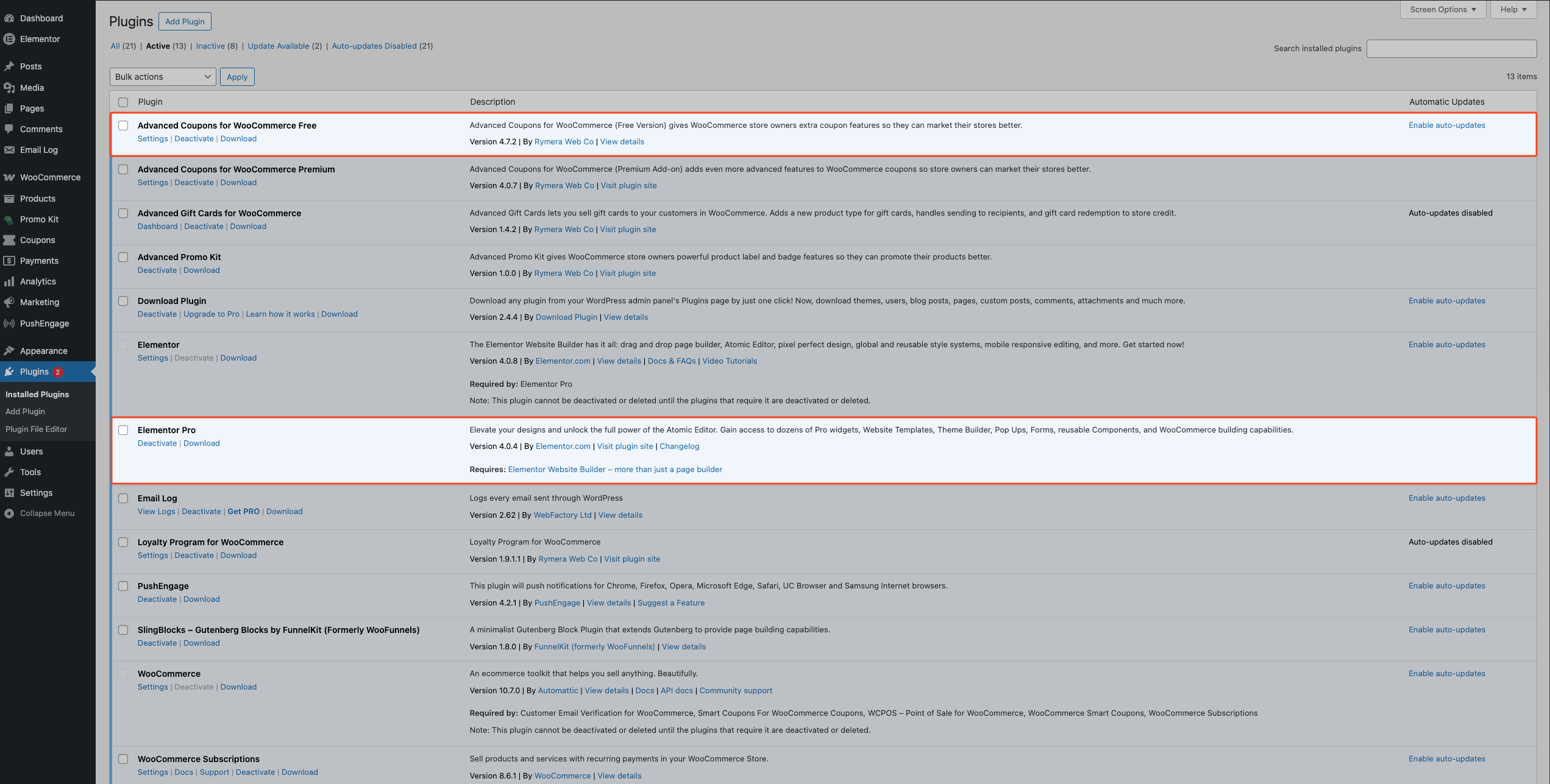
- Go to Plugins → Installed Plugins.
- Confirm Advanced Coupons for WooCommerce Free lists version 4.7.1 or higher and is active.
- Confirm Elementor Pro is active.
In the Elementor editor
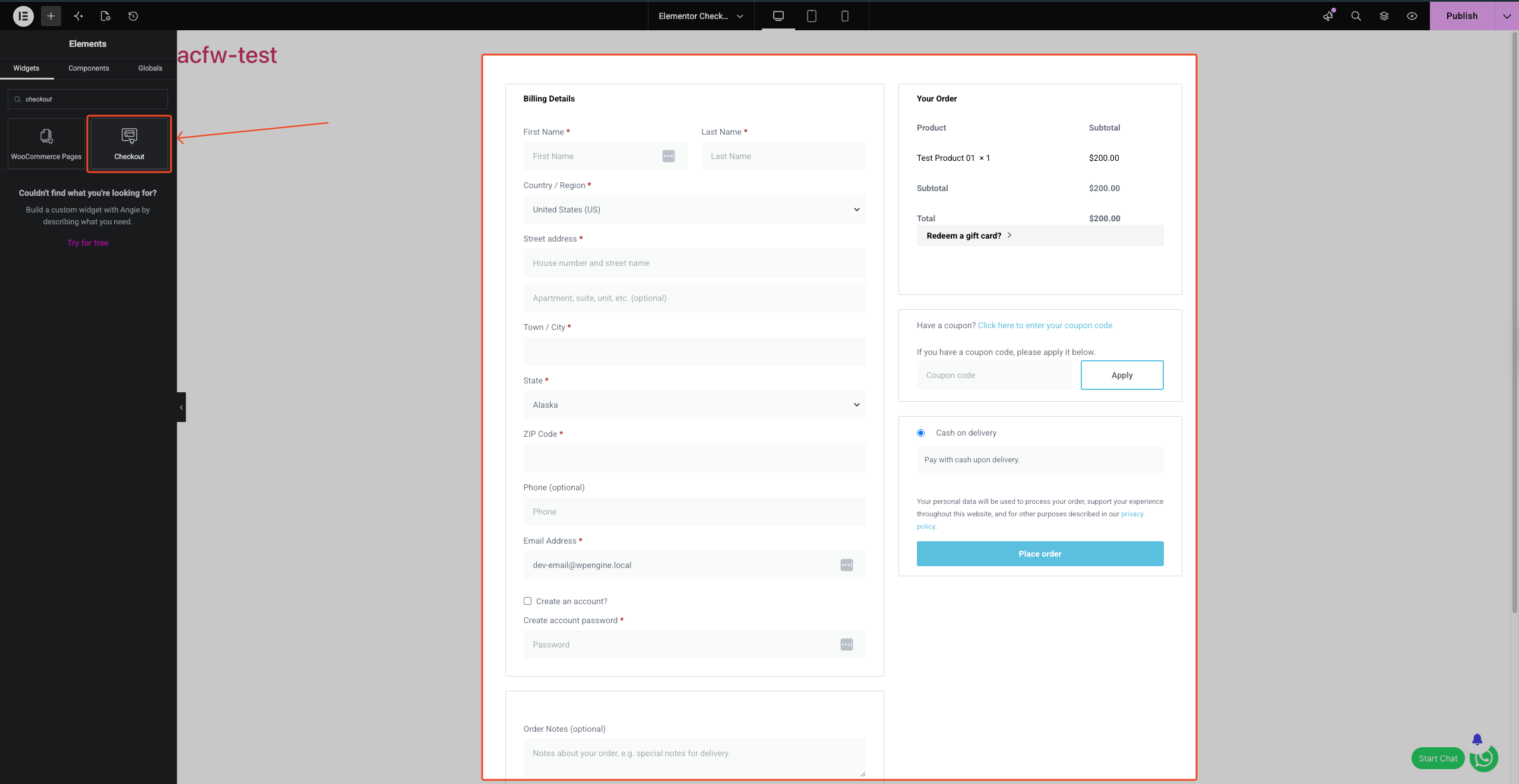
- Open your checkout page in the Elementor editor.
- Place Elementor Pro’s Checkout widget on the page.
On the storefront checkout page
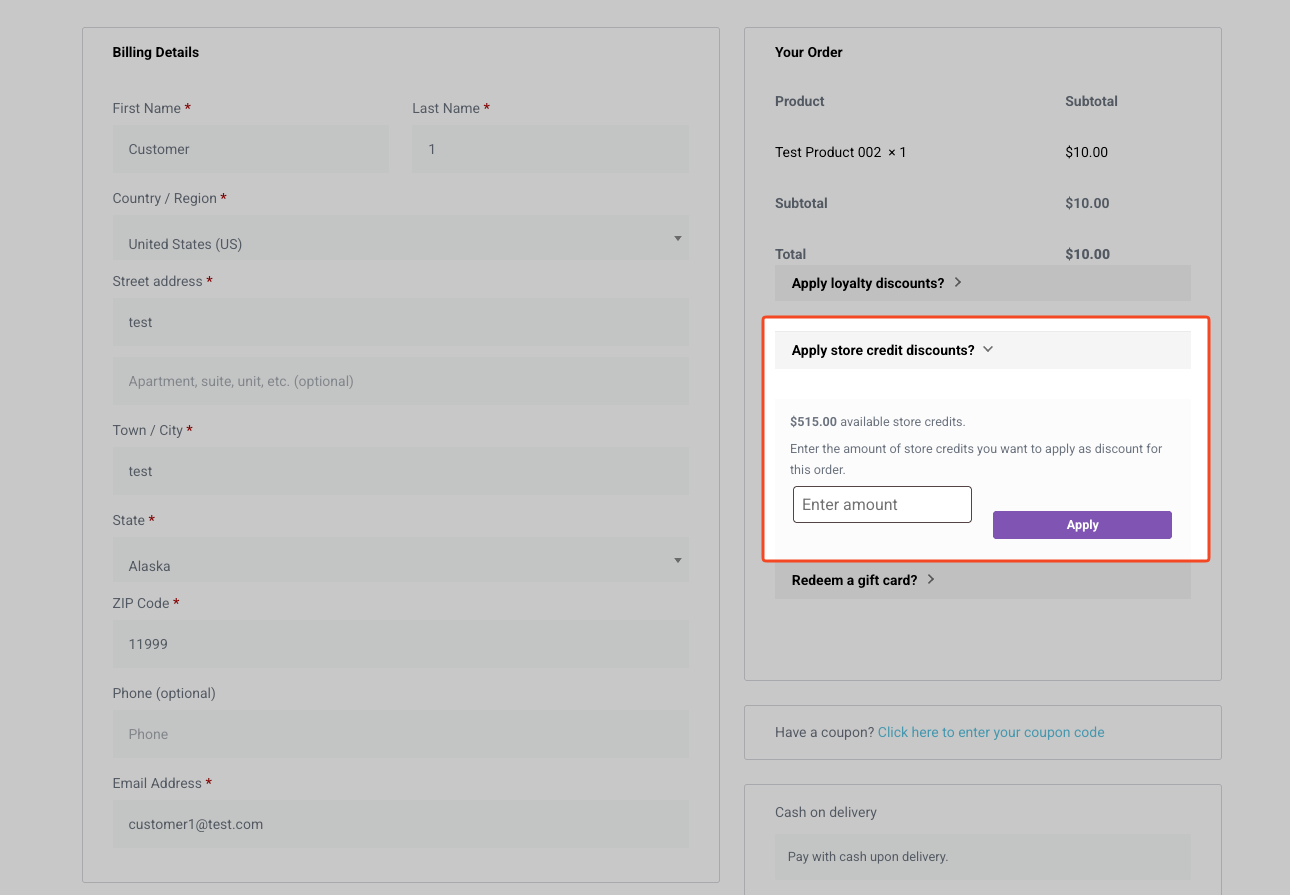
- Open the checkout page on the storefront.
- Confirm you see the standard WooCommerce coupon prompt (Have a coupon? with Click here to enter your code) or that the coupon field is already visible.
- If the coupon area is collapsed, click Click here to enter your code to expand it.
- Enter a test coupon code.
- Click Apply coupon.
- Confirm the discount applies.
- If you also use store credits on checkout, log in as a customer who has store credit available.
- Navigate to the checkout page.
- Confirm the store credits redemption UI appears — by default the accordion title is Apply store credit discounts?
- Enter a store credit amount and confirm the discount applies to the order total.
This compatibility runs automatically in the background when those prerequisites are met, so there is no extra Advanced Coupons setting to enable for Elementor detection.
Troubleshooting
Advanced Coupons features don’t appear on my Elementor checkout page
- Go to Plugins → Installed Plugins.
- Confirm Advanced Coupons for WooCommerce Free lists version 4.7.1 or higher and is active. If the version is lower, update the plugin.
- Open your checkout page in the Elementor editor. Confirm the Checkout widget sits directly on the page — Advanced Coupons only detects this specific widget type; a custom HTML block, a shortcode, or a plain text element does not trigger the compatibility.
- Confirm Elementor Pro is active. The Checkout widget is a Pro feature, so the free Elementor plan does not include it.
- Clear your page cache. If a caching plugin or server cache is serving an old copy of the page, the updated scripts may not load. Reload checkout in a fresh browser session and test again.
The store credits redemption UI doesn’t appear on my Elementor checkout page
- Go to Coupons → Settings.
- Open the Modules tab and confirm the Store Credits module is enabled. The toggle saves automatically — no Save changes button needed.
- Confirm Advanced Coupons Premium is active.
- Browse to checkout while logged in as a customer who has store credit available. Guest checkout hides the redemption UI.
- If the store credits UI still does not appear, confirm the cart does not contain an Advanced Gift Cards line item — Advanced Coupons disables store credits redemption when one is present.
Frequently asked questions
Is there an Advanced Coupons widget I can add to Elementor pages — for example, to display a list of coupons on a promotions landing page?
The Elementor integration in Advanced Coupons is specifically for checkout page compatibility; it doesn’t add a custom Elementor widget for displaying coupons. For displaying coupons on other pages, Advanced Coupons includes three blocks you can add in the WordPress block editor: Advanced Coupons by Category, Single Advanced Coupon, and Advanced Coupons by Customer (Premium) (shown as Advanced Coupons by Customer when Advanced Coupons Premium is active).
Does this work with Elementor’s free plan?
No. The Checkout widget that triggers the Advanced Coupons compatibility is part of Elementor Pro. If you’re using the free version of Elementor, the Checkout widget isn’t available, and the automatic detection doesn’t apply.
Does the Elementor integration affect the cart page as well?
No — the current integration is specific to the checkout page. Advanced Coupons detects the Checkout widget on your Elementor checkout page and loads checkout scripts accordingly. Cart page compatibility follows standard WooCommerce behavior.
I’m using an Elementor Checkout widget from a third-party addon — will this work?
The compatibility checks for the same Checkout widget type that Elementor Pro registers in the saved layout data. Third-party addons may register a different widget type and may not trigger detection. If you use a third-party checkout widget and features aren’t loading, contact our support team with details about which addon you use (Premium customers can use the support link under Need help? below).
Need help?
If you have a question or run into any issues, we’re here to help.
- Premium users: Open a support ticket
- Free users: Visit our community forum on WordPress.org

