
If you want shoppers to receive coupons as real-time browser notifications on desktop or mobile, that usually means reaching people who already opted in on your site.
Advanced Coupons for WooCommerce includes a built-in PushEngage integration for that workflow.
Each notification can include the coupon code and a link back to your store. You can send to an entire PushEngage segment or target individual subscribers by name or email from the coupon edit screen.
Prerequisites
Before you begin, make sure you have the following in place:
- WooCommerce is installed and active
- Advanced Coupons for WooCommerce version 4.6.6 or higher is installed and active (Segments support shipped in 4.6.5; subscriber sends require 4.6.6).
- The PushEngage plugin is installed, active, and connected to your site. If it isn’t yet, use the links shown after you select PushEngage under Send via: in the steps below.
Pick Segments for list-based sends or Subscribers to search named customers, then read When to use segments vs subscribers right below before you start the steps.
When to use segments vs subscribers
Use Segments for store-wide sends (for example, a sale to everyone in a “Newsletter subscribers” segment).
Use Subscribers when you need specific people with WordPress accounts (for example, a VIP offer to one customer).
When you first select PushEngage under Send via:, an install or connect message can appear until PushEngage is installed and linked—that is expected while you finish setup.
How to send a coupon via PushEngage
- Go to Coupons in your WordPress admin and open the coupon you want to send.
- Click Send Coupon at the top of the screen (beside Add coupon).
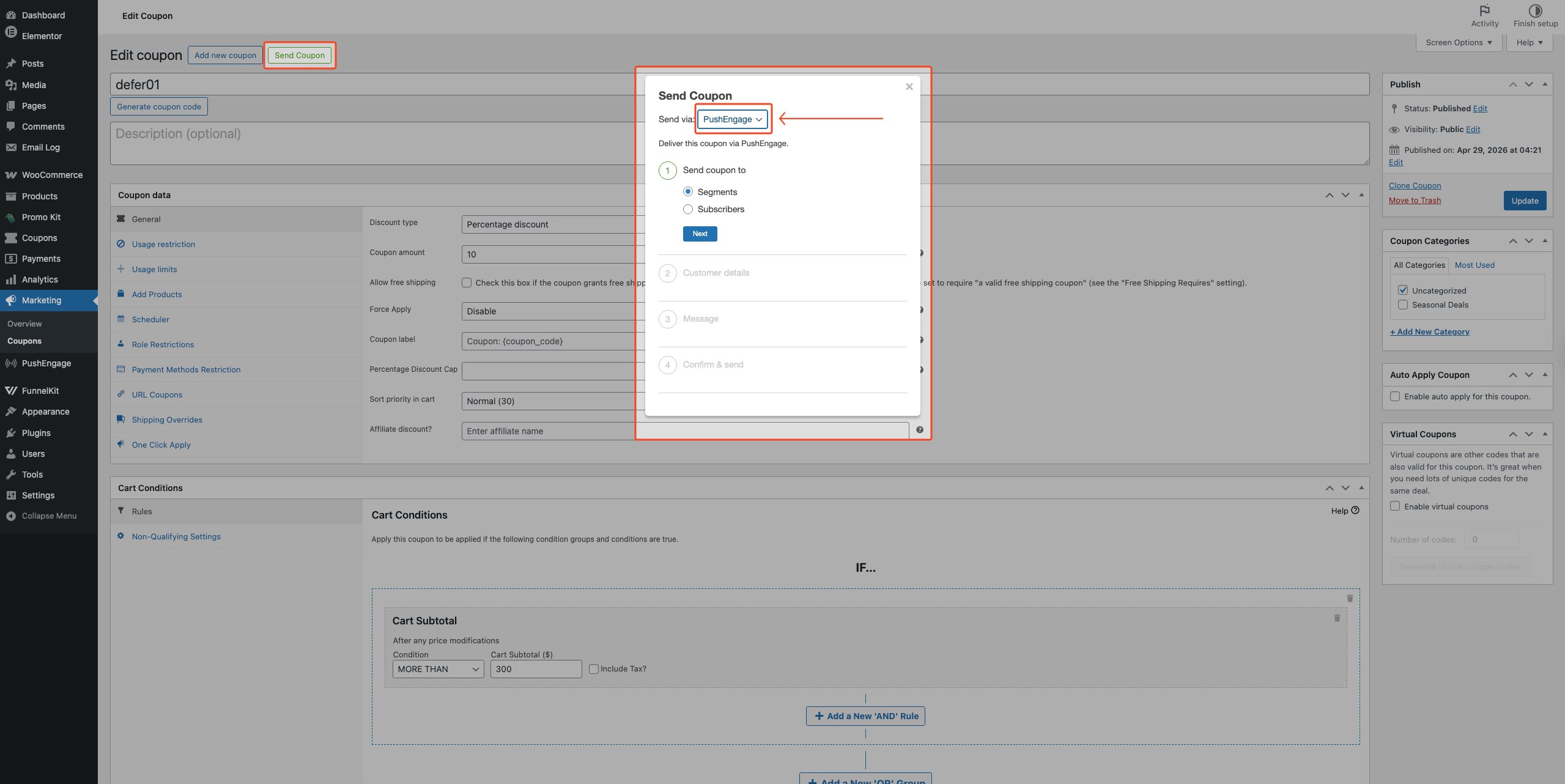
- In Send via:, choose PushEngage. If you still see install or connect prompts, use Click Here to Install PushEngage or Click Here to Connect Your Site first.
- Under Send coupon to, pick Segments or Subscribers, then click Next.
- If you chose Segments: Select one or more segments in Customer details (or Create new segment if the list is empty), then click Next.
- If you chose Subscribers: Search by name or email in Customer details and select at least one match. (Guests who only opted in won’t appear here—use Segments for those.)
- Click Next.
- In Message, fill in Title, Message, and URL, then click Next.
- On Confirm & send, review the summary. Optionally click Preview Push Notification.
- Click Send PushEngage. A success notice confirms which segments or subscribers received the coupon.
You can use
{storename}(your store name) and{coupon_code}(the coupon code) as placeholders in Title and Message. They aren’t expanded in URL.
What subscribers see
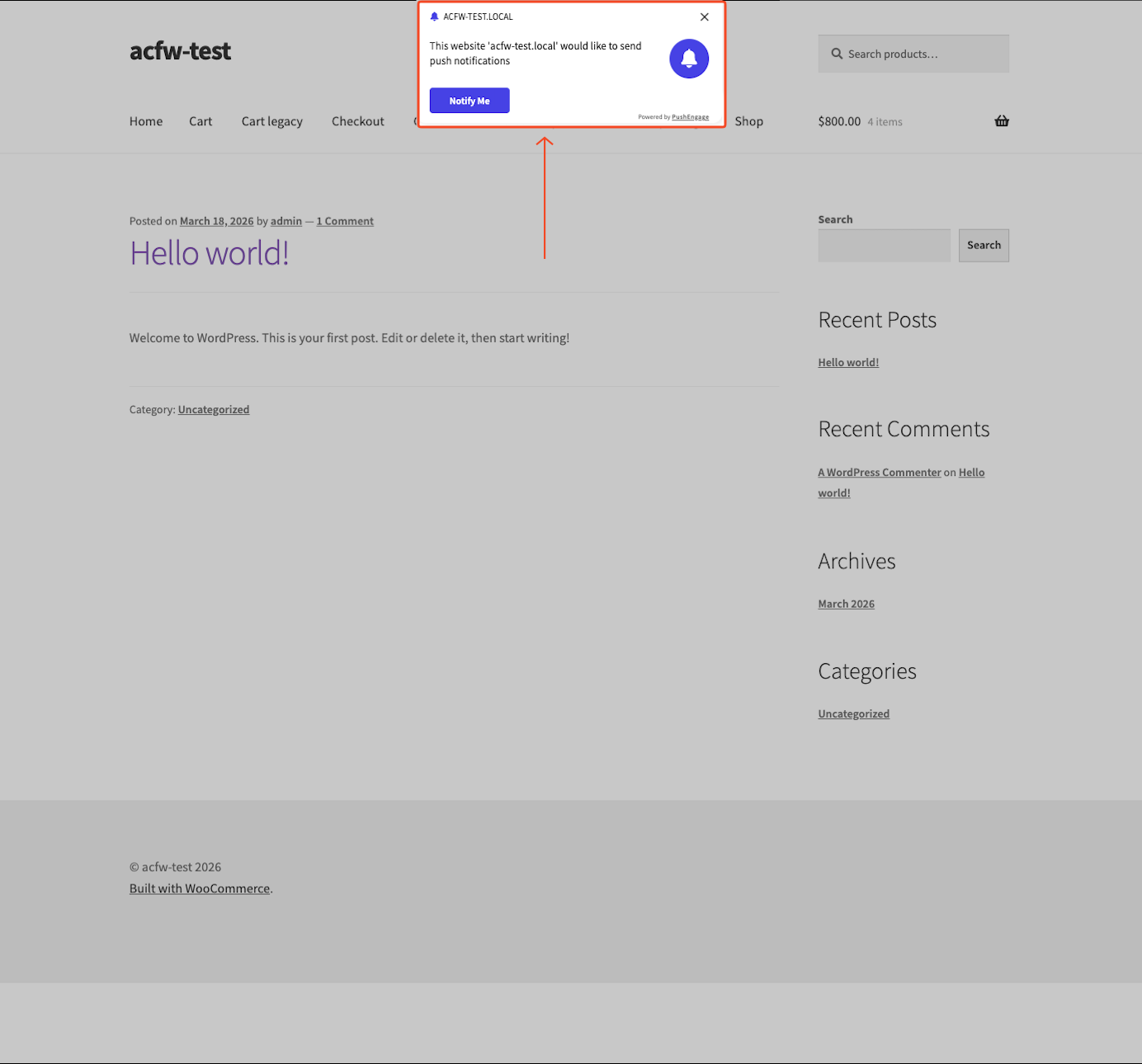
Subscribers see a pop-up with the Title and Message you set. Advanced Coupons replaces the {storename} and {coupon_code} placeholders in Title and Message with your store name and coupon code before sending.
Clicking the notification opens the URL you entered in a new browser tab.
The visual presentation can vary by browser and operating system.
Troubleshooting
The Send PushEngage button is disabled
Fill in Title, Message, and URL in the Message section. If you’re using Subscribers, select at least one subscriber. The Send PushEngage button stays disabled until those required fields are complete.
Segments aren’t loading in the dropdown
Open PushEngage in WordPress admin and confirm the site is connected (check the PushEngage dashboard too). If you have no segments yet, choose Create new segment from the dropdown.
If segments still won’t load after that, use Click Here to Check PushEngage Connection on the PushEngage screen.
Frequently asked questions
What do subscribers need to receive the push notification?
Subscribers don’t need a PushEngage account of their own. They just need to have accepted the browser push notification permission prompt when they visited your store. Customers who dismissed that prompt won’t receive the notification.
Does this work with any coupon type?
Yes. The PushEngage send feature works with any coupon in Advanced Coupons — percentage discount, fixed amount, BOGO deals, store credits, and more. The coupon code is included in the notification message exactly as it appears on the coupon.
Do subscribers still need to enter the coupon code manually at checkout?
Yes. Subscribers still enter the code at checkout. For one-click apply, use URL Coupons and paste that URL into the URL field.
Can I send to guests who accepted the push prompt but don’t have an account?
Yes — use Segments instead of Subscribers. The Subscribers search only lists registered customers who accepted the push prompt on your store. Guests who opted in won’t appear there, but they do receive segment-based sends.
Need help?
If you have a question or run into any issues, we’re here to help.
- Premium users: Open a support ticket
- Free users: Visit our community forum on WordPress.org

