

If your WooCommerce coupon is not working, the cause is usually a small configuration detail that is easy to miss. Common issues include expired coupons, usage limits, minimum spend rules, product restrictions, plugin conflicts, and caching problems.
The good news is that most coupon issues have straightforward fixes once you know where to look. In this guide, we’ll walk through the most common reasons a WooCommerce coupon fails and how to troubleshoot each one step by step.
Start with the simple checks first, then move into the more technical ones if needed. That way, you can get your coupons working again as quickly as possible.
Common Reasons Your WooCommerce Coupon Is Not Working
Most coupon failures come down to restrictions, settings, or conflicts. Start with the simplest checks first, then move into the more technical ones if the coupon still will not apply.
1. The customer is using the wrong coupon code
Sometimes the problem is simply the code itself. If the coupon code is misspelled, entered with extra spaces, or typed differently than it appears in WooCommerce, the discount will fail.
Double-check the code in your dashboard, test it yourself, and try it in an incognito or guest session to make sure you are seeing what customers see.
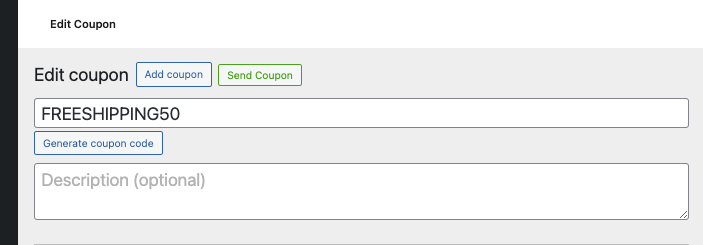
To reduce this issue in future campaigns, keep coupon codes short, clear, and easy to type.
2. The coupon has expired
If the coupon has an expiry date and that date has passed, WooCommerce will reject it. This is one of the first settings worth checking when a coupon suddenly stops working.
Open the coupon in your dashboard and review the expiry date field. If needed, update it to a future date or remove it entirely if the promotion should remain active.
If you run time-sensitive campaigns often, tools like Advanced Coupons can help with scheduling so your coupons activate and expire more predictably.
3. The coupon is not published
If a coupon works for administrators or store managers but not for customers or guests, it may not be in a published state.
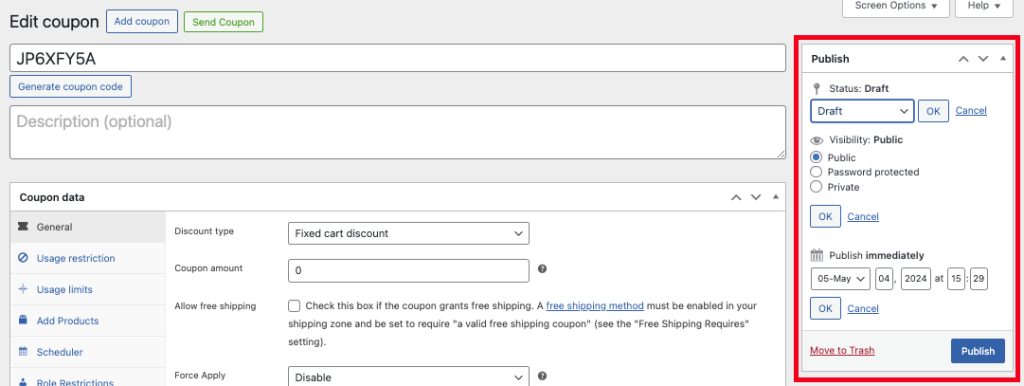
Open the coupon editing screen and check the publish box in the top-right corner. Make sure the status is set to Published so the coupon is active and available to customers.
4. Usage limits have been reached
WooCommerce lets you limit coupon usage in several ways, including total coupon uses, uses per customer, and the number of items the coupon can apply to.
Check the coupon’s usage limit settings and compare them against how the promotion is supposed to work. Then confirm whether the customer has already hit one of those limits.
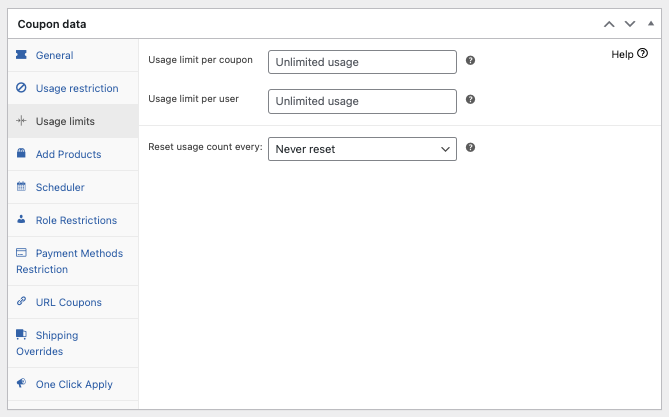
A common fix here is adjusting the overall usage cap, the per-user limit, or both so they reflect the campaign you actually want to run.
5. Minimum or maximum spend requirements are not being met
If your coupon only works above a minimum spend or below a maximum spend, the customer’s cart may not qualify.
Open the coupon settings and review the minimum and maximum spend fields. Then compare those values against the actual cart subtotal being used at checkout.
If needed, adjust the thresholds so they better reflect the promotion and the customer behavior you want to encourage.
6. Product or category restrictions are blocking the coupon
The coupon may be limited to specific products or categories, while the customer is trying to apply it to different items.
Check the allowed and excluded product/category fields in the coupon settings. Also make sure the coupon has not been copied from an earlier promotion without updating those restrictions.
If the promotion is meant to apply more broadly, expand the allowed items or remove restrictions that are no longer needed.
7. Email restrictions are filtering customers out
WooCommerce coupons can be limited to specific billing email addresses or email patterns. If the customer’s email does not match, the coupon will fail.
Review the allowed email field in the coupon settings and confirm that the billing email being entered at checkout matches the rule you set.
If the coupon is meant for a broader audience, remove the restriction or widen it so the intended customers can actually qualify.
8. The coupon is set to individual use only
If the coupon is marked as Individual use only, it cannot be combined with other coupons in the cart. That can cause it to be rejected even when the rest of the settings look correct.
Check whether another coupon is already applied and whether the individual-use setting is enabled. If stacking should be allowed, update the coupon settings accordingly.
If you need more control over how coupons can be combined, Advanced Coupons’ cart conditions can help you build more precise rules.
9. Cart conditions are not being met
If you are using Advanced Coupons or another coupon plugin, the coupon may include additional cart conditions such as quantity requirements, user roles, shipping methods, or other advanced rules.
Open the coupon and review the Cart Conditions area carefully. Every condition needs to be satisfied before the coupon can apply.
If the setup has become too restrictive, simplify the conditions and test the coupon again with a realistic cart.
10. Coupons are disabled globally in WooCommerce
WooCommerce has a global setting that enables or disables coupons sitewide. If it is turned off, no coupon will work anywhere on the store.
To check this setting:
- Go to WooCommerce > Settings.
- Open the General tab.
- Look for the setting that enables coupon codes.
- Make sure it is checked, then save your changes.

11. A plugin conflict is interfering
If the coupon settings look correct but the discount still will not apply, another plugin may be interfering with WooCommerce’s coupon logic.
A standard way to diagnose this is to temporarily deactivate all plugins except WooCommerce, then test the coupon again. If it works, reactivate the other plugins one by one until the issue returns.
Once you isolate the conflicting plugin, check for updates or contact the developer with the details of the issue.
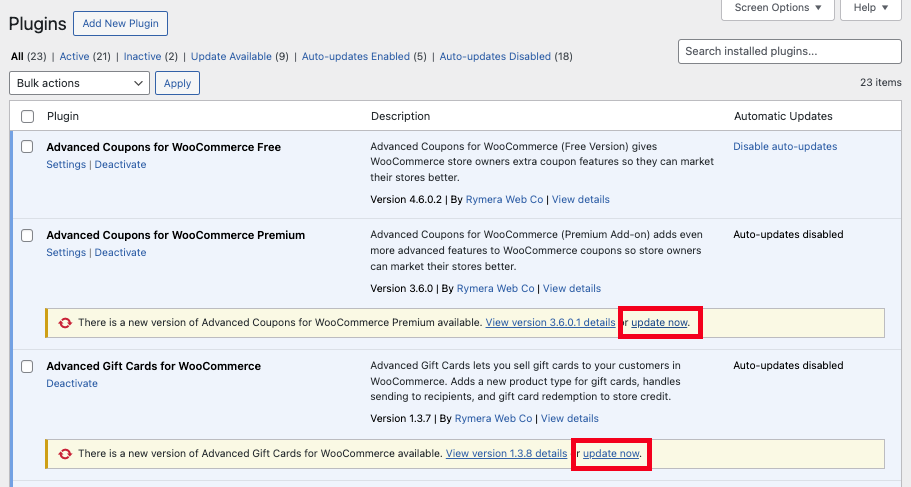
12. Your plugins or WooCommerce core are out of date
Out-of-date plugins or an outdated WooCommerce version can cause coupon behavior to break, especially after other parts of the store have already been updated.
Review your dashboard updates page and make sure WooCommerce, your coupon-related plugins, and your theme are all current. If you are several versions behind, test carefully and back up your site before applying major updates.
13. Caching is serving an outdated cart or checkout page
Caching can interfere with dynamic WooCommerce pages such as the cart, checkout, and account pages. If an outdated cached version is being served, coupon application may fail or behave inconsistently.
Test the coupon in a private/incognito window. If it works there but not in your normal browser, caching may be involved. You should also make sure your caching plugin excludes /cart/, /checkout/, and /my-account/ from caching.
After updating the exclusion rules, clear the cache and test the coupon again.
Prevent WooCommerce Coupon Issues Before They Happen
Most WooCommerce coupon issues come down to small misconfigurations that are easy to miss. The built-in coupon system works well for basic promotions, but as your campaigns become more advanced, troubleshooting can become more time-consuming.
That’s where Advanced Coupons can help. It extends WooCommerce’s native coupon features with more control over how discounts are configured, scheduled, and applied.
- Coupon scheduling: Set start and end dates more clearly for timed promotions
- Cart conditions: Add more specific rules for when coupons should apply
- Auto-apply coupons: Reduce friction by applying discounts automatically when conditions are met
- Usage controls: Get better visibility into how coupon limits and restrictions are behaving

If your store relies heavily on promotions, giving yourself better coupon controls can make troubleshooting easier and help prevent customer-facing issues before they happen.
Frequently Asked Questions
Why is my WooCommerce coupon code not applying?
The most common reasons include an expired coupon, usage limits being reached, spend requirements not being met, product or category restrictions, email restrictions, or another coupon already being active in the cart. Start by checking the coupon settings one by one.
How do I fix a plugin conflict with WooCommerce coupons?
Temporarily deactivate all plugins except WooCommerce, then test the coupon. If it works, reactivate your other plugins one at a time until the issue returns. That will help you isolate the conflict.
Can caching stop WooCommerce coupons from working?
Yes. If your cart or checkout pages are cached, customers may see outdated cart states that prevent coupons from applying correctly. Excluding WooCommerce’s dynamic pages from caching usually resolves this issue.
Can Advanced Coupons help prevent coupon issues?
It can help by giving you more control over scheduling, cart conditions, usage rules, and automatic coupon application. That can reduce the chances of misconfiguration and make complex promotions easier to manage.
Fix Your WooCommerce Coupons And Keep Customers Happy
A WooCommerce coupon not working is not just a technical problem. It can mean a lost sale and a frustrated customer. The good news is that most issues can be resolved quickly once you identify the setting or conflict causing the problem.
Here’s a quick recap of what to check first:
- Check the coupon code, expiry date, and publish status
- Review usage limits and spend requirements
- Confirm product, category, and email restrictions
- Check whether coupons are enabled globally
- Test for plugin conflicts, outdated software, and caching issues
If you want more reliable coupon controls for your WooCommerce store, explore Advanced Coupons and build smarter promotions with less troubleshooting.





What if the coupon discount appears on the cart page but is changed to $0 in the check page?
Might be that the coupon’s conditions are satisfied to be added, but there is nothing to apply it to in the cart.
There really shouldn’t be any difference between cart and checkout page though.
Nothing is working…I’m afraid to lost my website because of that. Mounts of work!!! I don’t know more what to do 😭
What’s it doing/not doing Ricardo?
The plugin has been correctly setup and is active.
However, the BOGO deal activates in the cart (cart page/widget), but as soon as the customer proceeds to checkout, it defaults to the normal prices on the checkout pages. Any known reasons for this?
Hey Marcy, just check that your checkout/cart page is not cached. If you’re still having trouble with Advanced Coupons functionality please reach out to support 🙂
Similar concern here. BOGO works until address is updated or proceeds to cart. Then it duplicates the discount.
Instead of ‘price override’ for free item of $0 it discounts the sale AND the cart. Thus providing a ‘double dip’.
Hey Jeff, can you ensure you’re on the latest versions of both the free plugin and the Premium plugin?
If it’s still happening please submit a support ticket for us here: https://advancedcouponsplugin.com/support/
Thanks!
Can’t get my coupons to publish. What could be the issue?
Any errors in your php log? Have you tried swapping to default theme and turning off other plugins other than WooCommerce?
am using woo commerce v4.8 latest but missing Marketing -> coupon menu
If you came from a lower version of WC, it will show an admin notice to move it over. If you don’t see that, go into WooCommerce->Settings and it should show. If that doesn’t work, its possible the scheduled action which moves it is stuck. You might have to go to WooCommerce->Status, Schedule Actions tab and run it manually.
Coupon code works approximately 65% of the time. 45% is too high to be someone typing incorrect code (we even added different spellings in case). My web people cannot duplicate the errors so say there they can do nothing. This means I cannot use a coupon code on my store as it creates too many emails and having to correct and send a refund to too many orders. Do you have any ideas what could be wrong. I am not at all technical but will pass it on to my webpeople.
Hi Barbara, have you considered having auto-applied coupons or coupons you apply with a click? Advanced Coupons does this and it could reduce complexity if your customers are having trouble. I’d also encourage you to use more standard naming instead of the auto-generated/scrambled coupon codes that appear when you click the generate button supplied by Woo. Often if you name them more simply and people will not have as much trouble.
Thanks!!!
Our coupon code applies a 100% discount for an event ticket but the checkout button completely disappears when the code is applied and stops the registration process for our event. Any ways around this?
Hi Randi,
Even if the cart subtotal is $0, they should still be able to checkout. This sounds like it could be something theme specific. Can you test it against one of the default WordPress themes and see what happens?
when trying to enter text in the coupon code box, cart page abruptly reloads itself! any way to solve this?
Sounds like you have some javascript reloading the page on you. Is this a custom theme? Are you using Advanced Coupons?
helped me alot.
Thank you.
I have applied the Bogof buy x get x rule, the coupon is set to apply automatically and the discount is applied in the basket and shows a 100% discount to the added product which is correct. However below that the cart totals box shows the full subtotal amount and so the discount is not actually being applied. Can anyone help with this?
Hi Joe,
Please submit a ticket and we’ll take a look at this for you:
https://advancedcouponsplugin.com/support/
Hi, I have an ongoing issue right now:
After enabling “Advanced Coupons for Woo Commerce Premium”, every time I enter a simple percentage discount code, it says that the coupon was applied, but no actual discount happens.
There are no other conflicting plugins, the product in particular is a subscription. Any help would be deeply appreciated. Thanks.
Hi Jorge, this sounds like an issue with the Auto apply and cart conditions set up. Please write in to support, we’re here to help: https://advancedcouponsplugin.com/support/