
URL coupons help customers apply discounts by clicking a link. Without the Defer apply, customers who click too early can see an invalid-coupon error when their cart does not yet meet your conditions.
Defer apply in Advanced Coupons Premium changes that flow by storing the coupon in the WooCommerce session and applying it automatically once all Cart Conditions are met.
The steps below show how to enable it, what customers see, and when to use it in real campaign scenarios.
Prerequisites
- WooCommerce is installed and active
- Advanced Coupons Premium (includes the free Advanced Coupons base plugin), version 3.3 or higher, with the URL Coupons module enabled (Coupons → Settings → Modules)
How to enable Defer apply on a URL coupon
- In the WordPress admin sidebar, go to Coupons → All Coupons and open the coupon you want to configure, or create a new one.
- Click the URL Coupons tab in the coupon data panel.
- Check the Enable Coupon URL checkbox if it isn’t already enabled.
- Check the Defer apply checkbox.
- Click Publish or Update to save.
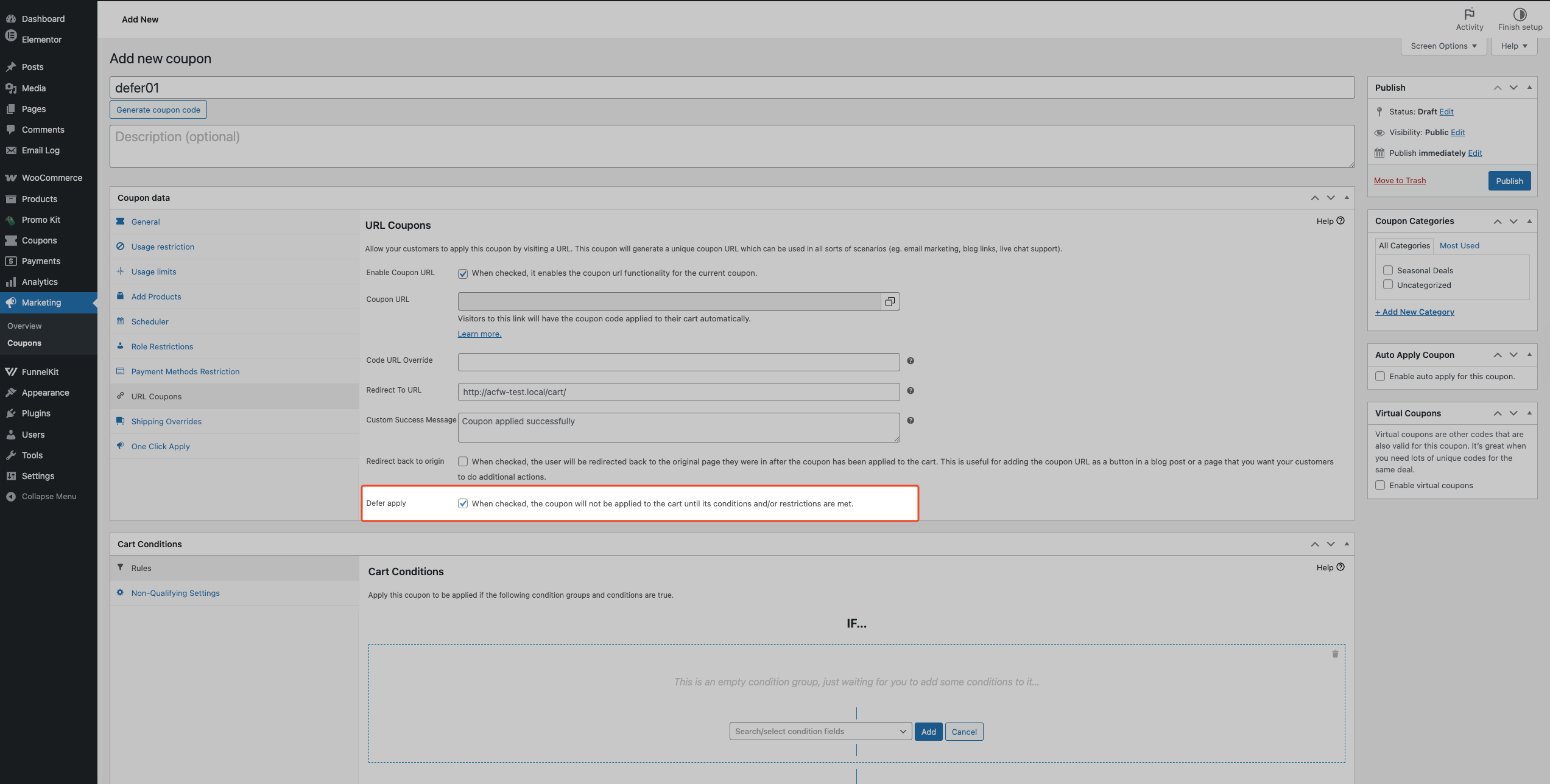
To disable Defer apply later, follow the same steps and uncheck the Defer apply checkbox.
If the coupon has no Cart Conditions (or its conditions are already satisfied when the customer clicks the URL), the coupon applies immediately on URL visit, the same as a standard URL coupon. The deferral only activates when the coupon isn’t valid at the moment of the click.
What customers see
When their cart doesn’t meet the conditions yet, the plugin redirects the customer to your store’s cart page (or whichever page you’ve configured in the Redirect To URL field on the coupon). No error message is displayed. The coupon is silently held in their session.
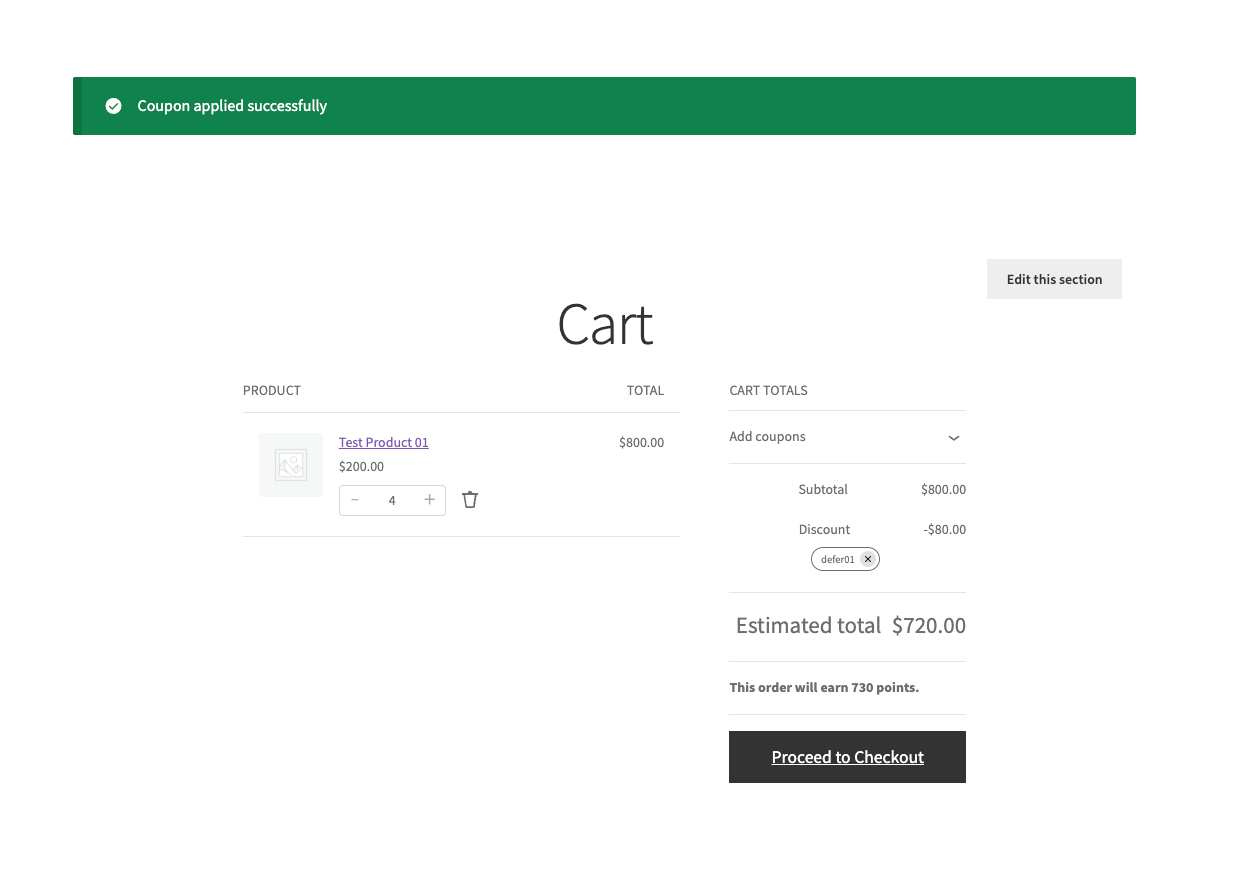
From that point, the plugin checks the cart on every total recalculation. The moment all conditions are met, for example, once the cart total reaches the required minimum, the coupon applies automatically, and the customer sees a success notice confirming the discount.
When their cart already meets the conditions, the coupon applies immediately on URL visit, exactly like a standard URL coupon.
When to use Defer apply
If you always want the discount to apply immediately when the URL is opened, use a standard URL coupon setup and leave Defer apply unchecked.
Email campaigns with a minimum spend requirement
You send a “10% off orders over your minimum amount” link to your subscribers (for example, orders over 75 in your store’s currency). If a customer clicks through before adding anything to their cart, there’s no dead-end error; the coupon waits. Once they’ve shopped and their cart reaches that minimum, the discount applies on its own.
Affiliate or partner links tied to a specific product
If the coupon only activates when a particular product is in the cart, Defer apply means an affiliate link still works even when the customer arrives without that product. The coupon sits in the background and applies as soon as the right item is added.
Social or ad campaign links where the cart state is unknown
Visitors arriving from ads often have an empty cart. With Defer apply, a promotional URL coupon works for them. They click, browse, add products, and receive the discount automatically when they qualify, without any extra steps.
Give a free product only to customers who use the coupon link
To add a free product with the Add Products feature only for customers who clicked your coupon link, set the coupon up with Add Products (the free item), a URL coupon code, and a Cart Condition for the qualifying product. Then enable Defer apply. Do not use Auto Apply.
With Defer apply, the coupon is remembered when the customer clicks the link and applies once the cart meets the condition, for example when the qualifying product is added. At that point the free product is added to the cart. Because the coupon is not auto-applied, only customers who used the link receive the free product, not everyone who happens to have the qualifying product in their cart.
Troubleshooting
The Defer apply checkbox doesn’t appear on the coupon
This option is only available when both plugins are installed, and the URL Coupons module is active. Check that:
- Advanced Coupons Premium version 3.3 or higher is installed and active.
- The URL Coupons module is enabled at Coupons → Settings → Modules.
If the URL Coupons tab itself is missing from the coupon editor, the module is likely disabled; enable it in settings, and the tab will appear.
The coupon doesn’t apply automatically after the customer meets the conditions
Check each of the following:
- Defer apply is enabled on the coupon. Open the coupon’s URL Coupons tab, and confirm the Defer apply checkbox is checked.
- The customer visited the coupon URL during this session. The deferral is stored in the WooCommerce session. If the session has expired since the customer clicked the URL, the coupon is no longer held, and they need to click the link again.
- Cart Conditions are correctly configured. Open the coupon’s Cart Conditions section and verify all conditions reflect what you intended.
- The coupon itself is valid. Confirm the coupon isn’t expired, usage-limited, or restricted to a user role that excludes the customer.
Frequently asked questions
Does Defer apply work if there are no Cart Conditions on the coupon?
No, if there are no conditions blocking the coupon, it’s already valid when the customer clicks the URL and applies immediately. The deferral only activates when the coupon fails the validity check at the moment of the URL visit.
Does the customer need to re-click the URL once they’ve qualified?
No. Once the coupon is deferred into the session, the plugin automatically applies it the next time cart totals recalculate, which happens automatically when items are added or when the customer navigates to the cart or checkout.
What happens if the deferred coupon is set for individual use and another coupon is already in the cart?
If the deferred coupon has Individual use only enabled, it won’t apply while another coupon is active. The customer needs to remove the existing coupon before the deferred one can apply. If you also use Force Apply with When applied via URL only, auto-applied coupons can be removed first, which can change what the customer needs to remove manually.
What if the session expires before the customer meets the conditions?
The deferred coupon is stored in the WooCommerce session. Once that session expires (based on your WooCommerce session configuration), the deferred coupon is no longer held. The customer needs to visit the coupon URL again to re-defer it for their new session.
Does this work with Force Apply?
Yes, with caveats. If the deferred coupon has Force Apply set to When applied via URL only, the plugin removes coupons that are configured as Auto Apply coupons from the cart once the deferred coupon becomes valid and is applied, as long as the Auto Apply module is enabled. Manually applied coupons are not removed by this path. If Force Apply is set to Enabled, it behaves differently with Defer apply: at URL click, applied coupons can be cleared before deferral, and they are not re-added later by the deferred flow. We don’t recommend pairing Enabled with Defer apply unless you want that cleared-cart behavior. See how to use Force Apply coupons in WooCommerce for more on that setting.
Need help?
If you have a question or run into any issues, we’re here to help.
- Premium users: Open a support ticket
- Free users: Visit our community forum on WordPress.org

