
If you want shoppers to earn extra loyalty points for signups, first purchases, high-spend tiers, date-bound promos, product reviews, or blog comments, configure those behaviours under Points Earning in the Advanced Loyalty Program. Each row under Actions that earn points maps to a real WordPress or WooCommerce event and records points when qualifying events occur.
For a wider context, see the Loyalty Program feature overview and the Loyalty Program getting started guide. For store-credit behaviour that can block earning, see the store credits setup guide for how credits interact with checkout.
Prerequisites
- WooCommerce is installed and configured.
- Advanced Coupons for WooCommerce (free) and Advanced Loyalty Program are both installed and active.
- An administrator account to change the Advanced Loyalty Program settings.
How to open Points Earning settings
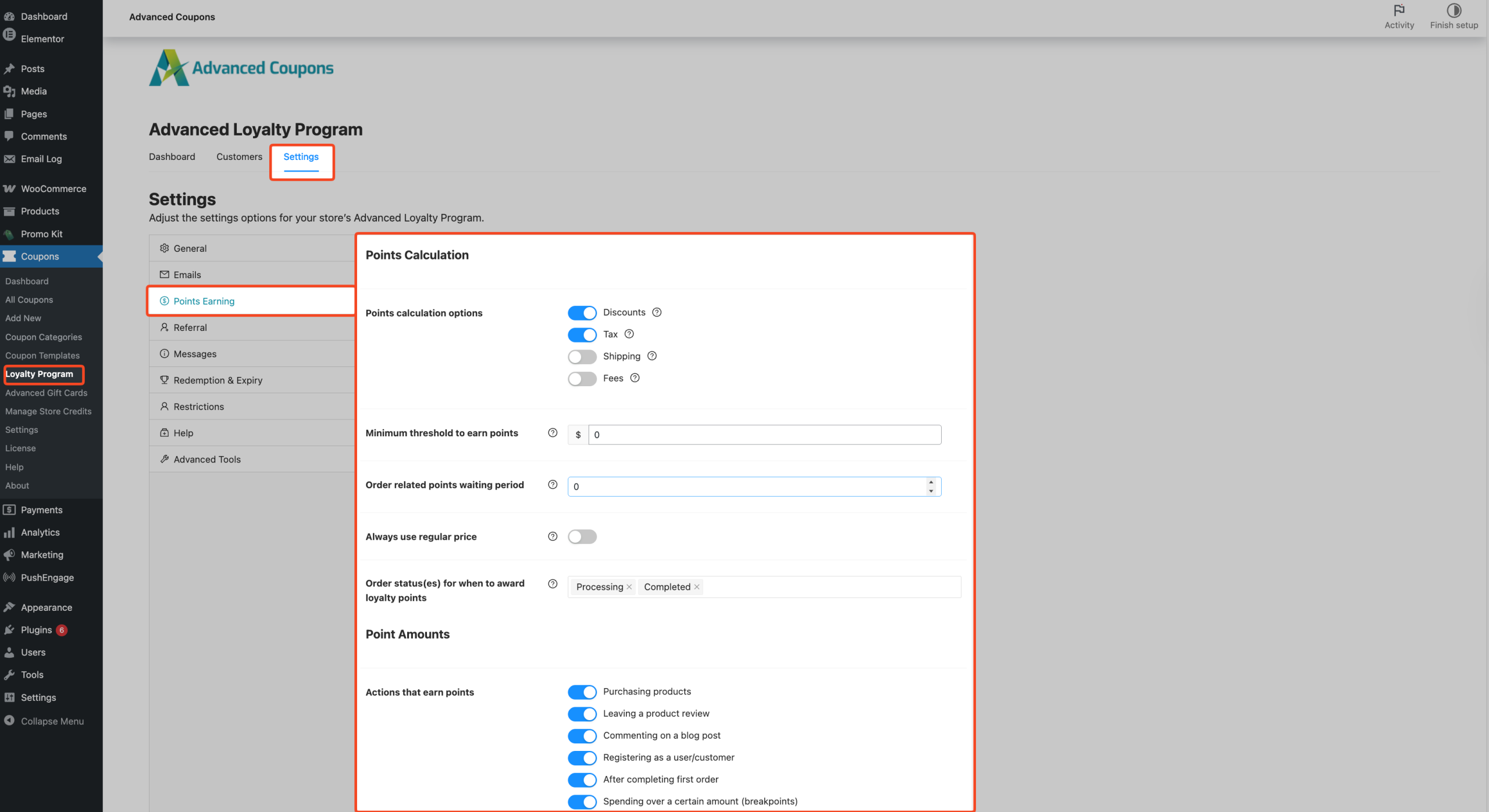
- In WordPress admin, go to Coupons → Loyalty Program.
- Open the Settings tab.
- In the settings sidebar, click Points Earning.
How to enable bonus earning actions
- Under Actions that earn points, enable the behaviours your store should use — see each section below for the exact toggle label.
- Set the related point value, Spending over a threshold (breakpoints) table, or Extra points to earn during period schedule — changes save automatically; there’s no separate Save changes bar.
Each section below documents the exact toggle label and expected behaviour for one earning action.
Registering as a user/customer (signup bonus)
Toggle label in Actions that earn points: Registering as a user/customer
Field label: Registering as a user/customer (number of points)
Awards the configured points once when a new account is created — it won’t fire again for the same account. Guests at checkout see these points added to the cart preview; customers who are already logged in don’t get this preview slice because they’ve already registered. Advanced Loyalty Program credits the points immediately when the account is created; they appear in the customer’s Points History.
After completing first order (first-order bonus)
Toggle label: After completing first order
Field label: After completing first order
Awards a fixed bonus the first time a customer completes a qualifying order — Advanced Loyalty Program checks that no prior Processing or Completed orders exist on the account. The order must be linked to a real customer account; a pure guest checkout won’t earn this bonus even if the cart preview shows it. The bonus fires when the order transitions to Processing or Completed for the first time.
Spending over a threshold (breakpoints)
Toggle label in Actions that earn points: Spending over a certain amount (breakpoints)
Field label/table: Spending over a threshold (breakpoints)
You define one or more order total thresholds and the extra points awarded when an order meets or exceeds each one. The Advanced Loyalty Program evaluates from the highest threshold to the lowest and applies the first match — each order earns one breakpoint award, not every tier below it.
The order total used follows the same Points calculation options set at the top of Points Earning.
The cart preview adds breakpoint points even when the cart is below your Minimum threshold to earn points. The actual award requires the order total to clear that threshold — so the checkout message can show more points than the customer finally receives.
Extra points to earn during period
Toggle label in Actions that earn points: Extra points during a period
Field label / scheduler: Extra points to earn during period
Configure one or more date ranges with a points amount — when an order falls inside a window, the customer receives those extra points (first matching period wins). Like breakpoints, the cart preview can show period points before the order clears your Minimum threshold to earn points; the actual award requires the threshold to be met.
Leaving a product review
Toggle label: Leaving a product review
Field label: Leaving a product review
Awards points when a logged-in customer’s product review is approved. This fires once per product per customer. These points don’t appear in the cart or checkout preview, they show up in the customer’s Points History after approval. Logged-out customers and guests cannot earn review points, the review must be tied to a logged-in WordPress account.
A customer earns review points only the first time they review a given product. There is no setting that awards points for repeat reviews of the same product. Blog comment points behave the same way, once per post per customer.
Commenting on a blog post
Toggle label in Actions that earn points: Commenting on a blog post
Field label: Commenting on a blog post
Awards points when a logged-in customer’s blog comment is approved — once per post per customer. Like product reviews, blog comment points don’t appear in the cart or checkout preview. Logged-out visitors and guests cannot earn comment points — the commenter must be a logged-in WordPress user.
What customers see at the cart and checkout
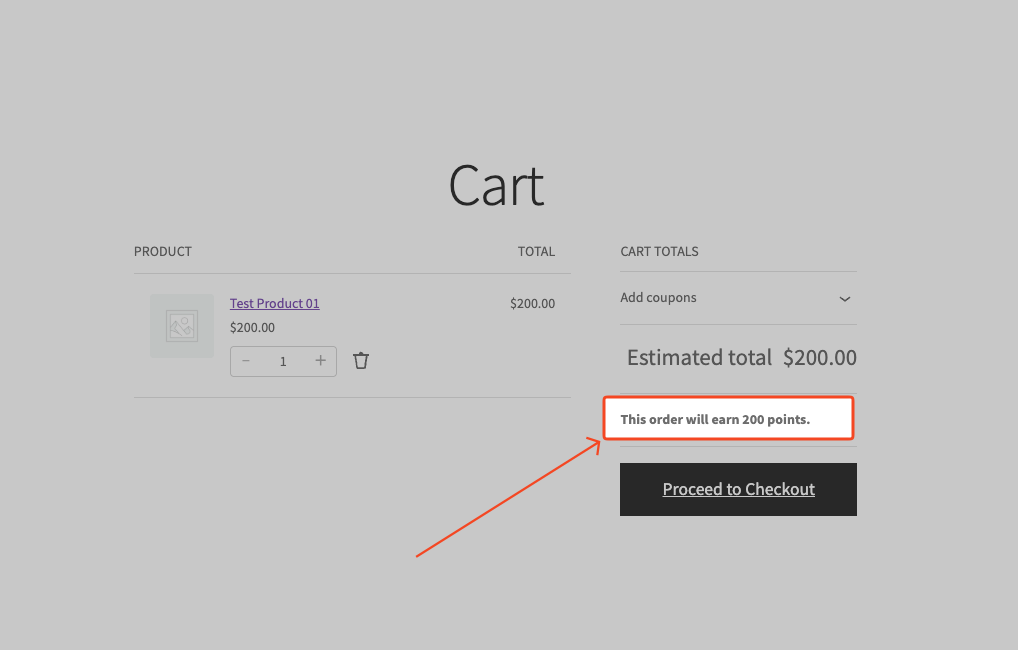
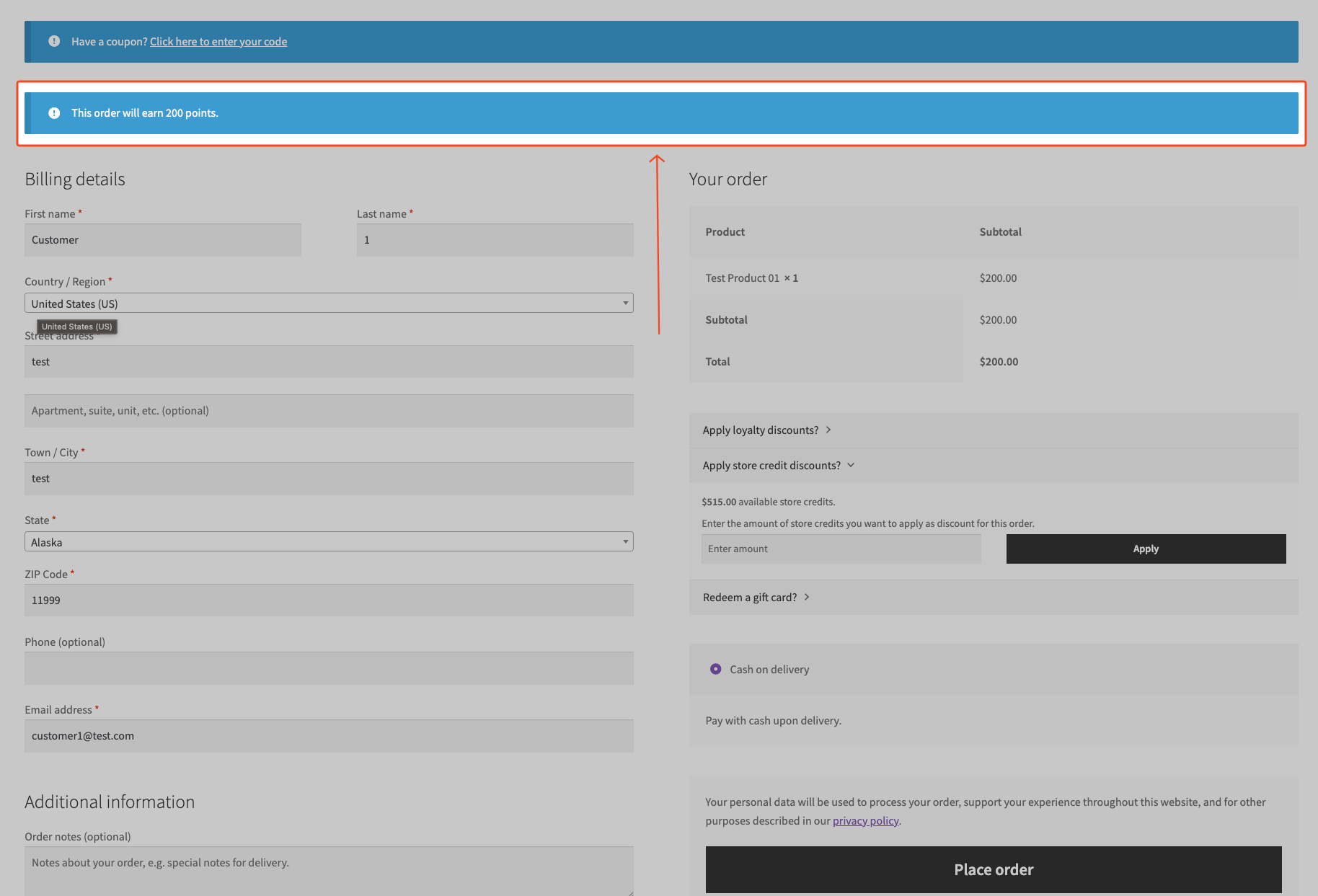
Loyalty Program shows a single earn message on the cart and checkout — the text and {points} placeholder (replaced with the total points the customer will earn on this order) are customizable in Messages (Coupons → Loyalty Program → Settings → Messages). Review and blog comment bonuses don’t appear in this number; they show in the customer’s Points History after approval.
When the cart is below your Minimum threshold to earn points, customers see your pre-threshold message instead — also customizable in Messages.
For how to enable and position these messages, see How to display loyalty points earning previews on cart and checkout.
Common use cases
- Join + first purchase story: pair Registering as a user/customer, and After completing first order — note that first-order points require a real customer account, not a guest checkout.
- Tiered spend rewards: use Spending over a certain amount to give bonus points when an order crosses a threshold.
- Time-limited campaigns: use Extra points during a period for sales weekends or launch weeks without changing your base earn rate.
- Engagement rewards: use Leaving a product review and Commenting on a blog post — pair with comment moderation so only approved content pays out.
Troubleshooting
Why didn’t the first-order bonus apply?
- Confirm the order has a customer user ID (not a pure guest checkout).
- Confirm the customer had no prior Processing or Completed orders on this account.
- Confirm your role restrictions still allow this customer to earn.
- Confirm After completing first order is enabled under Actions that earn points.
Why didn’t a review or blog comment earn points?
In your WordPress admin, open Comments and confirm the comment is approved and the commenter is a logged-in user. Blog comments fire once per post per customer. Product reviews also fire once per product per customer. If moderation is enabled, points wait until you approve the comment or review.
Why didn’t the customer earn points when a coupon was used, or store credits were applied?
Open Coupons → Loyalty Program → Settings → General and check whether Disallow earning points when a store credit discount is applied on cart is enabled—if so, the Advanced Loyalty Program awards no loyalty points on orders where a store credit discount was applied, including the order-based bonus actions listed on this page. Enabling this same checkbox also blocks points when the customer applies a loyalty redemption coupon to the order — a single setting controls both scenarios.
Frequently asked questions
Why don’t review or blog comment bonuses show up in the “This order will earn … points” message at checkout?
That message covers points from the cart plus the order-based bonuses: breakpoints, period bonuses, the signup bonus and the first-order bonus. Review and blog comment bonuses are awarded as separate events — they appear in the customer’s Points History as soon as the review or comment is approved, not when they place a later order.
Can a customer earn both a high-spend breakpoint and extra points during a period on the same order?
Yes — both apply independently when each is enabled, and conditions pass.
Where do I turn on emails when customers earn points?
Open the Emails section in the Advanced Loyalty Program settings sidebar, then configure the toggles under Point earning actions email notifications for each action you want WooCommerce to email on.
Why does the checkout preview show more points than the customer actually received?
The cart preview includes breakpoint and date-range period bonus points without applying your Minimum threshold to earn points check — the actual order award does require the threshold to be met. If the order total was below the threshold, those bonuses won’t pay out even though the preview counted them.
Need help?
If you have a question or run into any issues, we’re here to help.
- Premium users: Open a support ticket
- Free users: Visit our community forum on WordPress.org

