

Exciting news! Advanced Coupons now lets you build a WooCommerce tiered cart discount inside a single coupon. You can set spend thresholds like $10 off at $50, $25 off at $150, and $30 off at $250. When a shopper applies the code, the cart automatically uses the highest tier their subtotal reaches.
As the cart reaches higher thresholds, the coupon moves to the matching discount automatically. Shoppers can also see which tier has been applied in the cart, while carts below the first threshold get a message showing how much more they need to spend to qualify.
You can set up the full discount ladder from a single coupon screen. Below, we’ll walk through the setup, show what shoppers see in the cart, and share a few practical ways to use spend tiers in your store.
How Tiered Cart Discount Coupons Work
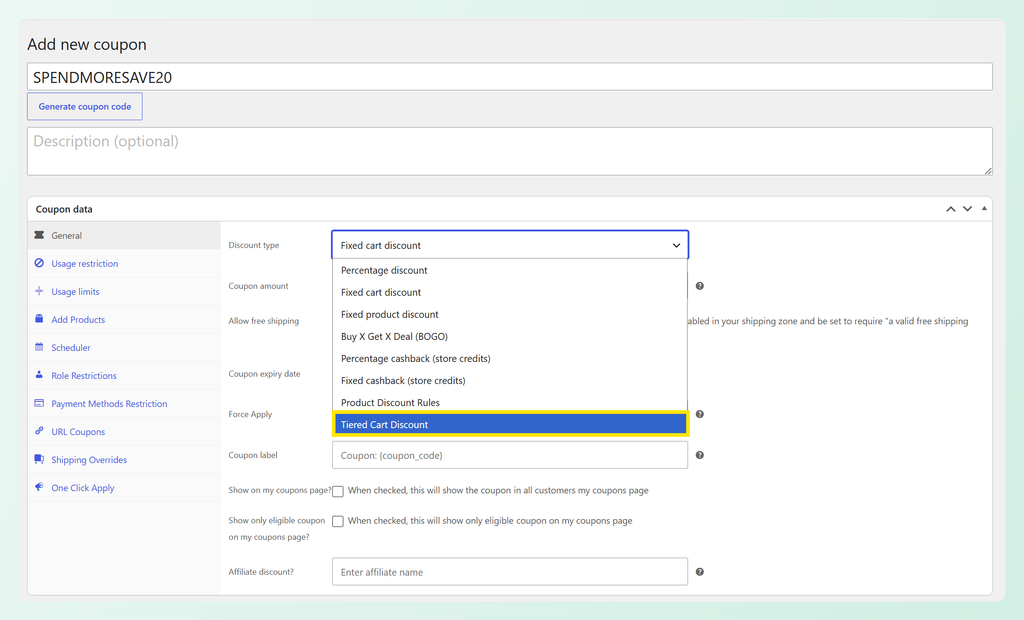
Tiered Cart Discount is a new discount type in Advanced Coupons, sitting in the same dropdown as Percentage discount, Fixed cart discount and Buy X Get X Deal (BOGO). Pick it, and the coupon gains a Spend tiers panel where you list your thresholds.
A few things to know before you start:
- One coupon holds the whole ladder. Each row in the panel pairs a spend threshold with a discount, so a single code can cover multiple spend levels.
- The cart takes the highest tier it reaches, and only that one. Tiers never stack, so shoppers always see one discount line rather than several added together.
- The discount type is set once for the coupon. You choose a fixed amount or percentage for the whole ladder, not per row.
- It measures the cart, not individual products. This is a cart-level discount, so the tier comes from your shopper’s items subtotal.
The Tiered Cart Discount coupon type is available in Advanced Coupons Premium.
How To Set Up A Tiered Cart Discount Coupon
You’ll need Advanced Coupons Premium installed and updated to use this feature. If you haven’t done so already, you can get Advanced Coupons Premium.
Step 1: Choose the Tiered Cart Discount type
Head to WordPress dashboard > Marketing > Coupons and create a coupon, or open an existing one. In the Coupon data box, open the General tab and set Discount type to Tiered Cart Discount.
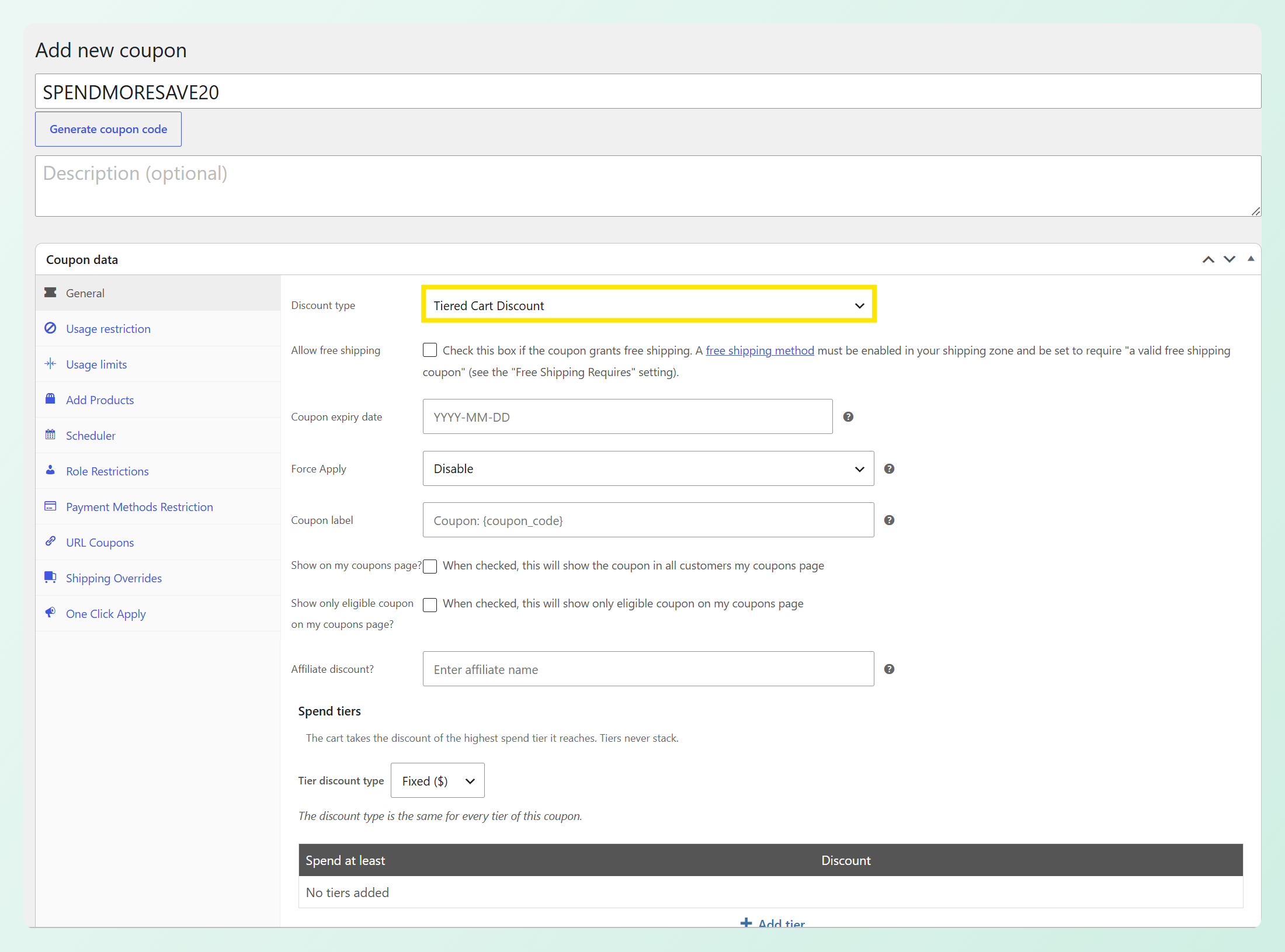
The usual Coupon amount field disappears when you choose this type. Instead, you enter the discount value separately for each spend tier.
Step 2: Pick fixed or percentage
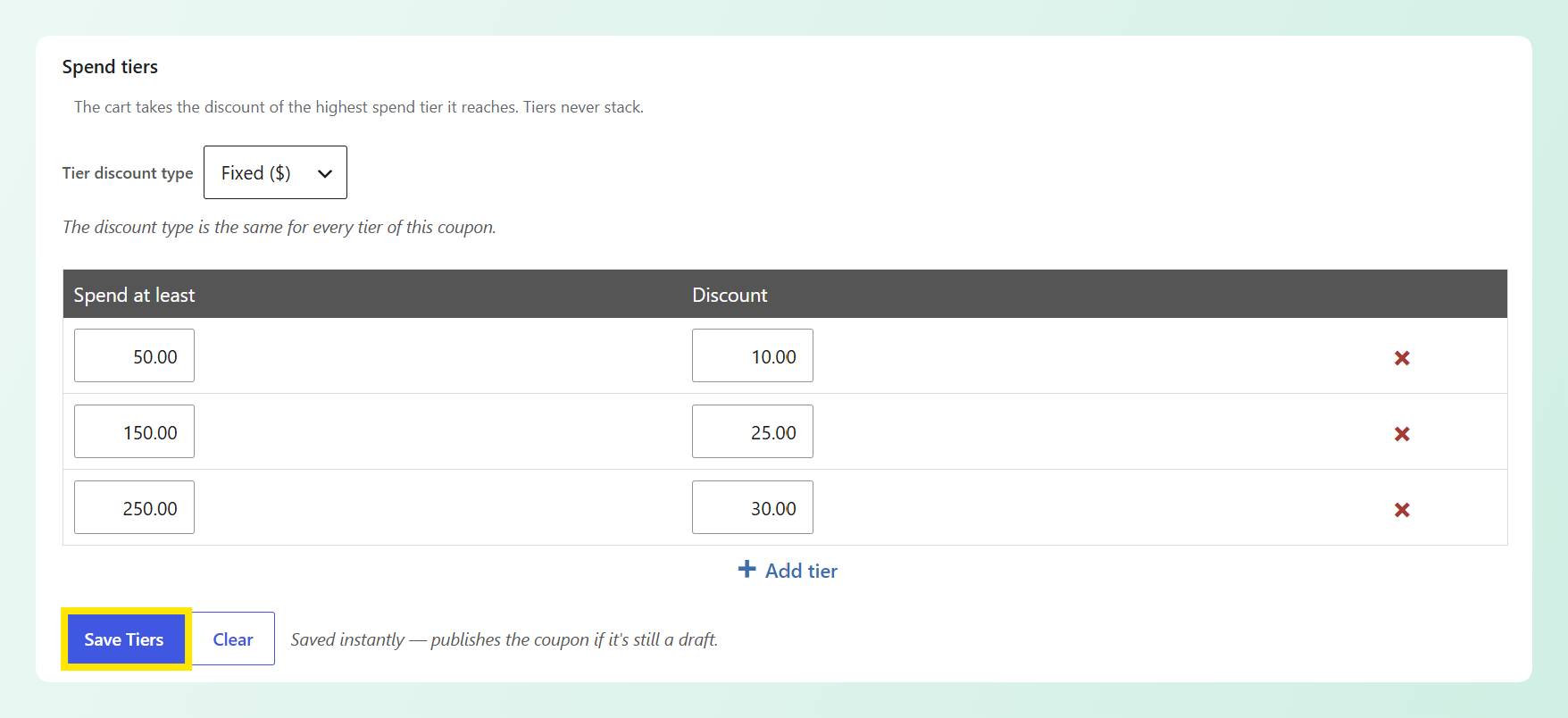
Choosing the type opens the Spend tiers panel. At the top, set Tier discount type to either Fixed ($) or Percent (%). As the panel notes, the discount type is the same for every tier of this coupon.
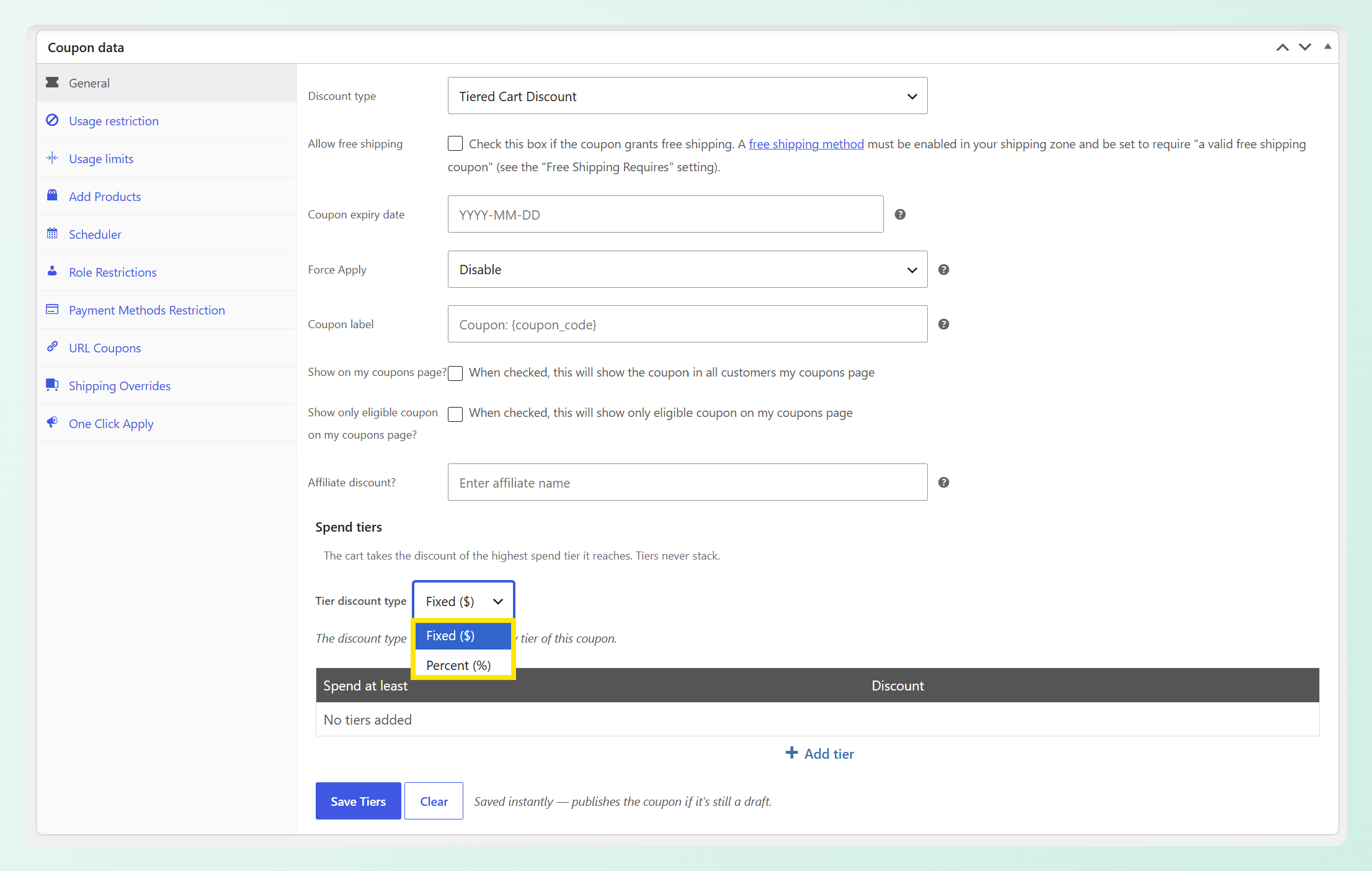
For our example, we’ll create a fixed tiered coupon so each spend level gives a set dollar discount.
Step 3: Add your spend tiers
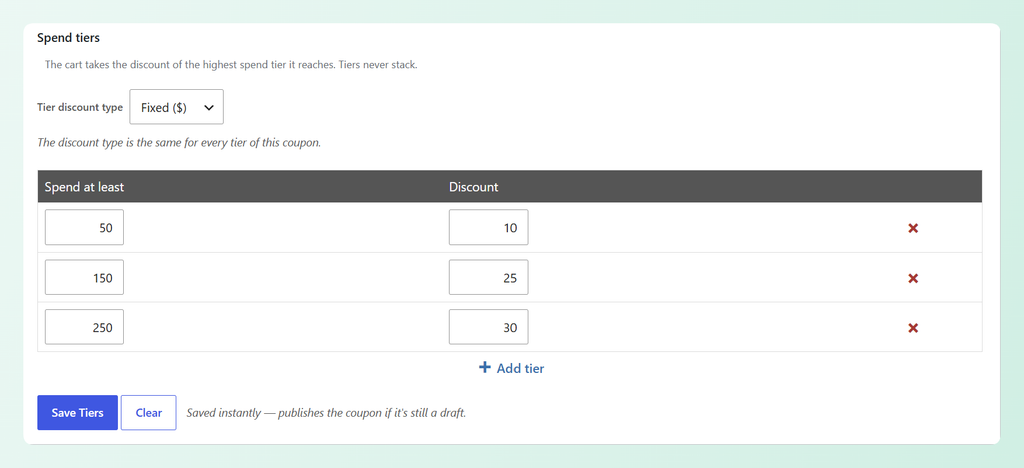
Click Add tier and fill in the two columns: Spend at least for the threshold, and Discount for what the shopper gets there. Add one row per level.
In the example below, the coupon gives $10 off at $50, $25 off at $150, and $30 off at $250. You don’t need to enter the rows in order, because they sort themselves when you save.
Step 4: Save your tiers
Click Save Tiers below the table. This button is separate from the coupon’s own Publish or Update button, and it stores the ladder straight away. The note beside the button also states that saving tiers publishes the coupon if it’s still a draft.
There is a Clear button beside it that removes every tier from the coupon, with a confirmation prompt first.
Power tip: Test the coupon at a few different cart values before you start promoting it so you can confirm that the correct tier appears in the cart totals each time.
What Shoppers See In The Cart
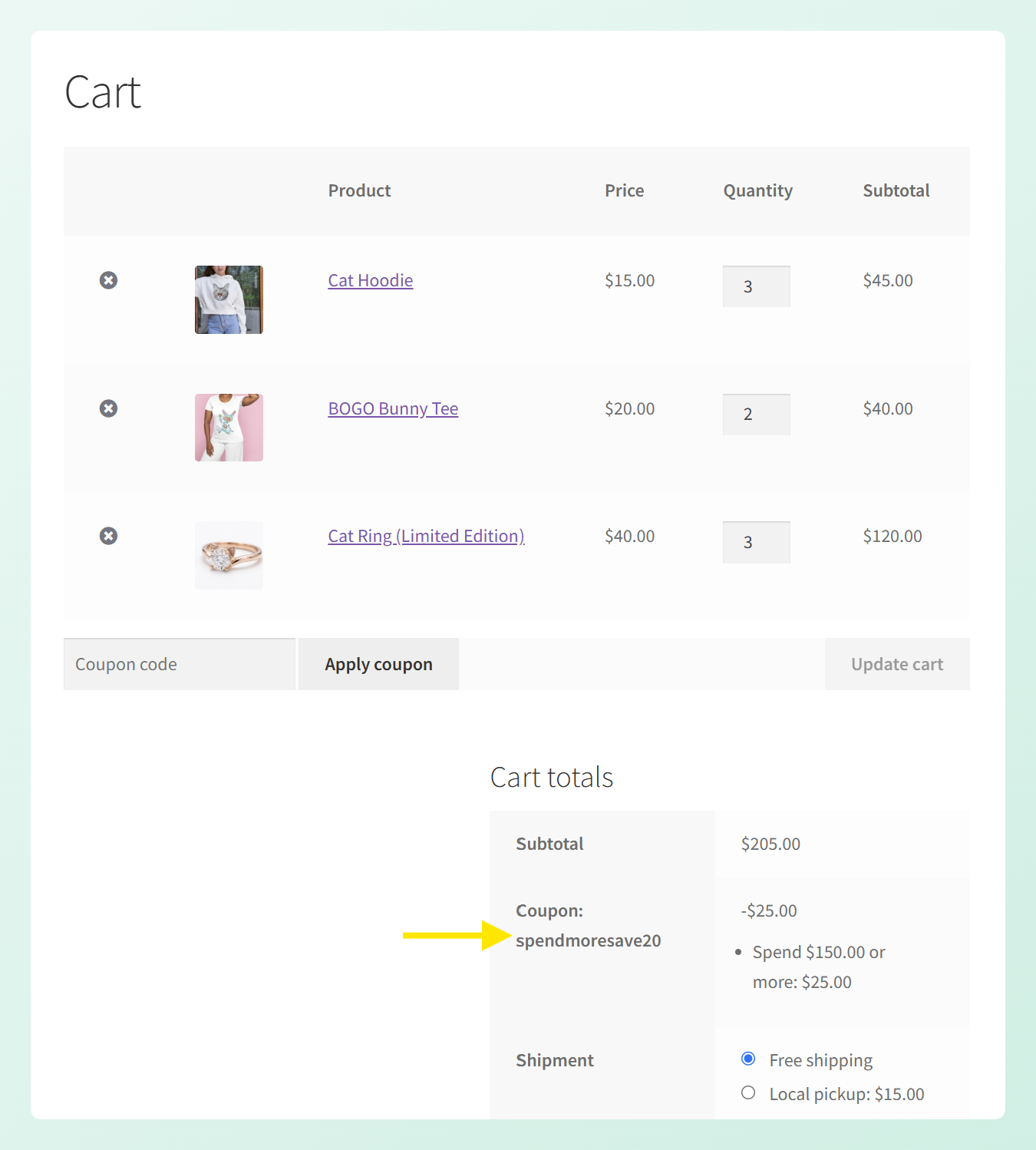
When a shopper applies your coupon code, the cart shows which tier they reached in the totals. With the ladder above, a cart subtotal of $205 displays the coupon row plus “Spend $150.00 or more: $25.00,” making it clear which discount is currently applied.
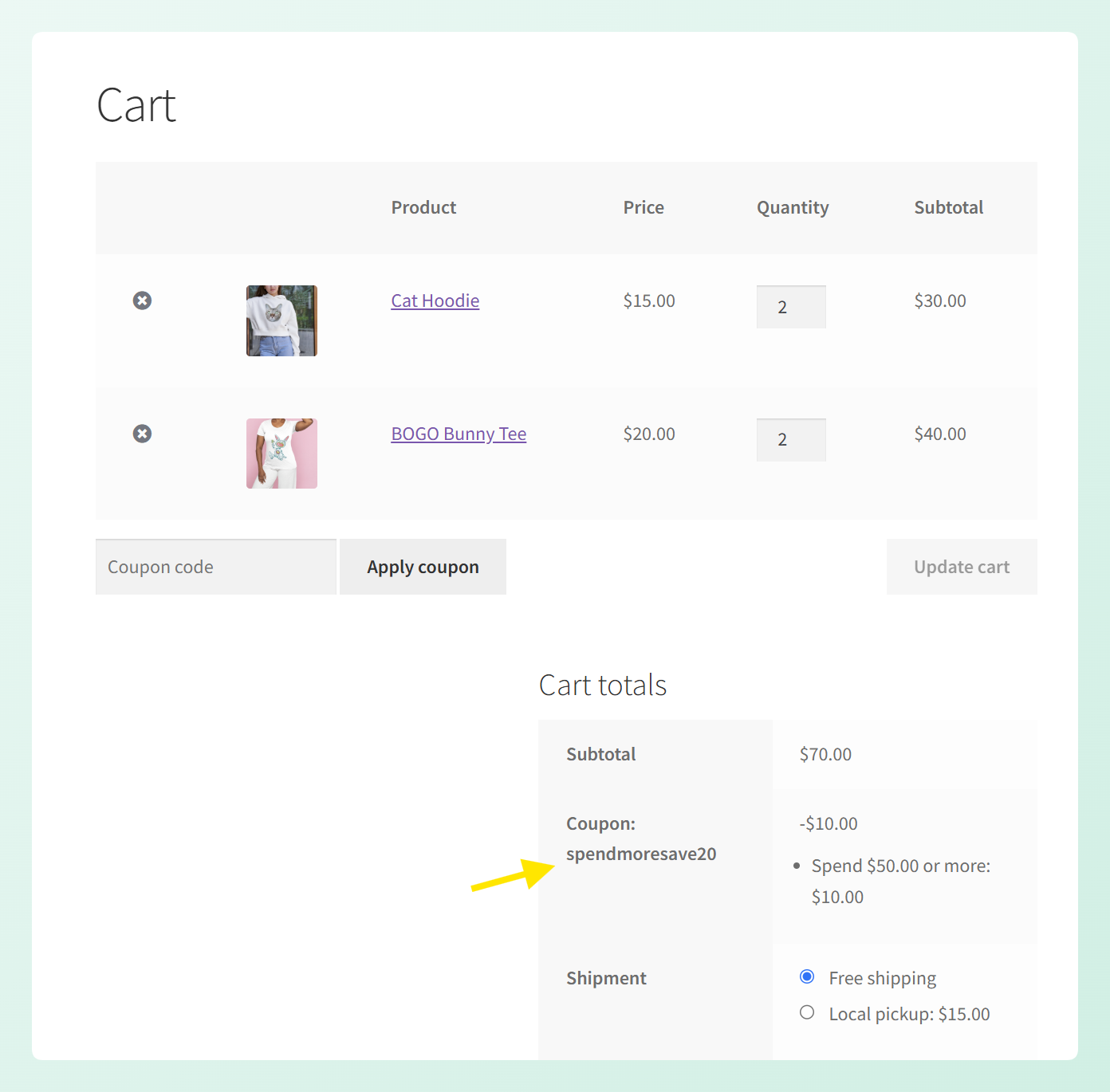
If the cart subtotal is $70 instead, the coupon applies the first tier and the totals show “Spend $50.00 or more: $10.00.” As shoppers move between thresholds, the coupon updates to the highest tier they currently qualify for.
How the discount spreads across the cart depends on the type you chose. A percentage tier distributes automatically. A fixed tier is shared across the eligible lines in proportion to what each line is worth.
When the cart hasn’t reached your lowest tier
Applying the code below the first threshold tells the shopper exactly how far off they are. A $40 cart against a $50 entry tier returns “Spend $10.00 more to use this coupon,” so they know exactly what they need to add to qualify.
When the cart drops back below the entry tier
If a shopper removes items after applying the coupon and the subtotal falls under your lowest threshold, WooCommerce revalidates the cart and removes the coupon, with a notice explaining that it is no longer valid. This keeps the discount from staying applied once the cart no longer qualifies.
Five Ways To Use Tiered Cart Discount Coupons In Your Store
1. Run a classic spend ladder
Three fixed steps, like $10 off $50, $25 off $150 and $30 off $250, let the reward increase as the cart reaches higher spend levels. Instead of using one fixed threshold, the same coupon can move from one discount amount to the next as the subtotal grows.
2. Scale the reward with a percentage ladder
Switch the tier discount type to Percent and the reward grows with the basket, say 10% from $100 and 20% from $300. This suits stores with a wide price range, because a flat amount that feels generous on a small order can be thin on a large one, and a percentage keeps the offer proportionate either way.
3. Apply the discount to full-price items only
Turn on Exclude sale items in the Usage restriction tab when you want sale products to count toward the spend threshold without receiving the tier discount. They can still help the shopper qualify, while the discount applies only to eligible full-price items.
4. Set a maximum spend limit
The Maximum spend field still works with this coupon type, so you can set an upper limit for the promotion. For example, if your tiers start at $100 and Maximum spend is set to $500, carts above $500 will no longer qualify for the coupon.
5. Offer the ladder to one group only
Pair the tiers with Allowed emails to limit the coupon to the addresses you list. That lets you use the same spend ladder for a VIP or win-back offer without changing the tier setup itself.
Managing Your Tiered Coupon
A few built-in checks make your spend tiers easier to manage as you edit them:
- Rows sort themselves. Enter $300, then $100, then $200, and they come back in ascending order after saving. You can add a level to an existing ladder without rebuilding it.
- Invalid tiers are caught. Repeat a threshold, leave a value blank, or enter zero and the invalid row is discarded. The panel also lets you know what needs attention.
- Percentages above 100 are capped. Enter 150 on a percentage ladder and it saves as 100.
Settings that change with Tiered Cart Discounts
Some standard coupon settings are hidden when you choose Tiered Cart Discount because the spend tiers handle those parts of the offer differently.
- Minimum spend is hidden because your lowest spend tier already sets the amount a shopper needs to reach before the coupon applies.
- Limit usage to X items is hidden for this cart-level discount type.
- Products and Product categories are hidden because Tiered Cart Discount evaluates cart spend rather than using those fields to define which products qualify.
What still works as usual
Maximum spend, Individual use only, Exclude sale items, Exclude products, Exclude categories, Allowed emails and both usage limits all remain available. If you use Exclude sale items, those sale items still count toward the spend threshold, but they do not receive a share of the tier discount.
Frequently Asked Questions
Do the tiers in a Tiered Cart Discount coupon stack?
No. The coupon applies only the highest tier the cart reaches. For example, a $205 cart on a $50/$150/$250 ladder gets the $150 tier’s $25 discount, without adding the lower tier on top.
Does a tiered cart discount use the subtotal before or after other coupons?
Before. The tier is based on the items subtotal before other coupon discounts are deducted. So if a $205 cart already has a separate $60 coupon applied, it still reads as $205 for the tier calculation and reaches the $150 tier.
Can I set a different discount type for each tier?
No. The Tier discount type is set once for the whole coupon, so every row uses either a fixed amount or a percentage. You can’t mix fixed and percentage rewards within the same tiered coupon.
What happens if a customer’s cart drops below the tier they qualified for?
The discount moves down to whichever tier the new subtotal reaches. With the ladder used above, dropping from a $205 subtotal to $70 changes the discount from $25 to $10. If the cart falls under the $50 entry tier entirely, WooCommerce removes the coupon and shows a notice saying so.
Do sale items count toward the spend threshold?
Yes, even when you switch on Exclude sale items. That setting controls which lines can receive the discount, not which lines count toward the tier. A cart of $40 full-price and $80 sale items reaches the $50 tier on the combined $120, and the discount then lands entirely on the full-price line.
Is the Tiered Cart Discount coupon type available in the free version of Advanced Coupons?
No, it comes with Advanced Coupons Premium. The free plugin covers BOGO deals, cart conditions, URL coupons and store credit, while Tiered Cart Discount arrives with the premium version alongside the rest of the premium discount types.
Wrapping Up
With Tiered Cart Discount, one coupon can reward higher cart values with progressively larger discounts. The cart automatically applies the highest tier the shopper reaches, while you manage the full offer from one coupon setup.
If you’re setting up your first tiered coupon, these sections can help:
- Build your first tiered coupon and set the ladder in four steps.
- See how the coupon appears in the cart at different spend levels.
- Pick a ladder that fits your catalog, whether that is fixed amounts, percentages or an offer that excludes sale items from the discount.
- Review the available coupon settings before you launch the offer.
Ready to build your first WooCommerce tiered cart discount? Get Advanced Coupons Premium and set your spend tiers today.