
To create a WooCommerce discount code, go to Marketing > Coupons > Add Coupon in your WordPress dashboard. Enter a coupon code name, choose your discount type (percentage, fixed cart, or fixed product), set the discount amount, configure any usage restrictions, and hit Publish. That gives you a basic coupon — but if you need BOGO deals, auto-apply logic, cart conditions, or scheduled coupons, you will need a plugin like Advanced Coupons to extend what WooCommerce can do out of the box.
In this guide, we’ll walk through practical ways to create and extend WooCommerce discount codes — from basic built-in coupons to more advanced promotional strategies you can run with Advanced Coupons.
What Is A WooCommerce Discount Code?
A WooCommerce discount code (also called a WooCommerce coupon code) is an alphanumeric string that customers enter at checkout to receive a discount on their order. WooCommerce includes a built-in coupon system that supports three basic discount types:
- Percentage discount — Takes a percentage off the entire cart
- Fixed cart discount — Removes a flat dollar amount from the cart total
- Fixed product discount — Applies a flat discount to specific products only
These native coupons cover basic use cases. However, many store owners eventually need more control — things like BOGO deals, auto-applied coupons, scheduled promotions, or coupons restricted to specific customer roles.
#1. Utilize WooCommerce’s basic coupon features.
Out of the box, WooCommerce allows you to create three types of coupons:
- fixed-cart,
- product-specific,
- and percentage-based.
These options provide flexibility in determining the discount structure for your customers.
To create a coupon in WooCommerce, navigate to the Marketing > Coupons tab. Then, click on “Add New” to generate a unique coupon code and configure its settings:
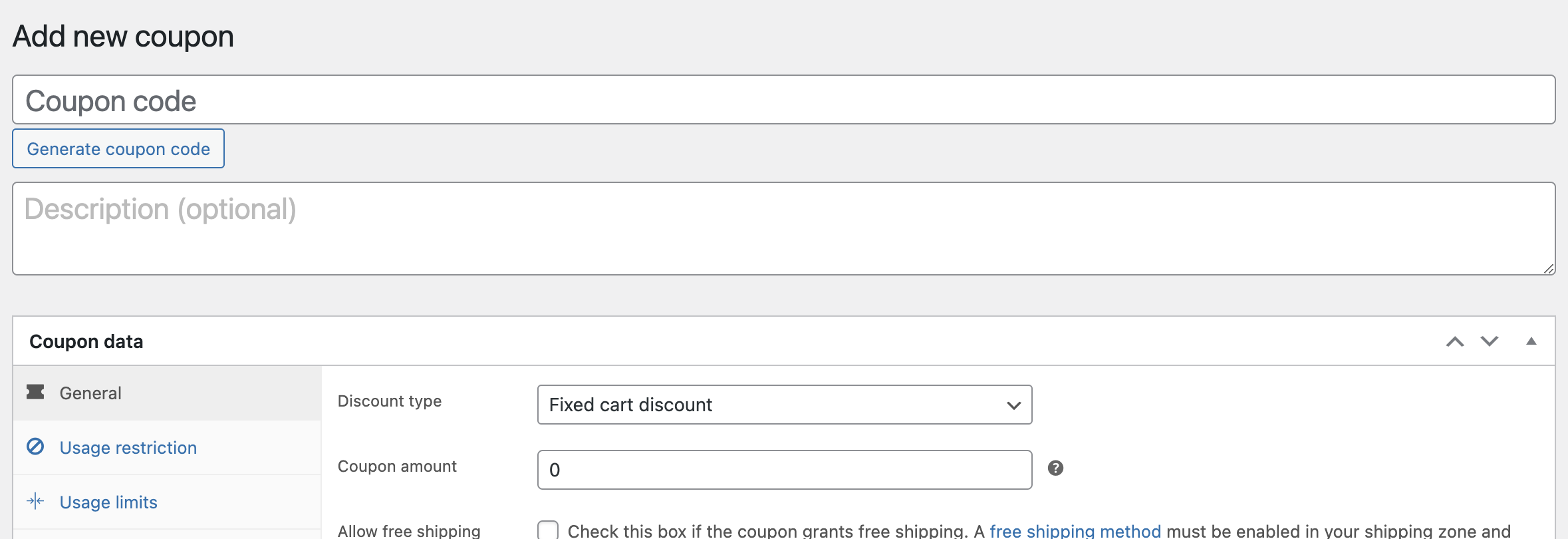
As you can see, WooCommerce provides several options to customize your coupons.
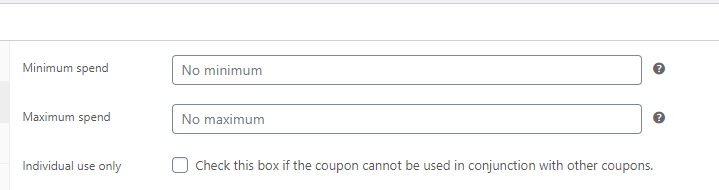
You can, for instance, restrict the application of coupons to specific products or exclude certain items from coupon eligibility. Additionally, you can set minimum and maximum values for coupon usage, preventing discounts that exceed a product’s price:
To avoid excessive coupon usage, you can also enable a setting that limits coupon use to one per order:
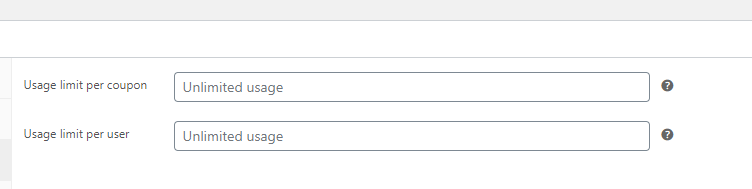
Individual coupons can also have usage limits, either overall or on a per-customer basis. These features give you flexibility in managing your discount codes effectively.
#2. Create a free shipping discount.
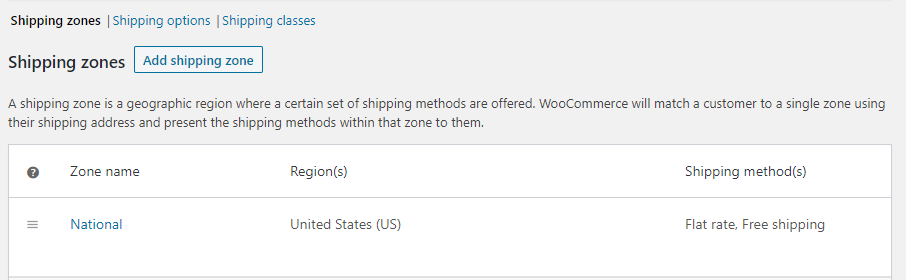
You can create a free shipping coupon in WooCommerce, as long as your shipping zone has a Free shipping method configured to work with a valid coupon. This is a useful way to offer extra value without discounting product prices directly.
To create one, go to Coupons > Add New and activate the Allow free shipping option under Coupon data > General:
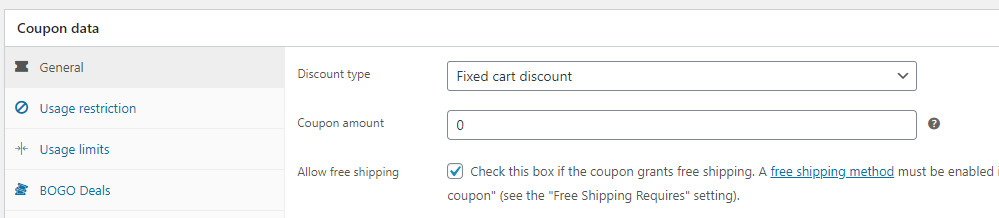
Then go to WooCommerce > Settings > Shipping, edit the relevant shipping zone, and make sure the Free shipping method is available and configured to require a valid free shipping coupon. Once that’s in place, customers can apply the coupon and unlock free shipping in the eligible zone:
#3. Provide coupons for newly registered users.
To entice new customers to make their first purchase, offering a one-off discount coupon can be highly effective. WooCommerce allows you to create coupons that only work once for each customer.
This option can be found under Coupon data > Usage limits by setting the “Usage limit per user” to one:
Additionally, Advanced Coupons takes this feature a step further by introducing cart conditions. With cart conditions, you gain more control over coupon usage.
For example, you can set a condition such as “Within Hours After Customer Registered” and specify a time limit during which the coupon remains valid:
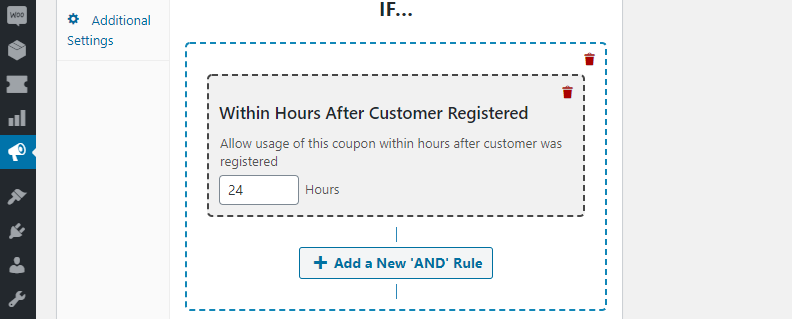
This approach encourages new customers to take advantage of the discount before it expires.
#4. Set up coupons for specific WooCommerce user roles.
If you want to offer exclusive discounts to specific user roles, Advanced Coupons enables you to create coupons that work only for those roles.
For example, if you have wholesale customers, you can create coupons exclusively for them.
To utilize this feature, navigate to the Coupon data > Role Restrictions tab and enable the “Enable role restrictions” option:
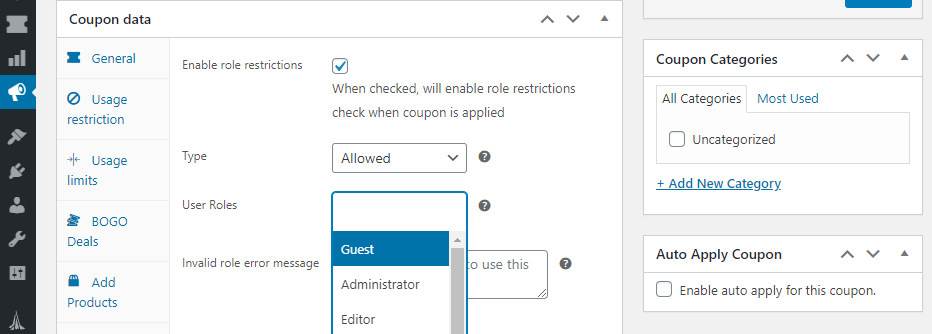
By default, you can see the default user roles available in WordPress and WooCommerce. If you need to set up a custom role for wholesale buyers, you can use the WooCommerce Wholesale Prices plugin:
Alternatively, you can leverage cart conditions to apply advanced role restrictions, depending on your preferences. By combining the features discussed so far, you can create a wide range of coupons tailored to suit your specific needs.
With WooCommerce and the Advanced Coupons plugin, you can offer:
- fixed-cart, product-specific, or percentage-based discounts,
- as well as more advanced options like free shipping, self-applying coupons, and coupons for specific user roles.
#5. Offer auto-applied coupons in WooCommerce.
And finally, self-applied coupons.
Using coupons in WooCommerce has a downside: customers have to remember to use them at checkout. So, to solve this problem, Advanced Coupons has a helpful auto-apply feature.
This feature automatically adds the coupon to the customer’s order without them having to do anything:
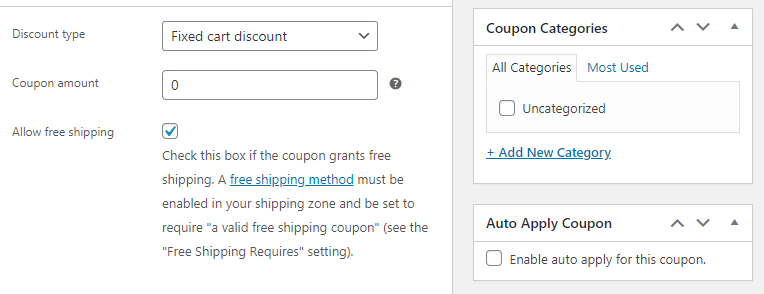
To turn on auto-apply for a coupon, go to its settings and find the “Auto Apply Coupon” option.
Although this feature makes things easier for customers, it’s important to set restrictions and limits to avoid unintended coupon use. Without proper restrictions, a coupon could automatically apply to any purchase in your store, which might affect your profitability.
Bonus: Create BOGO discount codes in WooCommerce
If you want to run buy one get one offers, native WooCommerce will not be enough on its own. With Advanced Coupons, you can create Buy X Get X and Buy X Get Y promotions, including free product rewards and percentage-based discount offers.
For a deeper walkthrough, read our WooCommerce BOGO coupon guide.
Native WooCommerce Coupons vs. Advanced Coupons: What You Get
Understanding what WooCommerce gives you out of the box versus what requires a plugin helps you decide when to upgrade.
| Feature | Native WooCommerce | Advanced Coupons (Free) | Advanced Coupons Premium |
|---|---|---|---|
| Percentage, fixed cart, and fixed product discounts | Yes | Yes | Yes |
| Usage restrictions and usage limits | Yes | Yes | Yes |
| BOGO deals | No | Yes | Yes |
| Cart conditions | No | Yes | Yes |
| URL coupons | No | Yes | Yes |
| Role restrictions | No | Yes | Yes |
| Store credit | No | Yes | Yes |
Looking for the best coupon code plugin for WooCommerce? Read our roundup of the best WooCommerce coupon plugins to consider.
Conclusion
There are several ways to create a WooCommerce discount code, from simple built-in coupons to more advanced offers like free shipping, welcome discounts, role-based restrictions, auto-applied coupons, and BOGO deals. Start with WooCommerce’s native coupon settings, then extend your setup with Advanced Coupons when you need more control.
If you’re ready to build smarter coupon campaigns, try Advanced Coupons or upgrade to Premium for features like BOGO deals, URL coupons, cart conditions, and auto-apply logic.
Frequently Asked Questions
How do I create a discount code in WooCommerce?
Go to Marketing > Coupons > Add Coupon in your WordPress dashboard. Enter a coupon code, choose a discount type, set the amount, configure any usage restrictions, and click Publish.
Can I create BOGO coupons in WooCommerce?
WooCommerce does not support BOGO deals natively. You need a plugin like Advanced Coupons Premium to create Buy X Get X or Buy X Get Y offers.
How do I auto-apply a coupon in WooCommerce?
Native WooCommerce does not support auto-applying coupons. With Advanced Coupons Premium, you can enable auto-apply so the coupon activates automatically when cart conditions are met.
Can I restrict a WooCommerce coupon to specific user roles?
WooCommerce’s built-in coupon system does not include role-based restrictions. Advanced Coupons Premium adds role restrictions so you can limit coupons to specific customer groups.
How do I create a URL coupon in WooCommerce?
URL coupons are not a native WooCommerce feature. Advanced Coupons Premium generates a unique link for each coupon so customers can apply it with one click.
What is the difference between a fixed cart discount and a fixed product discount?
A fixed cart discount subtracts a flat amount from the total cart. A fixed product discount subtracts a flat amount from each qualifying product.
How many coupons can I create in WooCommerce?
WooCommerce does not impose a hard limit on the number of coupons you can create, though managing many coupons manually can become difficult over time.
Is Advanced Coupons free?
Advanced Coupons offers a free version that extends WooCommerce’s default coupon capabilities. Premium plans are available if you need advanced features like auto-apply coupons and advanced scheduling.