

Store credits are a great way to reward customers, encourage repeat purchases, and support more flexible refund and return options. But to keep your rewards system sustainable, it’s important to have the right controls in place. That’s exactly why our latest update in Advanced Coupons introduces a minimum redemption amount for store credits.
With this new setting, you can decide the minimum amount of store credit customers are allowed to redeem per order. It’s a simple addition, but it gives you more control over how store credits are used in your WooCommerce store. On top of that, this update also includes a few other improvements worth knowing about.
Exciting, right? Let’s take a closer look at what’s new.
What Is A Minimum Redemption Amount For Store Credits?
Setting a minimum redemption amount for store credits lets you define the lowest value of store credits shoppers can redeem when placing an order.
For example, if you set the minimum to $10, customers must use at least $10 worth of store credits when applying them at checkout. This update gives you more control over how store credits are used in your WooCommerce store.
This new feature can be especially useful if you want to:
- Set clearer rules around how store credits can be redeemed
- Prevent very small credit redemptions at checkout
- Encourage more meaningful use of store credits
- Make your rewards system feel more intentional and easier to manage
How To Set A Store Credit Minimum Redemption Amount
Now, let’s walk through where you can find this setting. First, make sure that you have installed and activated Advanced Coupons Premium.
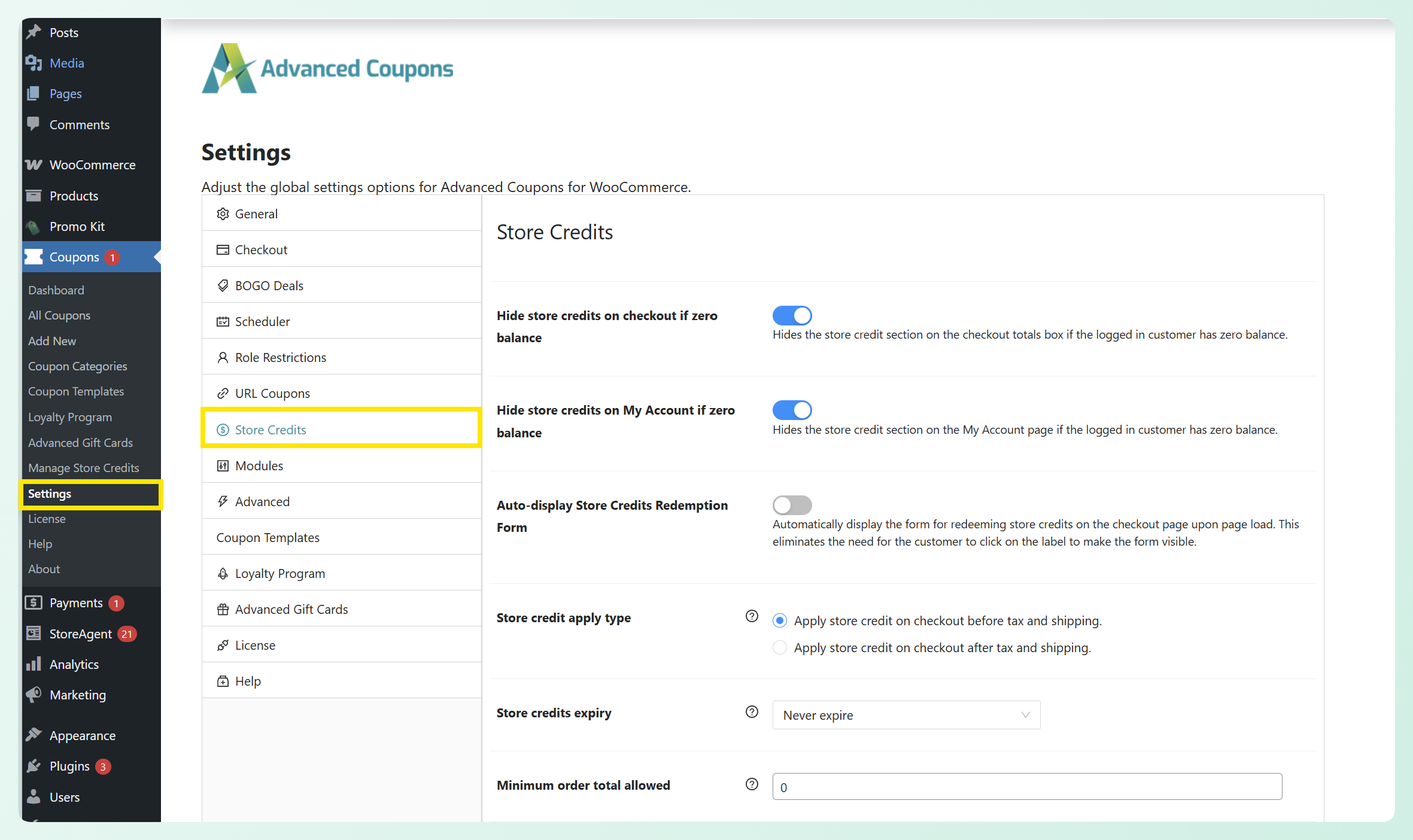
From your WordPress dashboard, head to Coupons > Settings > Store Credits. Then, scroll down to find the “Minimum store credit redemption amount” field.
From here, simply enter the minimum amount of store credit you want customers to redeem per order. Let’s set it at 20 in this example.
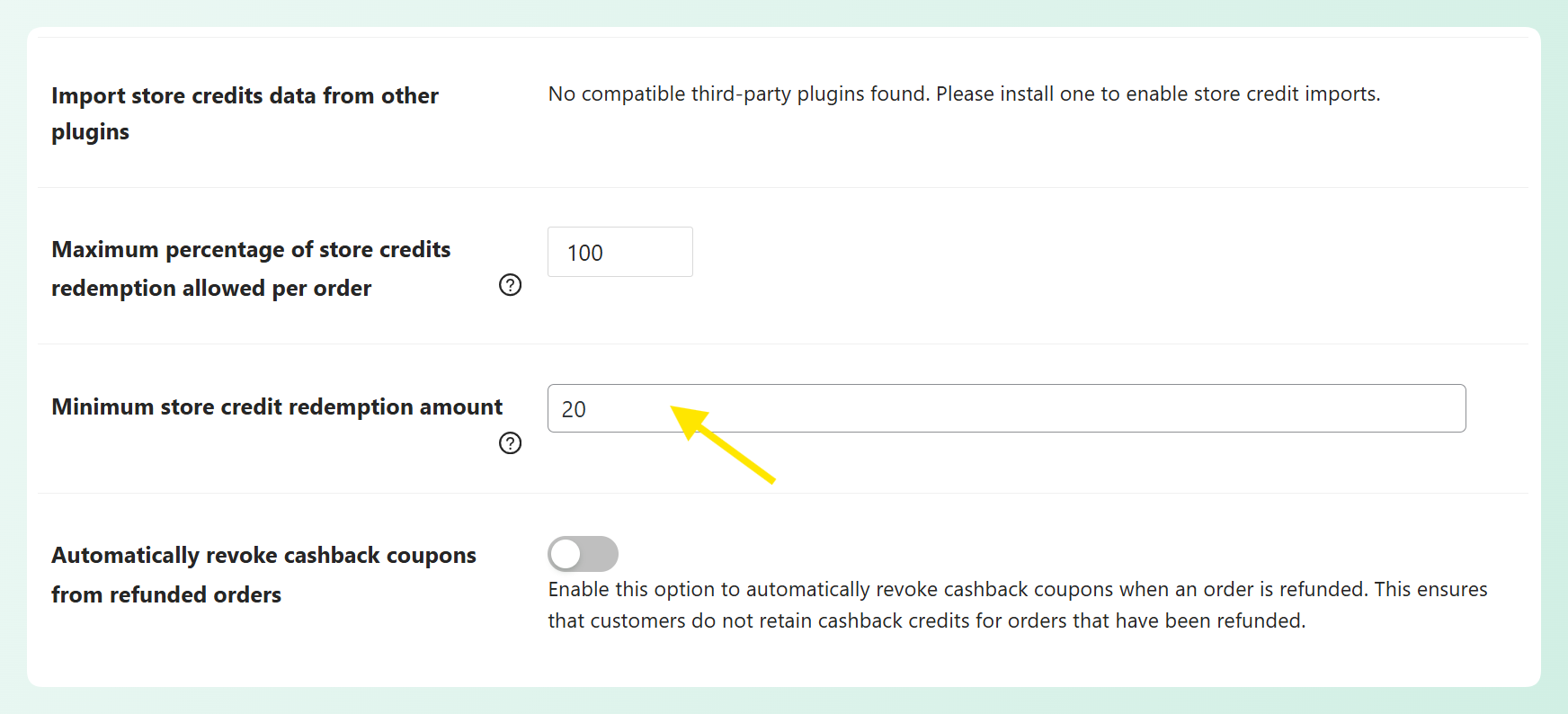
With this setting, shoppers will need to apply at least $20 worth of store credits during checkout. This gives you an easy way to guide how customers use store credits in your store.
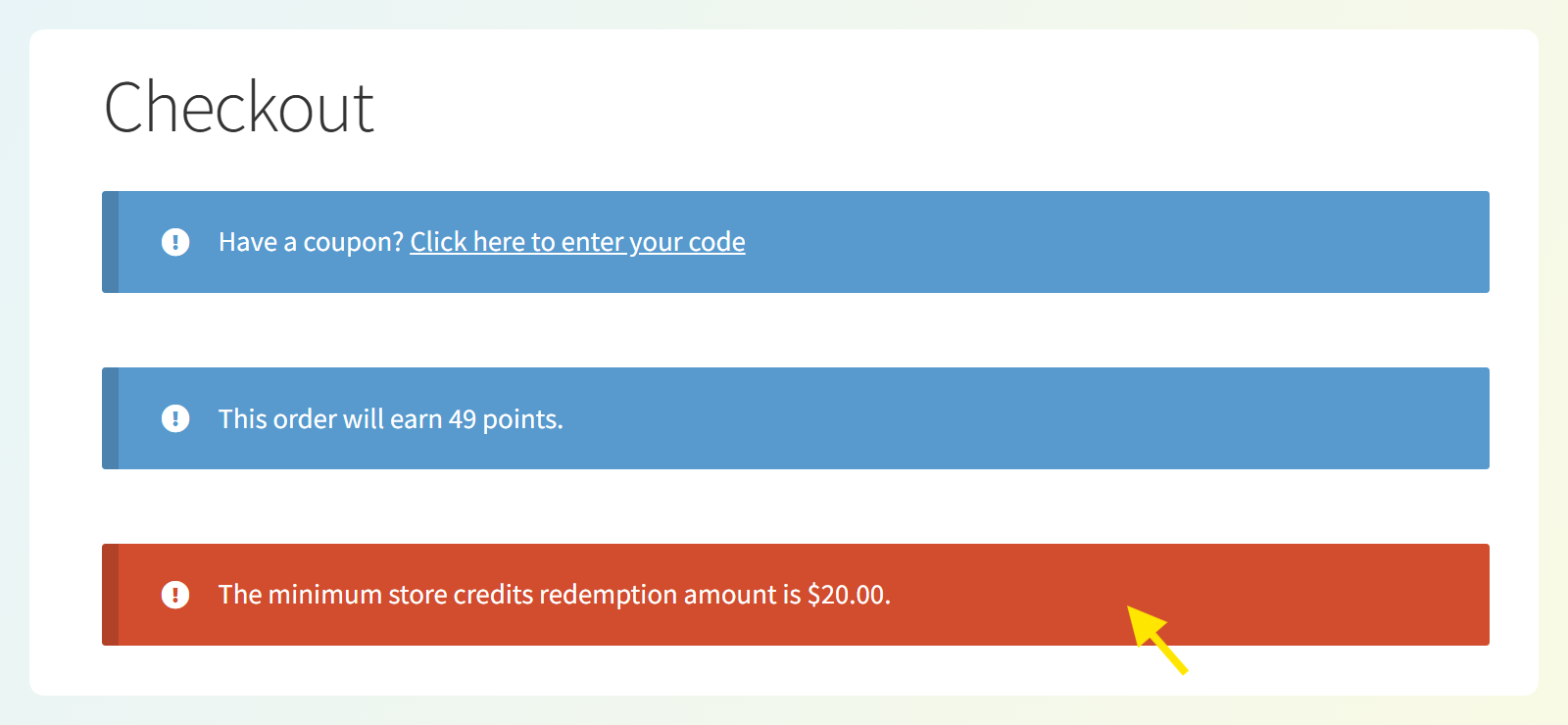
If customers try to redeem less than the amount you set, they’ll see an error message on the checkout page letting them know that the minimum redemption amount has not been met. This notice helps shoppers understand the rule right away and adjust their redemption amount before completing their order.
💡Power Tip: You can also use this feature to create a more rewarding loyalty program experience. With WooCommerce Loyalty Program, shoppers can earn loyalty points and redeem them for store credits. Setting a minimum redemption amount encourages more meaningful redemptions instead of having customers use very small amounts as soon as they become available.
Other Store Credit Improvements In This Update
We’ve also included additional store credit options in this update to give you more flexibility and control over your rewards system. Let’s check them out below:
1. Automatically apply available store credits at checkout
With this update, you now have the option to automatically apply a customer’s available store credits at checkout.
You can find this setting by heading to your WordPress dashboard > Coupons > Settings > Store Credits. From here, scroll down and toggle the “Automatically apply available store credits amount” option. Once turned on, the customer’s available store credits will be applied to the order automatically.
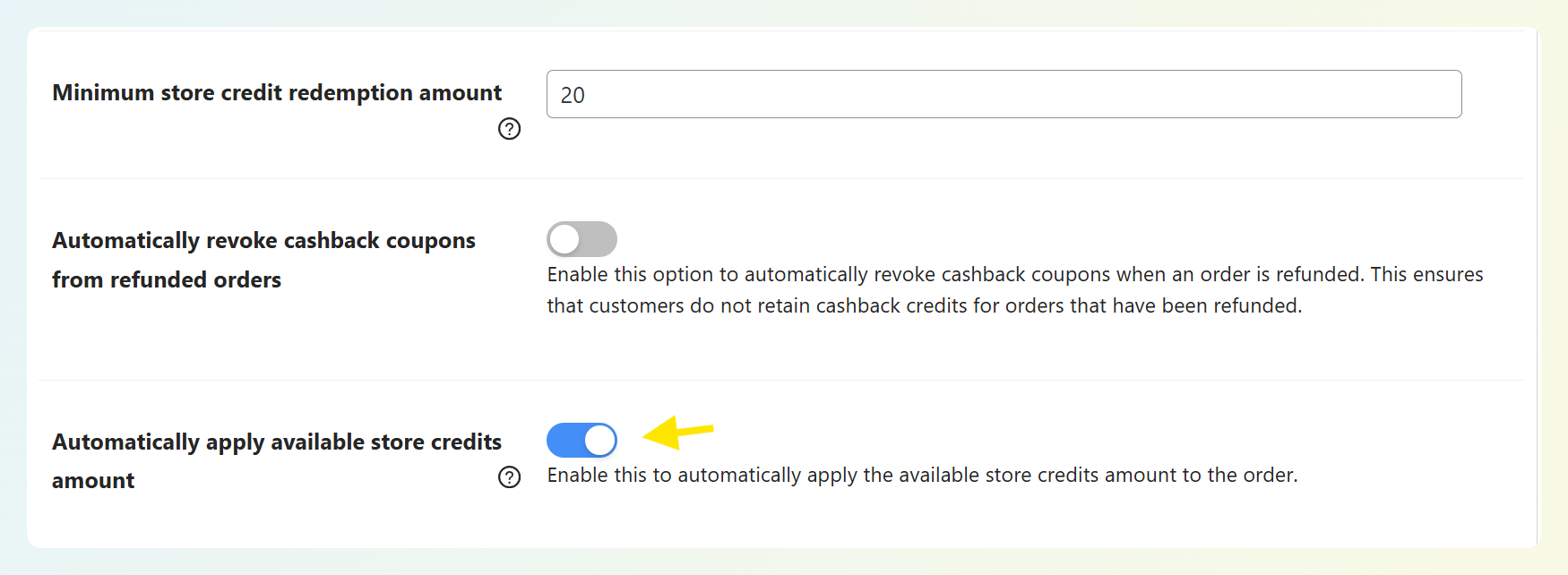
Turning this setting on can help create a faster and more convenient checkout experience. It also makes store credits more visible and easier to use, since customers won’t have to remember to apply them manually each time.
Overall, this improvement can encourage store credit redemption and help your store credit system feel more rewarding.
💡 Power Tip: You can pair this setting with other store credit options in Advanced Coupons for better control over how store credits are redeemed in your store. For example, you can also set a maximum percentage of store credits allowed per order or a minimum store credit redemption amount.
2. Let customers use their store credits for manually-created orders
As a store owner, there are times when you need to arrange orders manually instead of having customers go through the usual checkout flow. This can happen when handling custom order requests, phone or chat-assisted purchases, or admin-created replacement orders.
With this update, customers can now use their store credit balance for manually-created orders. If a shop admin creates an order for a customer and leaves it as pending payment, the customer can log in to their account, go to My Account > Orders, click Pay, and use their available store credits on the Pay for order page.
Here’s how it looks:
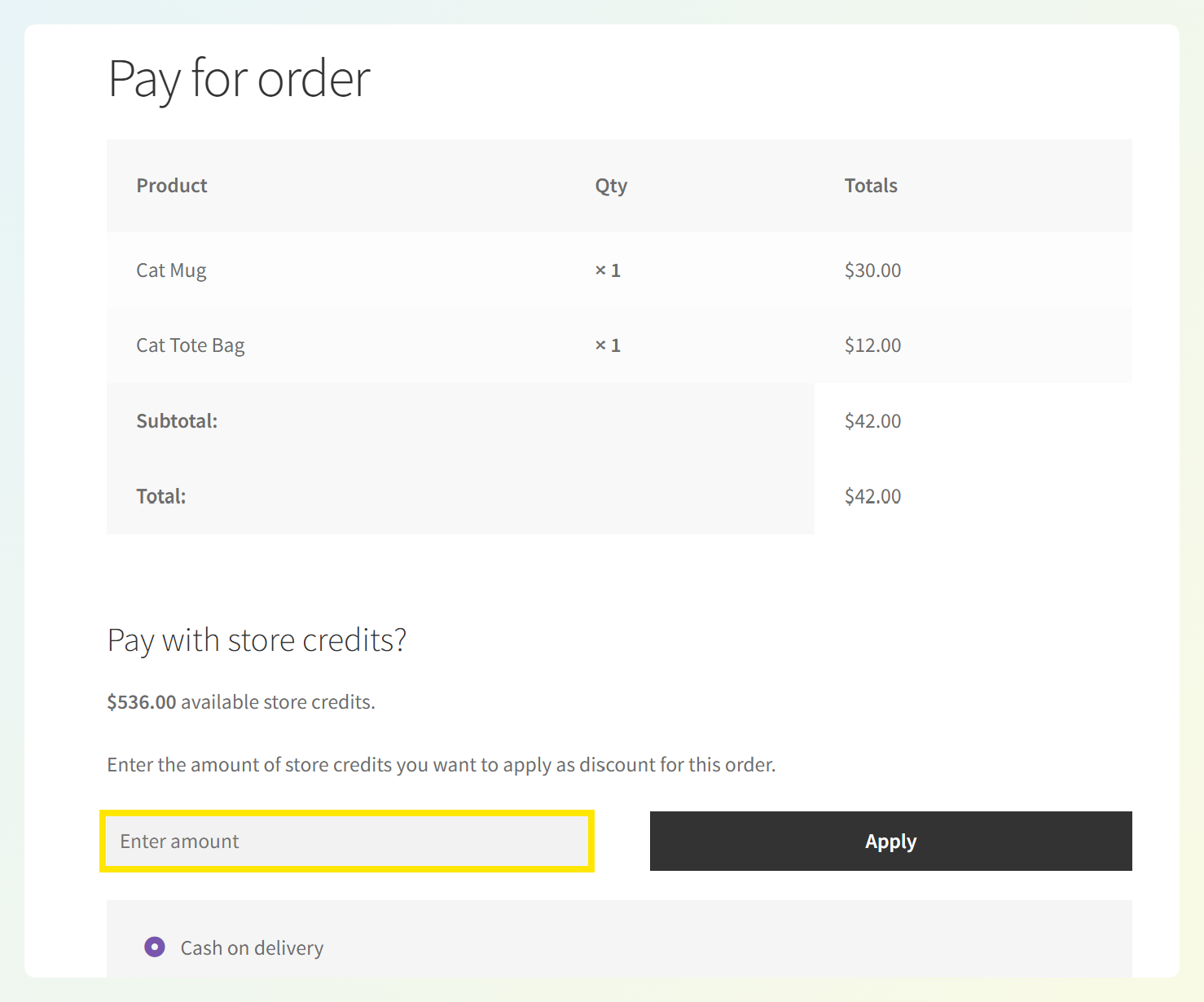
This new feature offers flexibility for both you and your customers. For store owners, it helps create a smoother payment flow for manually created orders. For customers, it provides another opportunity to use their earned credits, making the rewards system more convenient and valuable.
How These Updates Benefit Your WooCommerce Store
These new store credit features give you more control over how customers apply and redeem their rewards. Instead of treating store credits as a simple discount feature, you can shape them into a more intentional part of the overall shopping experience.
Here’s how they can benefit your store:
Better value from your promotions and loyalty efforts
Store credits aren’t just great for refunds and returns—they can be an impactful part of your customer retention strategy. These updates help encourage more thoughtful redemptions, make earned credits feel more visible, and support a rewards system that feels consistent across different touchpoints.
Create a smoother customer experience
Store credits are valuable if customers remember to use them. Setting a minimum redemption amount and automatically applying credits make them more visible and easier to use. This creates a faster, more convenient checkout experience and helps customers maximize their earned rewards.
Support a more flexible rewards system
Not every purchase happens through the standard checkout flow. Sometimes, you’ll need to create orders manually for special requests, assisted purchases, or custom arrangements.
By allowing customers to use store credits for manually-created orders, you can extend the same rewards experience to different shopping scenarios. The result is a more convenient, flexible, and rewarding shopping experience.
Frequently Asked Questions
Why should I set a minimum redemption amount for store credits?
This feature is useful if you want more control over how store credits are redeemed in your WooCommerce store. It can help you avoid very small redemptions, create clearer rules for customers, and make your store credit system feel more intentional and easier to manage.
Where can I find the minimum store credit redemption setting?
You can find it by going to Coupons > Settings > Store Credits in your WordPress dashboard. From there, scroll down until you see the Minimum store credit redemption amount field.
What happens if a customer tries to redeem less than the minimum amount?
If a customer tries to redeem less than the amount you set, they’ll see an error message during checkout. This lets them know that they need to apply at least the minimum required amount before completing their purchase.
Can store credits be applied automatically at checkout?
Yes. This update also includes an option to automatically apply a customer’s available store credits at checkout. This can help create a faster and more convenient checkout experience, especially for returning shoppers.
Wrapping Up
Store credits can be a powerful part of your customer retention strategy, helping you encourage repeat purchases and create a smoother shopping experience. Our latest updates in Advanced Coupons give you even more control over how store credits are used and redeemed in your store.
In this guide, we covered:
- What a minimum redemption amount for store credits is
- How to set a store credit minimum redemption amount
- How to automatically apply available store credits at checkout
- How to let customers use their store credits for manually-created orders
- How these updates can benefit your WooCommerce store
With Advanced Coupons, you can create smarter promotions and offer a better rewards experience in your WooCommerce store. This powerful plugin extends the default coupon features of WooCommerce and lets you launch a full store credit system.
We hope this guide helped out! Let us know if you have any questions about this update.