Gift cards are easier to buy when shoppers can choose an amount that feels right for the occasion. With the latest release of Advanced Gift Cards, you can now offer a custom amount gift card in WooCommerce, so customers are not limited to fixed values like $25, $50, or $100.
Instead of creating a separate gift card product for every price point, you can turn on one setting and let shoppers enter their own value. Maybe one customer wants to send exactly $40 for a friend’s birthday. Another might want to gift $150 for a wedding. With manual amounts, they can choose the value that fits the occasion, while you stay in control of the allowed range.
In this guide, we’ll walk through how the new feature works, how to set up a custom gift card amount in WooCommerce, and how it can make your gift card products more flexible for shoppers.
What Are Custom Amount Gift Cards?
A custom amount gift card lets the shopper decide how much the card is worth, instead of choosing from prices you set ahead of time. They type in a value (or tap a quick-pick button), and that amount becomes the gift card’s face value.
You stay in control with a few simple guardrails:
- Minimum amount: the lowest value a shopper can choose (required).
- Maximum amount: an optional cap on how high they can go.
- Step increment: the jumps they can use, like $5 or $10 at a time.
- Default amount: what’s pre-filled in the field when the page loads.
- Quick-pick presets: up to five tappable buttons (for example $25, $50, $100) so shoppers don’t always have to type.
So instead of a rigid “$25 / $50 / $100 only” setup, you can offer something like “any amount between $10 and $500, in $5 steps.” It gives shoppers a more familiar, flexible way to buy gift cards directly from your WooCommerce store.
How Custom Amount Gift Cards Work In Advanced Gift Cards
The feature lives inside the gift card product itself, and it works on both simple and variable gift card products.
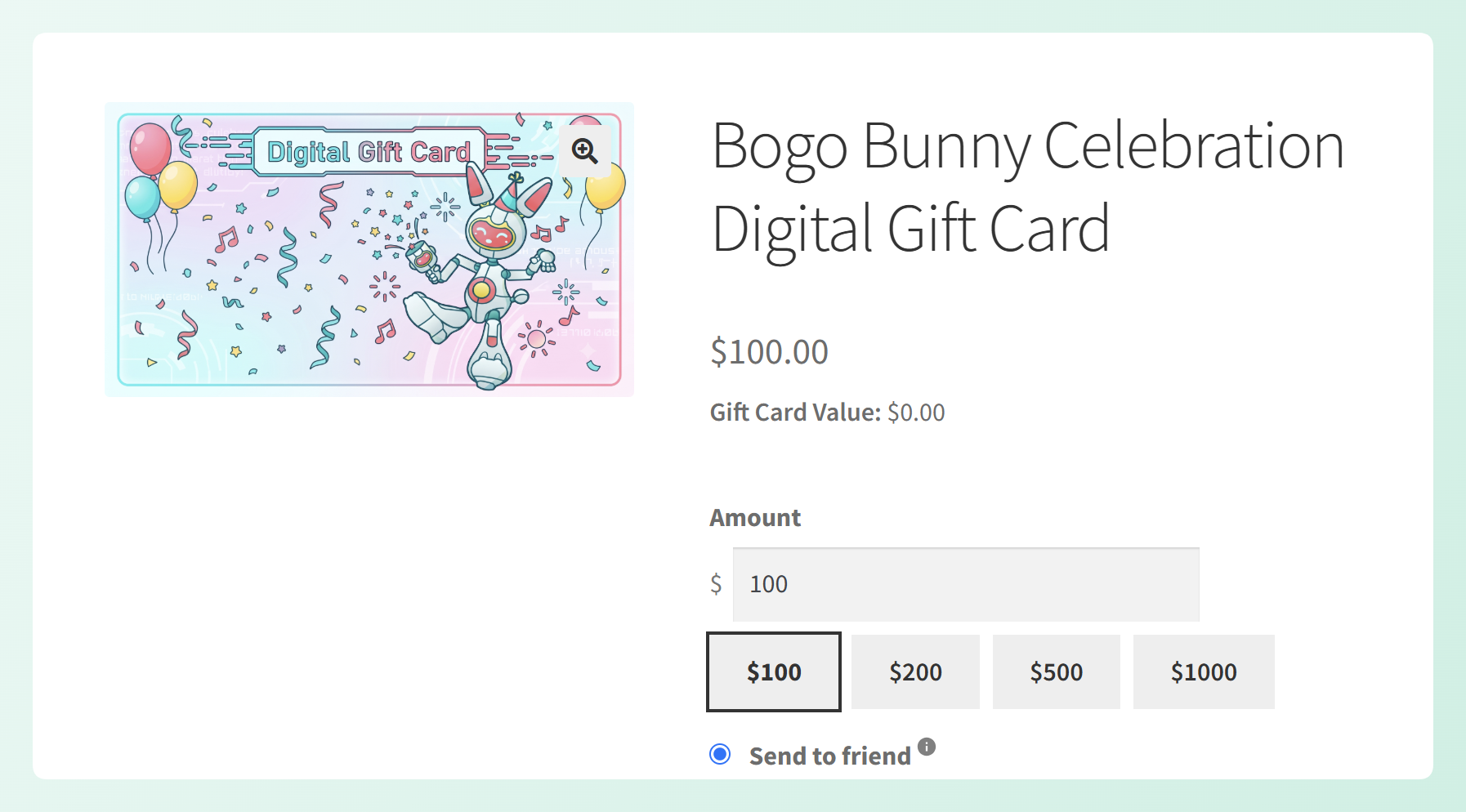
When you turn on the “Let the customer choose the amount” option, the fixed Gift Card Value field is hidden and the manual-amount settings take its place. On the front end, the product page then shows an amount field, a short hint like “Enter amount ($10–$500),” and your quick-pick buttons underneath.
A few things happen behind the scenes to keep everything accurate:
- The entered amount becomes the gift card value. The amount the shopper enters is used as the cart item price and carried through as the card’s redeemable balance.
- Amounts are checked on the server. The value is re-validated when the item is added to the cart, so only amounts within your allowed rules can move forward.
- Quantities create separate cards. Buy three gift cards at $50 each and your customer receives three separate $50 cards, not one $150 card.
- It’s multi-currency aware. If you use a supported currency switcher, the minimum, maximum, step, presets, and default amount convert into the shopper’s active currency.
Validation is also instant on the front end. If someone types an amount that’s below your minimum, above your maximum, or off your step, they get a friendly message right away, before they ever reach the cart.
If you allow coupons on gift card products, review those discount rules separately so they match how you want gift card purchases to work.
How To Set Up A Custom Amount Gift Card
Setting up a custom amount gift card takes just a few minutes, and it works on simple and variable Advanced Gift Cards products. Make sure you’ve updated Advanced Gift Cards to the latest version, then follow these steps.
Step 1: Create or edit your gift card product
Add a new product or edit an existing one, then in the Product data panel choose “Advanced Gift Card” from the product type dropdown. If you’re creating a new product, fill out the regular product details too, such as the product name, description, and gift card design.
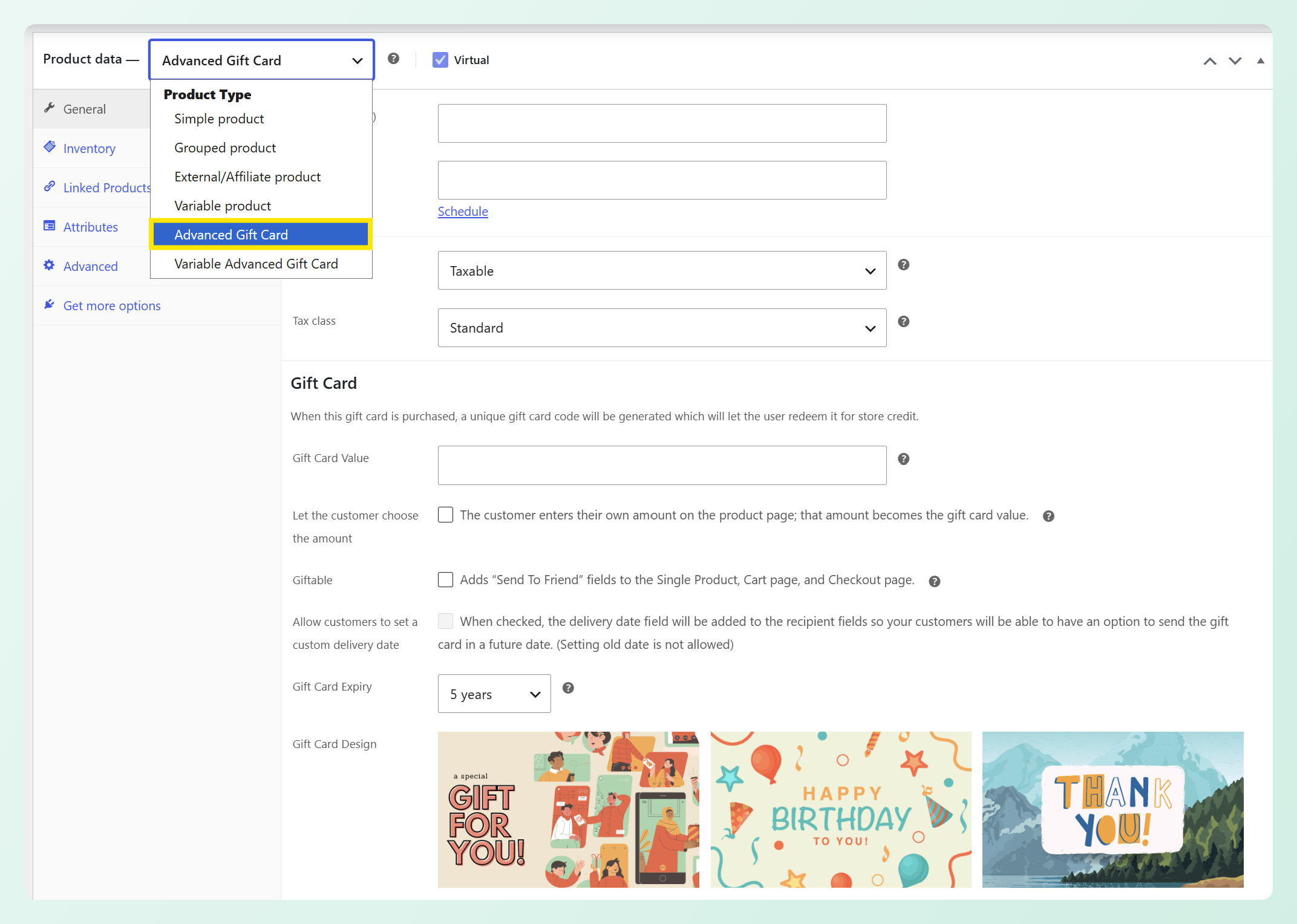
Next, open the General tab and find the section labeled Gift Card. You’ll see a short note explaining that a unique gift card code is generated at purchase, which the recipient redeems for store credit. This section holds both the classic fixed-value option and the new manual-amount controls.
Step 2: Turn on “Let the customer choose the amount”
Tick the checkbox “Let the customer choose the amount.”
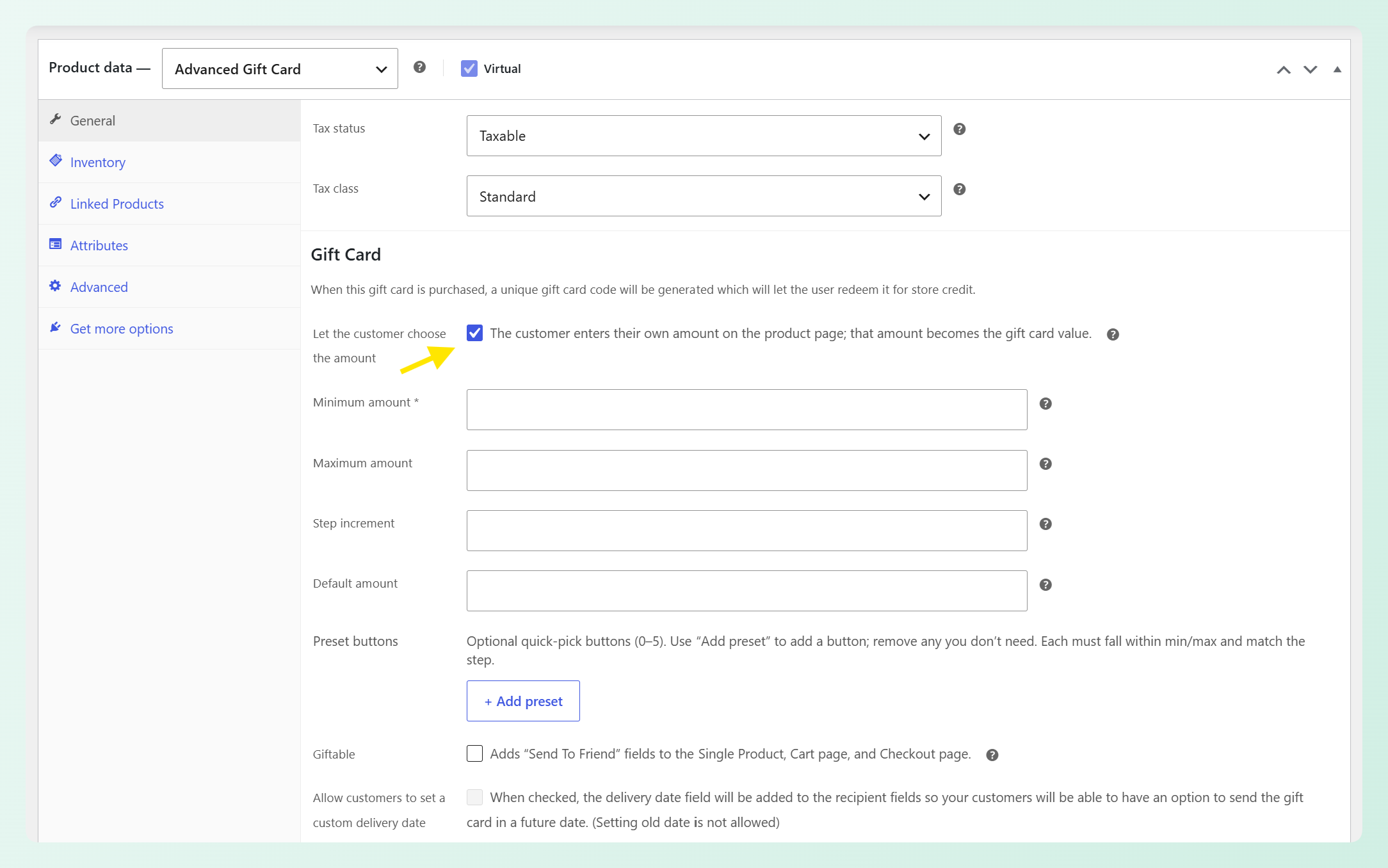
As soon as it’s on, the fixed Gift Card Value field is replaced by the manual-amount settings: minimum, maximum, step, default, and presets. Everything you need to build a custom amount gift card appears right here.
Step 3: Set your amount rules
These fields define the range shoppers can choose from and how the amount field behaves. Only the minimum amount is required, but the other settings give you more control over the buying experience.
- Minimum amount (required): the lowest value shoppers can enter. Set it to 100, for example, so the gift card cannot be purchased below that amount.
- Maximum amount (optional): a cap on the highest value shoppers can choose. Leave it blank if you do not want to set an upper limit.
- Step increment: the jumps shoppers can use. Enter 50 and they can choose 100, 150, 200, and so on.
- Default amount: the amount that appears when the product page first loads. Many stores use a common starting value and let customers adjust from there.
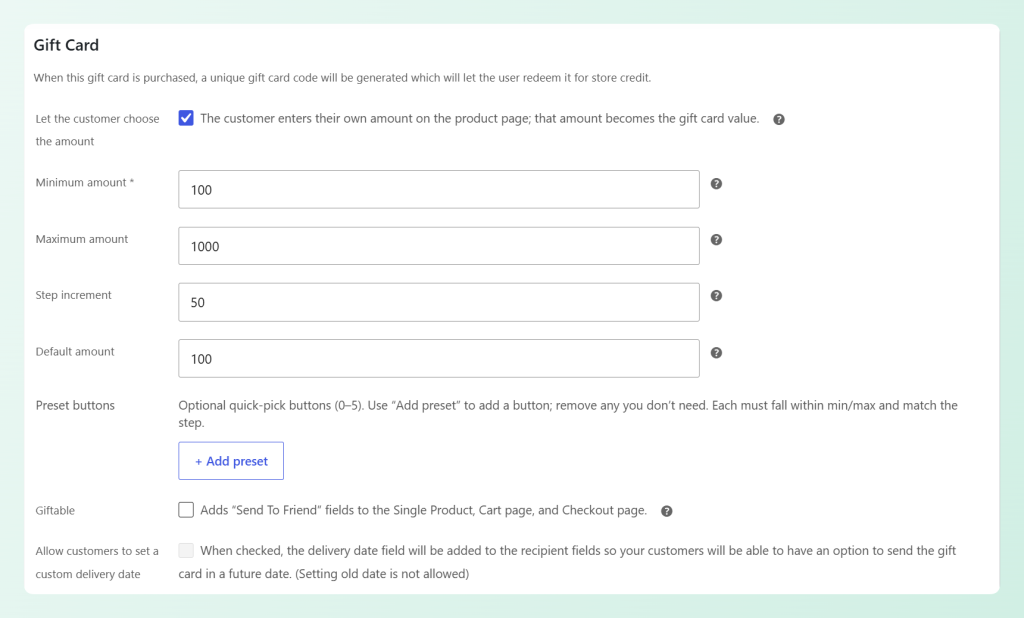
In the example above, shoppers can choose a gift card amount from 100 to 1000, in increments of 50. The default amount is set to 100, so that value is already filled in when the product page loads.
Optional step: Add your quick-pick presets
Presets are not required, but they make buying faster for shoppers who would rather tap than type. Click “+ Add preset” to create a quick-pick button, then enter a value like 100, 200, 500, or 1000. You can add up to five presets, and each one must stay within your minimum and maximum amount rules.
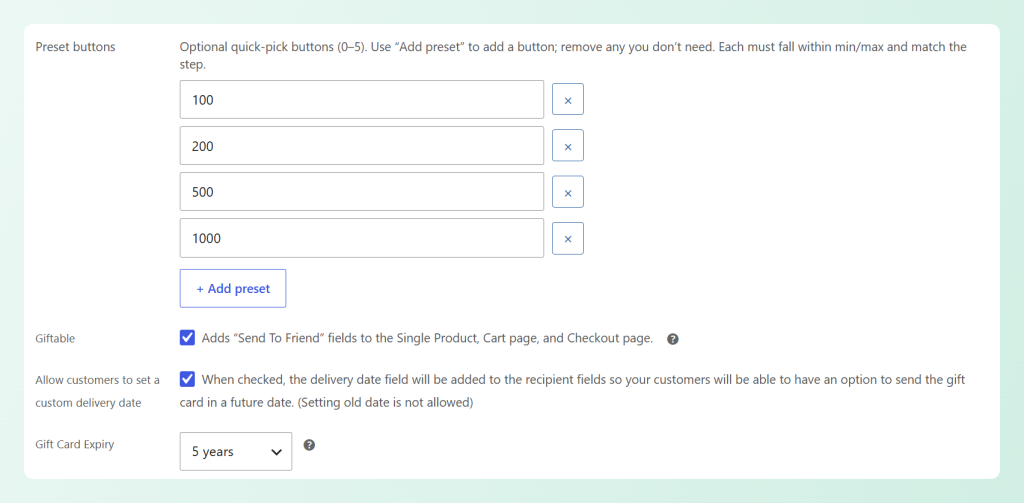
You can also review the gifting options in this same section. Tick Giftable if you want to add “Send To Friend” fields to the product, cart, and checkout pages. If you want shoppers to schedule the gift card for a later date, you can also enable the custom delivery date option.
Here’s how the gift card can look for shoppers on the front end:
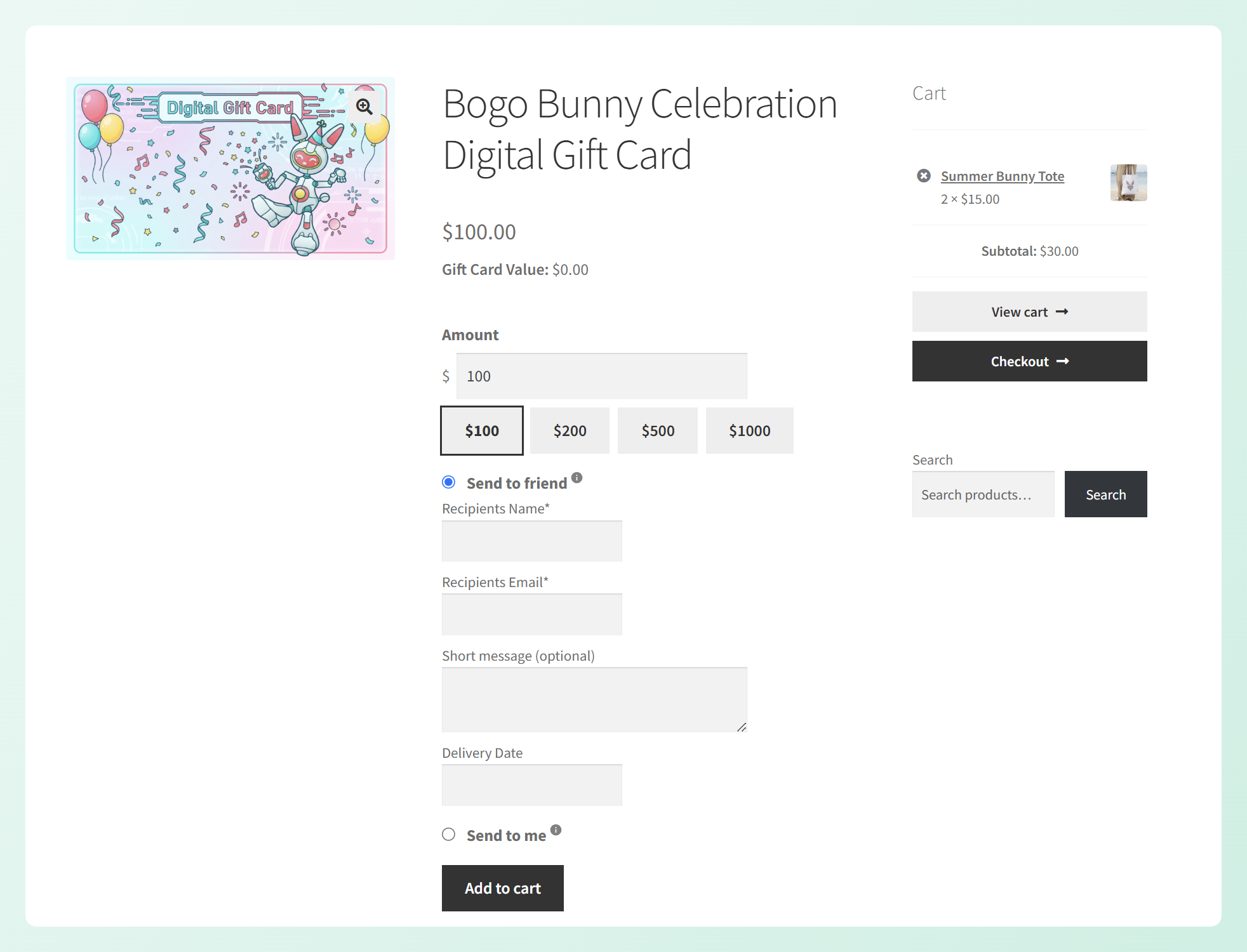
💡 Selling variable gift cards instead? Choose Variable Advanced Gift Card from the product type dropdown, then configure the manual amount controls on the variation. Only one variation per product can use a customer-entered amount, so you can offer one “choose your own amount” option alongside your fixed-value variations.
How This Update Helps Your Store
Beyond saving you setup time, letting customers choose their gift card amount changes the buying experience in a few meaningful ways.
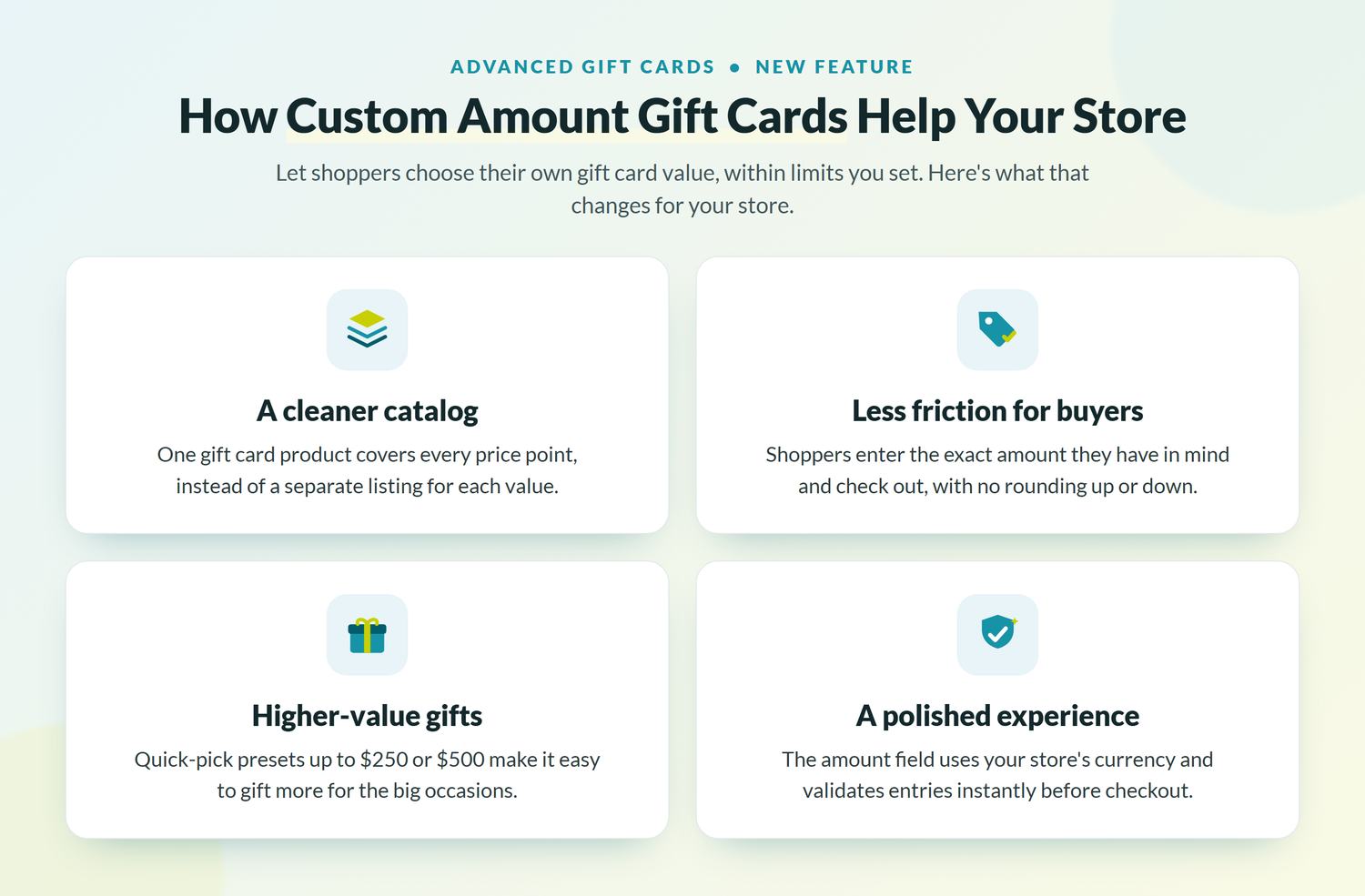
A cleaner product catalog
One gift card product can now cover every price point your customers might want. Instead of maintaining separate listings for $25, $50, and $100, you build a single product and let shoppers fill in the rest. That keeps your catalog tidy and far easier to manage, especially if you sell gift cards across several categories or seasons.
Product management gets simpler too, since you’re working from one gift card product instead of a handful of near-identical listings. And when you need to change the design, description, or rules, there’s only one page to update instead of five.
Less friction for gift buyers
Fixed tiers can create a small point of friction. A shopper with exactly $40 in mind has to either round up to your nearest option, settle for less, or look for another store that allows a custom gift card amount. With manual amounts, they can enter $40 and check out with the value they had in mind.
Higher-value gifts when it counts
Presets that climb to higher values make it easy for someone to spend more when the occasion calls for it. A wedding, a milestone birthday, or a big thank-you often deserves more than a fixed $25 or $50 card, but shoppers don’t always think to type a larger number on their own.
A quick-pick button for $250 or $500 gently shows shoppers that larger gift card values are available too. It’s a simple way to make higher-value gifting feel easy without pushing customers into a fixed tier.
A familiar, professional experience
Custom-amount entry is what shoppers already know from major gift-card brands and big retailers. Offering the same thing on your store makes the buying experience feel polished and trustworthy, rather than limited or improvised.
The amount field uses your store’s currency formatting and validates instantly, so buyers are guided to a valid value before they ever reach the cart. If they type something below your minimum or off your step, a friendly message points them in the right direction instead of letting an error surface at checkout. That keeps the buying flow clear and predictable.
Common Use Cases For Custom Amount Gift Cards
Custom amounts fit almost any store that sells gifts. A few popular examples:
- Birthdays and personal occasions, where the right gift budget is different every time.
- Weddings, baby showers, and graduations, where group gifts and higher amounts are common.
- Holiday season shopping, when customers buy for many people at once across different budgets.
- Corporate and employee gifting, where amounts are often set per recipient or per reward tier.
- Service businesses like salons, spas, and restaurants, where the cost of a treatment or meal varies.
- Customer appreciation gifts, where the sender wants to choose a value that feels right for the occasion.
💡 Heading into a busy gifting season or running a corporate campaign? Custom amount gift cards can cover shopper-chosen purchases, while the ability to bulk import gift cards via CSV can help when you need to create many gift card codes at once.
Frequently Asked Questions
Can customers choose any gift card amount they want?
They can choose any amount within the range you set. You define a required minimum, an optional maximum, and a step increment, so shoppers stay inside sensible limits. For example, you might allow any value between $10 and $500 in $5 steps. Anything outside those rules is rejected before checkout.
Does this work with variable gift card products?
Yes. The custom-amount controls work on both simple and variable gift card products. On a variable product, one variation can use a customer-entered amount while your other variations stay at fixed values. Only one variation per product can be set to the manual amount.
What happens if someone buys more than one custom amount gift card?
Each gift card is issued separately at the amount chosen. If a customer buys three cards at $50 each, they receive three individual $50 gift cards rather than a single combined balance.
Does the custom amount work with multiple currencies?
Yes. If you use a supported currency switcher, the minimum, maximum, step, presets, and default amount all convert to the shopper’s active currency, and the amount is validated in that currency too.
Do I have to use the preset buttons?
No. Presets are optional. You can offer up to five quick-pick buttons, use just a couple, or skip them entirely and let shoppers type a value into the amount field.
Wrapping Up
Custom amount gift cards make it easier to offer flexible gifting without creating a separate product for every value. Shoppers can choose the amount that fits the occasion, while you still set the rules behind the scenes.
Here’s how to get started:
- Make sure Advanced Gift Cards is updated to the latest version.
- Open a gift card product and turn on “Let the customer choose the amount.”
- Set your minimum, optional maximum, step, and default.
- Add a few quick-pick presets to make buying even faster.
Ready to give shoppers more flexible gifting options? Start offering custom amount gift cards in your WooCommerce store today!