
Running BOGO deals just got more flexible! Advanced Coupons can now automatically remove a BOGO item when the deal no longer applies, instead of leaving it in the cart at its original price.
This gives you a cleaner option for free gift and discounted-item promotions, especially when shoppers may not want the deal product once it is no longer free or discounted. The setting is available in the free version of Advanced Coupons and can be enabled for individual BOGO coupons.
Choose What Happens When A BOGO Deal No Longer Applies
With this update, you’re in charge of what happens to a BOGO item once its deal no longer qualifies. You can keep it in the cart or remove it, and you make that choice on each coupon.
Keeping the item at its original price is the default, and it’s a good fit for lots of promotions. A “buy one, get one half price” offer is a nice example: the second item is still something a shopper may want to buy outright, so leaving it in the cart makes sense.
Other promotions call for something different. When a free gift only made sense as part of the deal, you can now have Advanced Coupons take it out of the cart instead of leaving it there at full price. Your existing coupons stay exactly as they are unless you pick the new option.
How Automatic BOGO Item Removal Works
The feature adds one setting to each BOGO coupon called “When the deal no longer applies,” with two choices:
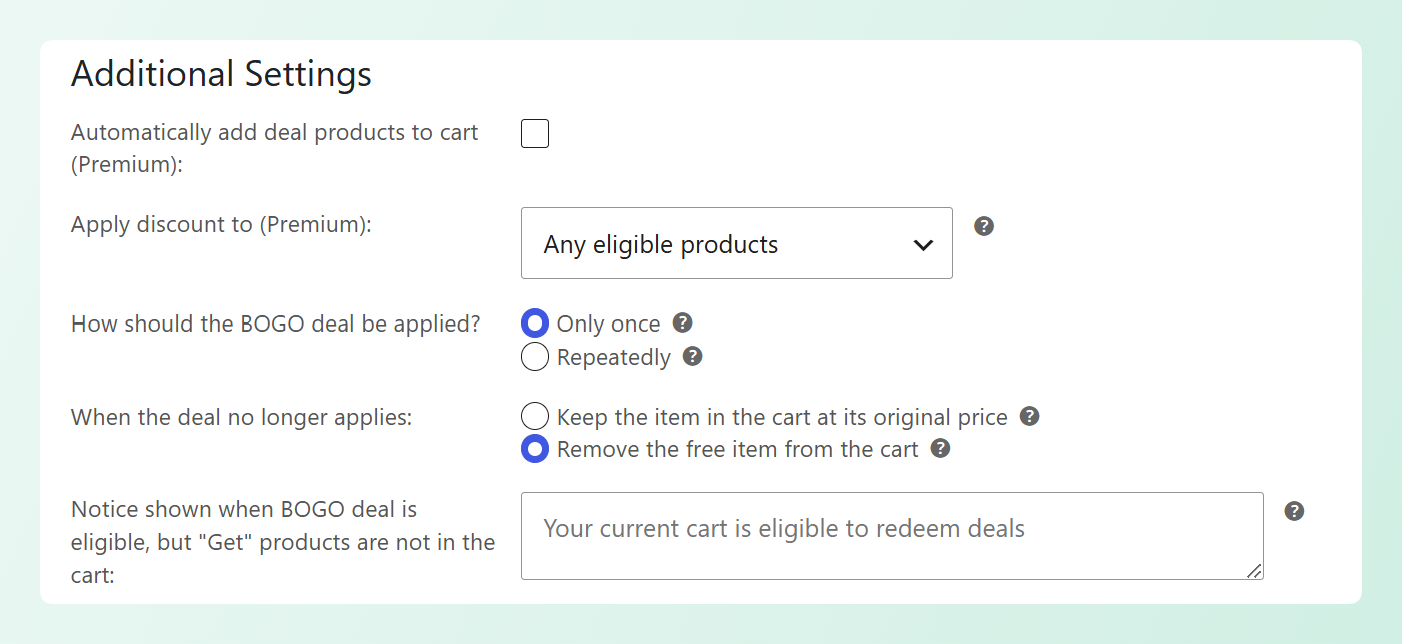
- Keep the item in the cart at its original price: the default. The item stays and returns to its normal price.
- Remove the free item from the cart: the new option. The deal item is taken out of the cart instead.
When you select the remove option, Advanced Coupons takes the deal item out of the cart whenever the promotion no longer qualifies. This can happen when the shopper removes or reduces the qualifying product, the cart no longer meets the coupon’s conditions, the coupon is removed, or the deal quantity is exceeded.
A few things worth knowing about how it behaves:
- It’s free and opt-in. The setting lives in the free version of Advanced Coupons, and you turn it on per coupon.
- It only removes the deal quantity. Any additional quantity the shopper added stays in the cart, along with quantities still covered by another active deal.
- Shoppers see a clear notice. When the deal item is removed, a cart notice explains that the promotion no longer applies, so the change does not happen without context.
How To Set Up Automatic BOGO Item Removal In Advanced Coupons
You can enable this option while creating a new BOGO coupon or editing an existing one. Here’s how to set it up.
Step 1: Create your BOGO coupon
From your WordPress dashboard, go to Marketing → Coupons and click Add Coupon (or open an existing BOGO coupon). Give it a coupon code, then open the Coupon data box and set the Discount type to Buy X Get X Deal (BOGO). This reveals the BOGO settings.
Next, configure the two parts of your BOGO deal:
- Customer Buys: choose the specific product a shopper needs in their cart to unlock the deal, then set the required quantity.
- Customer Gets: choose the free or discounted product they receive, then set its quantity and price. For a classic free gift, set the price to an override of 0.
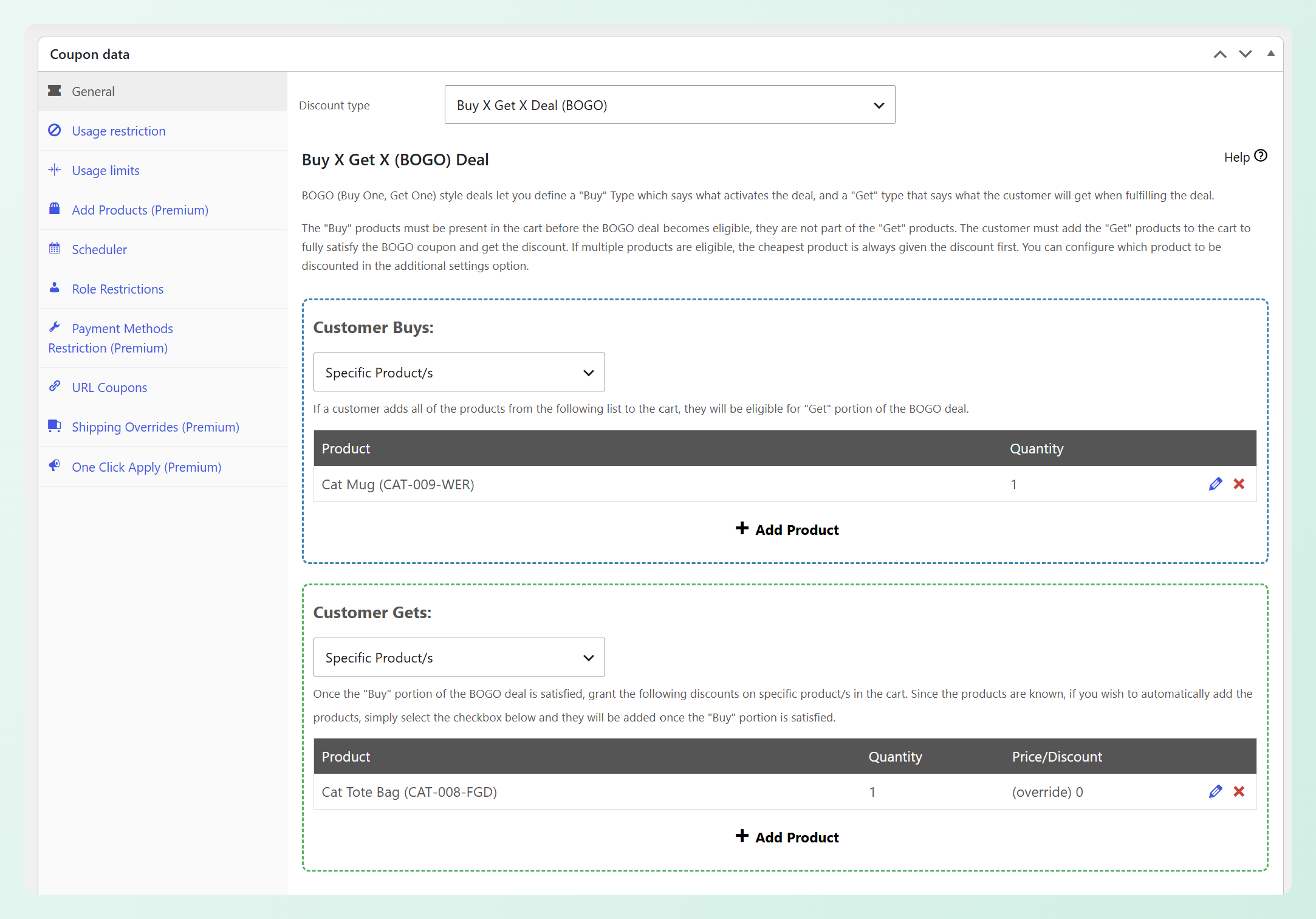
In the example above, we’ve set up a simple deal: when a shopper buys a Cat Mug, they get a Cat Tote Bag free. The Cat Mug is the Customer Buys product (quantity 1), and the Cat Tote Bag is the Customer Gets product (quantity 1) with its price set to an override of 0, which makes it free.
On the free version, shoppers add the “Get” product to their cart themselves, and Advanced Coupons applies the deal price. Automatically adding the deal product to the cart is available with Advanced Coupons Premium, so you can choose the flow that best fits your promotion.
💡 GOOD TO KNOW: Advanced Coupons Premium also gives you more BOGO promo options. With the premium plugin, you can build deals using Any Combination of Products, Product Categories, or Any Products, giving you more flexibility when configuring the Customer Buys and Customer Gets sections.
Step 2: Tweak additional BOGO settings and enable the new feature
The Additional Settings section is where you shape how the deal behaves. Here’s what you can adjust:
- How should the BOGO deal be applied? Choose Only once, or Repeatedly to apply the deal every time the cart qualifies (Repeatedly lets you set a maximum limit).
- When the deal no longer applies. Choose whether to keep the item at its original price or remove it from the cart. This is the new setting.
- The eligibility notice. Edit the message shown when a deal is available but the “Get” product isn’t in the cart yet, plus its button text, button URL, and notice type.
- Automatically add deal products to cart (Premium). Add the deal item to the cart for shoppers automatically.
- Apply discount to (Premium). Choose which eligible product in the cart the discount applies to.
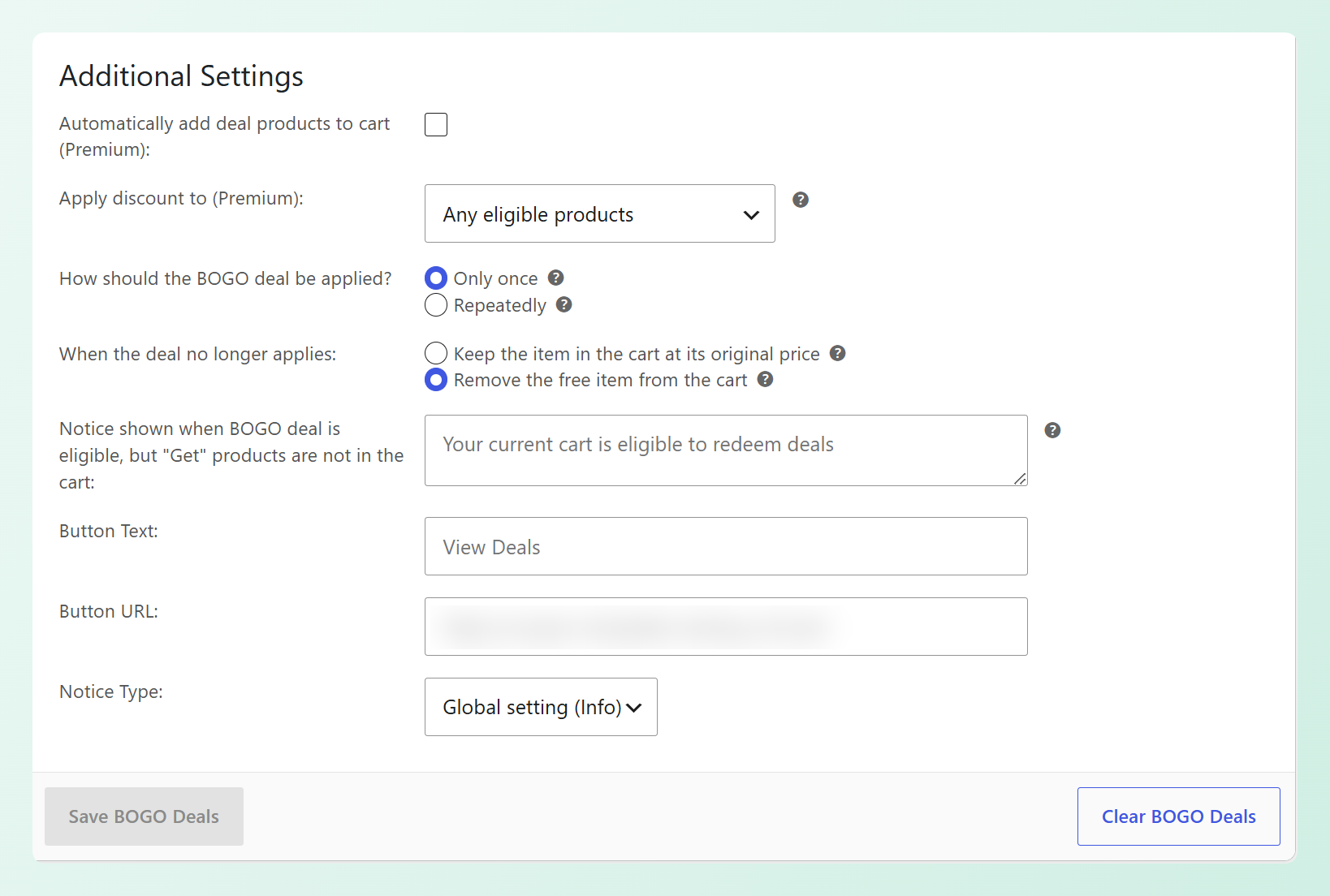
To switch on the new feature, find the setting labeled “When the deal no longer applies” and select “Remove the free item from the cart.” That single choice turns on automatic removal for this coupon, so the deal item leaves the cart whenever the deal stops qualifying.
Step 3: Add cart conditions (optional)
To add another requirement to the promotion, open the Cart Conditions tab and choose a condition that fits your offer, such as a minimum cart subtotal. When the removal option is enabled, the deal item is taken out automatically if the cart later stops meeting those conditions. In the example below, we’ve set a Cart Subtotal condition to “More Than” $80, so the free Cat Tote Bag only stays while the cart subtotal is above that amount.
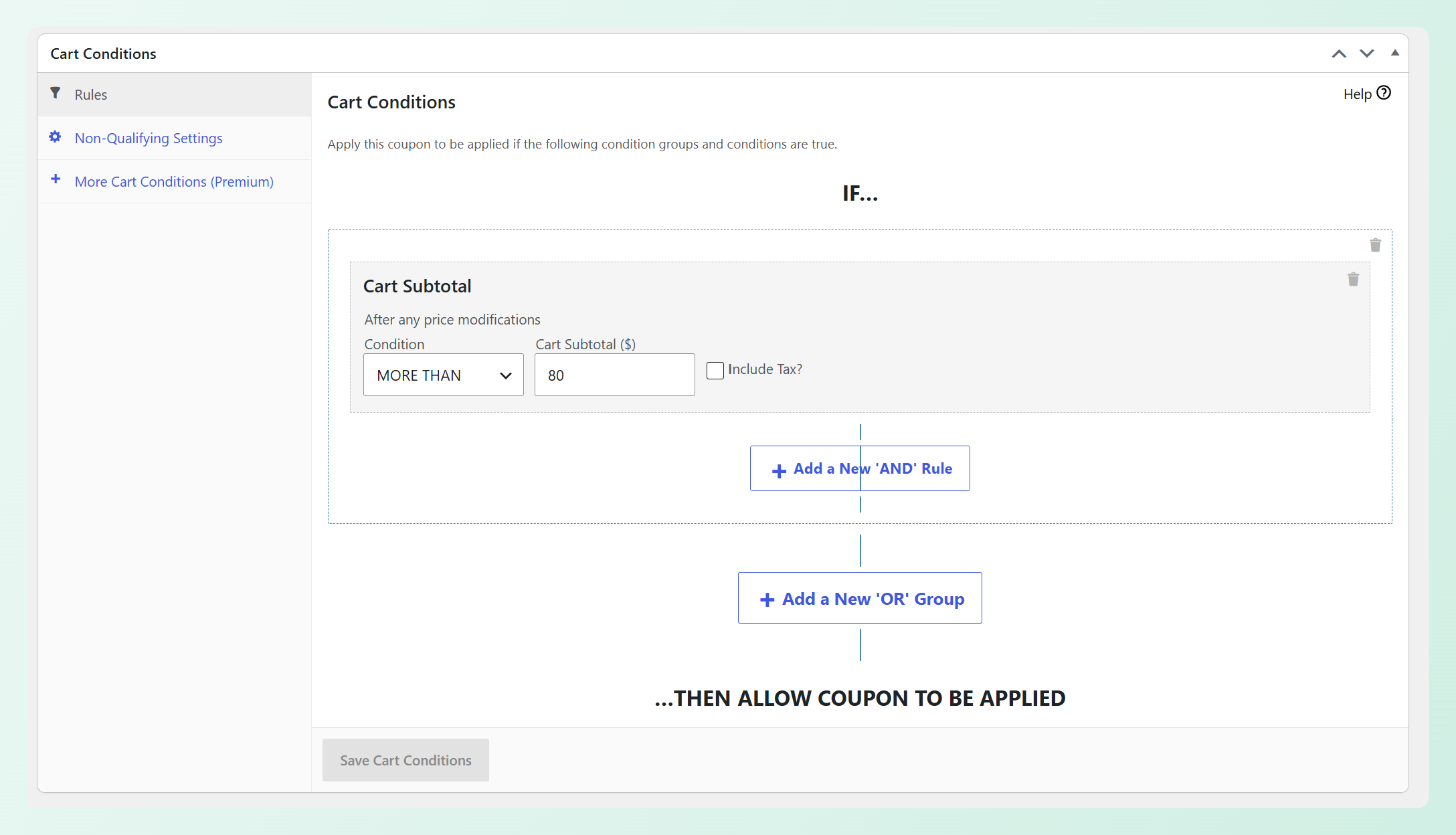
Advanced Coupons Premium unlocks more cart conditions, such as Cart Weight, Product Stock, Coupons Applied in the Cart, and whether a customer has ordered before. For a full walkthrough of the available cart conditions, see our complete guide.
Step 4: Save the coupon
Click Publish (or Update) to save your changes. When the deal no longer applies, Advanced Coupons will remove the deal item automatically.
It’s worth testing the deal before you promote it. Add the trigger product to your cart, add the free item, then remove the trigger and confirm that the free item is removed along with a cart notice explaining why. This quick check helps you make sure the removal flow works as expected.
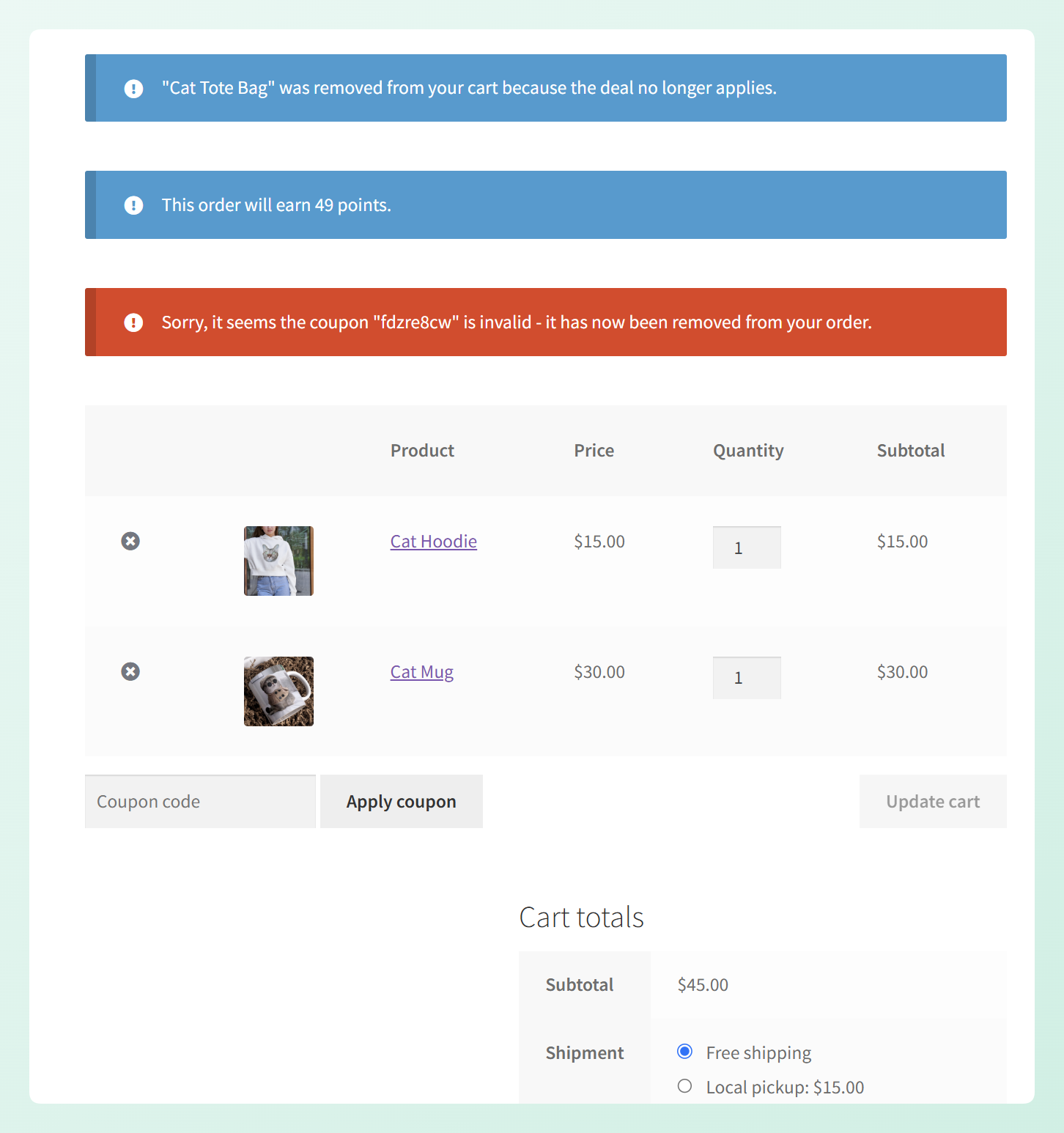
Here’s an example of that notice in action. The cart subtotal dropped below the $80 condition we set, so Advanced Coupons removed the free Cat Tote Bag and showed this message: “Cat Tote Bag” was removed from your cart because the deal no longer applies.
How This Update Benefits Your Store
This setting helps prevent a deal item from staying in the cart at full price after the promotion stops applying. That keeps the cart aligned with the deal the shopper originally qualified for and makes the change easier to understand.
Here are a few situations where it can help:
- Free gift promotions: if the gift is only meant to be included while the deal qualifies, automatic removal keeps it from reverting to full price.
- Cart changes: if shoppers remove qualifying products, adjust quantities, or stop meeting cart conditions, Advanced Coupons removes the deal item once the promotion no longer applies.
- Clearer communication: a cart notice explains why the item was removed, giving shoppers context for the change.
- Different promotion types: you can remove deal items for free gift campaigns while keeping the original-price option for discounted products shoppers may still want.
Because the option is set per coupon, you can choose what happens for each promotion without changing your existing BOGO setup across the store.
Frequently Asked Questions
Does this change my existing BOGO coupons?
No. Existing coupons keep the default Keep the item in the cart at its original price behavior unless you change the setting. The removal option is enabled per coupon, so your current BOGO deals will continue working as before.
Is this feature free?
Yes. The “When the deal no longer applies” setting is part of the free version of Advanced Coupons, so you can use it on your BOGO coupons at no cost.
What happens if the shopper added the deal product themselves?
Advanced Coupons removes only the quantity covered by the deal. Any additional quantity the shopper added stays in the cart, and quantities still covered by another active deal are preserved.
Does removing the deal item also remove the coupon?
Not by itself. This setting only controls what happens to the deal item when the promotion stops qualifying. If the shopper removes the coupon, the deal item is removed as part of that change.
Does it work if the deal item was added automatically?
Yes. The removal option works whether the deal item was added automatically or by the shopper. Automatically adding deal products to the cart requires Advanced Coupons Premium, while the removal setting is available in the free version.
Keep Your BOGO Promotions Clear
With this setting, you can decide how each BOGO coupon should handle a deal item once the promotion no longer applies. Keep it at the original price when that makes sense, or remove it automatically for offers such as free gifts.
Here’s how to get started:
- Set up a BOGO coupon if you don’t have one yet.
- Open its BOGO settings and find “When the deal no longer applies.”
- Choose “Remove the free item from the cart” and save.
For more promotion ideas, explore WooCommerce BOGO deals in Advanced Coupons and choose the setup that best fits your next campaign.