
When a discount is applied in the cart, you can now choose how that saving appears: built into the product or shipping price, or shown separately on the coupon line.
The new WooCommerce discount application mode setting gives you that choice across three Advanced Coupons features: BOGO Deals in the free plugin, plus Add Products and Shipping Overrides in Advanced Coupons Premium.
Here’s how the two modes work, when each one is useful, and where to find the settings in Advanced Coupons.
How WooCommerce Discount Application Mode Works
Discount application mode controls how the saving is applied and displayed in the cart. For BOGO Deals and Shipping Overrides, both modes produce the same final total. Add Products can calculate tax a little differently on taxable stores, which we’ll cover later.
You get two options, and every feature defaults to the first one:
- Price modification (default): The affected product price or shipping rate is reduced directly, so the saving is already built into that line.
- Coupon amount (new): The product price or shipping rate stays unchanged, and the saving is added to the coupon’s discount total instead.
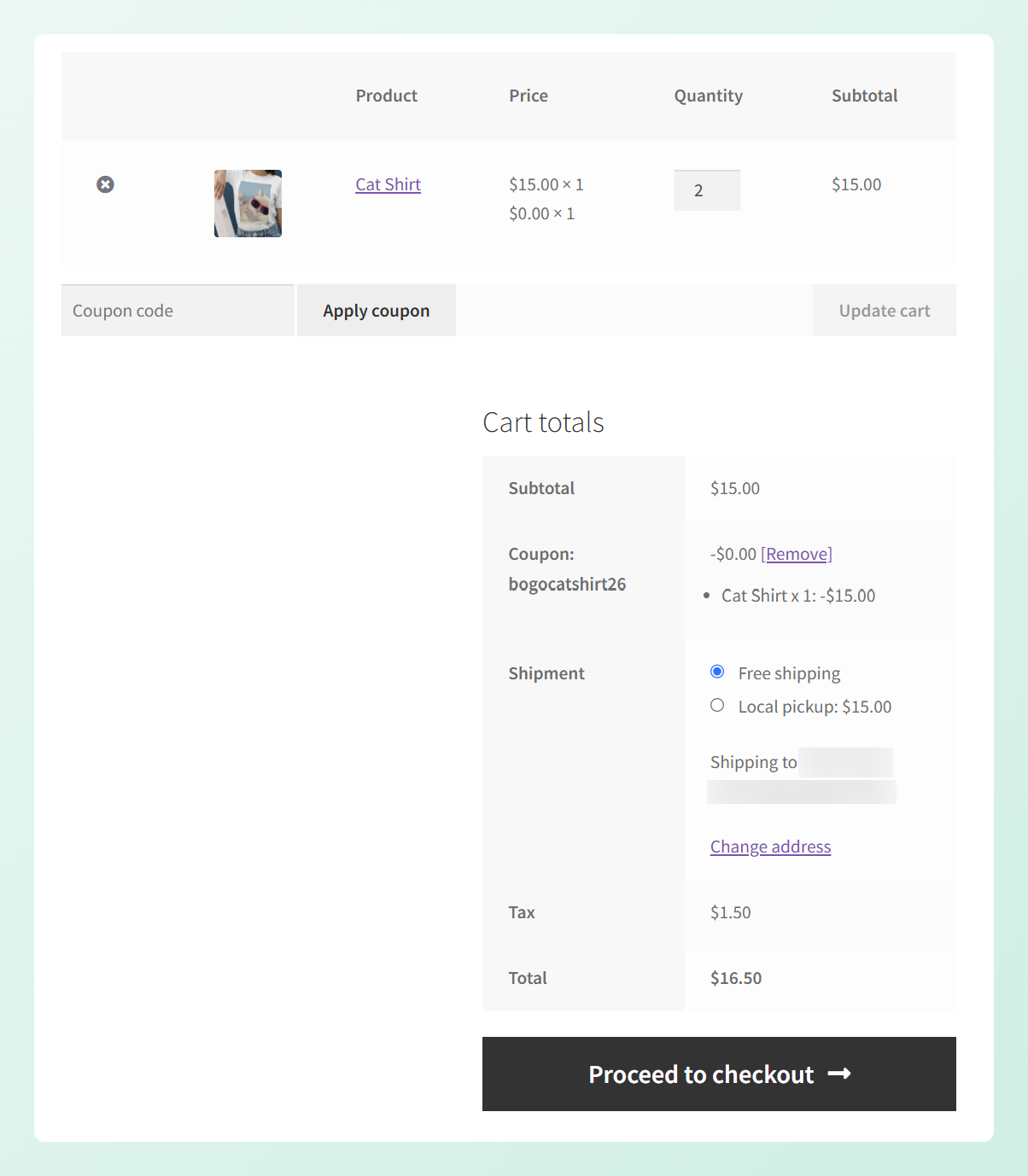
Here’s how that looks with a simple BOGO example. A Cat Shirt costs $15, and the shopper adds two to their cart. One shirt is free, so the product total before tax should come to $15.
Price modification keeps the saving in the product price
With the default Price modification mode selected, one shirt remains at $15 while the free shirt appears at $0. The product subtotal is already reduced to $15, so the coupon row shows -$0.00.
The breakdown beneath the coupon still shows that one Cat Shirt received a $15 discount, making it clear which item was included in the BOGO deal.
Coupon amount shows the saving on the coupon line
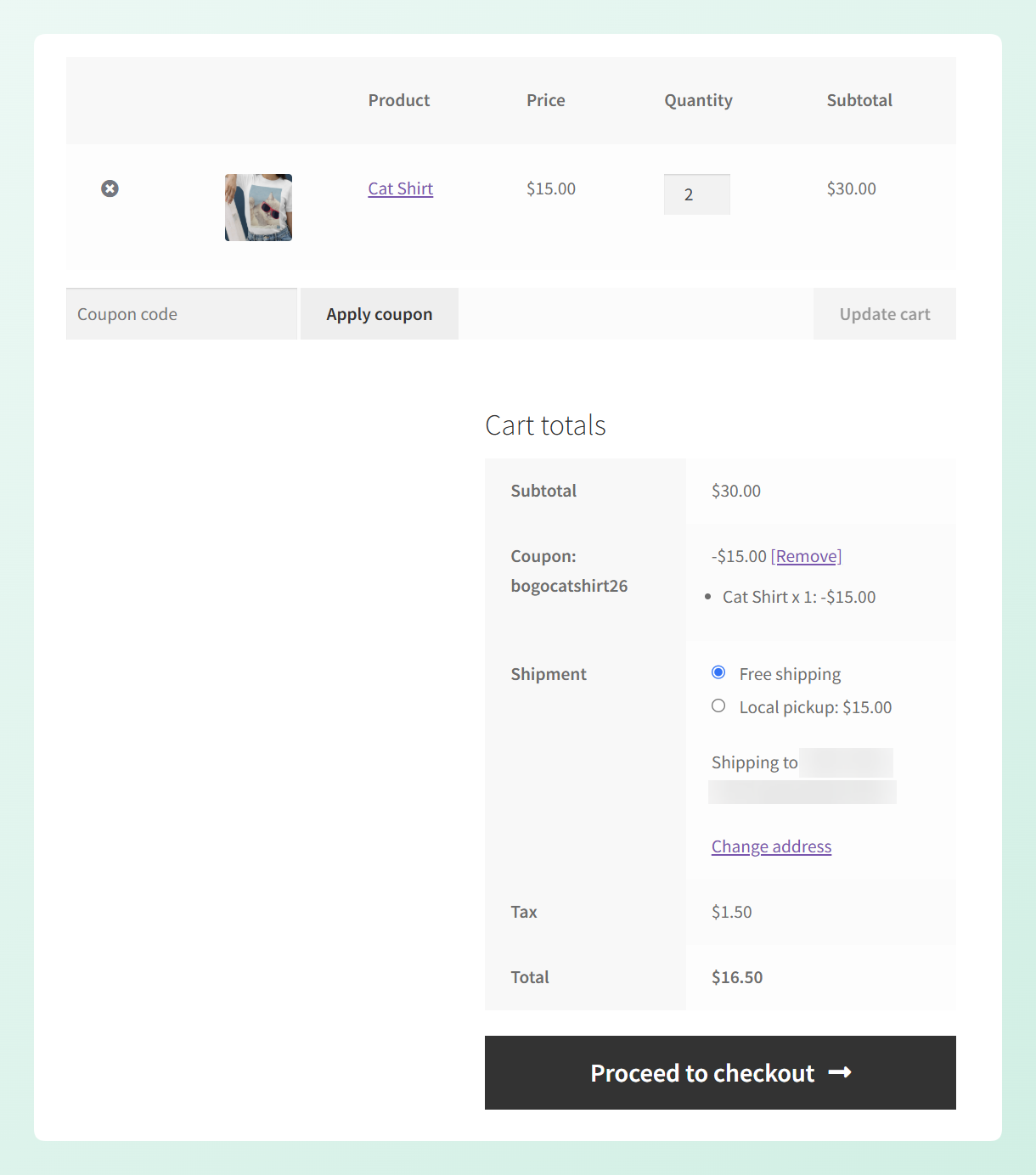
When you switch Discount application mode to Coupon amount, both shirts keep their regular $15 price. The product subtotal therefore shows $30, and the full $15 saving appears separately on the coupon row.
The same per-item breakdown remains beneath the coupon, showing that one Cat Shirt received the $15 BOGO discount.
Here’s a quick comparison of the same cart in both modes:
| Cart detail | Price modification | Coupon amount |
|---|---|---|
| Product price display | $15 × 1 and $0 × 1 | $15 × 2 |
| Product subtotal | $15.00 | $30.00 |
| Discount on coupon line | -$0.00 | -$15.00 |
| BOGO item breakdown | Cat Shirt × 1: -$15.00 | Cat Shirt × 1: -$15.00 |
| Tax | $1.50 | $1.50 |
| Total | $16.50 | $16.50 |
The customer pays $16.50 either way. The difference is simply where the $15 saving appears: inside the product pricing with Price modification, or clearly displayed on the coupon line with Coupon amount.
Why Use Coupon Amount Mode?
Coupon amount mode keeps the original product or shipping price visible while showing the saving separately on the coupon line. This can make the discount clearer for shoppers and easier to capture in coupon reporting.
1. Shoppers can see exactly what they saved
The discount appears on the coupon row in the cart and at checkout, making the value of the deal easy to spot.
BOGO Deals also adds a per-item breakdown beneath the coupon row. It shows the products included, their quantities, and the discount applied to each one. This breakdown is available in the classic cart as well as the WooCommerce Cart and Checkout blocks.
2. Your coupon reporting captures the discount
In coupon amount mode, the saving is added to the coupon’s discount total. WooCommerce then stores that amount on the order’s coupon line, allowing it to be included in coupon reporting.
This gives you a clearer record of how much discount each coupon applied, which can help when you review your promotions.
3. The original price stays visible
Coupon amount mode keeps the product price or shipping rate unchanged and places the saving on the coupon line. For stores using multi-currency or other price-filtering tools, avoiding a direct product price rewrite can also be a cleaner fit.
4. You can decide feature by feature
Each feature has its own setting, so you can choose the display that best fits each promotion. For example, you can show BOGO savings on the coupon line while continuing to reduce shipping costs directly.
Where To Set Discount Application Mode
You’ll find all three settings under Coupons > Settings. BOGO Deals has its own tab, while Add Products and Shipping Overrides are both under General.
The setting for each feature only appears while its module is active. You can review your enabled modules under Coupons > Settings > Modules.
BOGO Deals (free plugin)
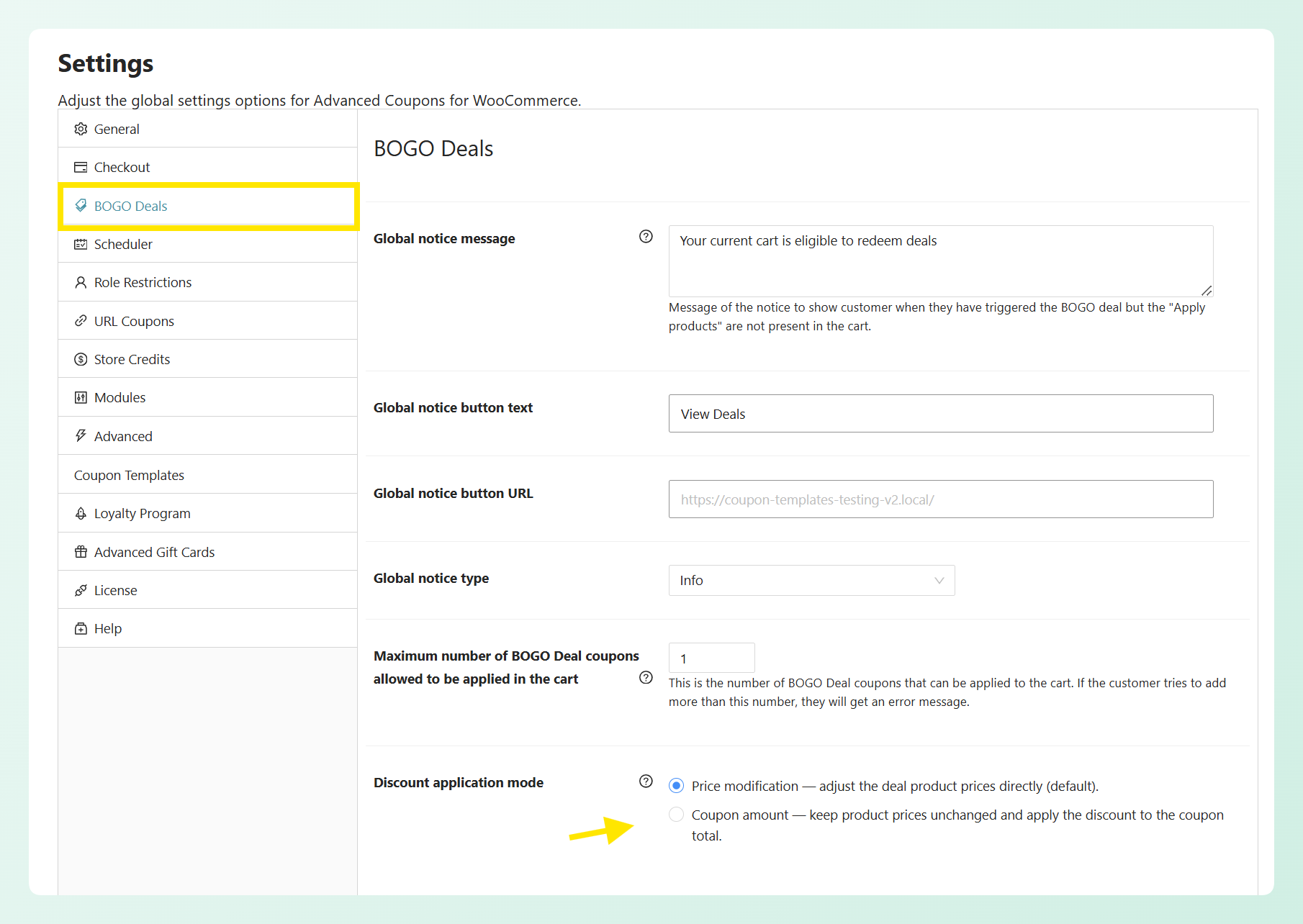
Head to Coupons > Settings > BOGO Deals and look for Discount application mode at the bottom of the tab. Choose Price modification to adjust the deal product prices directly, or Coupon amount to keep product prices unchanged and apply the discount to the coupon total.
Add Products (Premium)
This one sits on the General tab, under Coupons > Settings > General, listed as Add Products discount application mode. Same two choices, worded for added products rather than deal products.
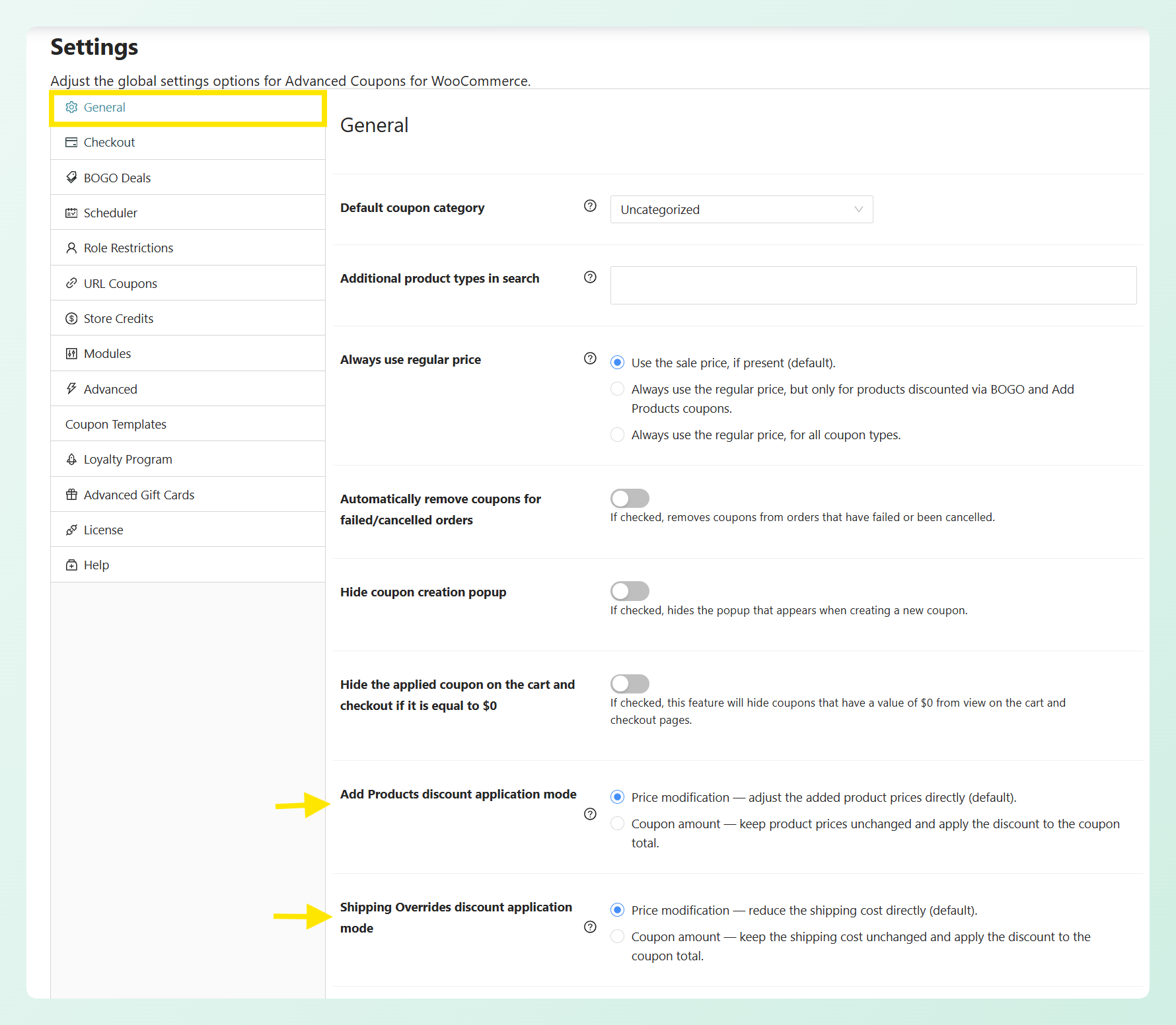
Shipping Overrides (Premium)
You’ll find this one on the same General tab, just below Add Products, as Shipping Overrides discount application mode. Here the choice is between reducing the shipping cost directly, or leaving the shipping cost as it is and putting the discount on the coupon total.
🎯 POWER TIP: Test one feature at a time. Choose a mode, place a test order, and check the cart, checkout, taxes, and completed order before changing another feature.
Good To Know Before You Switch
Before switching modes, keep these details in mind:
- Your current setup will not change automatically. Price modification remains the default for all three features, so coupon amount mode is opt-in.
- BOGO Deals totals stay the same. Both modes produce the same tax and grand total. The difference is how the saving appears in the cart and on the order.
- Shipping Overrides totals stay the same too. Shipping tax is adjusted proportionally in either mode, so the customer pays the same amount.
- Add Products can differ on taxable stores. The pre-tax amount stays the same, but coupon amount mode calculates item tax using the unmodified product price. This can slightly change the tax and grand total.
💡 GOOD TO KNOW: When you configure Add Products inside a coupon, products set to No discount are not attached to that coupon. This means they will not be automatically removed, quantity-locked, or recalculated when the coupon’s conditions change. To make an added product behave like a coupon-attached free gift, choose Percentage discount and set it to 0% instead.
Frequently Asked Questions
Will my totals change if I switch modes?
For BOGO Deals and Shipping Overrides, no. Your customer pays the same amount, including tax, in either mode. Add Products is the exception on taxable stores: the pre-tax amount matches, but because item tax is calculated on the unmodified price in coupon amount mode, the tax and grand total can differ slightly. If you use Add Products on a taxable store, place a test order before switching the setting on your live site.
Do I have to set this separately for each feature?
Yes. Each feature has its own setting: BOGO Deals on the BOGO Deals tab, and Add Products and Shipping Overrides on the General tab. You will need to choose a mode for each feature you use, but the settings can be different.
Which mode should I choose?
Choose Coupon amount if you want shoppers to see the saving on the coupon line or want the feature’s discount included in coupon reporting. Choose Price modification if you prefer the saving to be built directly into the product price or shipping cost. Each feature has its own setting, so you can use the mode that fits that promotion best.
Why can’t I see the setting?
Each setting only appears when its module is enabled. Check under Coupons > Settings > Modules that BOGO Deals, Add Products, or Shipping Overrides is switched on. Add Products and Shipping Overrides also need Advanced Coupons Premium, so you won’t see those two on the free plugin.
Does this affect orders I’ve already taken?
No. Existing orders keep the totals and coupon lines they were created with. After you save the setting, the selected mode applies the next time a cart is recalculated.
Wrapping Up
WooCommerce discount application mode gives you more control over how savings appear in the cart. Use coupon amount mode when you want the discount shown clearly on the coupon line and included in coupon reporting, or keep price modification when you prefer the saving built into the product or shipping price.
In this guide, we learned:
- How WooCommerce discount application mode works
- Why use coupon amount mode
- Where to set discount application mode
Choose the mode that best fits each promotion, then place a test order to check how the discount appears across the cart, checkout, and completed order.
Have a question about the update? Let us know in the comments. We’re happy to help!