
Great news for your loyalty program! Advanced Loyalty Program now shows customers how many points they need to reach their next reward, right on their My Points page. Customers already see how many points they have and what they’re worth. Now they also see how close they are to their next store credit reward.
Showing a goal next to a points balance is a simple way to bring gamification into your loyalty program. Customers can see what they’re working toward without doing the math themselves. Here’s what the new message looks like and how to set it up in your store.
What Your Customers See On The My Points Page
When customers open My Account > My Points, they’ll now find a new line inside their Points Balance box. It sits right under their balance and tells them how many more points they need for their next store credit reward.
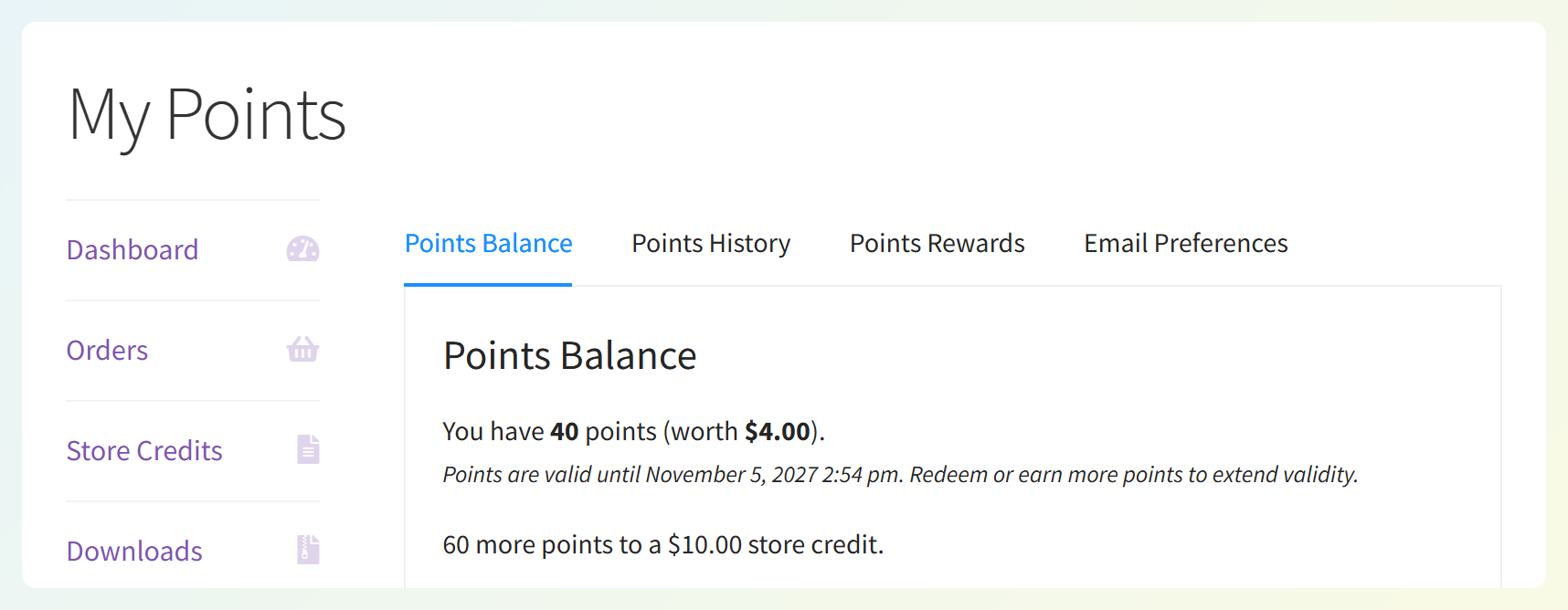
In this example, our customer Jamie has 40 points. The store’s next reward is a $10.00 store credit at 100 points, so Jamie sees “60 more points to a $10.00 store credit.”
Here’s how the line behaves for your customers:
- It reads naturally. When a customer is one point away, it says “1 more point.” It also uses your store’s own name for points.
- It updates right away. If a customer redeems points on the My Points page, the line updates straight away, with no page reload needed.
- It disappears at the goal. When a customer’s balance reaches the target the message is tracking, the line disappears.
Why it helps your loyalty program
A visible points goal can make the loyalty balance more useful for customers:
- A clear goal to work toward. Customers know exactly what they’re earning toward, and that goal is the heart of a gamified loyalty program.
- A reminder of what’s next. Each time customers check their points, they can see how close they are to their next store credit reward.
- See the next goal after redemption. If redeeming points brings a customer’s balance below the target, the message shows how many points they need to reach it again.
- Less mental math. Instead of subtracting their balance from the goal, customers see the remaining points right away.
How To Set Up Points To Next Reward
Setting this up only takes a few steps. You’ll need Advanced Loyalty Program version 1.9.6 or newer, along with the free Advanced Coupons plugin and its Store Credit module enabled. If you haven’t installed the loyalty plugin yet, you can get Advanced Loyalty Program before following along.
Step 1: Open your redemption settings
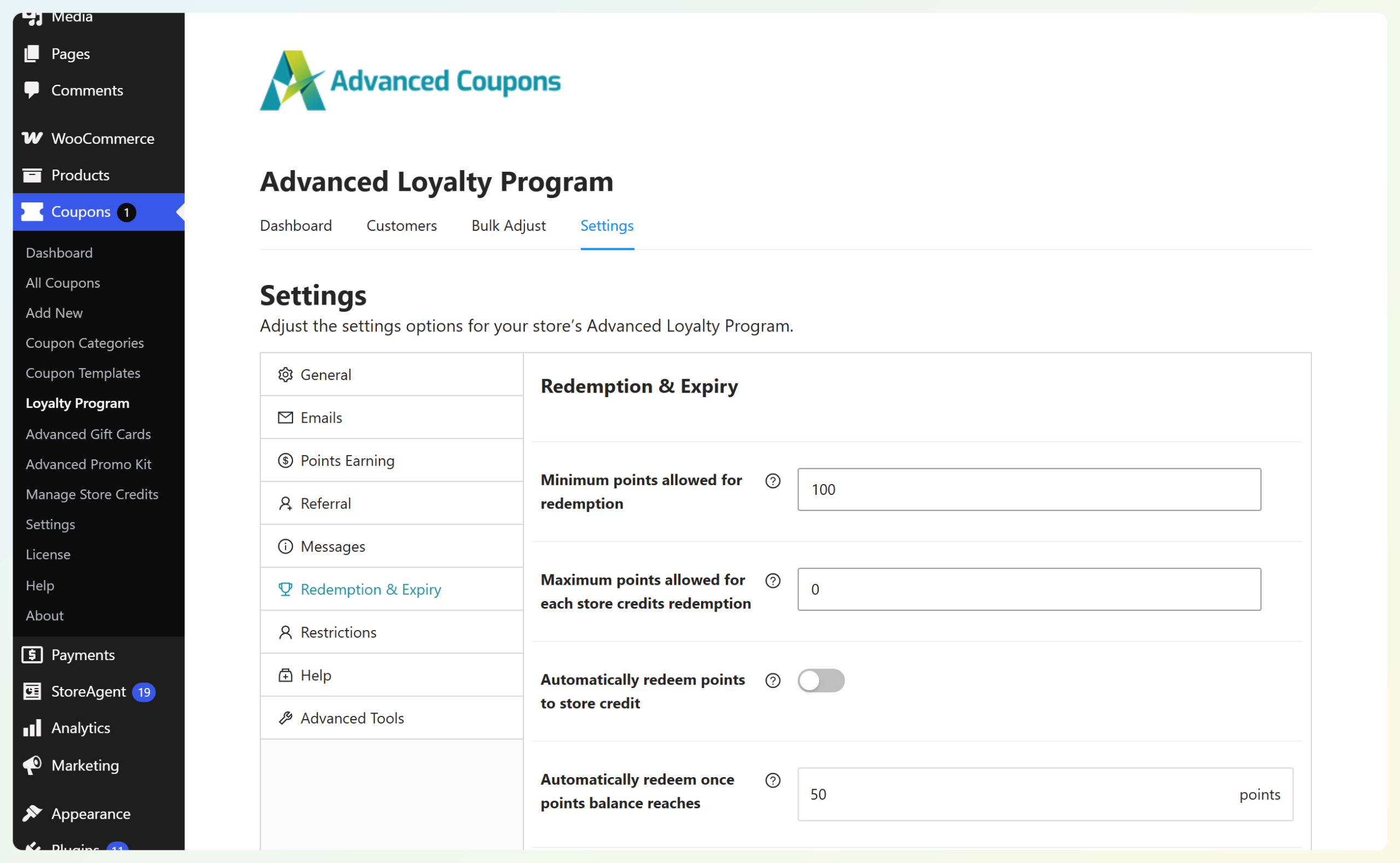
First, head to your WordPress dashboard > Coupons > Loyalty Program and click the Settings tab. From the menu on the left, choose Redemption & Expiry. This is where all your points redemption options live, including the new message.
Step 2: Set the goal your customers work toward
Next, check the points goal your message will count toward. By default, it uses Minimum points allowed for redemption, the fewest points a customer can convert into store credit at once.
If Automatically redeem points to store credit is enabled, the message uses whichever is higher: that minimum or the Automatically redeem once points balance reaches threshold. Customers can still redeem points manually before reaching a higher automatic threshold.
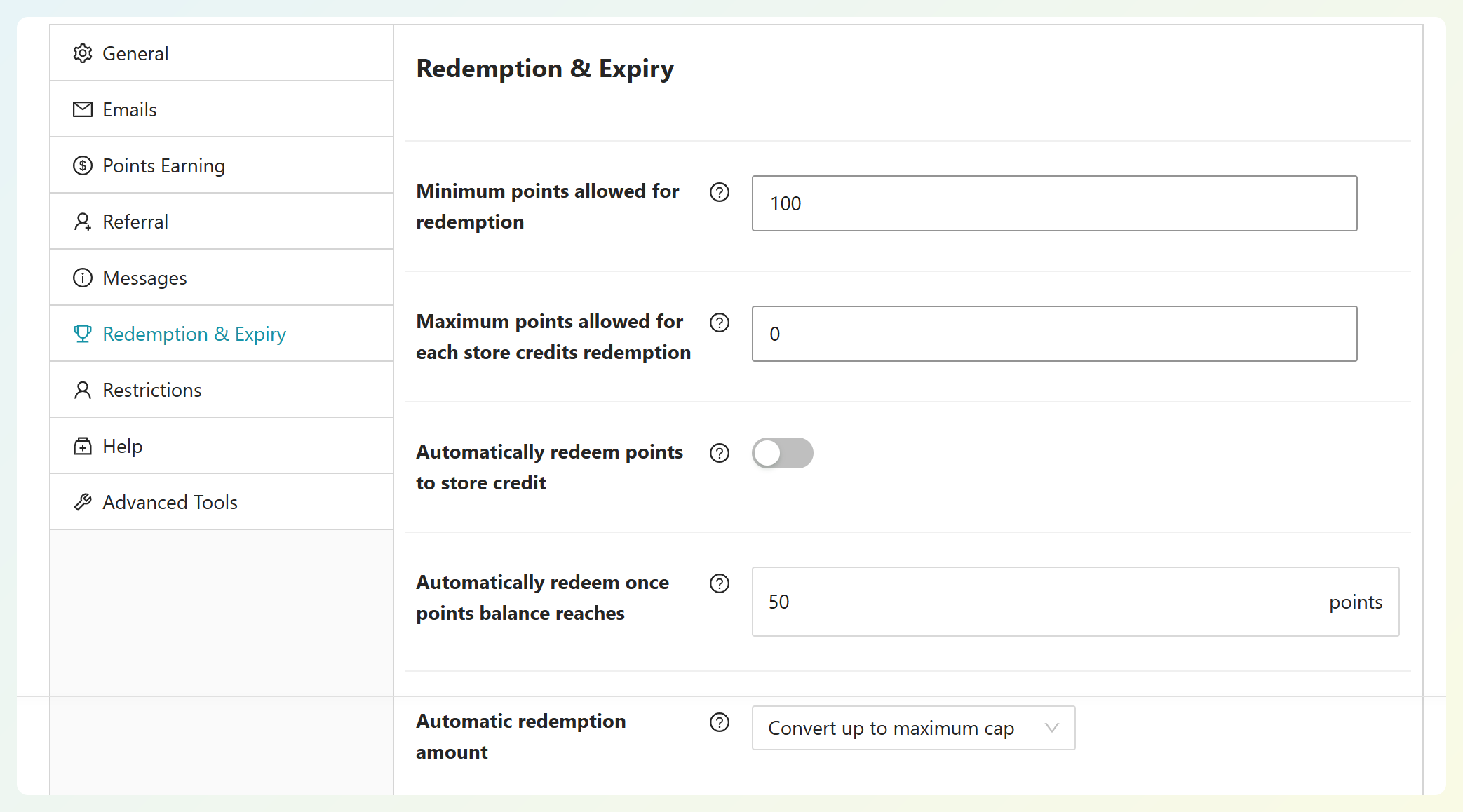
In our example, we’ve set the minimum to 100 points, and automatic redemption is off. With our store’s points value, 100 points is worth $10.00 in store credit, so that becomes the reward customers see in their message.
Step 3: Customize your message
Now scroll down to the new Progress to next reward message field. It comes filled in with a ready-to-use message, so you can keep it as is or write your own. You can use three placeholders:
- {points}: the number of points the customer still needs.
- {points_name}: your store’s name for points.
- {amount}: what the next reward is worth in store credit.
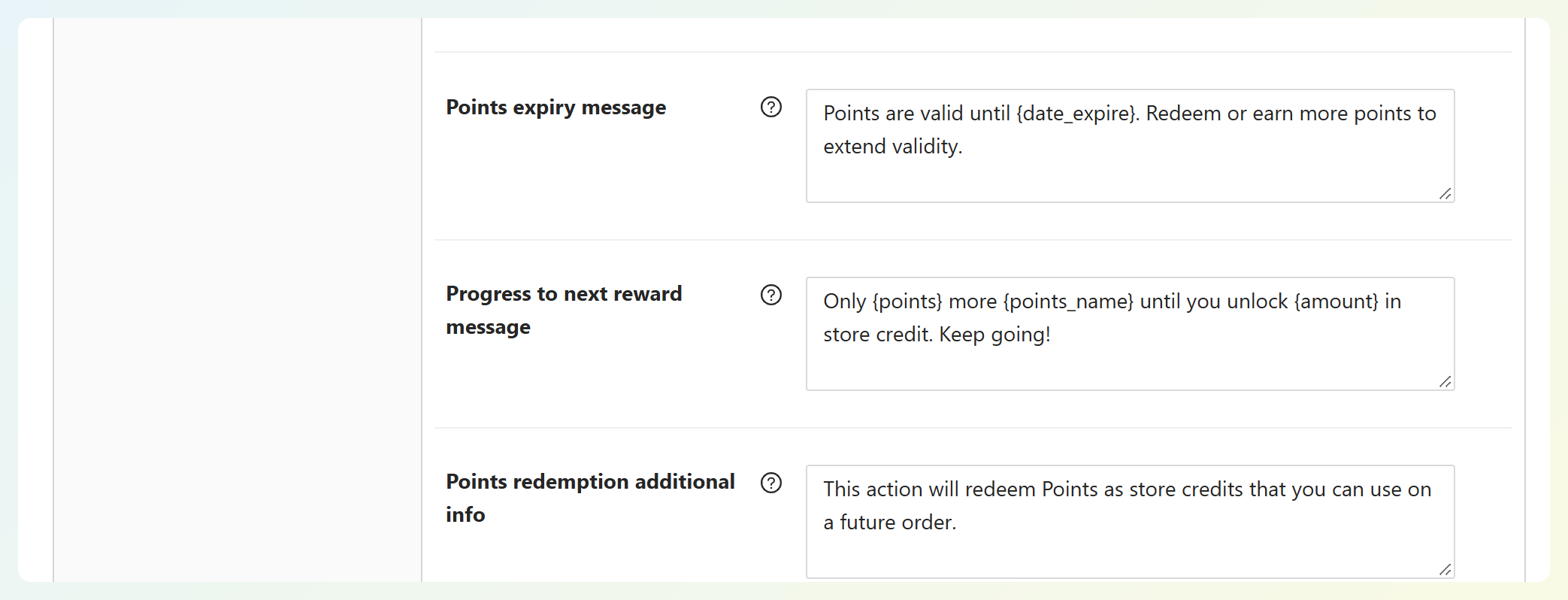
The default message reads “{points} more {points_name} to a {amount} store credit.” For our example, we’ve made it a little more upbeat: “Only {points} more {points_name} until you unlock {amount} in store credit. Keep going!”
Step 4: Check the customer view
Finally, take a look at the My Points page from a customer account. Here’s how our custom message looks for Jamie:
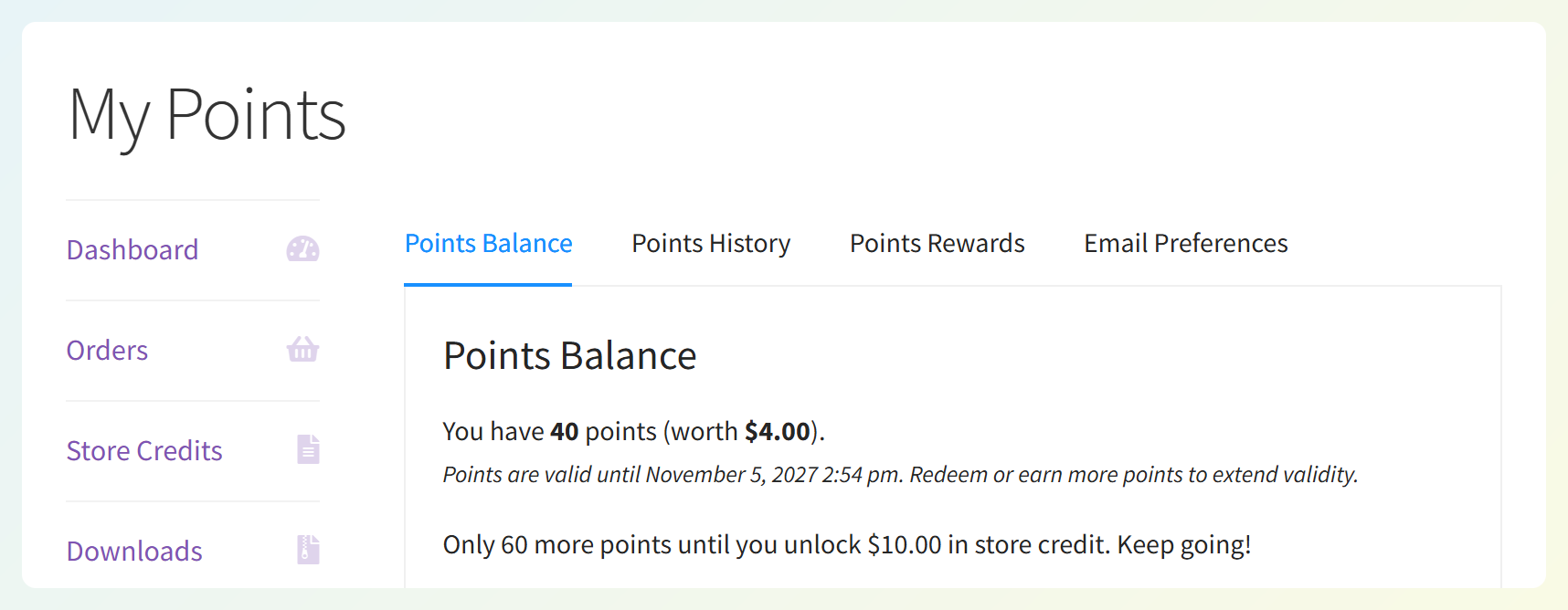
That’s it! Customers below the target can now see how many points they have left to earn.
🎯 POWER TIP: Keep your minimum within reach. A goal customers can hit in a few orders feels motivating, while one that’s far away can feel out of reach. Our guide on loyalty program mistakes and how to fix them covers how to pick a threshold that works.
4 Ways To Use Points To Next Reward
Here are a few ideas for getting the most out of this feature in your store:
1. Turn your redemption minimum into a visible goal
With automatic redemption off, your minimum points for redemption becomes a goal customers can see right next to their balance. If 100 points equals $10.00 in store credit, customers below that target can see how close they are.
2. Let customers know when automatic redemption kicks in
If you automatically redeem points to store credit, you can word the message around that goal. For example: “{points} more {points_name} until you reach your {amount} store credit goal.” That gives customers a clear sense of what they’re working toward before automatic redemption kicks in.
3. Match your brand voice and points name
If you’ve renamed your points under Settings > General > Points name, the message follows along. A store that calls its points “Stars” will show something like “60 more stars to a $10.00 store credit,” and it switches to “1 more star” when a customer is one away. Pair that with your own wording, and the message feels like part of your brand.
4. Keep customers earning right after they redeem
If a redemption brings customers below the goal again, the message automatically returns with their next points target. There’s nothing extra for you to set up.
Tips And Reminders
Here are a few details worth knowing as you set this up:
- It’s ready once you set a goal. The message comes pre-filled, so it appears when you’ve set a redemption minimum or enabled automatic redemption with a threshold, as long as customers are below that goal. To turn it off, clear the message field.
- It counts toward the higher goal. The line uses your minimum points for redemption. If automatic redemption is on and its threshold is higher, it counts toward that instead.
- It’s all about store credit. The message tracks your next store credit reward. Products and coupons on the Rewards tab already show the points needed on each reward, which you can learn about in our guide to redeeming loyalty points for products and coupons.
- Keep it plain text. HTML tags won’t change the formatting of your message.
RELATED READ: Gamification Examples To Boost Customer Engagement

Frequently Asked Questions
Where do customers see their points to next reward?
Customers see it on their My Account > My Points page, inside the Points Balance box. The message sits right under their current balance and shows how many more points they need for their next store credit reward.
Why isn’t the message showing for my customers?
The message needs a goal to count toward, so set a Minimum points allowed for redemption or enable automatic redemption and set its threshold under Coupons > Loyalty Program > Settings > Redemption & Expiry. Also check that the Progress to next reward message field isn’t empty. The message disappears when a customer’s balance reaches the goal it’s tracking, which may be higher than the minimum for manual redemption.
Can I change the wording of the message?
Yes. Edit the Progress to next reward message field and use the {points}, {points_name}, and {amount} placeholders to show the points remaining, your points name, and the store credit amount. The message shows as plain text, and you can clear the field to turn it off.
Does points to next reward work with automatic redemption?
Yes. When automatic redemption is on, the message counts toward whichever is higher: your redemption minimum or the automatic redemption threshold. The {amount} placeholder shows the store credit value calculated for that goal, taking Convert up to maximum cap into account if you’ve selected it.
Does it include rewards from the Rewards tab?
The message counts toward your next store credit reward. Products and coupons on the Rewards tab show how many points each one needs right on its own card, so customers can see those goals there.
Wrapping Up
A loyalty program is more fun when customers can see where they’re headed. With points to next reward on the My Points page, customers who are still working toward their store credit goal can see how many points they have left to earn.
In this guide, we learned:
- What your customers see on the My Points page
- How to set up points to next reward
- 4 ways to use points to next reward
- Tips and reminders
Ready to give your customers their next goal? Head to Coupons > Loyalty Program > Settings > Redemption & Expiry in Advanced Loyalty Program and set up your message today. ❤️
Do you have any questions about this update? Let us know in the comments. Happy to help!