Big news for your loyalty program! You can now let customers redeem loyalty points for products and coupons in your store, straight from their My Points page. You can turn existing simple or variable products, plus coupons, into rewards and set the points cost for each one.
For your store, that gives shoppers more ways to use the points they earn. They can browse specific rewards, see what each one costs, and save toward the ones they want.
Feature Overview: Redeem Loyalty Points For Products And Coupons
Until now, the way to spend loyalty points in Advanced Loyalty Program was to convert them into store credit. That option is still available. What’s new is a second way for customers to spend their points: claiming a specific product or coupon you’ve marked as a reward.
A few things to know before you start:
- There’s no rewards dashboard to manage. You set rewards up on the product’s or coupon’s own edit screen, right where you already work.
- A reward is a setting, not a new item. You’re marking an existing product or coupon as a reward, so there’s no duplicate reward catalog to keep in sync.
- Claiming generates a coupon. When a customer redeems, the plugin creates a fresh single-use coupon code locked to their email address.
- Reward claims use loyalty points directly. They don’t spend store credit, and they appear separately in Points History from store credit conversions.
You can offer two kinds of rewards, and each one is set up a little differently. Let’s start with products.
How To Offer A Product As A Loyalty Reward
You’ll need Advanced Loyalty Program installed and updated to use this feature. If you haven’t done so already, you can get Advanced Loyalty Program.
Step 1: Turn on the reward option
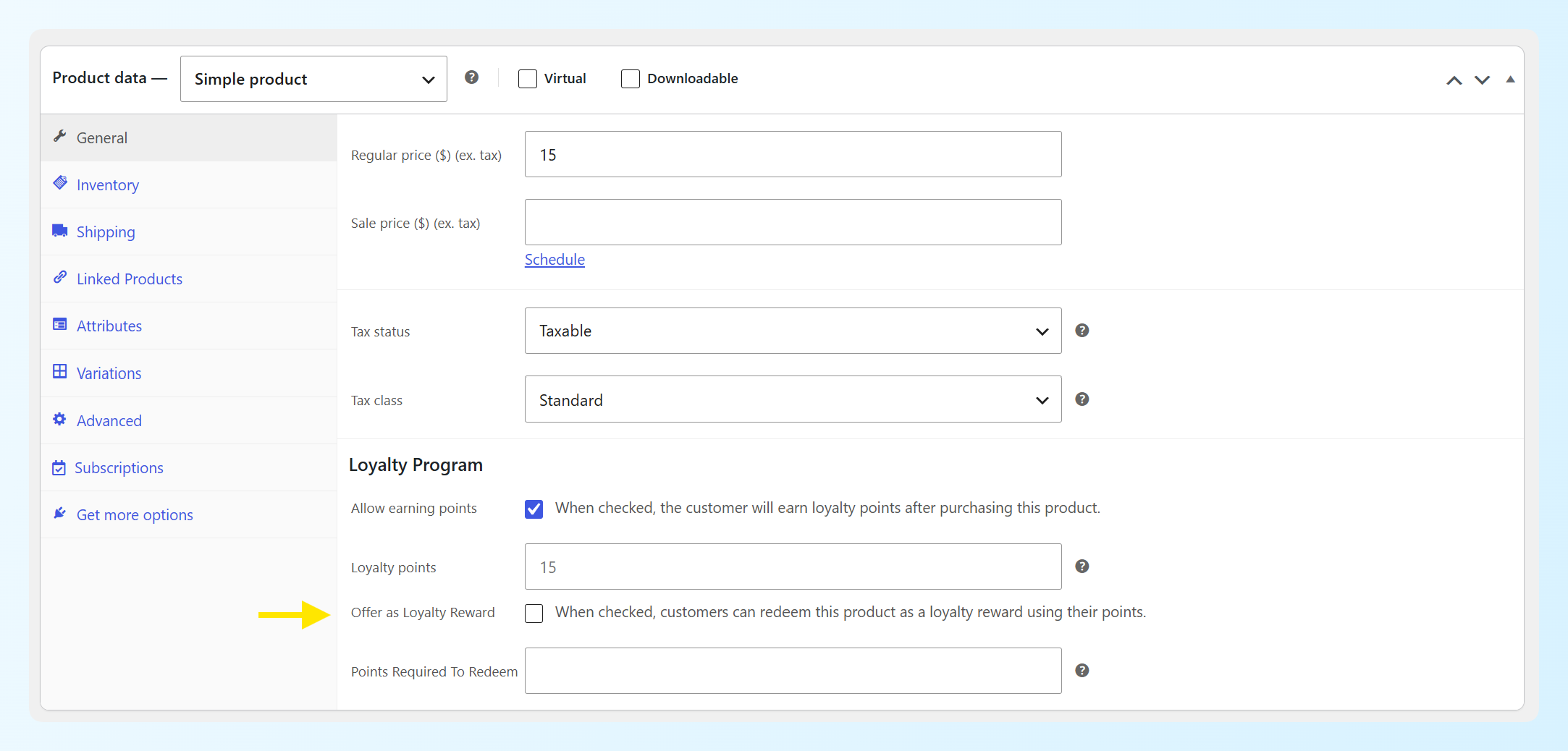
Head to WordPress dashboard > Products and open the simple or variable product you want to offer. On the General tab, scroll to the Loyalty Program panel and check Offer as Loyalty Reward.
Step 2: Set the points cost
The first time you check that box, Points Required To Redeem fills in automatically if the field is empty. The plugin works out a starting figure from the product’s price and your store’s points redemption rate, then rounds up.
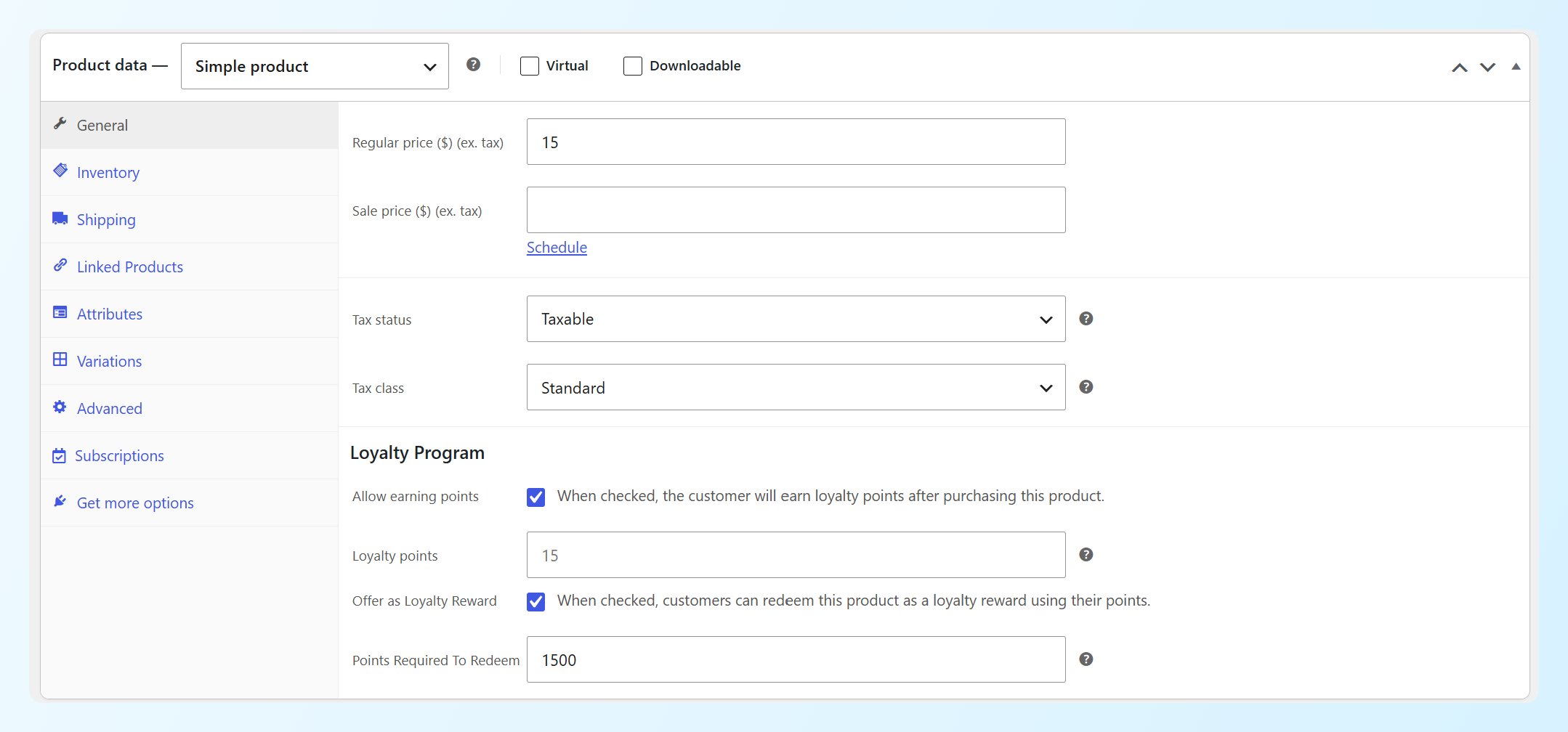
In the example above, a $15 product came out at 1,500 points because the store’s redemption rate is 100 points per dollar. That figure is only a starting point. Type over it with whatever you want the reward to cost, and the plugin will use your number instead.
Not sure what to charge? Our free loyalty points calculator is a handy way to sanity-check the numbers before you commit to them.
Step 3: Offer specific variations (optional)
Variable products get the same two fields on every variation. The parent checkbox acts as the master switch, and then each variation carries its own Offer as Loyalty Reward toggle and its own points cost.
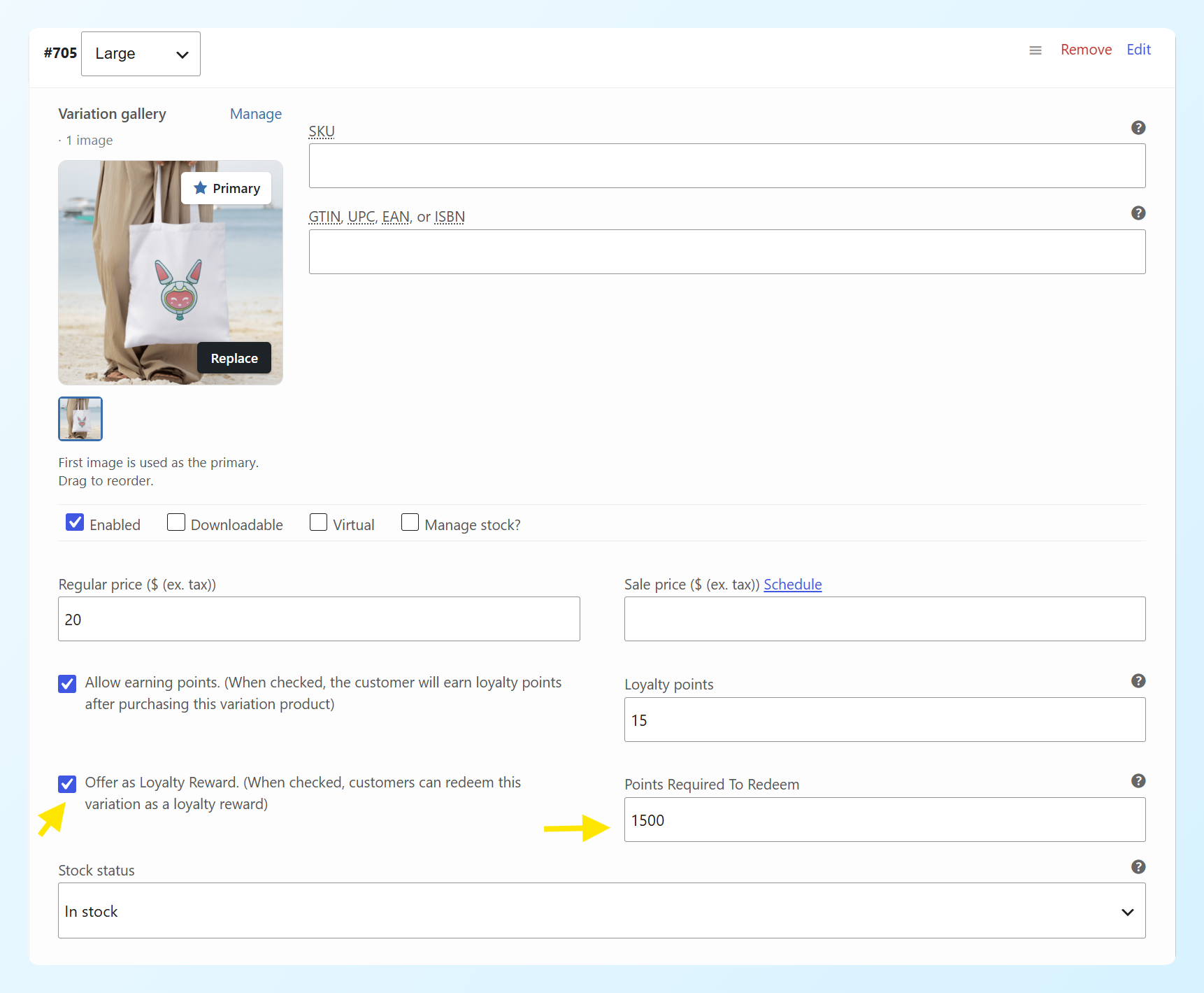
Only the variations you’ve toggled on are claimable. That’s handy when you’re happy to give away the small size but not the large one. Give every variation you enable its own points cost. The parent’s figure shows as a grayed-out hint in the field, but it isn’t applied automatically, and a variation left empty can’t be claimed.
Product stock carries through automatically. If a simple product or eligible variation is out of stock, customers can’t claim it as a reward. That’s all you need to set up product rewards.
How To Offer A Coupon As A Loyalty Reward
Coupons work almost the same way, with one important difference in how they behave once claimed.
Go to WordPress dashboard > Marketing > Coupons and open any coupon. You’ll find a Loyalty Reward box carrying the same two settings: Offer as Loyalty Reward and Points Required To Redeem.
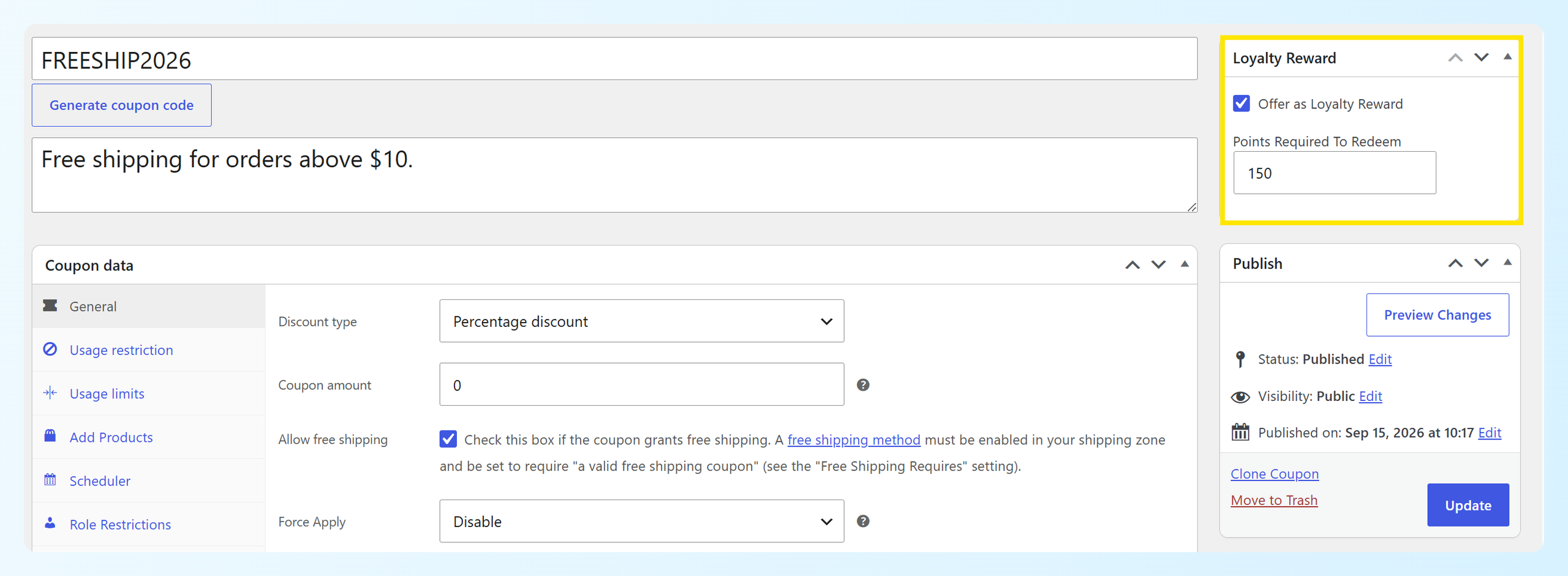
Unlike products, coupons don’t suggest a points cost, so you’ll enter that one yourself.
The coupon you mark acts as a template. When a customer claims it, the plugin creates a new coupon based on that template while leaving the original coupon unchanged. Its usage count and settings stay as they were.
The generated coupon copies the template’s discount type and amount, product or category restrictions, minimum and maximum spend, individual-use setting, sale-item exclusions, and free-shipping setting. Each generated coupon is limited to one use and restricted to the claiming customer’s email address. The template’s expiry date is not copied, so the generated coupon doesn’t receive that expiry date.
🎯 POWER TIP: Give your reward coupons readable codes before you publish them. Customers see the coupon code itself as the reward’s name, both on the rewards card and in the confirmation email. A clear code like FREESHIP2026 tells them exactly what they’re claiming.
What Customers See On The Rewards Tab
Customers can access their rewards from a new tab on the My Points page. By default it’s labeled Points Rewards. If you’ve renamed points in your settings, the tab uses that name instead.
Their current balance sits at the top, with a How to earn points link beside it, then every available reward below as its own card. Each card carries a Product or Coupon badge, the reward name, and what it costs.
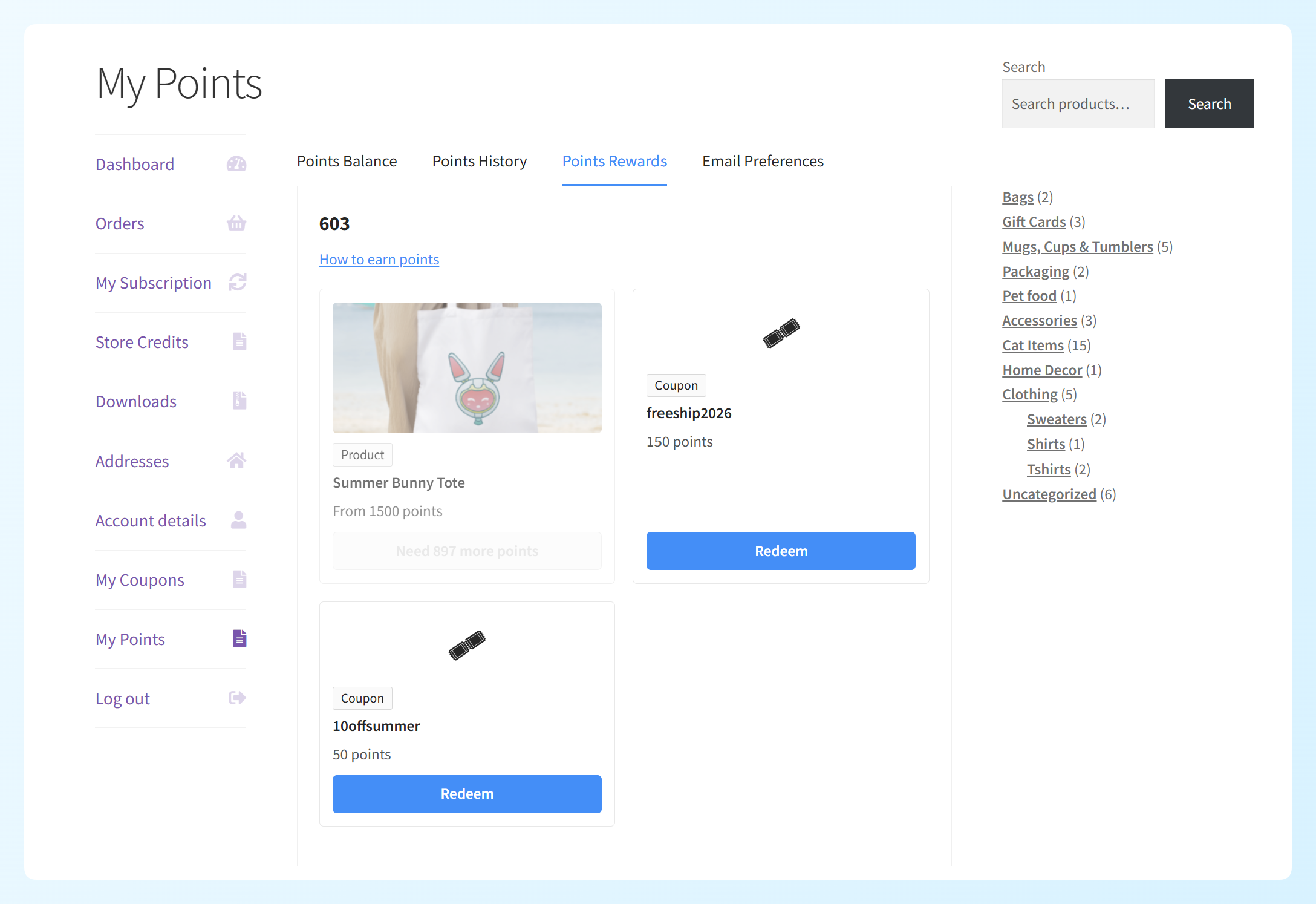
Rewards a customer can’t claim stay on the page instead of disappearing. You’ll see two disabled states:
- Not enough points yet: the button shows the exact shortfall, such as “Need 897 more points” in the example above, and the card dims so the customer can see how far off they are.
- Unavailable: the card grays out and reads “Unavailable”. For product rewards, this can happen when the product or eligible variation is out of stock. A coupon reward can also become unavailable if its template coupon has reached its own usage limit. This status takes priority over affordability.
Variable products appear as a single card reading “From 1,500 points”, using the cheapest variation you’ve enabled. Pressing Redeem opens a selector so the customer picks the variation they want, with each option showing its own cost.
How Customers Claim A Reward
Claiming takes just a few clicks, and customers can see exactly what they’re spending before they commit.
Step 1: Confirm the redemption
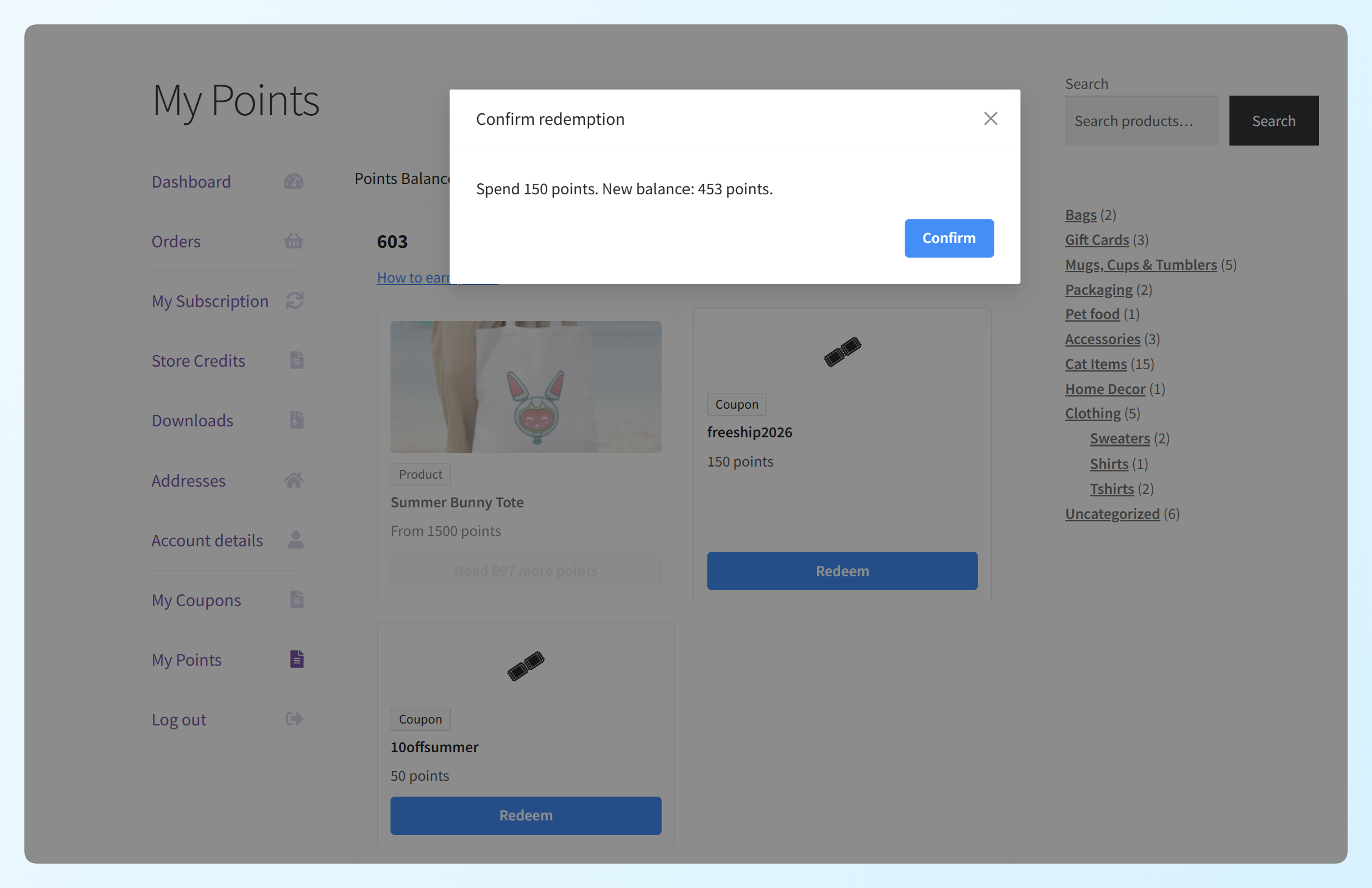
Pressing Redeem doesn’t spend anything straight away. A confirmation appears first, quoting both the cost and the balance they’ll be left with.
Step 2: Get the coupon code
Once the customer confirms, the points are deducted from their balance and the new coupon code appears right away with a copy button.
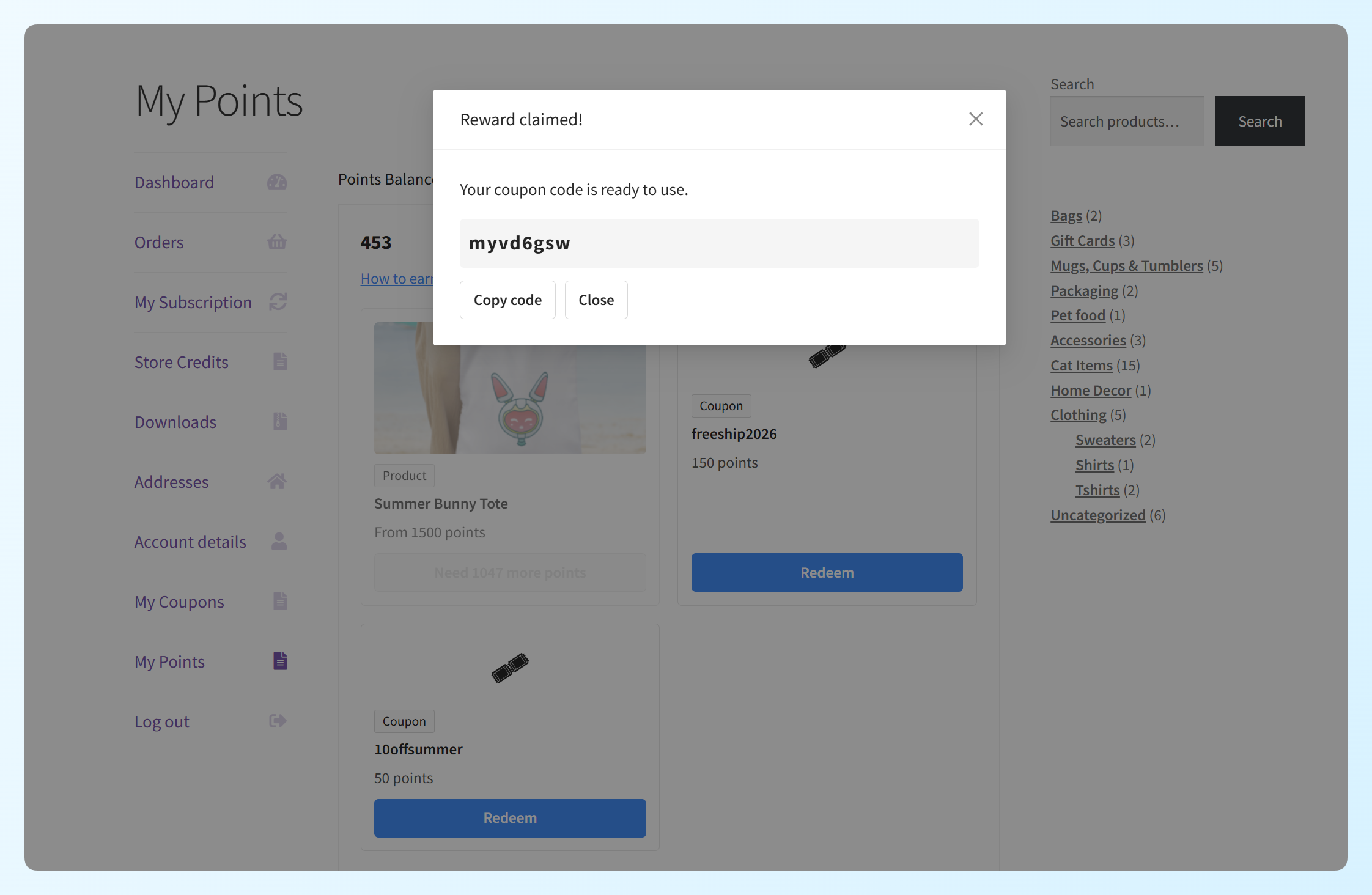
For a product reward, that code is a 100% discount restricted to the product they claimed, limited to one use and locked to their email address. It applies to the product’s current line price in the cart, so a sale-priced product still comes out at zero.
Step 3: Check the confirmation email
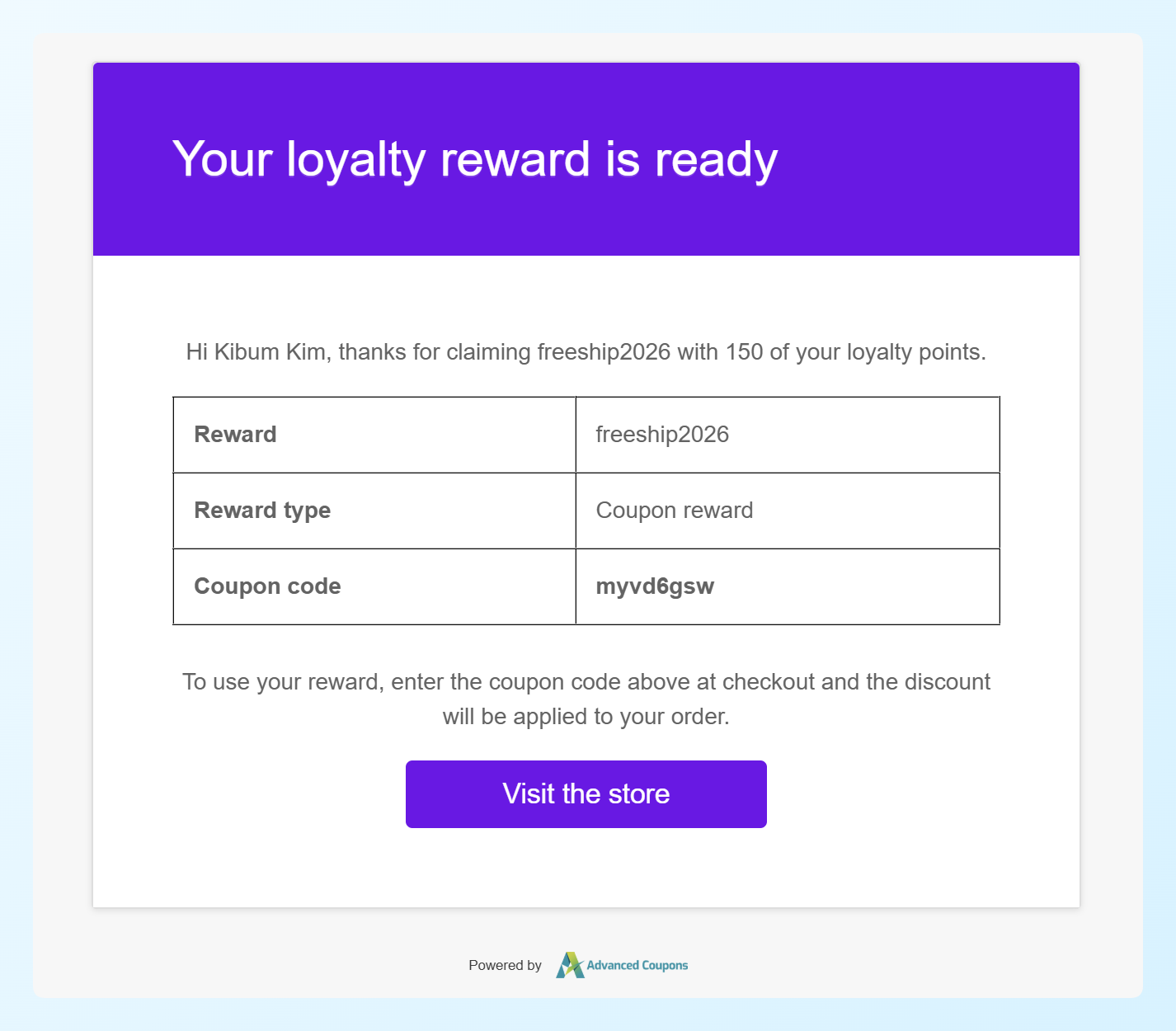
By default, a confirmation email goes out at the same time, so customers also receive a copy of the code outside the Rewards tab. It lists the reward, the reward type, and the coupon code, along with instructions for using it at checkout.
Step 4: Track claimed rewards
Back on the tab, a Claimed rewards table lists every code that customer has generated, with the claim date, the points spent, and whether the coupon has been used yet.
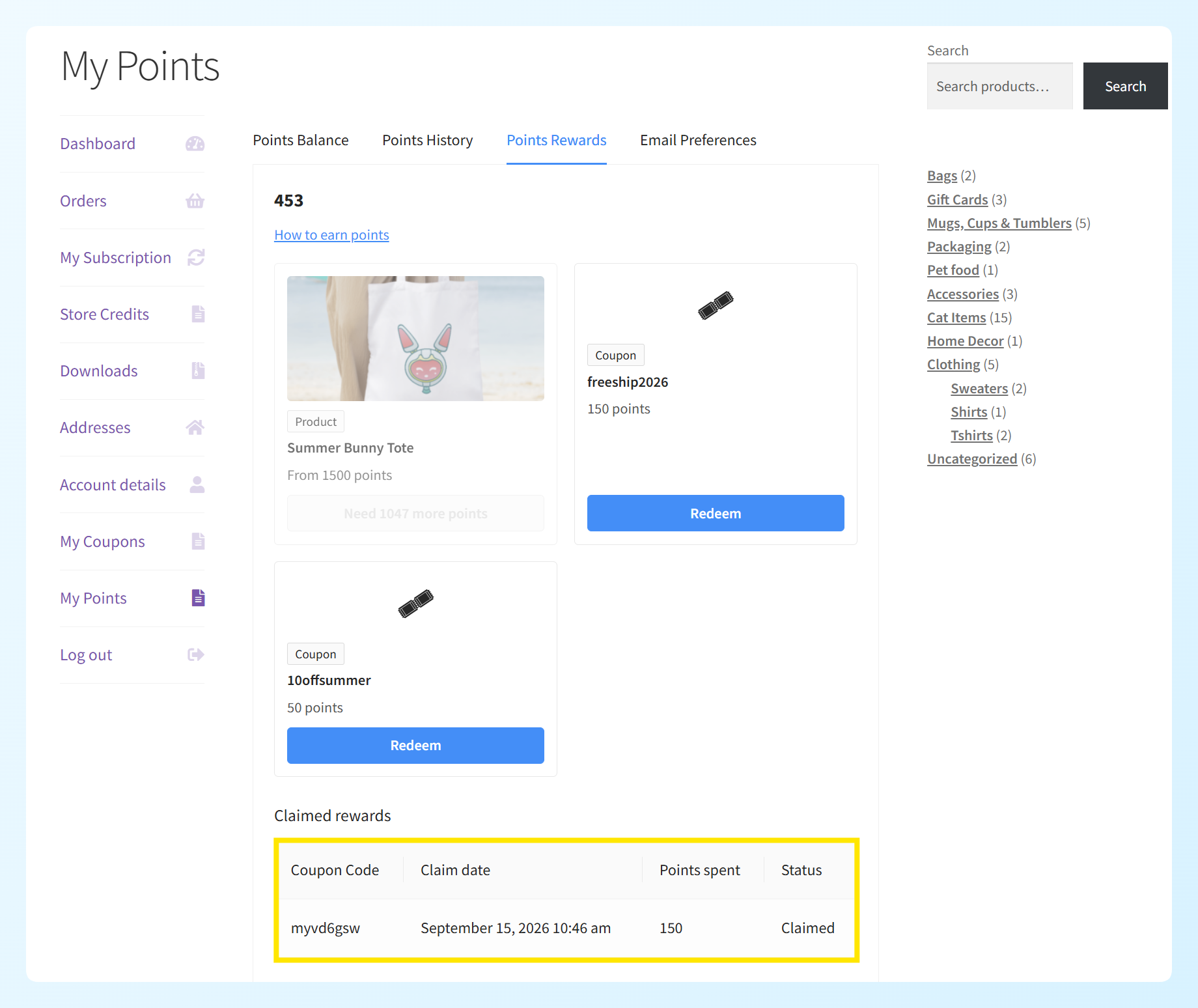
The redemption also shows up in the customer’s Points History as a negative entry and is included in your admin dashboard report totals.
Five Ways To Use Loyalty Rewards In Your Store
Because simple and variable products, along with coupons, can become rewards, you can use the feature in a few different ways. Here are five ideas to consider:
1. Give away a signature product
The classic reward. Pick something recognizable from your catalog and price it in points, giving customers something specific to work toward. Because the generated coupon is restricted to that exact product, it can’t be spent on anything else. The coupon covers the product price, while shipping still follows your store’s normal shipping rules.
2. Offer a discount at a lower points cost
A lower-cost discount coupon gives customers with smaller balances another reward they can work toward. For example, you could offer a 10% coupon at a modest points cost alongside higher-value rewards.
3. Make free shipping a reward
Create a coupon with free shipping enabled, mark it as a reward, and set the points cost you want. This gives customers another way to use their points without discounting the product itself.
4. Reward one variation, not the whole product
If your margins differ across sizes or formats, enable the reward toggle only on the variations you’re comfortable giving away. Customers see one card and choose from the eligible options when they redeem, so the ineligible variations never appear as rewards at all.
5. Offer rewards at different points costs
Set several rewards at different points costs to give customers options at different balances. Rewards they can’t afford yet stay visible with the points shortfall shown, so customers can see what they can work toward next.
RELATED READ: How To Structure An Effective Reward Points System
Managing Your Loyalty Rewards
Once your rewards are live, a few settings affect whether customers can keep claiming them and what happens to the coupons they generate.
Managing reward availability
Customers can claim the same reward more than once as long as they have enough points and the reward is still available. There isn’t a built-in once-per-customer claim limit.
When you want to control whether a reward can still be claimed, you have a few options:
- Product and coupon availability: product rewards become unavailable when the product or eligible variation is out of stock. Coupon rewards can become unavailable if the template coupon reaches its own usage limit. Reward claims themselves don’t use up that template limit because each claim creates a separate coupon.
- The reward toggle: uncheck Offer as Loyalty Reward whenever you want to stop new claims for a product or coupon reward.
- The points cost: this controls how many points a customer needs before they can claim the reward, but it doesn’t limit how many times the same customer can claim it.
Customers who already claimed a reward keep the coupons they generated even after you switch the reward off. The plugin shows you a note about this before you save the change.
Check your automatic redemption setting first
Check this setting before you build out your rewards, because it can affect whether customers are able to save enough points for a reward.
Advanced Loyalty Program has a setting that automatically converts a customer’s points into store credit when its automatic redemption threshold is triggered. If automatic redemption happens before a customer reaches the balance needed for a reward, their points are converted to store credit first and that reward won’t become claimable.
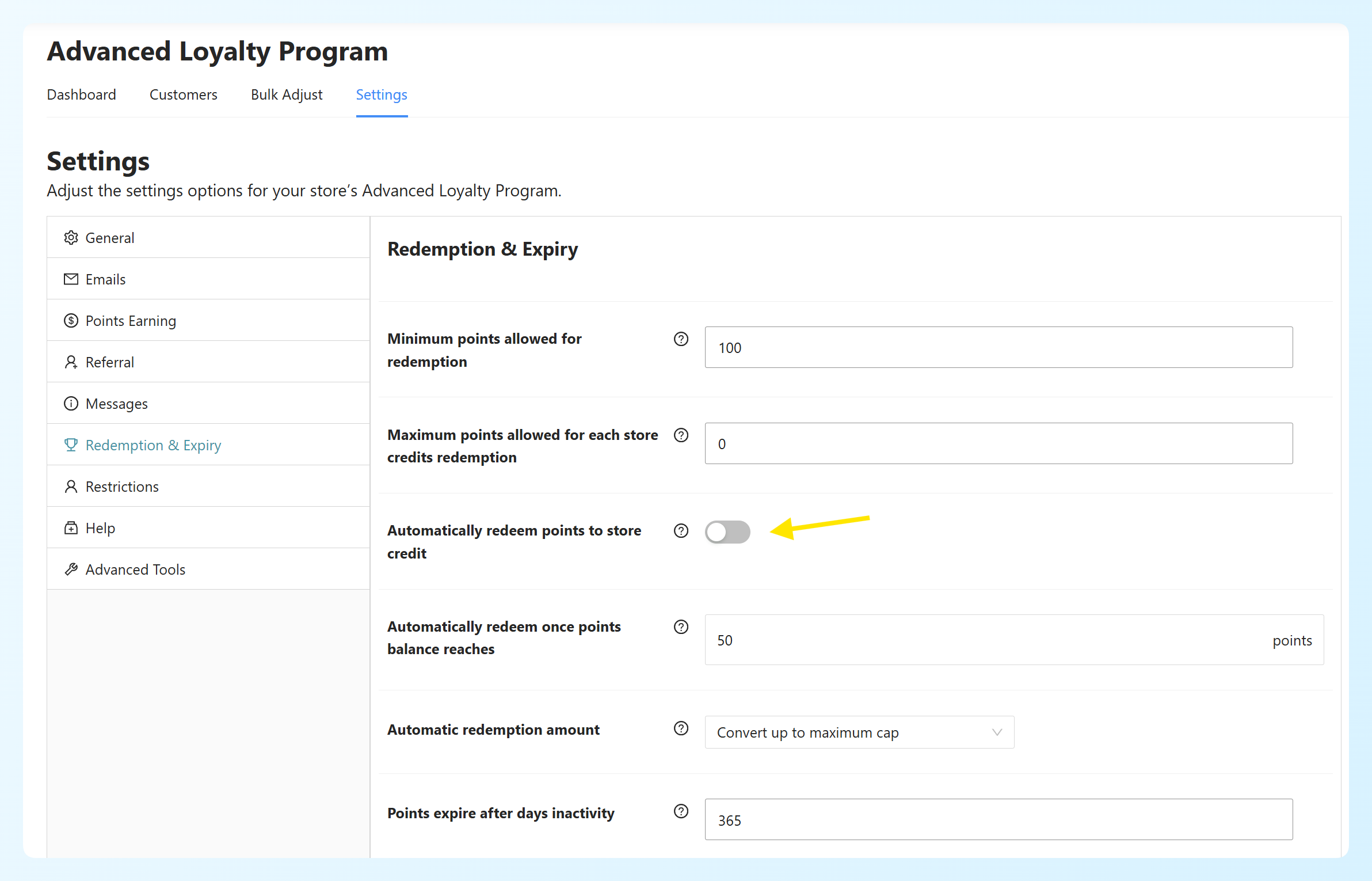
If you want to run both, set the automatic redemption threshold above the most expensive reward you want customers to save for. If rewards are the focus, turn automatic redemption off and let customers choose what to spend on.
What happens to the coupons your store generates
Every claim creates a coupon, but your coupon list won’t fill up. Generated reward coupons are hidden from Marketing > Coupons and left out of the status counts there.
A daily cleanup runs in the background and removes generated reward coupons once they’ve been used up or expired. It only targets coupons the reward system created, so your reward templates and ordinary coupons are left alone.
Customizing The Reward Claim Confirmation Email
The confirmation email is a standard WooCommerce email, which means you can manage it alongside your other store emails. Head to WooCommerce > Settings > Emails and open Loyalty Program – reward claim confirmation.
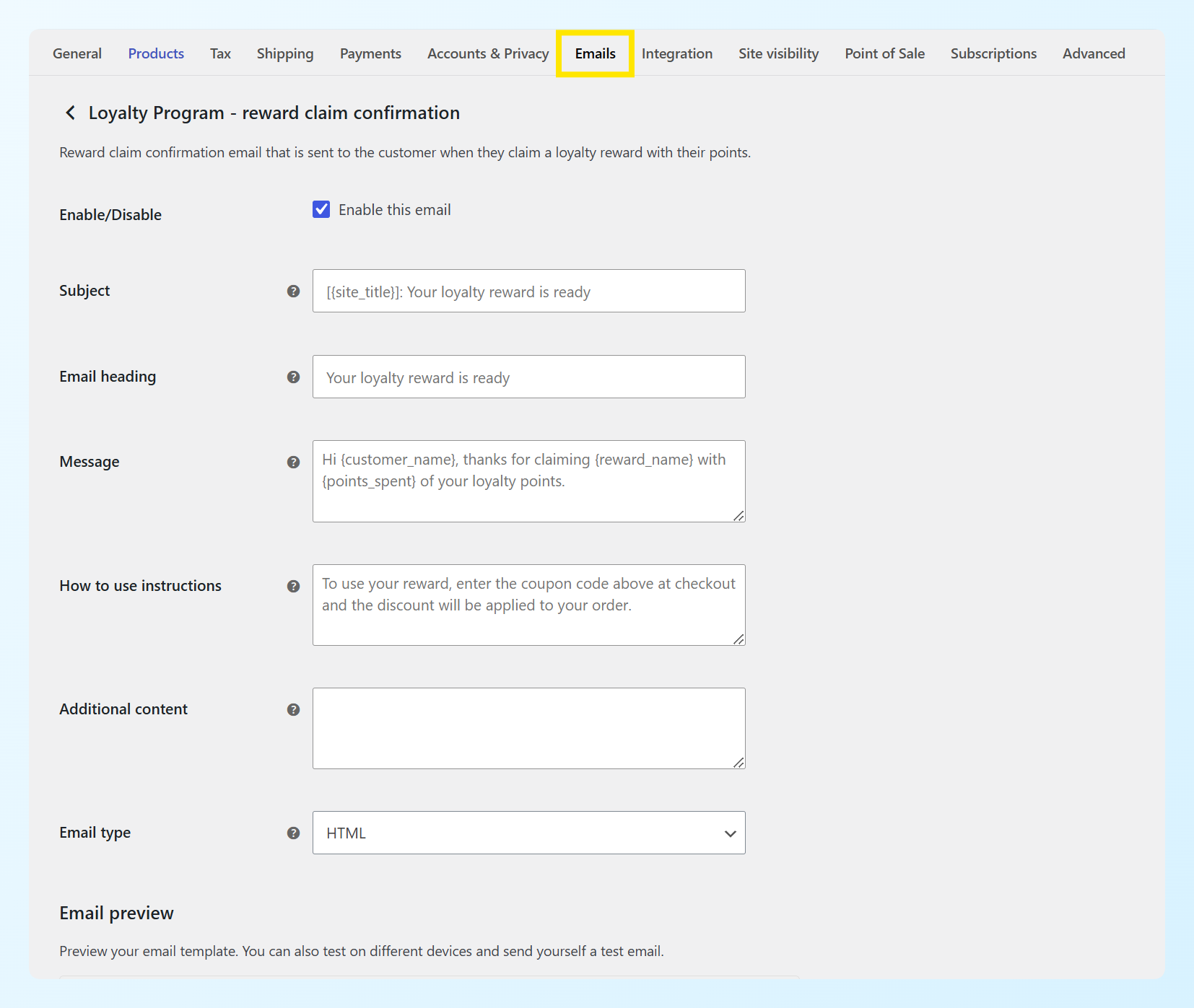
It’s enabled by default, so you don’t need to do anything to start sending it. From there you can edit the subject line, the heading, the main message, the how-to-use instructions, and any additional content, as well as switch between HTML and plain text or preview the result.
These placeholders are available in the text fields:
{customer_name}and{customer_email}{reward_name}and{reward_type}{coupon_code}and{points_spent}
If you’d rather change the layout than the wording, the template can be overridden by copying it to yourtheme/woocommerce/emails/reward-claim.php, the same as any other WooCommerce email template.
Frequently Asked Questions
Can customers redeem loyalty points for free products in WooCommerce?
Yes. Mark a simple or variable product as a loyalty reward and set what it costs in points. When a customer claims it, Advanced Loyalty Program generates a single-use coupon that takes 100% off the product or variation they claimed and locks the coupon to their email address. The reward coupon covers the product price, while shipping is still handled by your store’s normal shipping rules.
Can a customer claim the same reward more than once?
Yes, as long as they have enough points and the reward is still available. There’s no once-per-customer claim limit. Product rewards can’t be claimed when the product or selected variation is out of stock, and you can stop new claims for any reward by unchecking Offer as Loyalty Reward.
Does claiming a reward use up store credit?
No. Reward claims spend loyalty points directly and never touch store credit. The redemption is recorded in the customer’s Points History as its own entry type, separate from points converted into store credit. Both options can be available in the same store, but automatic redemption settings can affect how many points customers are able to save for rewards.
Can I offer one specific variation as a loyalty reward?
Yes. Enable the reward option on the parent product, then toggle it on only for the variations you want to offer. Each variation can carry its own points cost, and any variation you leave switched off can’t be claimed. Customers see a single card showing the lowest cost, then pick from the eligible variations when they redeem.
Do reward coupons expire?
Not on their own. A generated reward coupon doesn’t carry an expiry date, and an expiry set on a template coupon isn’t copied across. If you need a reward to stop being available, uncheck Offer as Loyalty Reward when the promotion ends. Customers who already claimed it keep their generated coupons. Once a generated coupon has been used, a daily cleanup removes it automatically.
What happens to coupons customers already claimed if I stop offering a reward?
They keep working. Unchecking Offer as Loyalty Reward removes the reward from the Rewards tab going forward, but it doesn’t revoke coupons customers have already generated. Those coupons remain available to use after the reward is removed. The plugin shows you a reminder about this on the edit screen before you save the change.
Why can’t my customers save up enough points to claim a reward?
Check whether automatic redemption to store credit is switched on in your Loyalty Program settings. If it triggers before a customer reaches the balance needed for a reward, their points are converted to store credit first. You can either turn automatic redemption off or set its threshold above the most expensive reward you want customers to be able to save for.
Wrapping Up
Letting customers redeem loyalty points for products and coupons gives them more choice in how they use the points they earn. And because rewards are built from products and coupons already in your store, you can set them up without creating a separate reward catalog.
In this guide, we learned:
- How to offer a product as a loyalty reward
- How to offer a coupon as a loyalty reward
- Five ways to use loyalty rewards in your store
- Managing your loyalty rewards
If you’re already running bulk operations on your program, you might also like our guide on how to bulk adjust loyalty points in WooCommerce.
Ready to try it? ❤️ Choose a product or coupon, switch on Offer as Loyalty Reward, and set the points cost you want.
Do you have any questions about this update? Let us know in the comments. Happy to help!