

Store credit gives shoppers a flexible balance they can use on a future order, and the latest Advanced Coupons updates give you more control over how that balance works in your store.
The biggest change is more flexible WooCommerce store credit expiry. You can now set an inactivity window in days, months, or years instead of working with years alone.
You can also hide the store credit field when a coupon is applied and manage bulk balance changes through a guided three-step flow. Here’s how each update works and where to find it.
Set WooCommerce Store Credit Expiry In Days Or Months
Previously, store credit expiry could only be set in years. That worked for longer expiry periods, but it didn’t give store owners a way to use shorter windows.
With this update, you can choose days, months, or years and set a 30-day, 90-day, or two-year inactivity window using the same pair of settings.
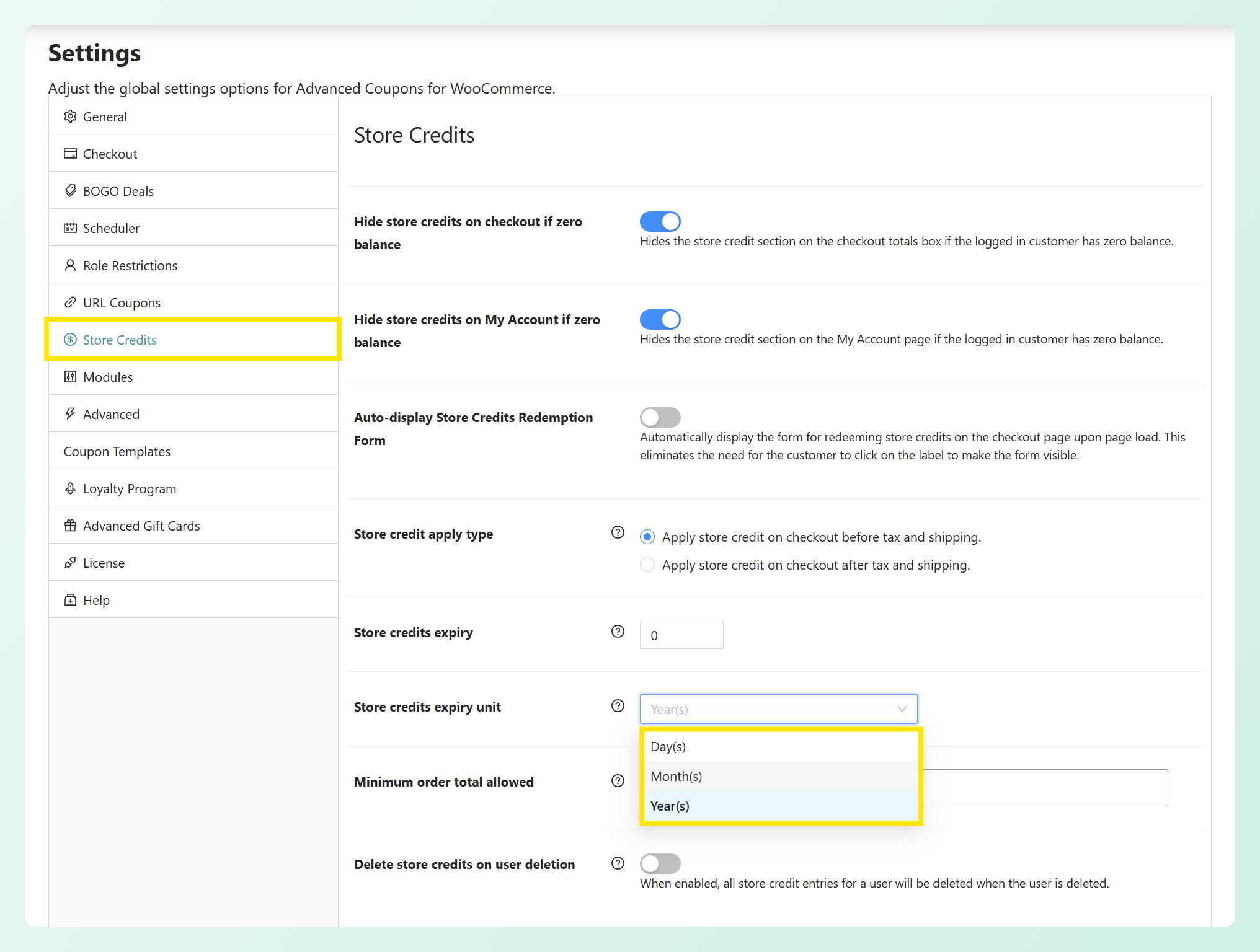
You’ll find both settings under Coupons > Settings > Store Credits:
- Store credits expiry: The number of days, months, or years. Leave it at 0 and credits never expire, which is the default.
- Store credits expiry unit: Choose Day(s), Month(s), or Year(s) for the expiry period.
Before you choose an expiry period, it’s worth understanding how the countdown is measured.
How the expiry period is measured
The countdown doesn’t begin on the date you issue credit. Instead, it runs from each customer’s most recent store credit activity.
If you set a 30-day period, the customer’s remaining balance expires after 30 days without a new store credit entry. Adding credit or spending part of the balance resets the countdown. Once the full period passes, the remaining balance expires during the daily check.
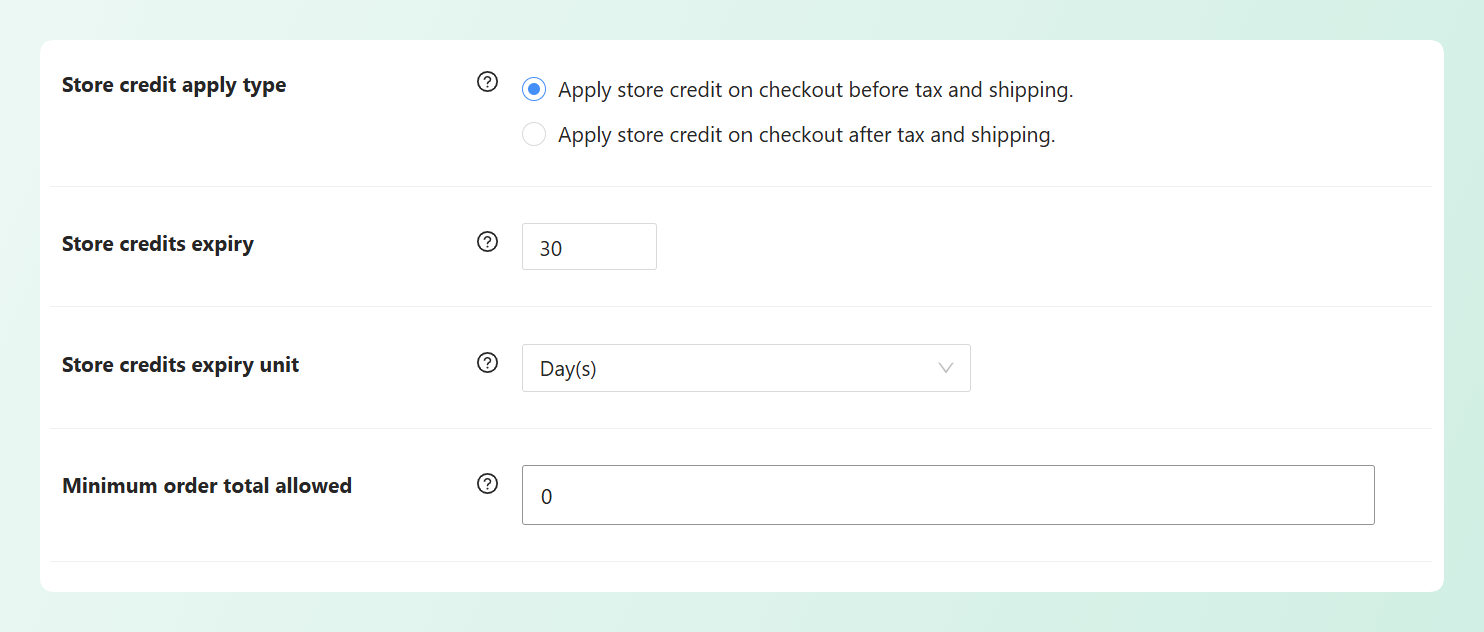
This means the setting works as an inactivity window rather than a separate use-by date for each credit entry. Any remaining balance stays available as long as store credit activity continues within the window.
💡 GOOD TO KNOW: Advanced Coupons checks for expired balances once a day. Existing stores that already have an expiry value saved will keep Year(s) as the unit after updating. Before setting an expiry period, check any local rules that apply and make the policy clear to customers.
A shorter inactivity window can give customers a clearer reason to return and use their balance. Choose a period that fits how often people typically shop with you, and make sure your expiry policy is communicated clearly so customers know what to expect.
This option is available in the free Advanced Coupons plugin, so you don’t need Advanced Coupons Premium to set an expiry period.
More Store Credit Controls In Advanced Coupons Premium
The next two updates are available with Advanced Coupons Premium. One prevents shoppers from starting a new store credit redemption after a coupon is applied, while the other gives you a clearer way to review and apply balance changes across multiple customers.
Hiding store credit when a coupon is applied
This setting helps prevent shoppers from redeeming store credit after a coupon has already been applied, without turning off store credit across your store.
Head to Coupons > Settings > Store Credits and enable “Hide store credits when a coupon is applied.” Once it’s on, the store credit redemption field disappears from the cart and checkout whenever an active coupon is applied.
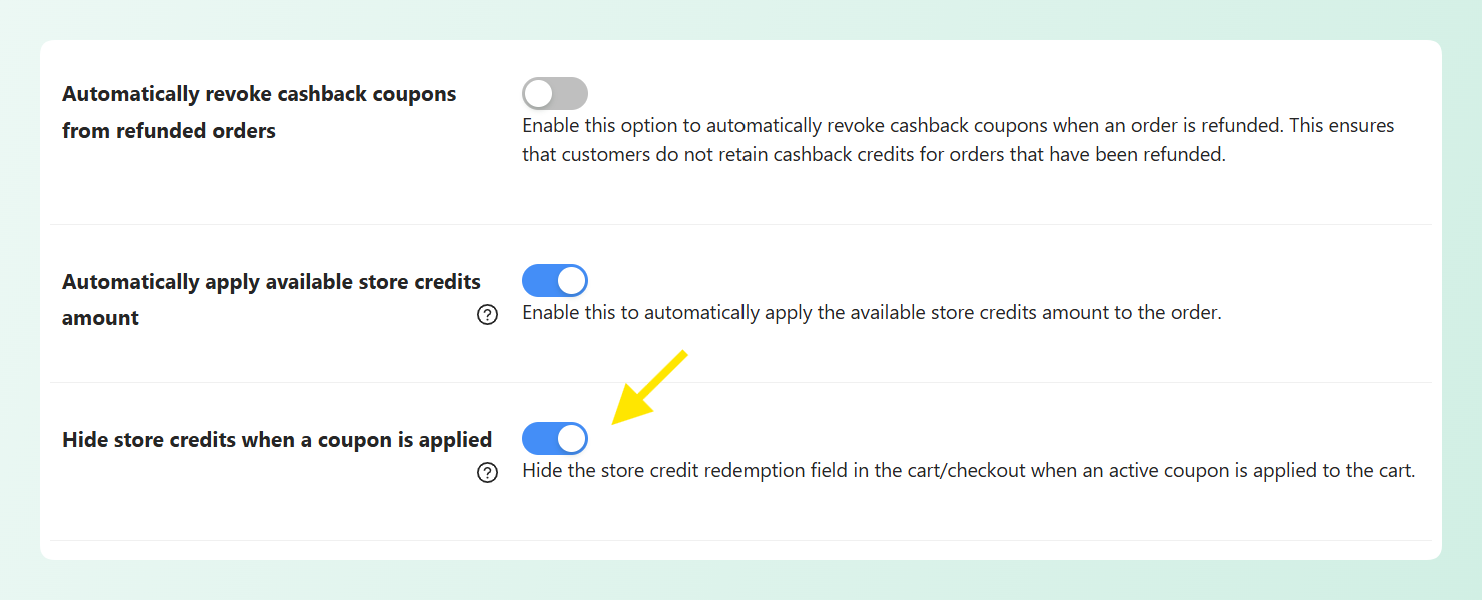
Here are a few details worth knowing:
- The field is hidden and new redemptions are blocked while a coupon is applied.
- If store credit was already applied before the coupon, it remains on the order. The setting does not remove the existing redemption.
- Customer balances remain unchanged. Remove the coupon and the redemption field appears again.
- It works with both the classic cart and the Cart and Checkout blocks.
Once a coupon is in the cart, shoppers can’t add a new store credit redemption on top of it. The setting does not change their account balance, so any unused credit remains available for a future order.
🎯 POWER TIP: This can also support a policy of issuing store credit instead of refunds. Customers can use their credited balance on a future purchase, while the setting helps prevent a new store credit redemption from being added after a promotional coupon is already applied.
Bulk store credit adjustments, now step by step
For larger balance changes, Advanced Coupons Premium now guides you through a three-step process under Coupons > Manage Store Credits > Bulk Adjust.
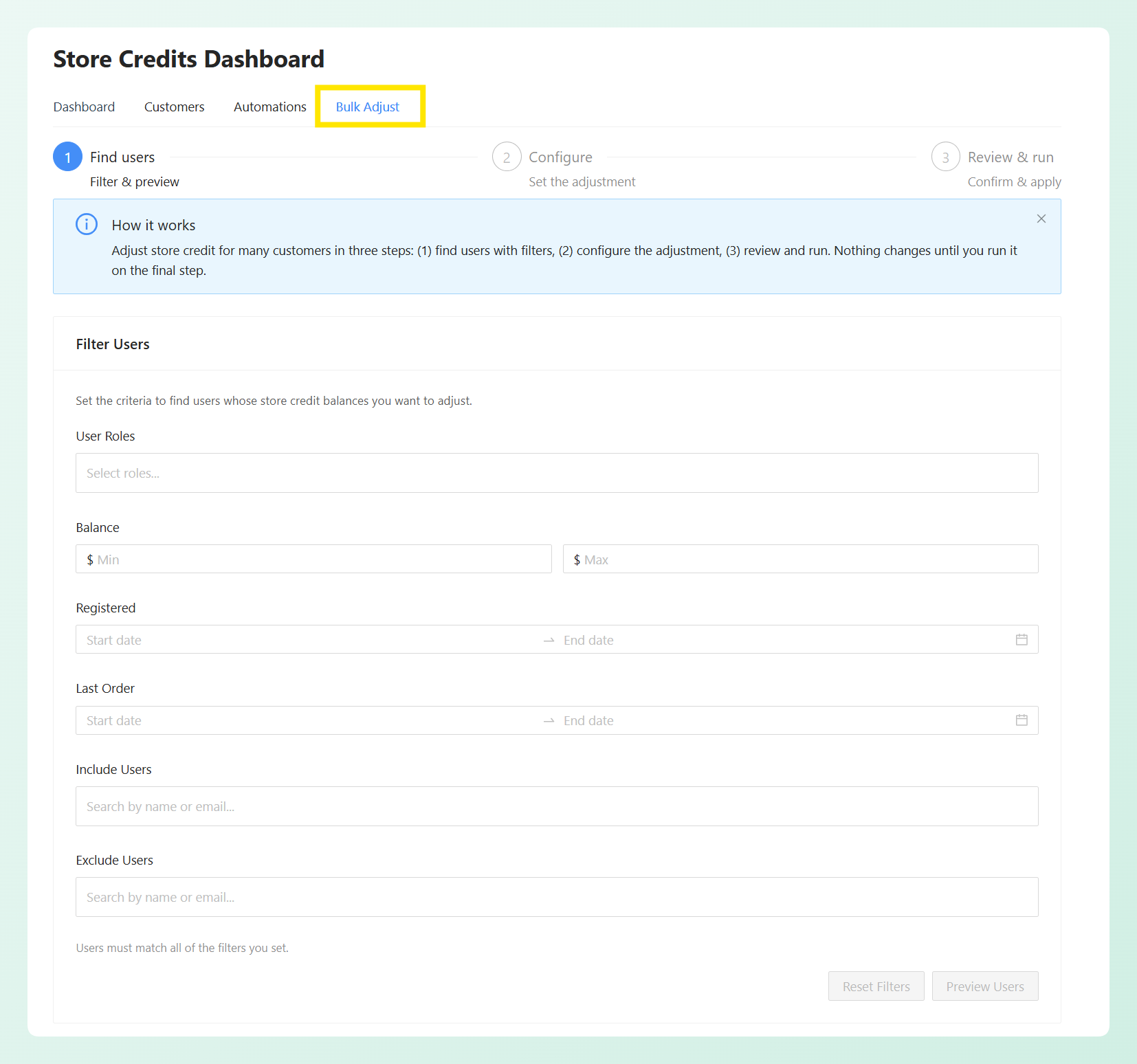
The three steps are Find users, Configure, and Review & run. Here’s what happens in each one.
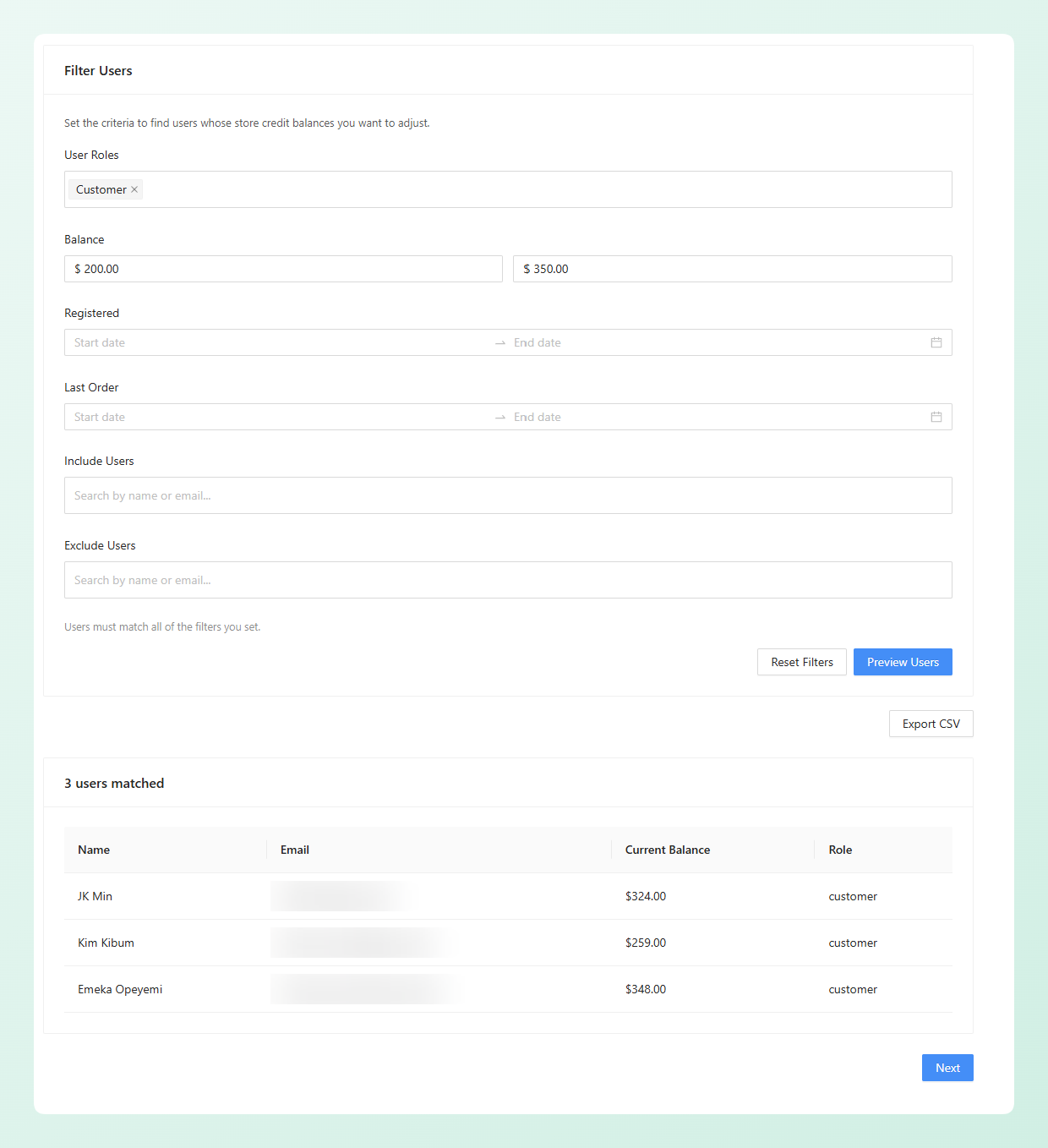
Step 1: Find users. Filter by user role, current balance (minimum and maximum), registration date range, or last order date range. You can also name specific customers to include or exclude. Customers have to match every filter you set. Click Preview Users and you’ll see exactly who qualifies, along with their current balance and role.
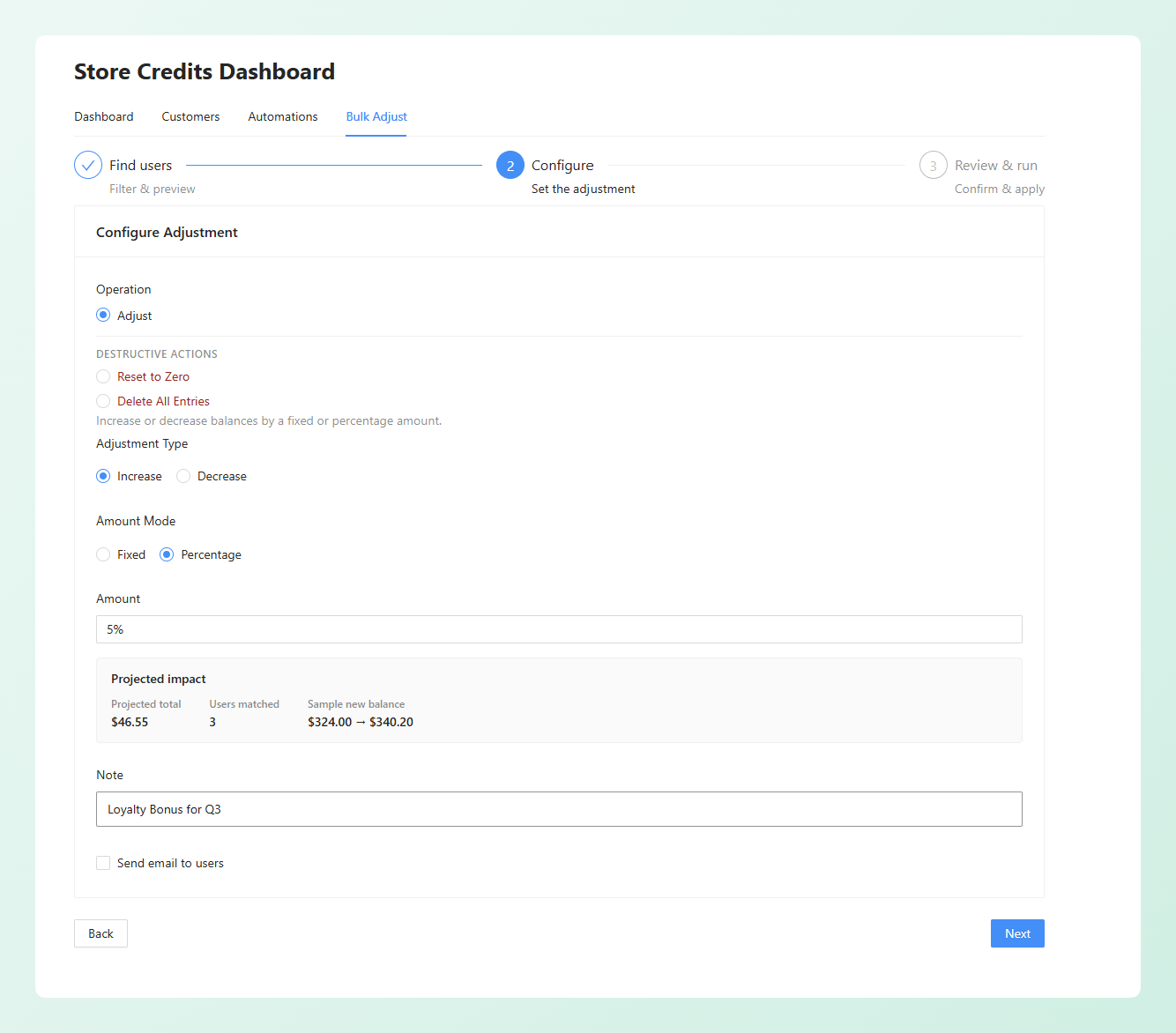
Step 2: Configure. Choose whether you’re increasing or decreasing, and whether the amount is fixed or a percentage. As you type, a Projected impact summary updates alongside it, showing how many customers are matched, the projected total, and a sample “current to new” balance. You can add a note for your own records too, something like “Q2 loyalty bonus,” and optionally email everyone affected.
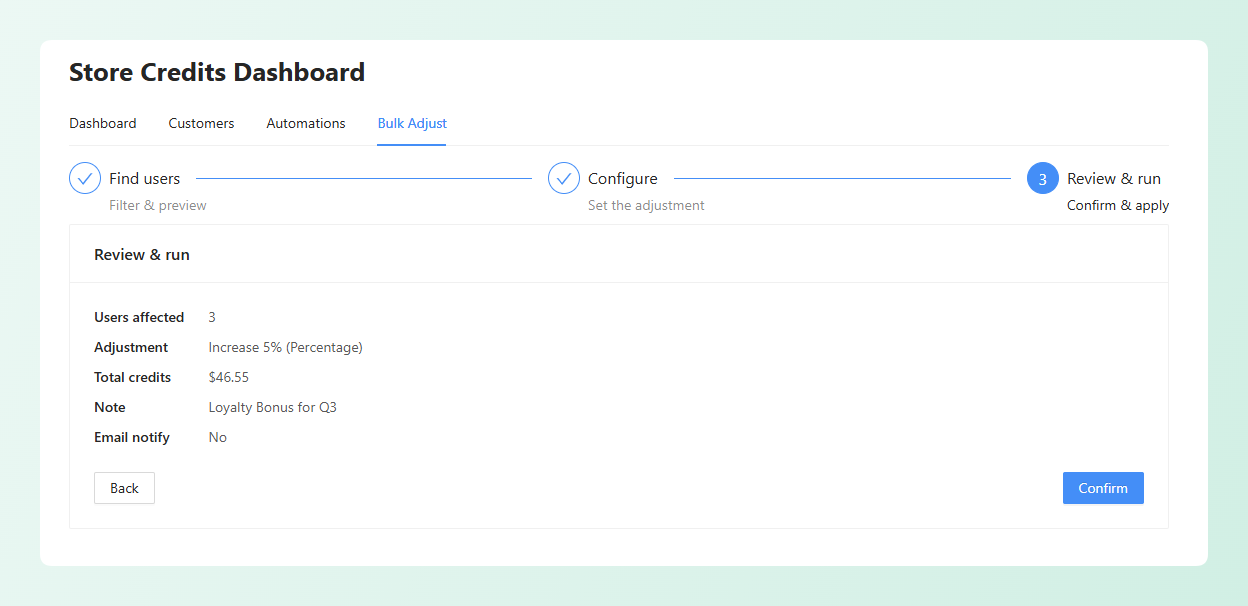
Step 3: Review and run. The final summary shows the customers affected, the selected operation, the total amount being added or removed, and whether an email will be sent. Nothing changes until you confirm the action on this final step.
Beyond the standard Adjust operation, there are two destructive options grouped separately: Reset to Zero, which sets matched balances to zero but keeps the ledger history, and Delete All Entries, which permanently removes both the balances and their store credit history. Neither option has an automatic undo, and Delete All Entries requires you to type DELETE before you can continue.
The guided flow gives you a chance to confirm the matched customers and projected changes before anything is applied. That’s especially helpful when you’re updating a large group or correcting several balances at once.
Frequently Asked Questions
When exactly does a customer’s store credit expire?
Their balance expires once your configured period passes with no store credit activity on their account. The clock runs from their most recent entry, so adding credit or spending some resets it. If you’ve set 60 days and the customer’s last store credit activity was 61 days ago, their balance will expire during the next daily check.
What happens to credit I’ve already issued if I change the expiry setting?
The setting applies store-wide and uses each customer’s most recent store credit activity, so it affects existing balances as well as new ones. If you shorten the period, some existing balances may expire during the next daily check when that activity falls outside the new window. Review affected balances and communicate the change before using a shorter expiry period.
Does hiding store credit delete my customer’s balance?
Not at all. The setting only affects what shoppers can see and do at checkout while a coupon is applied. Balances stay exactly as they are, and the redemption field reappears the moment the coupon is removed. Credit already applied to that order stays applied.
Can I undo a bulk adjustment?
An Adjust operation adds entries to the store credit ledger, so you can review what changed. There is no one-click undo, but you can run a new fixed adjustment to correct balances when needed. Reset to Zero and Delete All Entries also have no automatic undo, and Delete All Entries permanently removes the ledger history.
Can I set WooCommerce store credit to never expire?
Yes. Leave the Store credits expiry value at 0, which is the default, and customer balances will not expire. When you decide to add an expiry period, enter the number and choose Day(s), Month(s), or Year(s) as the unit. This lets you keep credits open-ended or introduce a shorter inactivity window later.
Wrapping Up
Together, these three updates give you more control over how WooCommerce store credit works in your store: how long balances stay available, whether the redemption field appears alongside an active coupon, and how you review bulk changes before applying them.
In this guide, we learned:
- How to set store credit to expire in days or months
- How to hide store credit when a coupon is applied, and how to adjust balances in bulk
After updating, you’ll find the expiry and coupon controls under Coupons > Settings > Store Credits. To manage balances in bulk, go to Coupons > Manage Store Credits > Bulk Adjust.
Do you have any questions about these updates? Let us know in the comments. Happy to help!