
A cart-wide spend threshold works well for many coupons, but it can be too broad when an offer is meant for a specific part of your catalog. With the new Category Subtotal cart condition, you can count only the product categories you choose or leave selected categories out of the calculation.
This makes it easier to build offers such as “spend more than $100 on accessories” without letting unrelated products push the shopper over the threshold. Here’s how the feature works and how to set it up in Advanced Coupons.
What Is The Category Subtotal Cart Condition?
Advanced Coupons already lets you set cart-wide spend thresholds using the Cart Subtotal and Cart Total conditions. Cart Subtotal checks the combined product subtotal, while Cart Total checks the final cart amount, including shipping, taxes, and other charges where applicable. Both look at the cart as a whole rather than spend within selected categories.
That works well for general “spend $50, get free shipping” offers, but it can fall short when a promotion depends on spend within a specific category. Pairing a cart-wide threshold with a category check can confirm that Accessories are present, but unrelated products still count toward the threshold. A shopper with $8 in accessories and $95 in jackets could still qualify for a $100 minimum.
The new Category Subtotal cart condition fills that gap by calculating the threshold from the categories you select. This gives you more precise control over your category promotions by deciding which product spend helps a shopper qualify.
You get two modes to work with:
- Include: Adds up only the items in the categories you selected. This is the mode for “spend more than $100 on Accessories” offers.
- Exclude: Adds up everything except the items in the categories you selected. Handy when certain products shouldn’t count toward a threshold, like gift cards or clearance items.
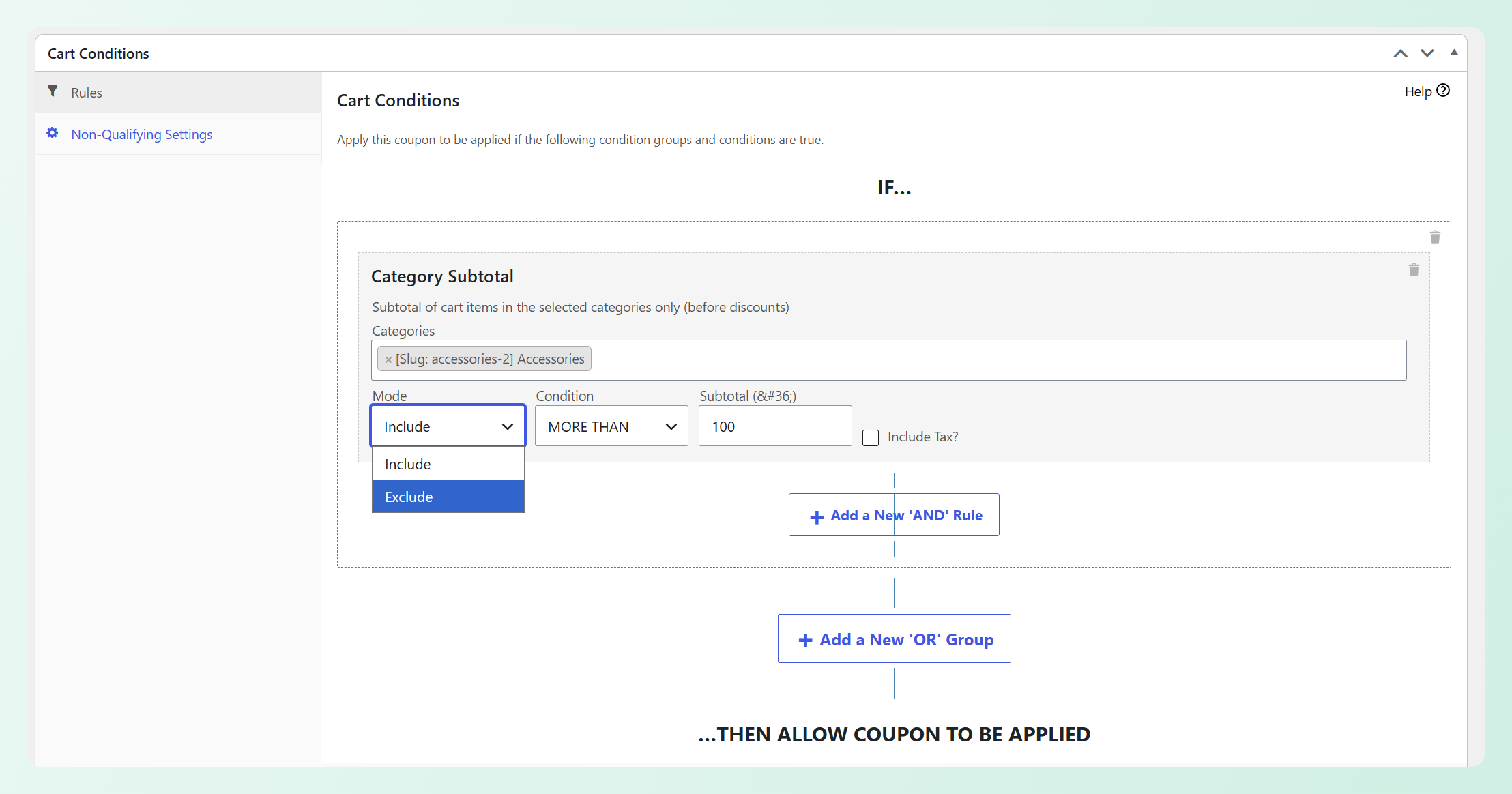
This gives you a clearer way to build offers around the products that matter to the promotion. A free shipping coupon, for example, can require a minimum spend in Accessories without letting unrelated items elsewhere in the cart push the shopper over the threshold.
In the next section, let’s set one up together.
How To Set Up The Category Subtotal Cart Condition
You’ll need Advanced Coupons Premium installed and updated to use the Category Subtotal cart condition. Once that’s ready, follow the steps below to add it to your coupon. You can also view the available plans and pricing if you’re not using Premium yet.
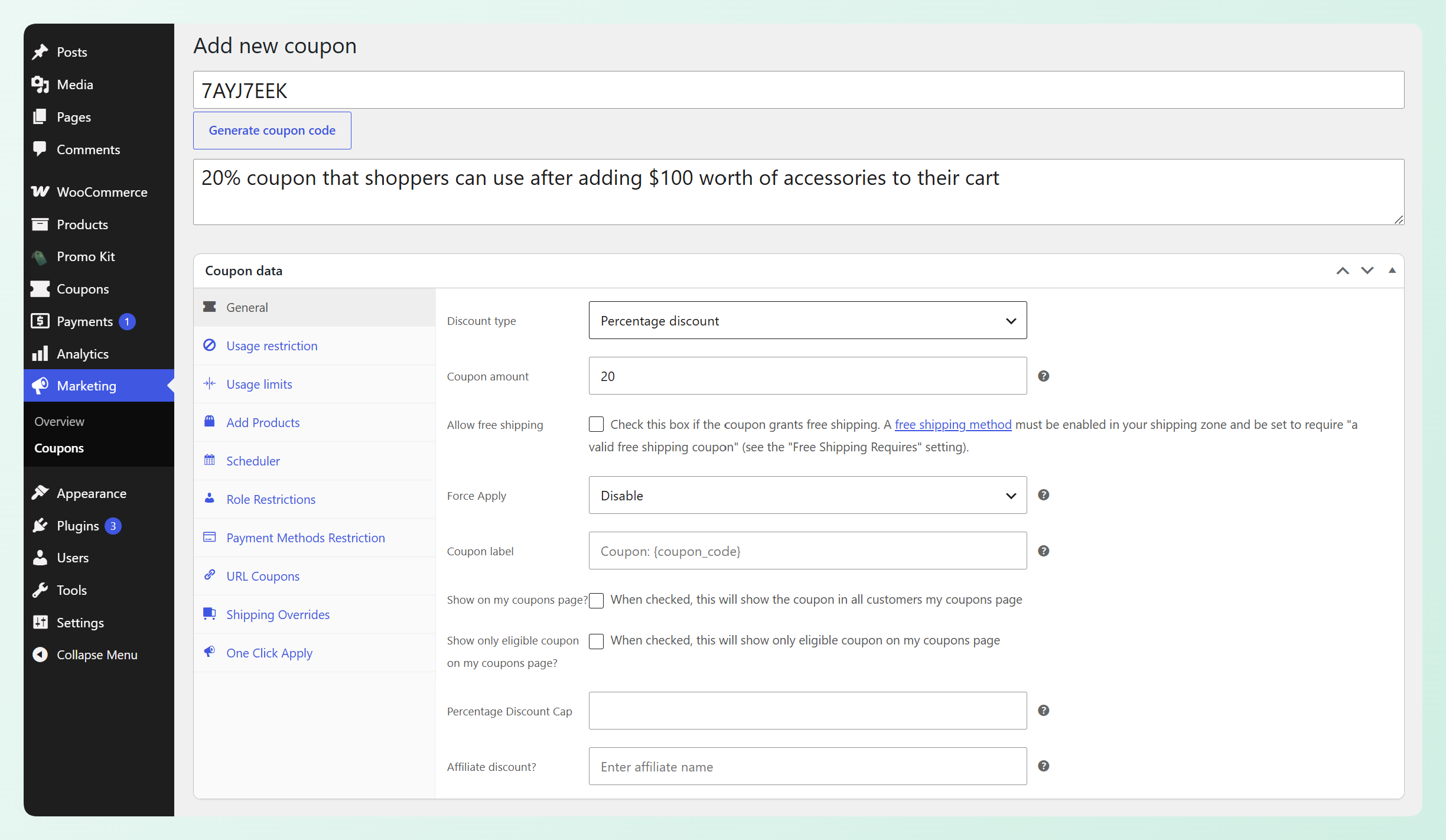
For this example, we’ll create a 20% coupon that shoppers can use once the Accessories subtotal in their cart is more than $100.
💡 GOOD TO KNOW: Category Subtotal decides when the coupon can be used. It does not limit the discount to the selected category. Use the coupon’s product or category restrictions separately if only certain items should receive the discount.
Step 1: Create your coupon
To get started, head to your WordPress dashboard > Coupons > Add New. Give your coupon a code, then choose Percentage discount and enter 20 as the coupon amount.
Step 2: Add the Category Subtotal condition
Next, scroll down to the Cart Conditions panel. This is where you set the rules that determine when your coupon can be used.
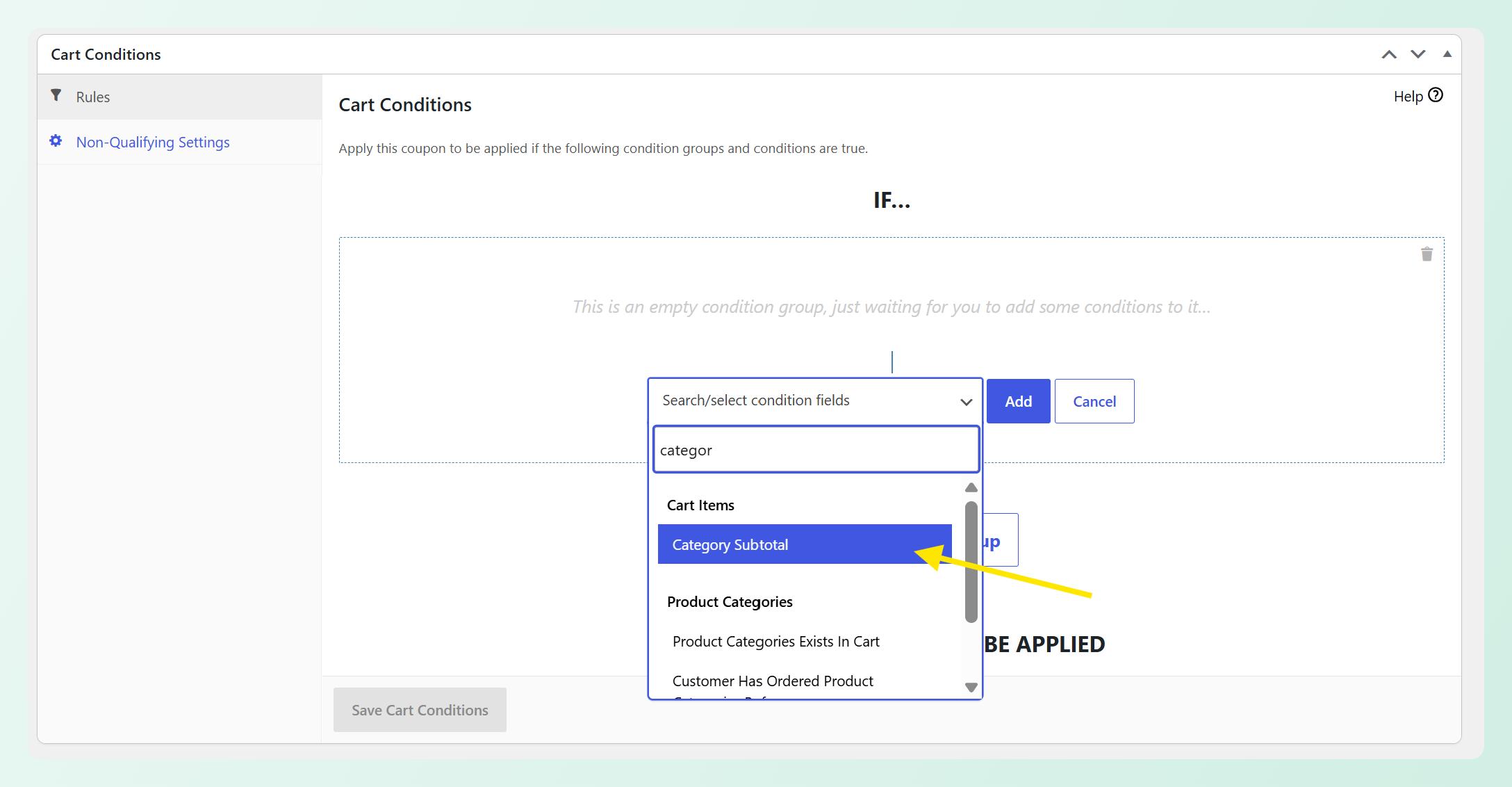
Click Add condition and select Category Subtotal from the Cart Items group.
Fill in your rule
Here’s what each field controls:
- Categories: The categories you want the condition to measure. You can select multiple categories and count their subtotals together.
- Mode: Choose Include to count the selected categories or Exclude to leave them out of the calculation.
- Condition: Choose how the calculated subtotal should be compared with your required amount. For this example, select More than.
- Subtotal: Enter the amount shoppers need to reach.
- Include Tax?: This follows your store’s cart price display setting by default, so you can usually leave it unchanged.
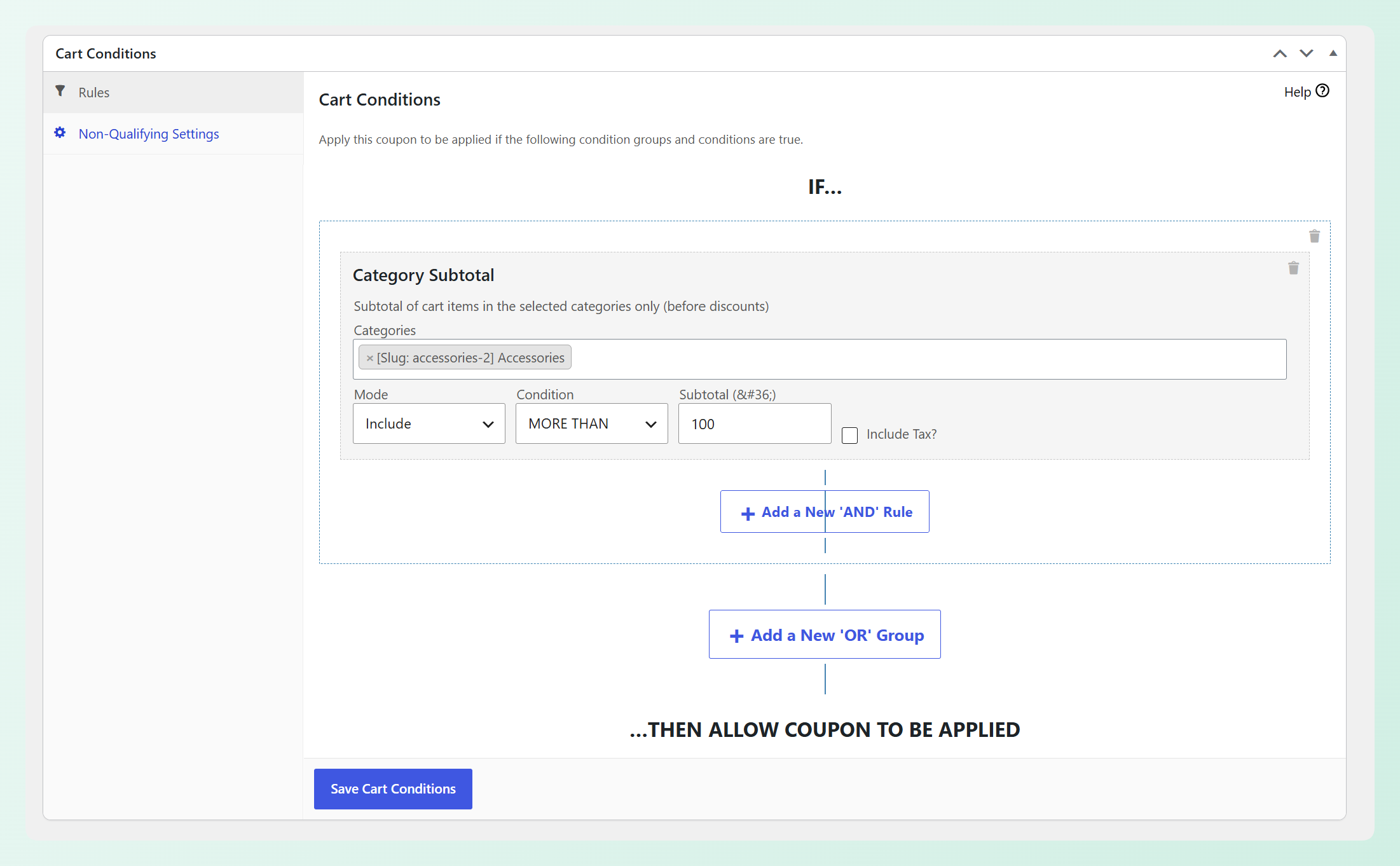
For this example, select Accessories, set the mode to Include, choose More than, and enter 100 as the subtotal. The condition passes once the shopper has more than $100 worth of Accessories in their cart.
Step 3: Save your coupon
Once you’re happy with the rule, click Save Cart Conditions. Then, click Publish for a new coupon or Update if you’re editing an existing one.
🎯 POWER TIP: You can combine this condition with auto-apply coupons if you want the coupon to apply automatically once shoppers reach the required category subtotal. They won’t need to enter the coupon code themselves.
How the condition works in the cart
In the cart below, the shopper has a $40 ring and a $65 necklace from the Accessories category. Together, they create a qualifying Accessories subtotal of $105. The hoodie and mug belong to other categories, so their prices do not count toward the condition.
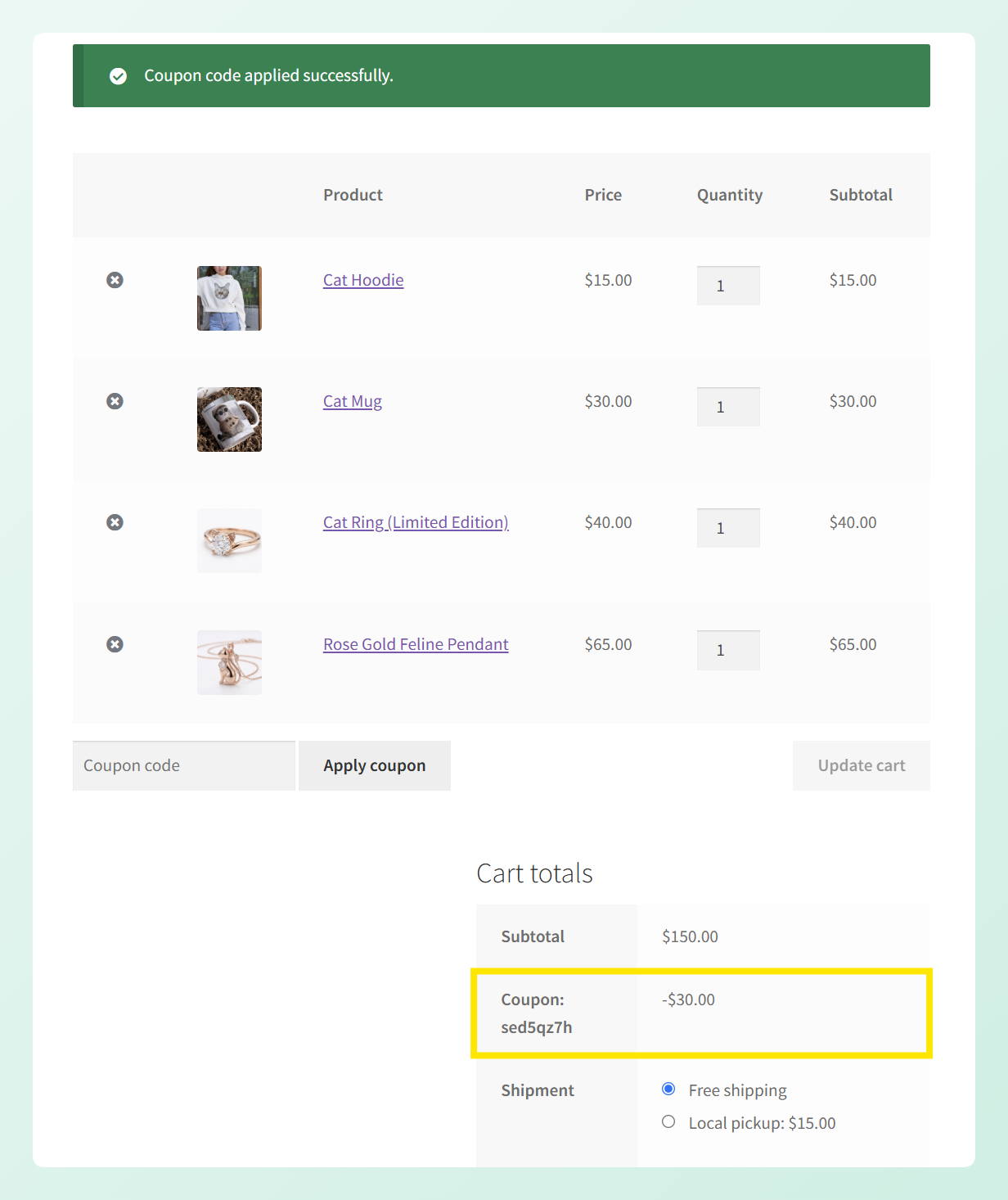
Because the Accessories subtotal is more than $100, the condition passes and the shopper can use the coupon. The coupon itself is not restricted to Accessories, so the 20% discount applies to the full $150 cart subtotal and deducts $30.
Selecting a parent category also counts products assigned to its child categories. For example, if Accessories includes Belts, Hats, and Scarves, products from all three child categories can contribute to the Accessories subtotal.
💡 GOOD TO KNOW: The condition reads item subtotals before any discount is applied, so the qualifying amount stays the same after the coupon begins working. Free BOGO items and products added automatically by a coupon are also left out of the calculation.
Excluding A Category From The Threshold
Exclude mode works the other way around. Everything in the cart counts toward your threshold except the categories you name.
Let’s say you want a $40 spend threshold, but your candles are on clearance and you’d rather they didn’t help shoppers get there. Set the condition up exactly as we did above, then make two changes: select Candles in the Categories field, and set the mode to Exclude.
Here’s how that plays out (example data):
| Cart contents | Counts toward threshold | Condition passes? |
|---|---|---|
| $30 candles + $40 other products | $40 | Yes |
| $30 candles + $20 other products | $20 | No |
| $70 candles only | $0 | No |
Your candles can stay in the cart, but their subtotal does not help the shopper meet the $40 requirement. The coupon’s product or category restrictions still determine which items receive the discount.
Also New: More Product Types In Search
There’s another helpful improvement arriving alongside Category Subtotal. Advanced Coupons Free now lets you choose additional WooCommerce product types that should appear in product search fields.
This is useful when another plugin registers its own product type, such as bookable products. These custom product types were not included in Advanced Coupons’ searches by default, which could make them difficult to select when building certain coupon rules or deals.
To enable them, head to Coupons > Settings > General and find Additional product types in search. Select the product types you want to include, then save your settings. They’ll become available in supported product searches across Cart Conditions, BOGO Deals, and Add Products.
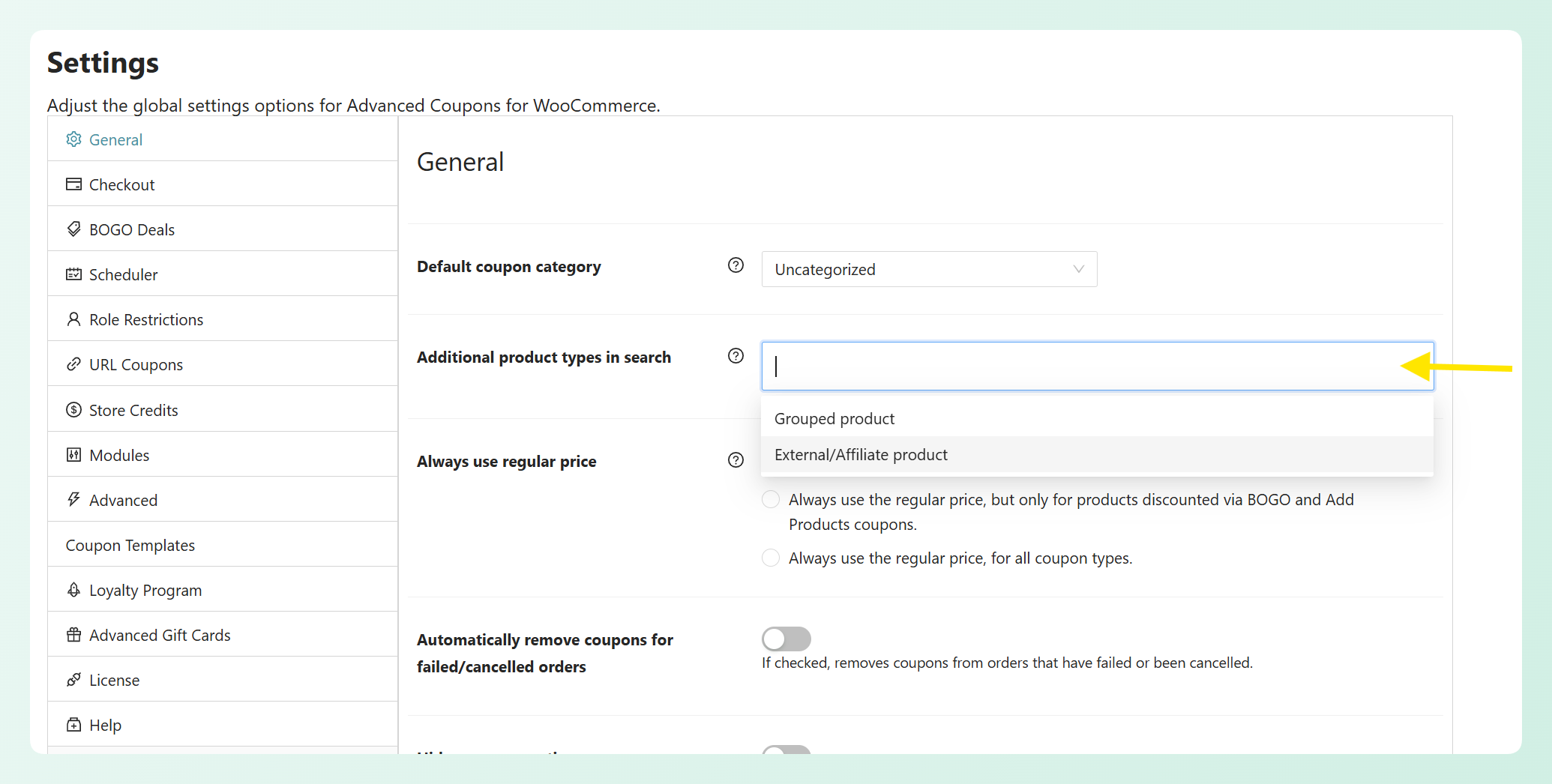
The setting is empty by default, so your existing product searches will continue working as they did before. This improvement applies to fields where you search for individual products, while the Category Subtotal cart condition uses a category selector instead. You’ll find this setting in the free Advanced Coupons plugin.
Frequently Asked Questions
Does this replace the Cart Subtotal or Cart Total condition?
Not at all. Both existing conditions work exactly as they always have, and neither one changed in this release. Category Subtotal is simply an extra option in the cart items group, so you can pick whichever suits the offer you’re building. You can also combine them on one coupon, for instance requiring $200 across the whole cart and $100 of that within Accessories.
Can I use more than one Category Subtotal condition on a single coupon?
Yes. You can add multiple Category Subtotal conditions and combine them using Advanced Coupons’ AND/OR logic. For example, one coupon could require $100 in Accessories and $50 in Footwear, while separate condition groups can create alternative ways for shoppers to qualify.
Does the subtotal include tax?
That’s up to you. The Include Tax? toggle defaults to whatever your store uses for displaying cart prices, so the threshold matches what shoppers see without you changing anything. If your prices display including tax, the threshold measures including tax. Switch the toggle if you’d like the calculation to work the other way around.
What happens with child categories?
Selecting a parent category automatically counts items in all of its child categories. For variable products, the condition checks the parent product’s categories when deciding whether a variation should count toward the subtotal.
Do free BOGO items count toward the threshold?
No, and that’s on purpose. Items added by a BOGO deal, along with products a coupon adds automatically, are left out of the subtotal calculation. It means a free gift in a qualifying category can’t inflate the number and let a cart qualify on products your shopper never actually paid for.
Wrapping Up
The new Category Subtotal cart condition gives you more control over which product spend helps shoppers qualify for a promotion. You can count selected categories, leave certain categories out of the calculation, and choose whether the qualifying subtotal includes tax.
In this guide, we learned:
- How to set up a Category Subtotal cart condition
- How to exclude a category from your threshold
- How to add more product types to product searches
Once Advanced Coupons Premium is updated, test the condition with both qualifying and non-qualifying carts before using it in a live promotion. This helps confirm that only the product spend you intended is being counted.
Do you have any questions about this update? Let us know in the comments. Happy to help!