
Advanced Gift Cards now lets you customize the default WooCommerce gift card image from one settings screen. Replace any of the plugin’s built-in designs with your own artwork, then use those customized options when creating new gift card products.
You can also select an image when creating a gift card manually, giving one-off cards their own look! Below, we’ll show you how both options work and how to preview your custom artwork before sending it to customers.
What The New Gift Card Image Settings Do
Advanced Gift Cards includes three built-in design images: Default, Birthday, and Thank You. With this update, you can replace any of them with your own artwork from the gift card settings.
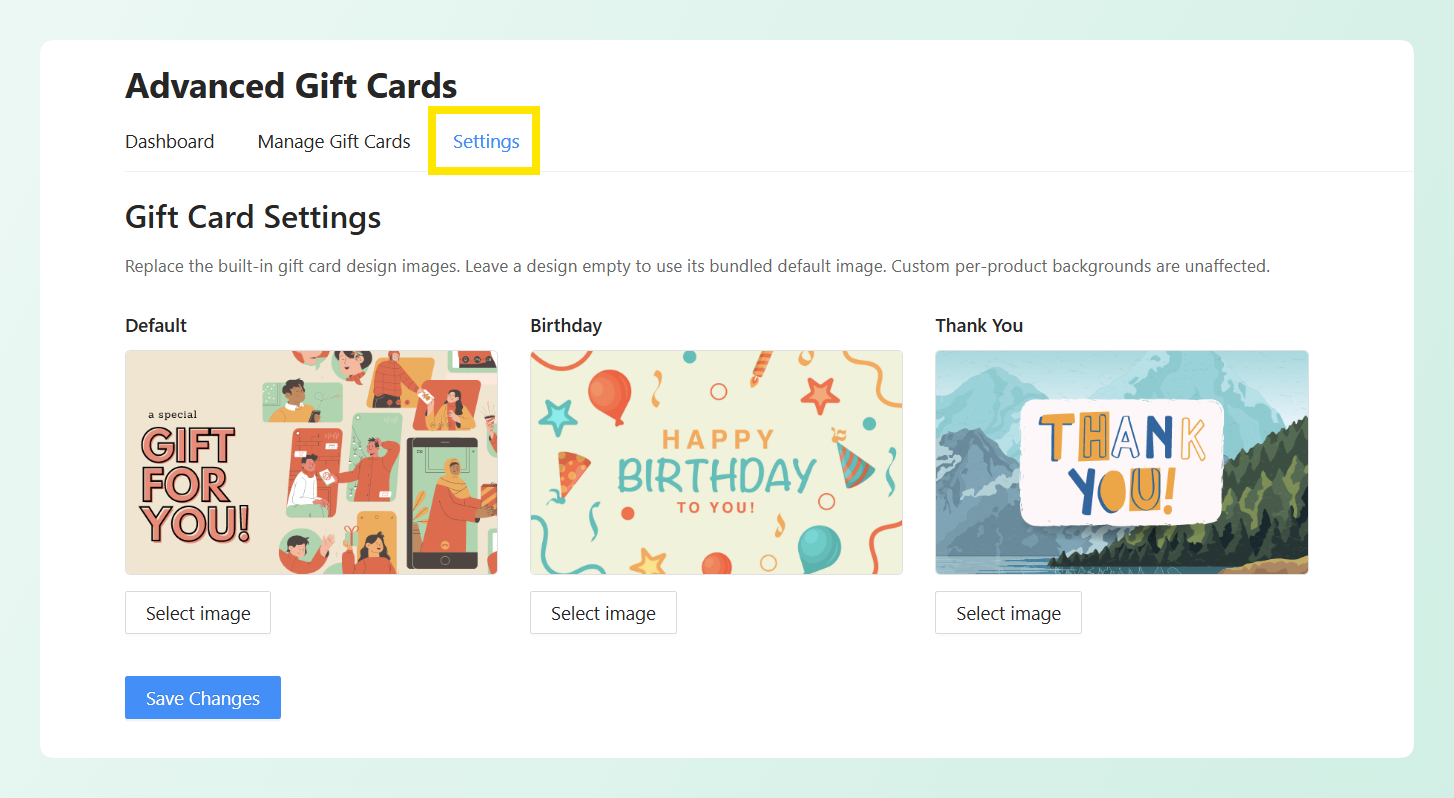
Your custom image applies to gift cards using that design. If a specific gift card product already has its own custom background, that product-level image continues to take priority. You can also leave any design unchanged to keep the image included with the plugin.
The design image is what customers see in the gift card email. Next, let’s look at how to replace it with your own artwork.
How To Customize The Default WooCommerce Gift Card Image
To follow the steps below, make sure Advanced Gift Cards is installed and updated. If you’re setting up the plugin for the first time, start with the Advanced Gift Cards getting started guide.
Before you head into your settings, prepare your artwork at 500px by 300px. Matching the dimensions of the bundled designs helps your custom image fit the gift card layout consistently. You can use the email preview later to check how it looks before sending it to customers.
Step 1: Open your gift card settings
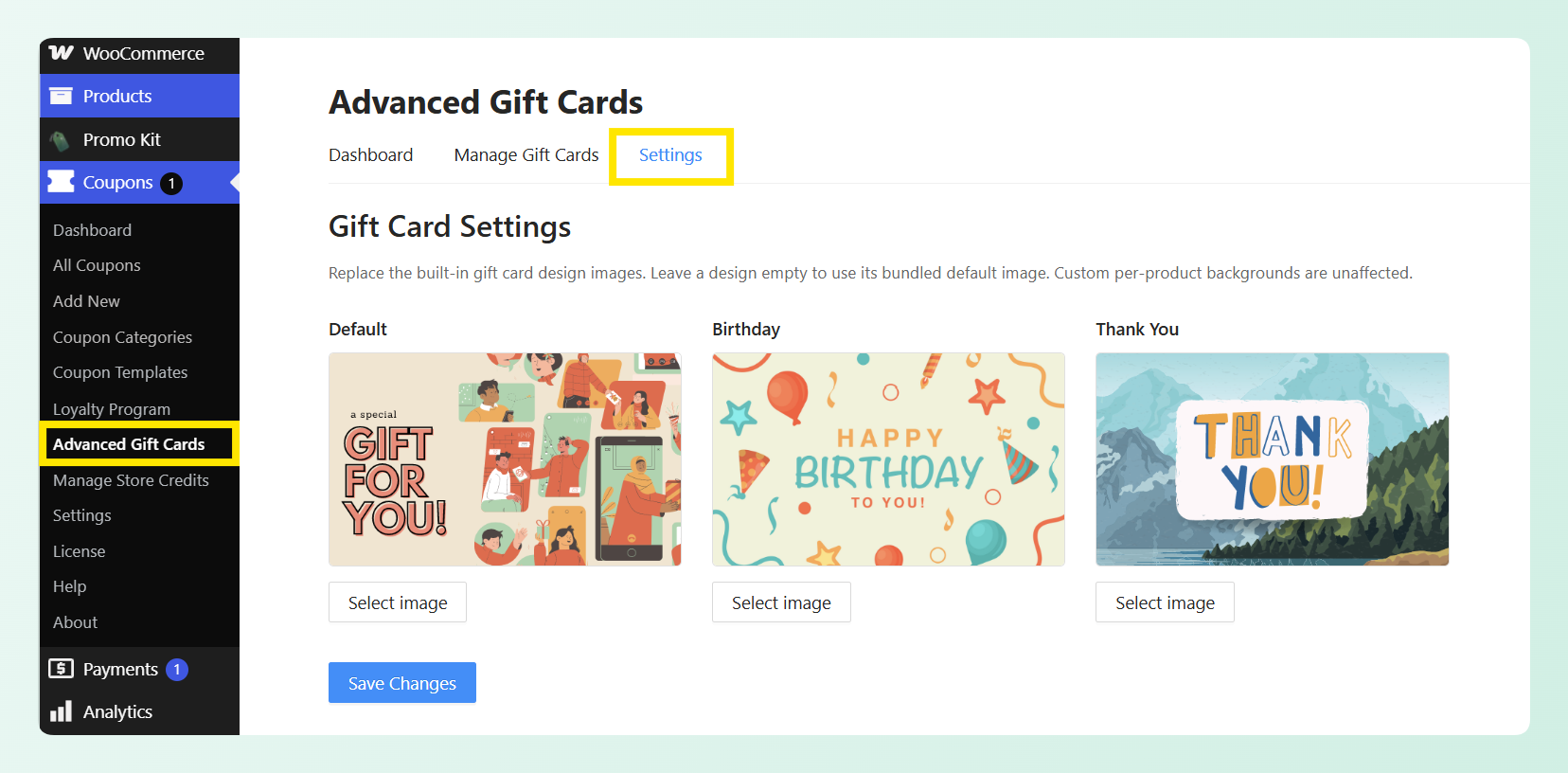
To get started, head to your WordPress dashboard > Coupons > Advanced Gift Cards. Then click the Settings tab. This is where you’ll find the Gift Card Settings section, with all three designs laid out side by side.
Step 2: Replace a built-in design image
Click Select image underneath whichever design you want to change. Your media library opens under the heading Select gift card image, so choose your file and hit Use this image. Then click Save Changes.
You don’t have to replace all three at once. Swap only the Default design if that’s the one your store relies on, or work through all three if you also sell birthday and thank-you cards.
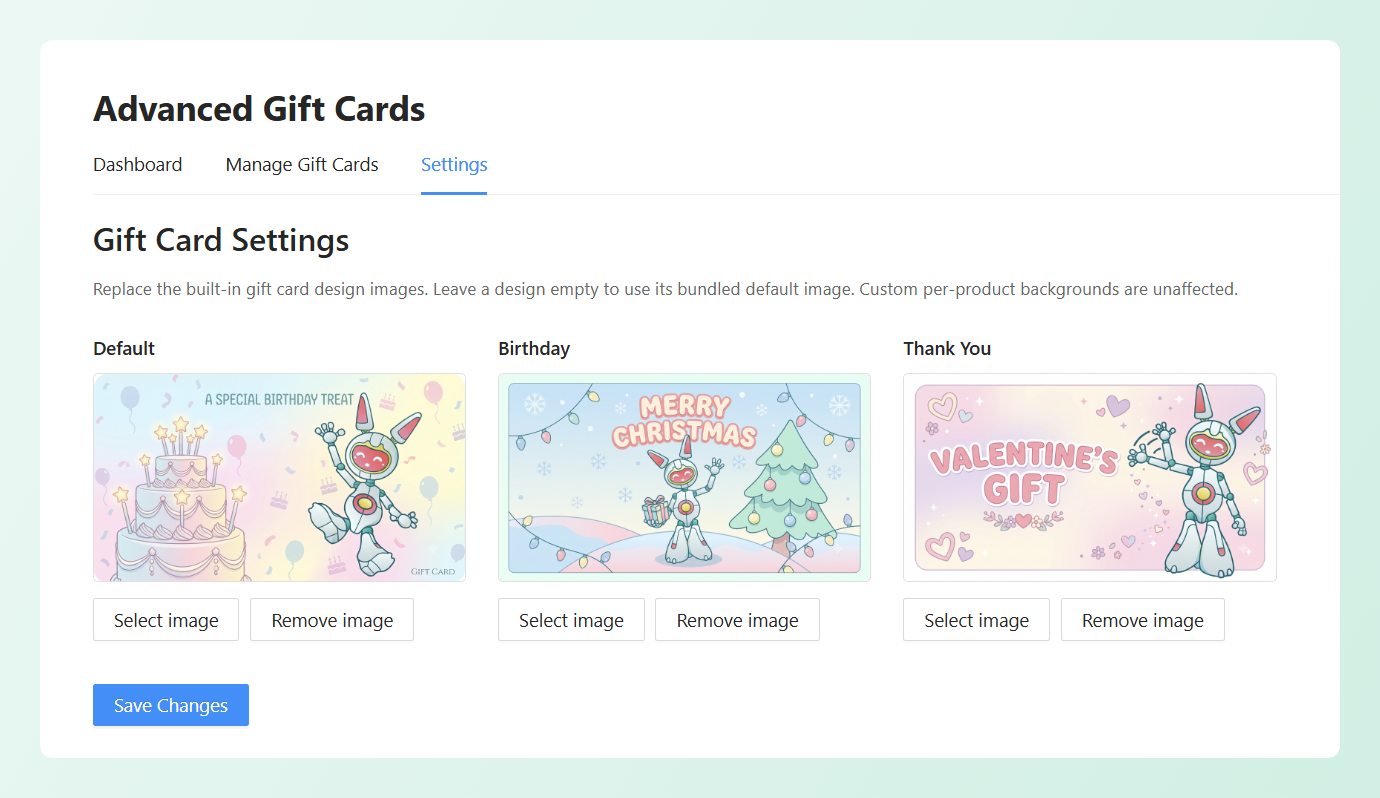
In the example above, we’ve replaced the Default design with our own branded artwork. The updated image will appear as the Default option when you create a new Advanced Gift Card product.
Changed your mind later? Click Remove image, then save your changes to return that design to the image included with the plugin.
Step 3: Choose the design for a new gift card product
When creating a new gift card product, select Advanced Gift Card from the Product data dropdown. Then scroll to the Gift Card Design section, where the three built-in designs from your gift card settings appear as selectable options.
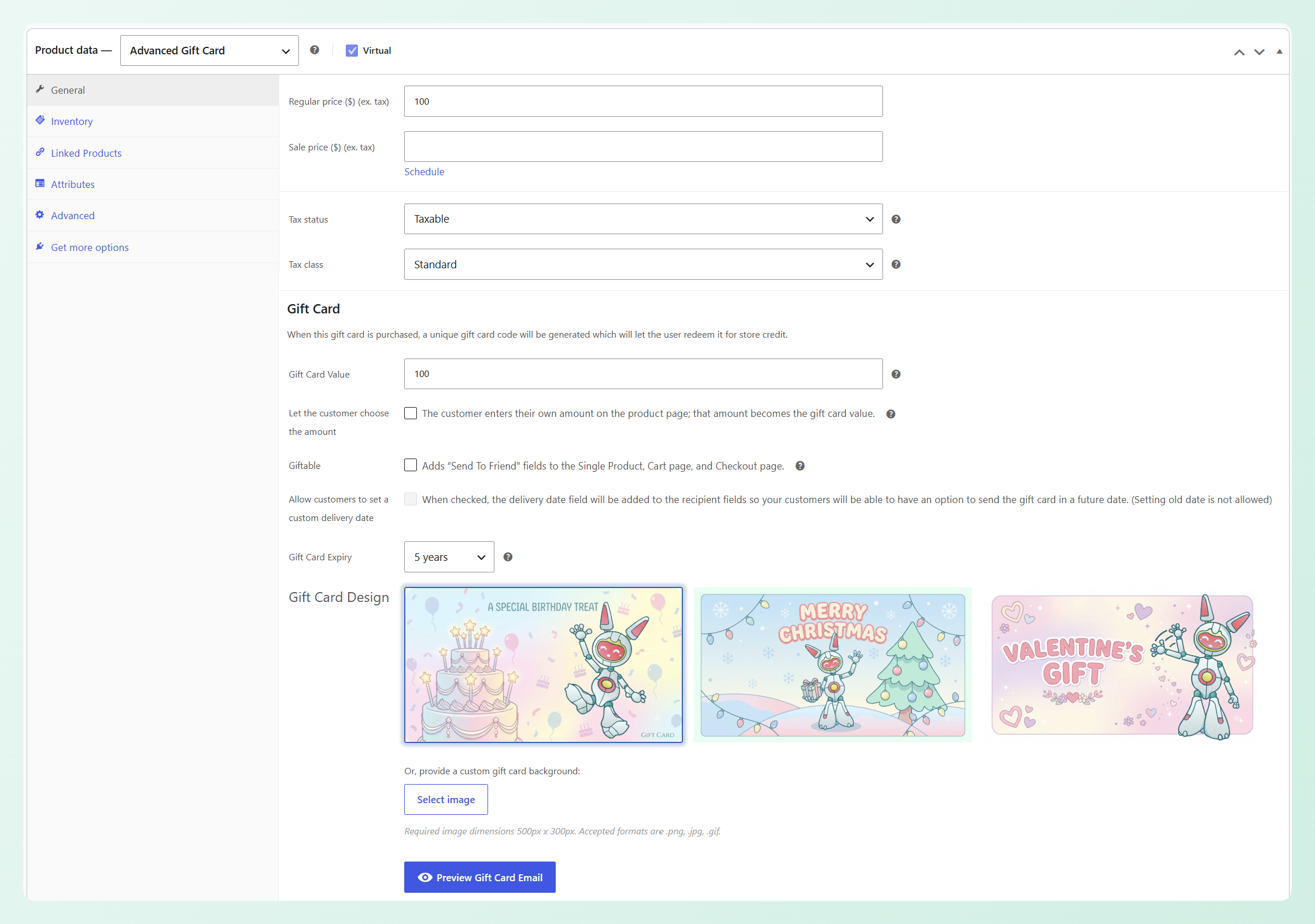
Choose the design you want to use for the product. You can also select a custom gift card background if this particular product needs its own artwork instead.
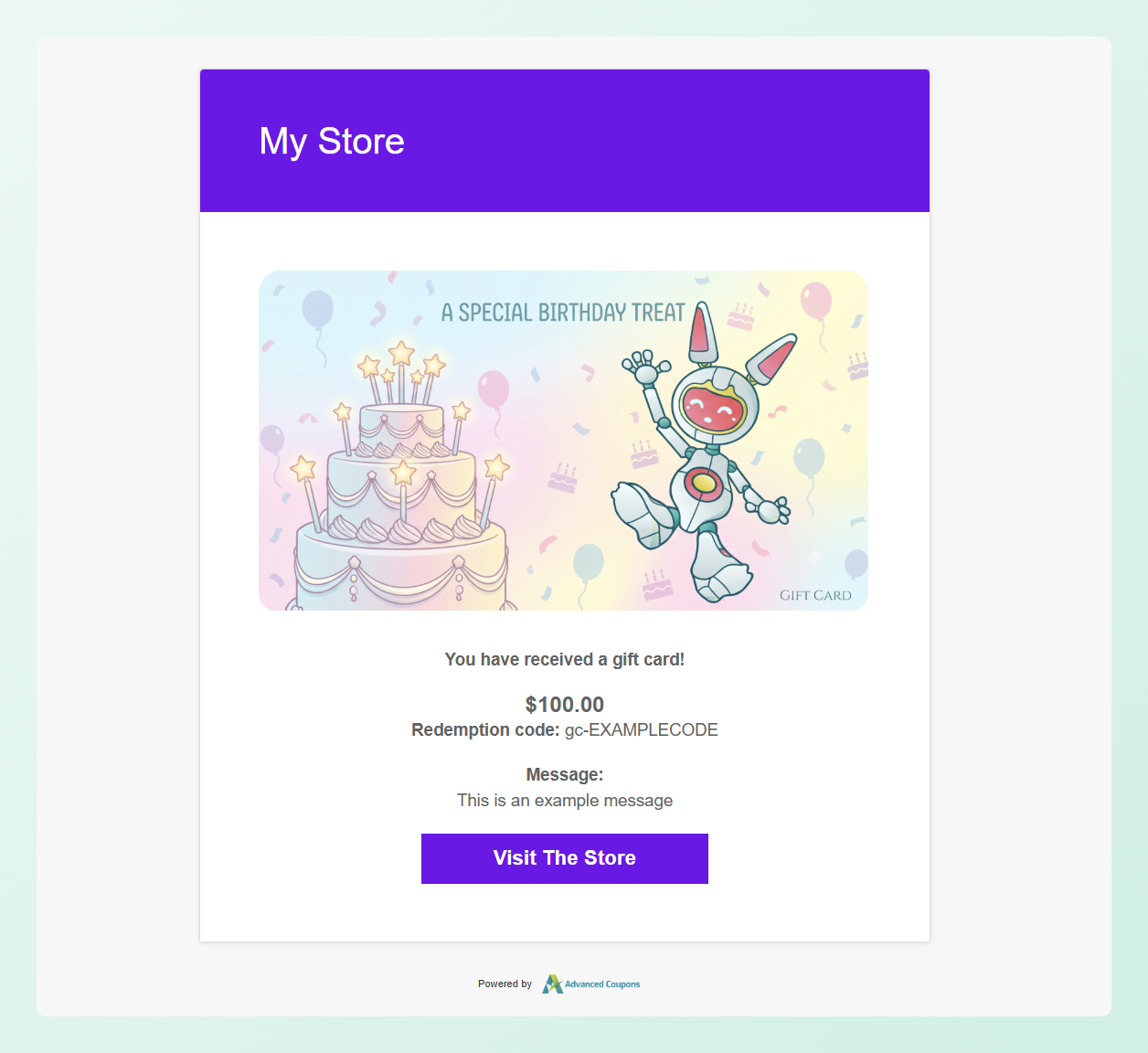
Once you’ve selected a design, click Preview Gift Card Email. The preview shows how the chosen artwork will appear alongside the gift card value, redemption code, message, and store details in the customer email.
How To Add An Image When Creating A Gift Card Manually
You can also choose custom artwork when creating a gift card directly from the Manage Gift Cards screen. This gives an individual card its own image without requiring you to create it through a gift card product.
To create a gift card manually, go to Coupons > Advanced Gift Cards, then open the Manage Gift Cards tab. Click Add new gift card to open the creation form.
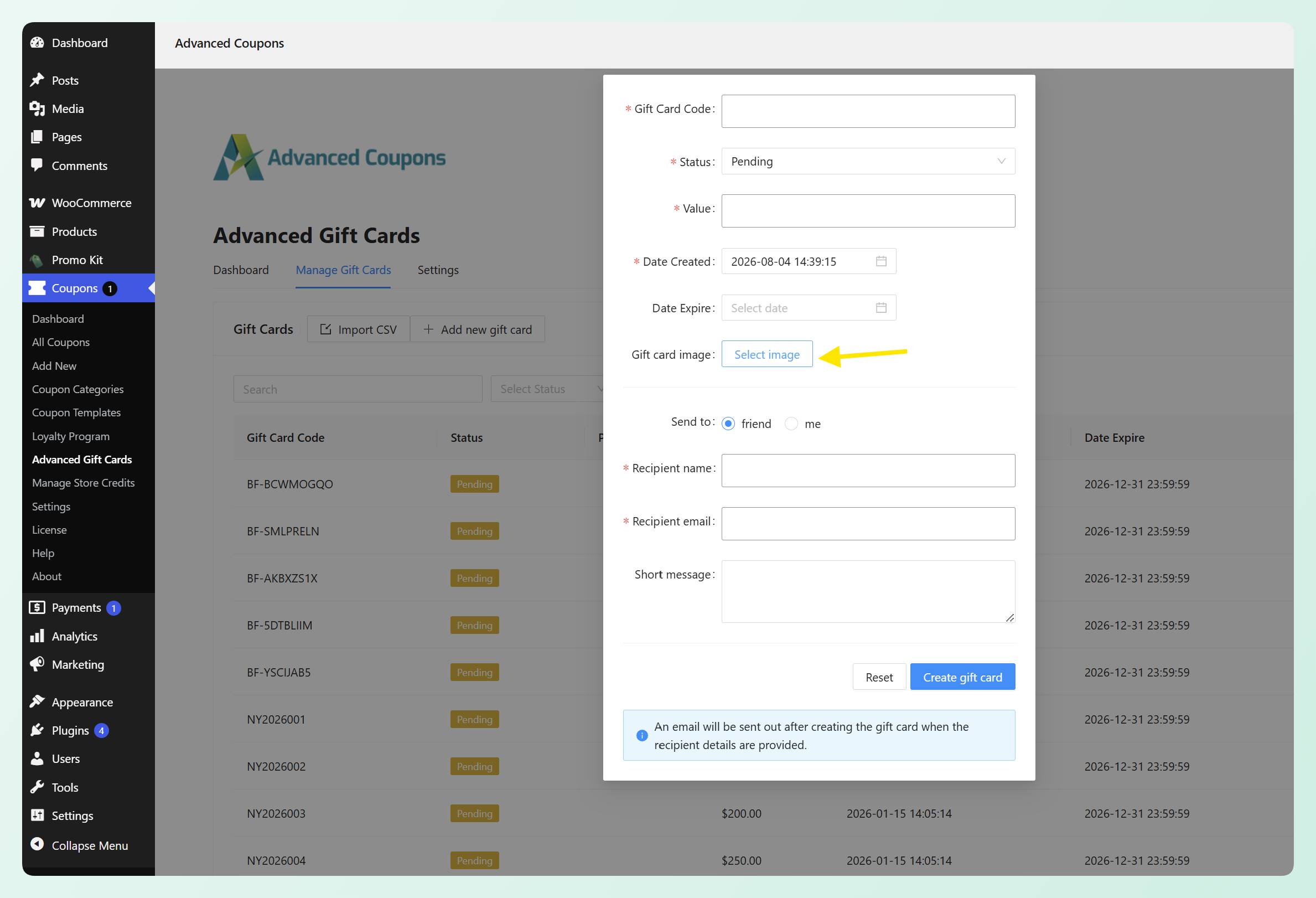
Enter the gift card code, status, value, and any applicable dates. Under Gift card image, click Select image and choose the artwork you want to use from your WordPress media library.
Next, choose whether to send the gift card to a friend or to yourself. If you’re sending it to someone else, add the recipient’s name and email address, along with a short message if you’d like. Once everything is ready, click Create gift card.
Benefits Of Custom Gift Card Image Settings
The new image settings give you more control over the artwork available when creating gift card products and sending gift cards manually. Here are some of the key benefits for your store:
1. Bring your branding into new gift card products
When you create a new Advanced Gift Card product, your customized built-in designs appear in the Gift Card Design section. This makes it easier to start with artwork that feels consistent with your store instead of relying on the images included with the plugin.
2. Create distinct designs for different occasions
The Default, Birthday, and Thank You designs can each have their own artwork. This gives you a flexible set of options to choose from when creating gift card products for different occasions.
For example, you might use one design for everyday gift cards, another for birthdays, and another for customer appreciation. You can keep the original images for any design you don’t need to customize.
3. Preview the customer email before publishing
The Preview Gift Card Email option lets you check how your selected design appears in the email layout. You can review the artwork alongside the gift card value, redemption code, message, and store details before customers receive it.
4. Personalize manually created gift cards
The new Gift card image field also lets you choose artwork for an individual gift card created from the Manage Gift Cards screen. This can help a customer thank-you, giveaway prize, or service recovery gift feel more intentional.
For more ideas on how gift cards can support your store, see our guide to gift card benefits.
Also In This Release: Gift Card Store Credit Order Notes
One more improvement is worth a quick mention. When a customer redeems a gift card for store credit and later pays for an order with that credit, the order now carries a note naming the gift card involved:
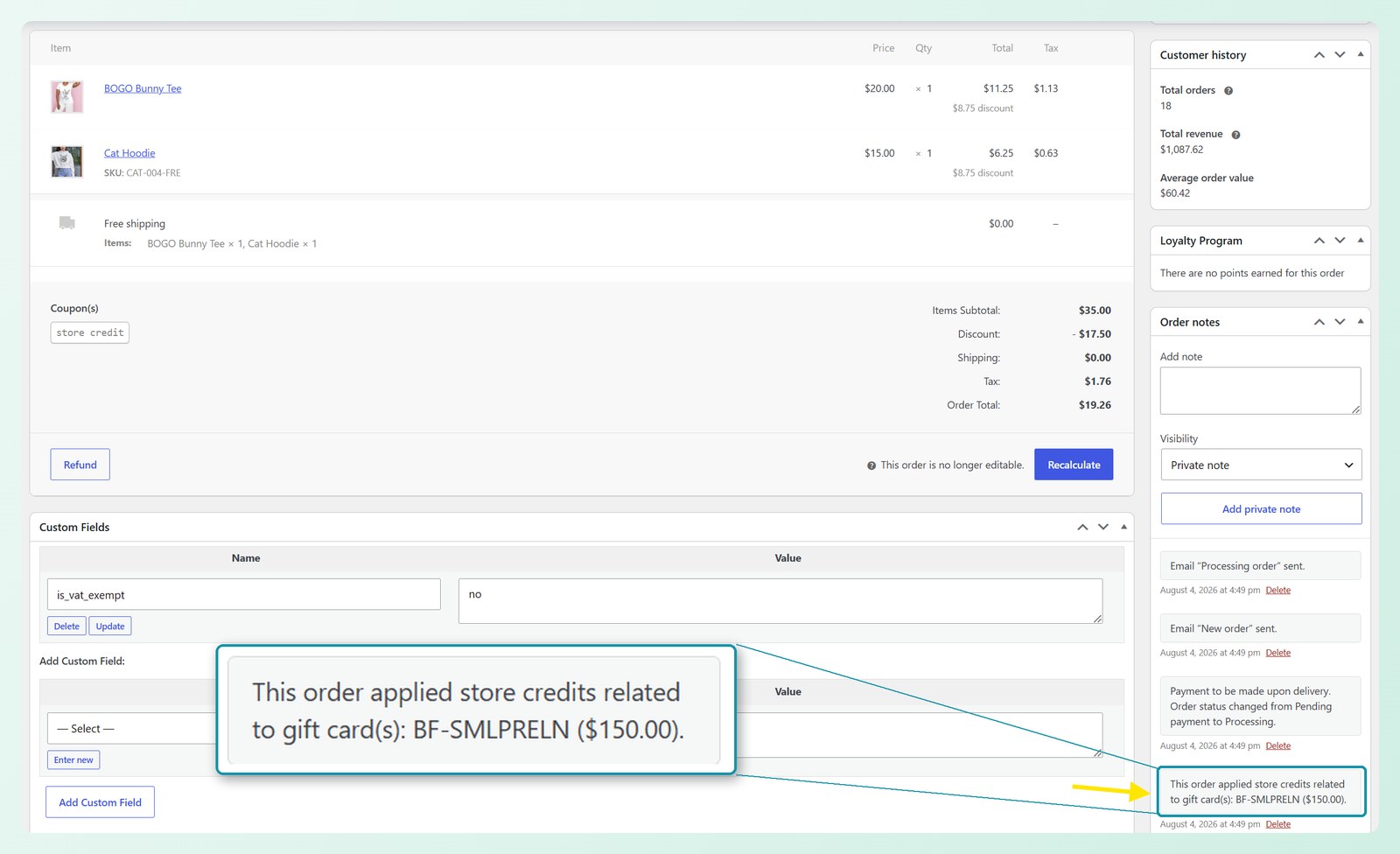
This happens automatically when store credit related to a redeemed gift card is used on an order. The note gives store managers a clearer reference to the related gift card when reviewing the order.
If you’re still weighing up how these two mechanisms differ, our comparison of store credit vs gift cards breaks down where each one fits.
Frequently Asked Questions
Where do I change the default gift card image in WooCommerce?
Go to your WordPress dashboard, then Coupons > Advanced Gift Cards > Settings. The Gift Card Settings section lists all three built-in designs with a Select image button under each one. Choose your image, then click Save Changes. Products with their own custom background keep the image selected for them.
What image size should I use for a gift card?
For the most consistent fit, prepare your artwork at 500px by 300px, matching the dimensions of the bundled designs. Use the gift card email preview to check how your image looks before sending it to customers.
Will changing the image affect gift cards I already sent?
Changing the setting does not resend or regenerate gift card emails that were already delivered. For future emails, the artwork depends on the design or custom background selected for the gift card product. The change does not affect the gift card’s code, value, or expiry.
Can I use a different image for each gift card?
Yes, for gift cards you create manually. Use the Gift card image field in the creation form to choose artwork for that individual card. This per-card image option is separate from the shared designs you configure in the gift card settings.
Can I keep some of the built-in gift card images?
Yes. You only need to replace the designs you want to customize. Leave a design unchanged to continue using the image included with Advanced Gift Cards.
Wrapping Up
With the new image settings in Advanced Gift Cards, you can customize the built-in design options available when creating new gift card products. You can also select artwork for manually created gift cards, giving you more control over both standard designs and one-off cards.
In this guide, we learned:
- How to customize the default WooCommerce gift card image
- How to add an image when creating a gift card manually
- Benefits of custom gift card image settings
Ready to try it? Open your Advanced Gift Cards settings, choose the design you want to replace, and preview your custom artwork before sending your next gift card. ❤️
Do you have any questions about this update? Let us know in the comments. Happy to help!