


Applying WooCommerce coupons automatically is a goal for both developers and store owners. The right approach depends on whether you want to handle the logic in PHP or configure it through a plugin UI.
If you’re working in code, WooCommerce’s apply_coupon() method lets you apply a discount directly from PHP, using a hook to trigger it at the right point in the cart lifecycle. If you’d rather avoid custom code, Advanced Coupons handles this through two built-in features: Auto Apply Coupons and One-Click Apply Notifications, both configurable from the coupon editor.
This article covers both approaches, starting with the PHP method and then walking through the plugin options.
Why you might want to have WooCommerce apply coupons programmatically
Without a doubt, winning traffic and driving customer interest in your online store is not a walk in the park. However, one easy way to entice shoppers is to offer them discounts via coupon codes. This strategy has proven tremendously successful.
With that in mind, if you apply coupons programmatically on your WooCommerce site, you can gain a significant edge over other sites. Your buyers can benefit from this strategy in numerous ways, including:
- It saves them time. Nothing makes online shopping more convenient than being able to check out quickly. Your buyers will definitely appreciate the time and energy you’ll save them by applying coupons programmatically.
- They’re left with fewer support questions. If customers can access the deals they want without having to lift a finger, it will save your support line the trouble of having to walk them through the process.
- The element of surprise is always a plus. A discount discovered at checkout will pleasantly surprise customers and leave them with a positive impression of your brand.
There are also several benefits of applying coupons programmatically on your end. For starters, you don’t have to worry about distributing codes or handling support requests from customers who know there’s a discount available but can’t figure out how to access it.
Additionally, coupons drive customer loyalty and can increase conversions. Applying them programmatically makes them easier to track, so you can see which deals are most appealing to customers. This will help you continue to refine your discount marketing strategy.
How To Apply WooCommerce Coupons With PHP
WooCommerce includes an apply_coupon() method on the cart object that you can call from PHP. A common approach is to hook into woocommerce_before_calculate_totals, which fires during cart calculation and passes the cart instance as a parameter.
Basic example
Add this to your theme’s functions.php or a custom plugin:
add_action( 'woocommerce_before_calculate_totals', 'prefix_auto_apply_coupon' );

function prefix_auto_apply_coupon( $cart ) {
    if ( is_admin() && ! defined( 'DOING_AJAX' ) ) {
        return;
    }

    $coupon_code = 'your-coupon-code';

    if ( ! $cart->has_discount( $coupon_code ) ) {
        $cart->apply_coupon( $coupon_code );
    }
}
The has_discount() check prevents the coupon from being applied more than once per session. Replace your-coupon-code with the coupon code you’ve created in WooCommerce. Test on a staging environment before deploying. An unconditional apply means any cart will receive the discount.
Adding conditional logic
For more targeted use cases — applying a coupon only above a certain cart total, for a specific customer role, or when particular products are in the cart — you’d add your own conditional checks before calling apply_coupon(). Each condition is manageable on its own, but as rules multiply they can become harder to maintain, particularly when conditions need to interact with each other.
For stores where coupon rules change regularly or need to be managed without code updates, the plugin approach below is worth considering. Advanced Coupons Premium handles the conditional logic through Cart Conditions in the coupon editor, without requiring code changes when rules are updated.
How To Apply Coupons Automatically Using Advanced Coupons (2 Options)
Unfortunately, WooCommerce doesn’t enable you to apply coupons programmatically by default. The good news is that our Advanced Coupons plugin can help you implement this feature effectively.
Below, we’ve outlined two ways you can use Advanced Coupons to automatically add relevant discounts to customers’ orders. We’ll assume you’ve already installed and activated the plugin.
1. Use Advanced Coupon’s auto-apply feature to make WooCommerce apply coupons programmatically
You can easily apply coupons programmatically in WooCommerce by turning on Advanced Coupons’ Auto Apply feature. It automatically implements the coupon code in buyers’ carts during checkout, provided they meet the necessary Cart Conditions.
To access this feature, simply navigate to WooCommerce > Coupons in your WordPress dashboard. You can either click on Add coupon to create a new one or edit an existing discount.
First, you’ll want to set up your Cart Conditions to specify when the coupon should be applied. You’ll find these at the bottom of the coupon editor:
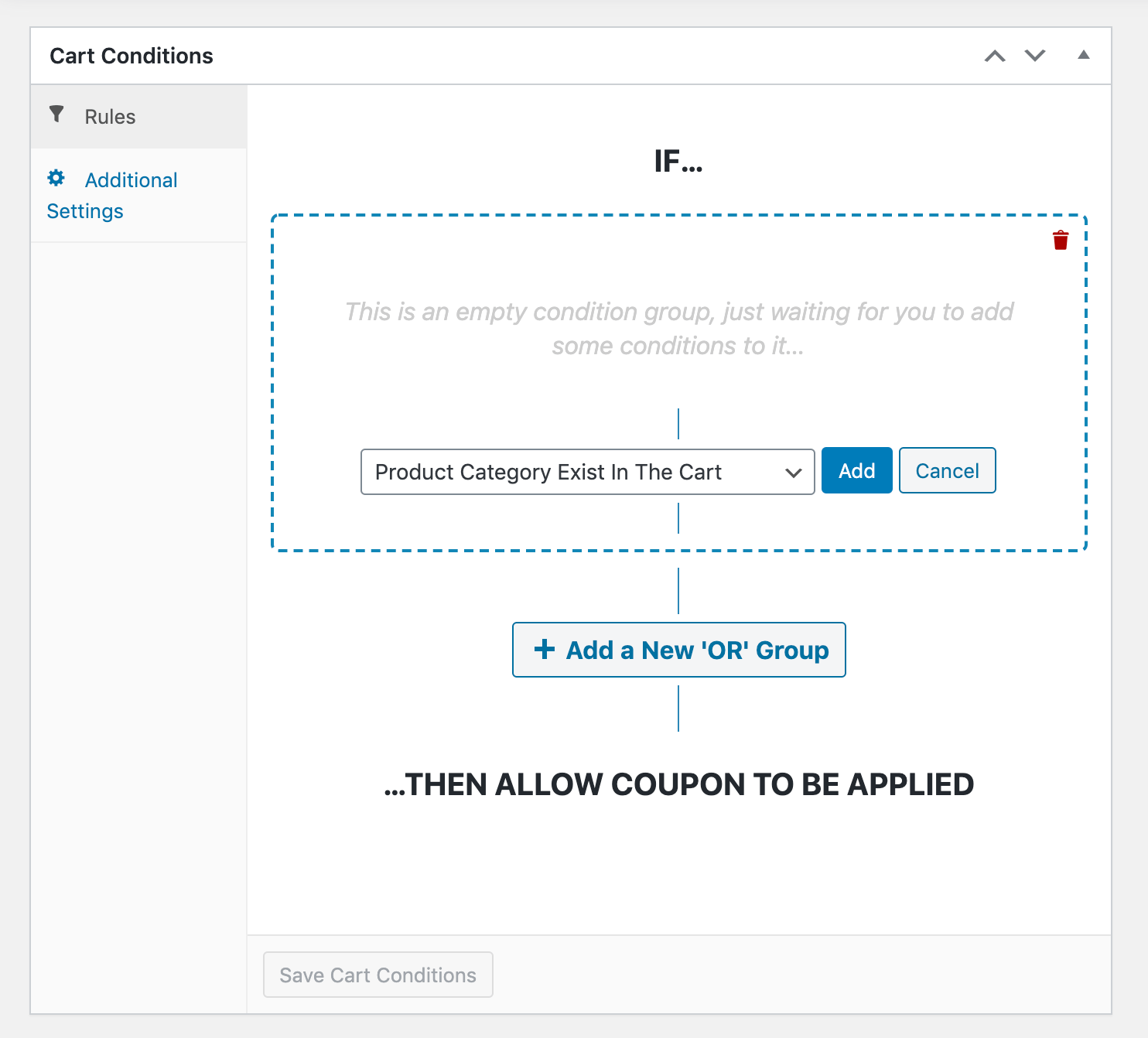
Here are some of the conditions available:
- Product quantity in the cart
- Product category in the cart
- Customer User Role
- Cart Quantity
- Cart Subtotal
- Customer order history
Additionally, you can chain conditions together to achieve even more specific results.
Once your cart conditions are all set, simply check the Auto Apply Coupon box in the right panel of the editor:
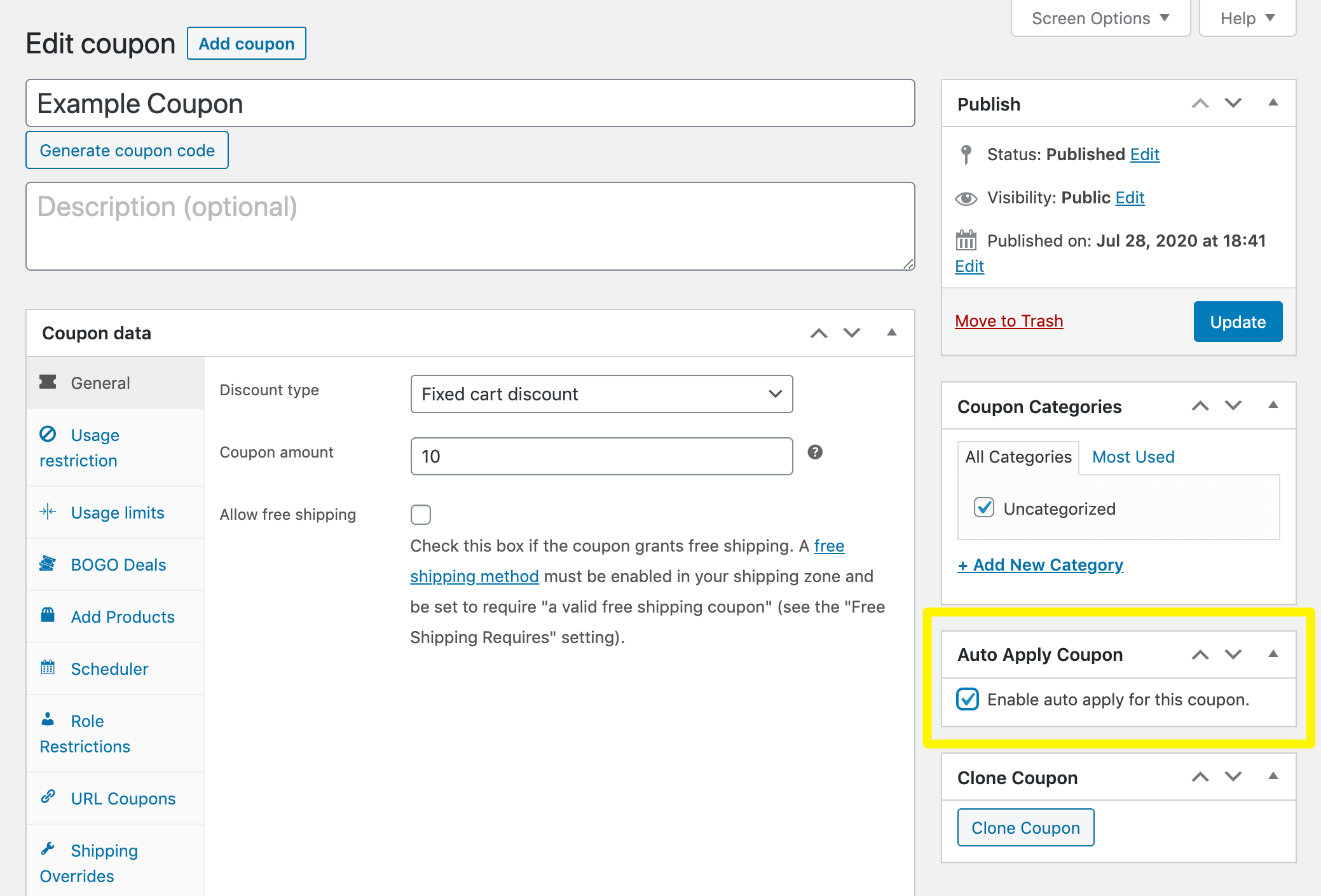
Save or update your coupon. Now, once a customer meets your Cart Conditions, the plugin will implement the coupon automatically without any input from the buyer.
Before going live: If you enable Auto Apply without configuring Cart Conditions first, the coupon will apply to qualifying carts — and without any conditions set, all carts qualify. Set up your conditions and run a test on staging before activating auto-apply on a live store.
2. Activate one-click apply notifications
Unlike the Auto Apply feature, this option doesn’t apply your coupon code automatically. It simply notifies customers when their orders meet the requirements for an active discount.
To turn this feature on, access the coupon editor and click on the One Click Apply Notification tab in the Coupon data section. Then check the Enable one click apply notifications box:
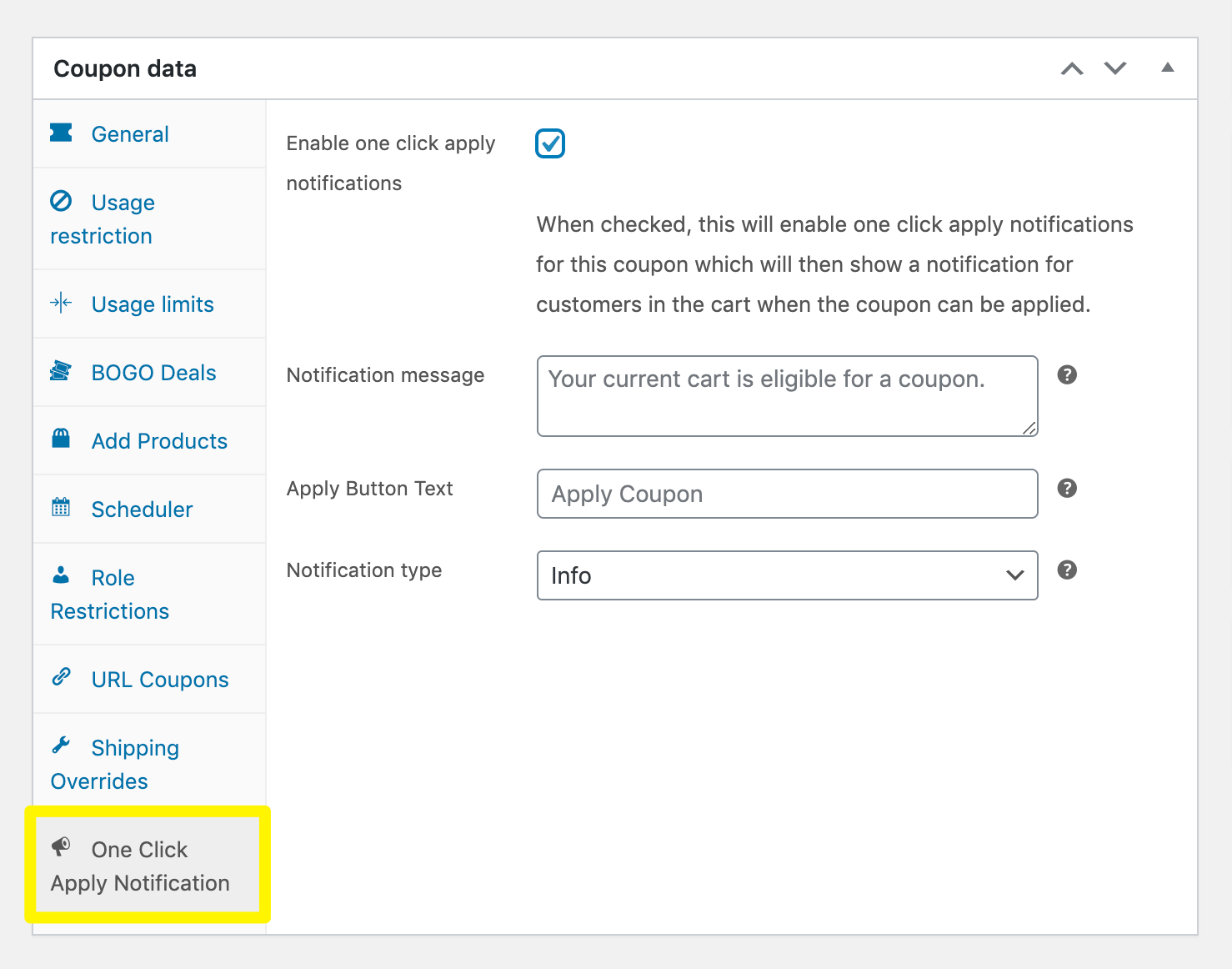
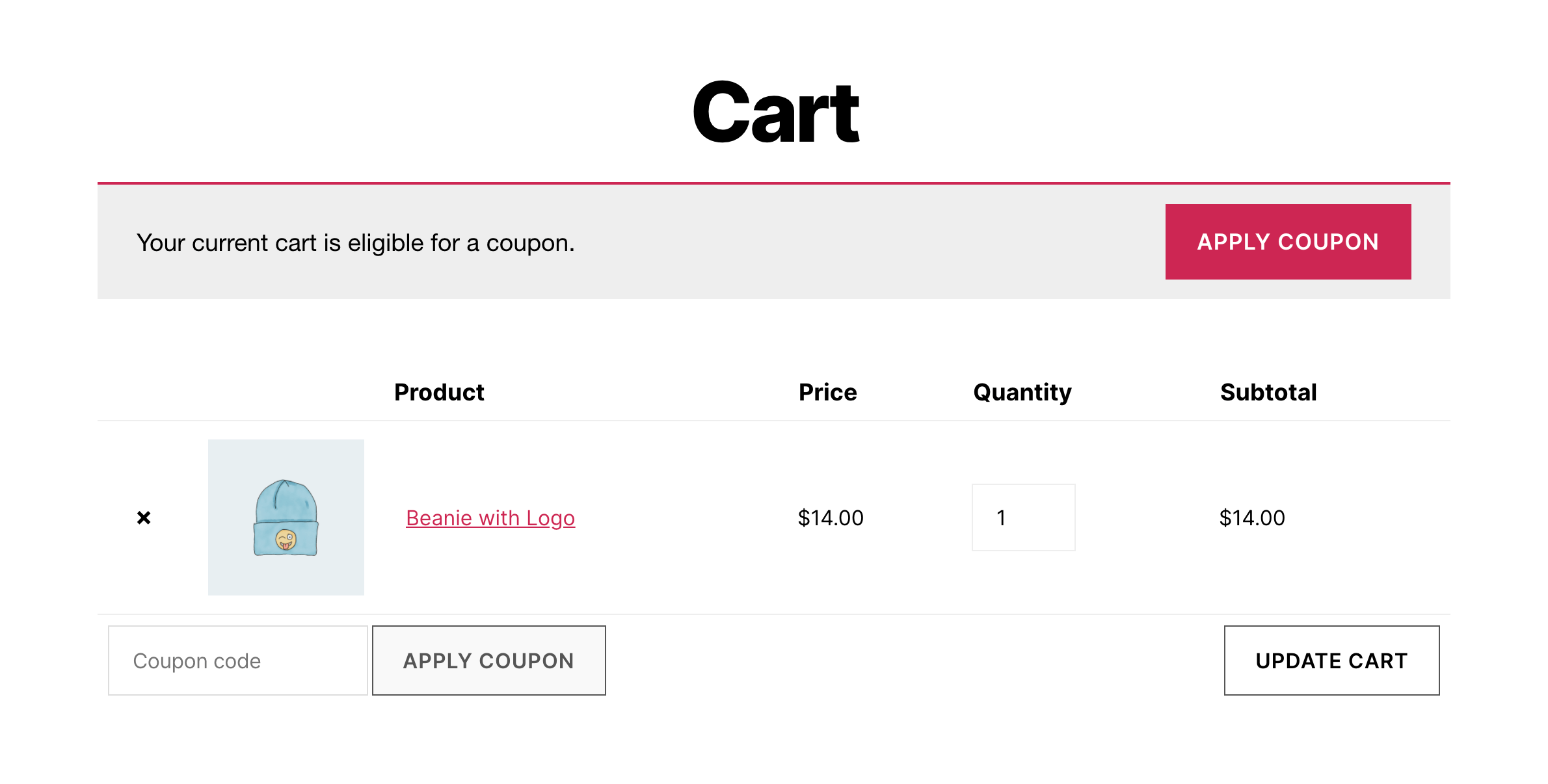
You can tweak the appearance of your notifications, including editing the message, button text, and type. When customers qualify for a discount, they’ll be able to apply it with a single click:
When using this option, you can also apply Cart Conditions the same way as with the previous method.
Frequently Asked Questions
Can I apply a WooCommerce coupon automatically without writing PHP code?
Yes, with Advanced Coupons Premium. The Auto Apply Coupon feature lets you set Cart Conditions and enable automatic coupon application directly from the coupon editor, with no code required. WooCommerce itself does not include built-in auto-apply functionality.
What’s the difference between auto-apply and one-click apply in Advanced Coupons?
With auto-apply, the coupon is added to the cart silently as soon as the customer meets your conditions. No action is needed on their end. With one-click apply, the customer sees a notification that they’ve qualified for a discount and clicks a button to claim it. Both options use the same Cart Conditions logic, so the setup process is nearly identical.
Which WooCommerce hook should I use to apply a coupon programmatically?
A common approach uses the woocommerce_before_calculate_totals action. The cart object is passed as a parameter, and you call $cart->apply_coupon( 'your-coupon-code' ) inside your callback. Include a $cart->has_discount() check to avoid applying the coupon more than once per session. Test your implementation on staging before deploying, as behavior can vary depending on your WooCommerce version and other active plugins.
Do I need Advanced Coupons Premium for the auto-apply feature?
Yes, Auto Apply Coupons is available in Advanced Coupons Premium and is not included in the free version. If you want auto-apply without upgrading, the PHP approach covered earlier in this article is a practical starting point. See the Advanced Coupons pricing page for full plan details.
Conclusion
Applying coupons programmatically in WooCommerce can reduce checkout friction and make your promotions easier to manage. The best approach depends on whether you want direct control in code or a simpler setup through a plugin.
In this guide, we looked at three practical ways to handle it:
- Use PHP to apply a coupon programmatically.
- Use the auto-apply feature in Advanced Coupons.
- Activate one-click apply notifications.
If your store rules are simple and you have development support, the PHP route can be a practical starting point. If you want something easier to manage from your dashboard, Advanced Coupons gives you more flexibility without custom code.
Have you encountered any challenges with applying coupons programmatically to your WooCommerce site? Let us know in the comments section below!



Hi, how do I create programmatically a coupon?