

Want to run better promos without over-discounting your store? WooCommerce coupons give you a flexible way to offer discounts, free shipping, and limited-time deals!
This complete guide breaks down everything you need to know about WooCommerce coupons — from creating coupon codes step-by-step, to setting smart restrictions and limits, to exploring advanced promo ideas when you’re ready to level up. Let’s dive in!
- What Are WooCommerce Coupons?
- How To Create WooCommerce Coupons (Step-by-Step)
- WooCommerce Coupon Settings Explained
- Extend WooCommerce Coupon Features With Advanced Coupons
- Auto-applied discounts
- Cart conditions (make discounts smarter and more targeted)
- BOGO deals (Buy One, Get One promos)
- Add products (auto-add free gifts, samples, or bonus items)
- URL coupons (One-click apply from links)
- Store credit (refunds, goodwill, and repeat purchases)
- Advanced coupon scheduling
- Advanced restrictions for targeted coupons
- ⭐ Store Spotlight: How Mencare uses Advanced Coupons
- Frequently Asked Questions
What Are WooCommerce Coupons?
WooCommerce coupons let you run discounts in your store without manually changing product prices. Instead, you create a coupon code in WooCommerce, share it with customers (email, banners, ads, social), and shoppers apply it during checkout to get the deal.
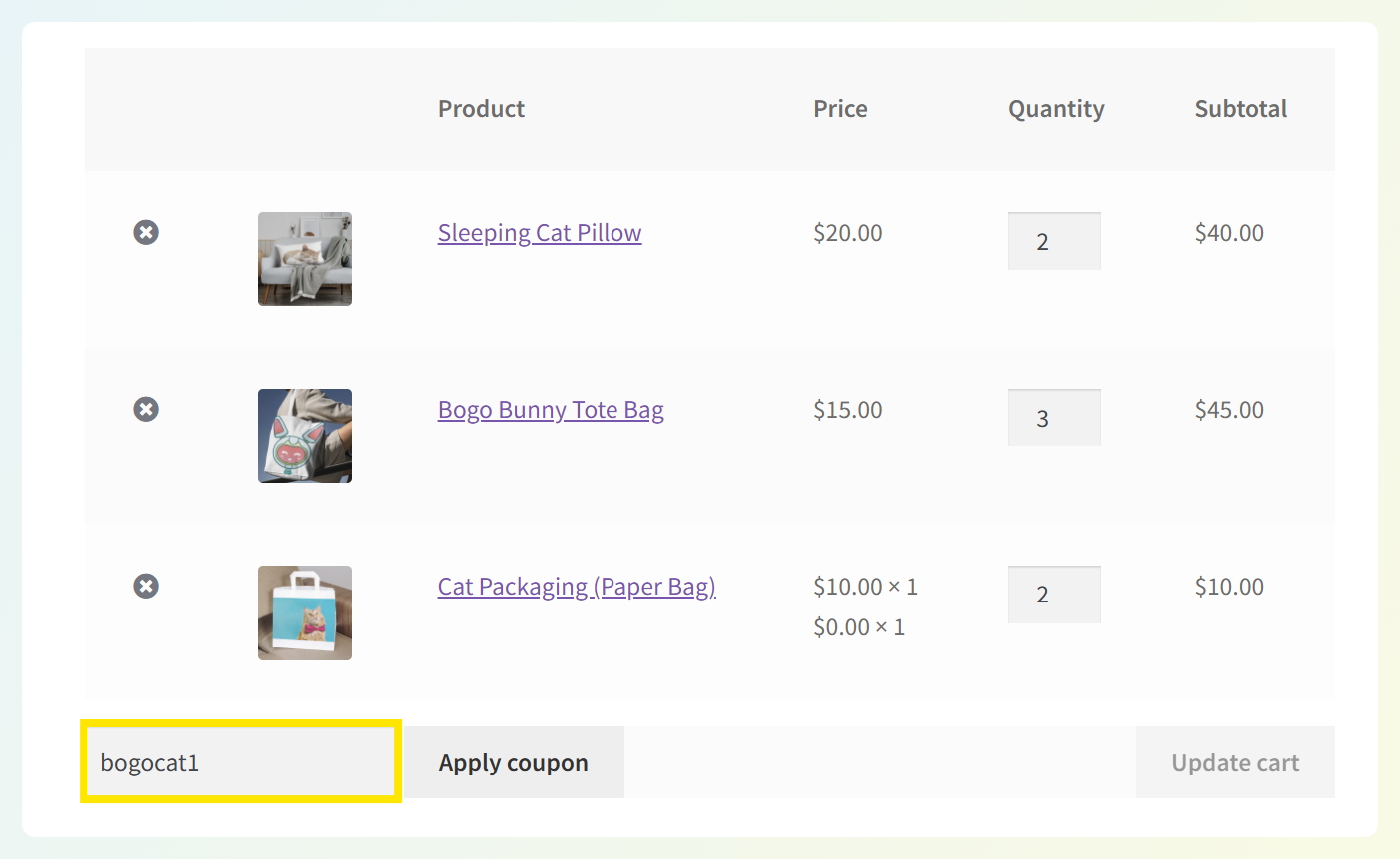
Shoppers will see a Coupon Code field on your checkout page where they can apply any discounts they have access to:
There are three different types of discounts you can create by default in WooCommerce:
- Percentage discount: Lowers the customer’s subtotal by the specified percentage.
- Fixed cart discount: Takes a certain dollar amount off of the customer’s cart subtotal.
- Fixed product discount: Discounts one item by the specified dollar amount.
Additionally, there are several settings you can configure to limit your coupon codes’ usage, such as:
- Minimum and maximum spends
- Whether the coupon can be used in conjunction with other discounts
- If the coupon can be used to purchase sale items
- Specific products or categories the coupon can be used for
- Individual customers who can use this coupon
- How many times the coupon can be used
- How many times an individual customer can use a specific coupon code
You can also choose to enable free shipping via WooCommerce coupon codes. In short, this feature provides many possibilities for discount marketing for your online store. Plus, it’s fairly easy to use.
How To Create WooCommerce Coupons (Step-by-Step)
Before you create your first discount, make sure coupon codes are enabled in WooCommerce. Then you can create and publish a coupon in just a few minutes! Here’s how:
Step 1: Enable WooCommerce coupons in your store settings
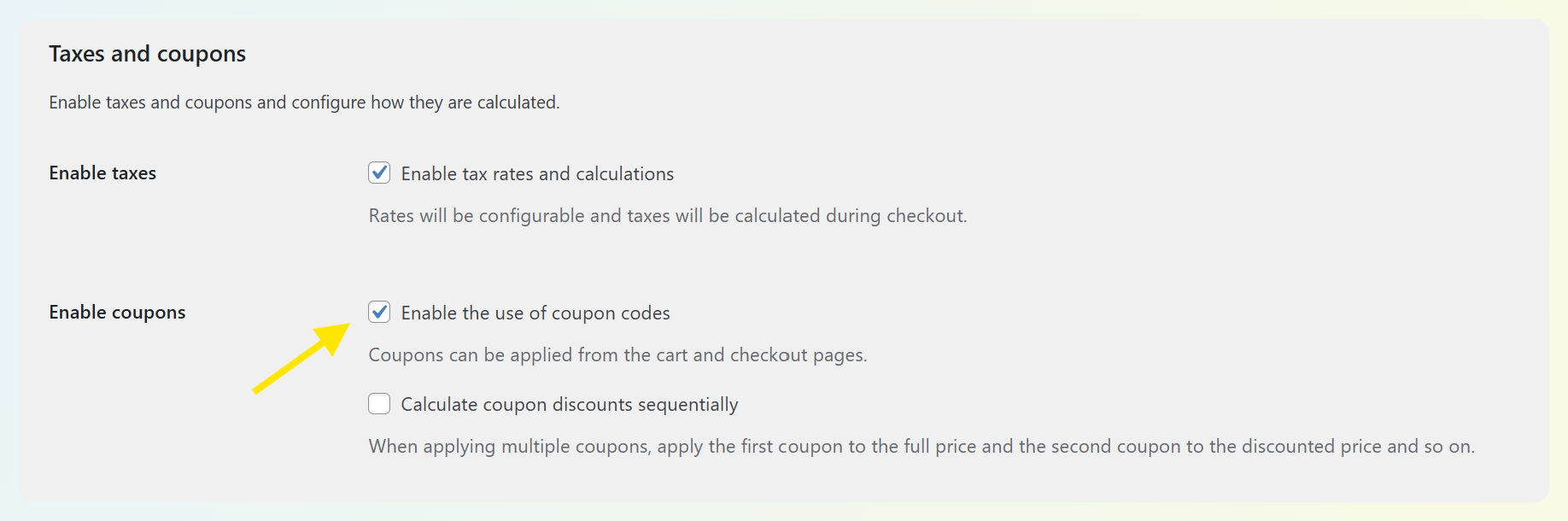
From your WordPress dashboard, go to WooCommerce → Settings → General. Look for the Enable coupons setting and make sure it’s ticked on. Save your changes.
Step 2: Go to the Coupons screen
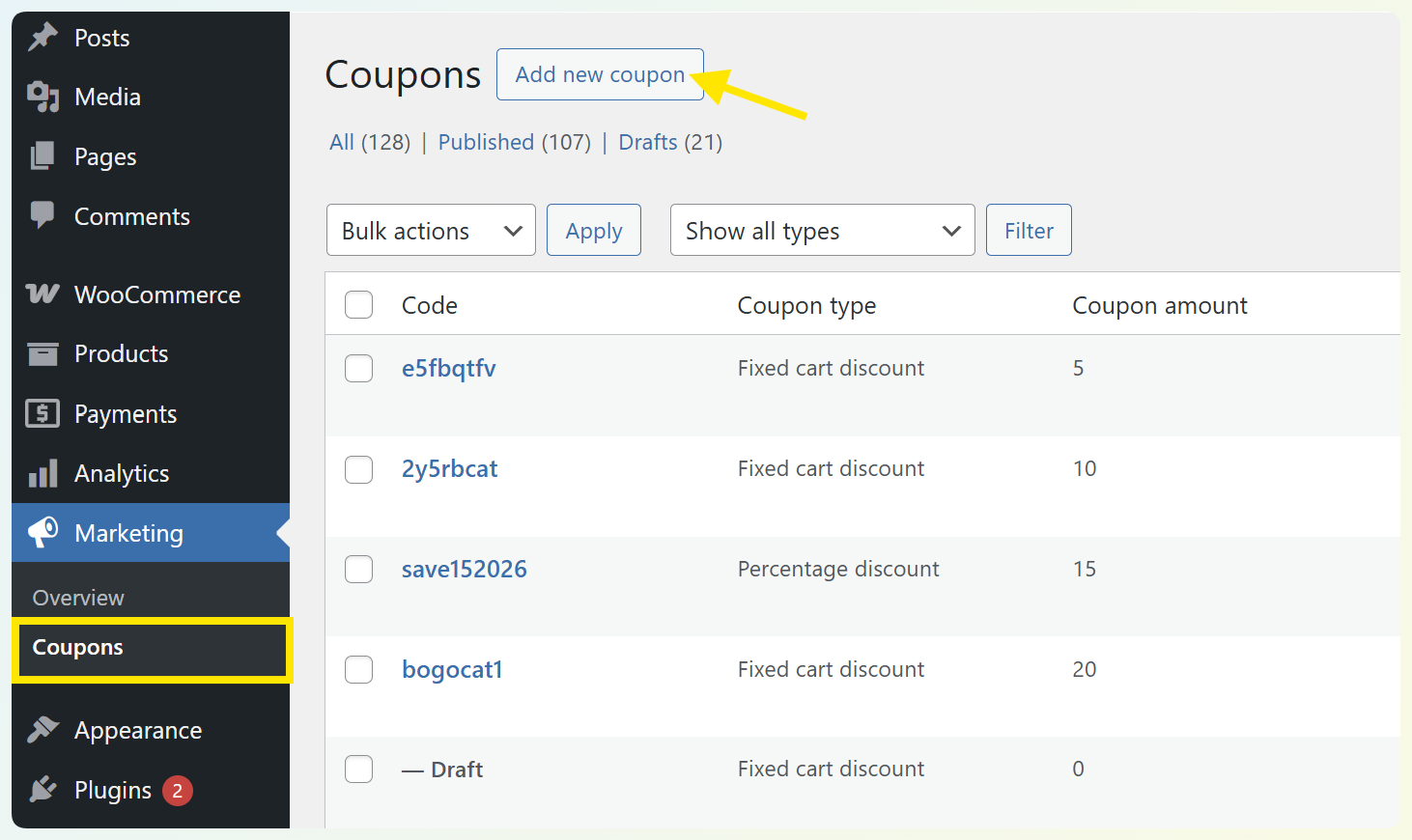
To set up a new WooCommerce coupon code, log in to your WordPress dashboard and navigate to Marketing > Coupons:
Step 3: Create a new coupon
Click Add coupon (or Create your first coupon if it’s your first time setting one up).
This opens the WooCommerce coupon editor. In the Coupon Code field, type the code customers will enter at checkout to receive the discount.
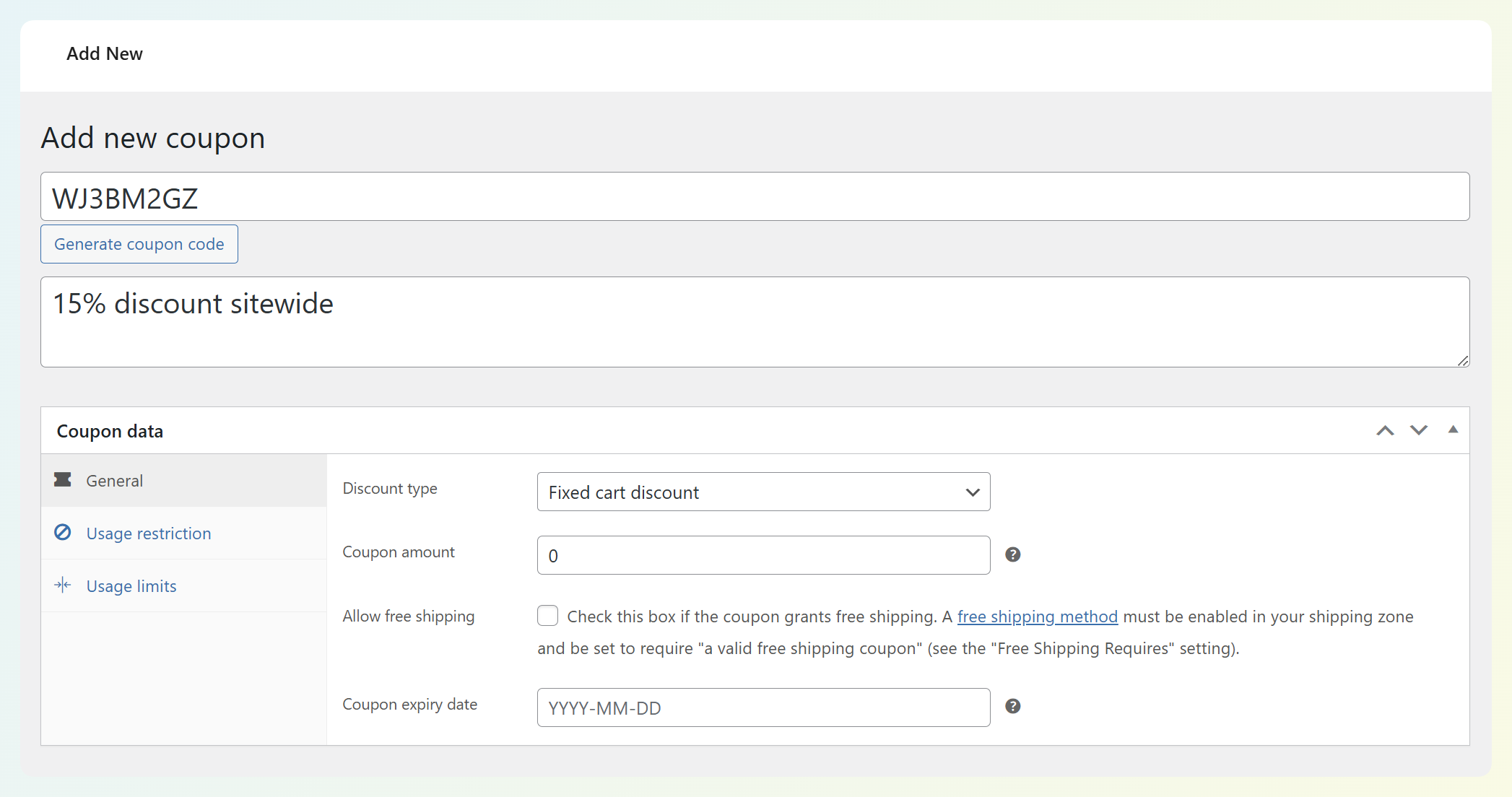
You can also add a description if you wish – this is for internal use only and won’t be visible to customers.
Step 4: Configure the discount and coupon rules
After naming your coupon, scroll down to the Coupon data section. Here you can specify the discount type and amount, as well as any restrictions or limits:
Start in the General tab:
- Choose a Discount type (for example: Percentage discount, Fixed cart discount, or Fixed product discount)
- Enter the Coupon amount (the percentage or fixed amount you want to discount)
- Set an expiration date if this is a limited-time promo
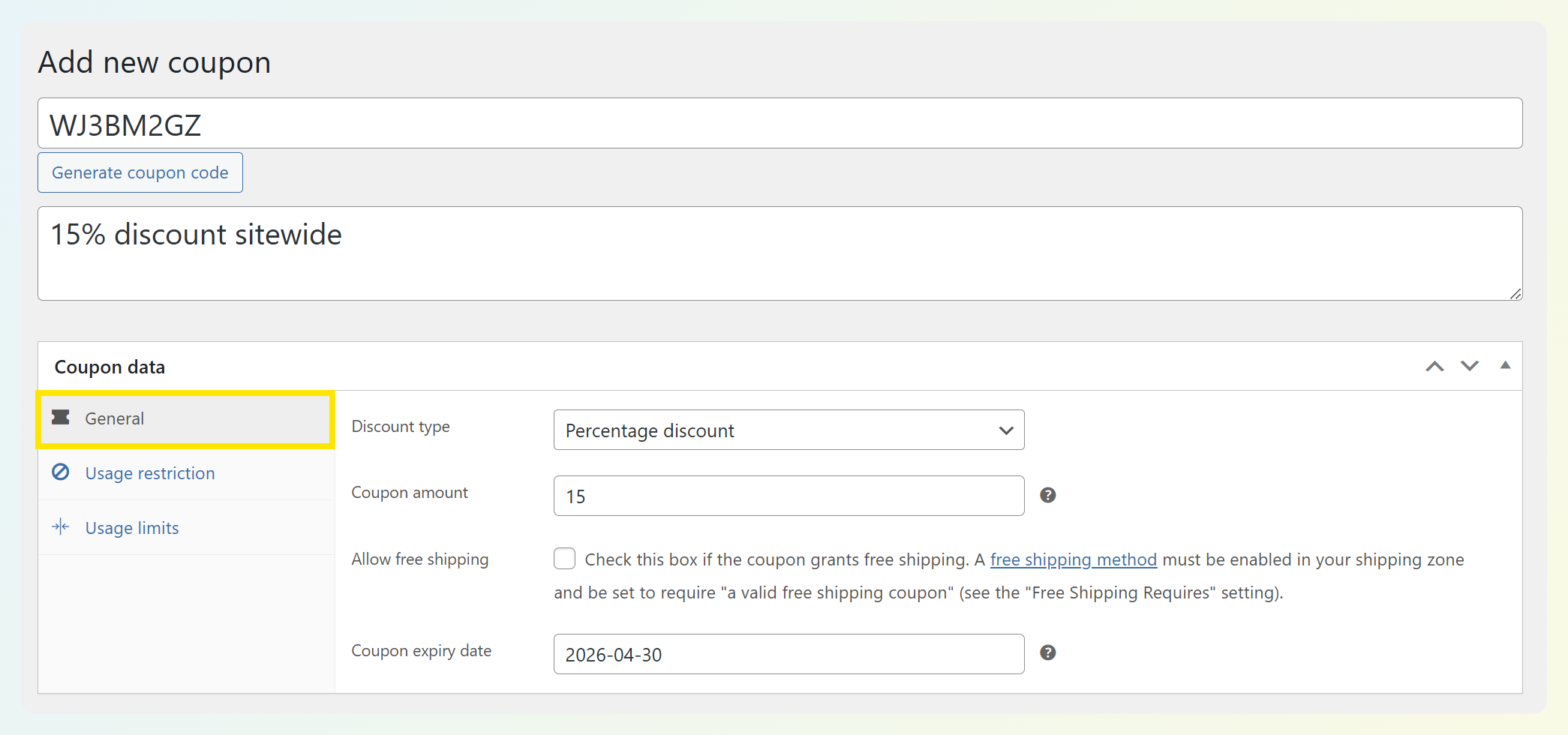
Once the discount is set, you can move through the other tabs to adjust how the coupon works — like adding spending requirements, choosing which products/categories it applies to, or limiting how many times it can be used.
For example, you can set a minimum spend requirement under the Usage restriction tab so the coupon only applies when the cart reaches a specific subtotal, like how we set it up below:
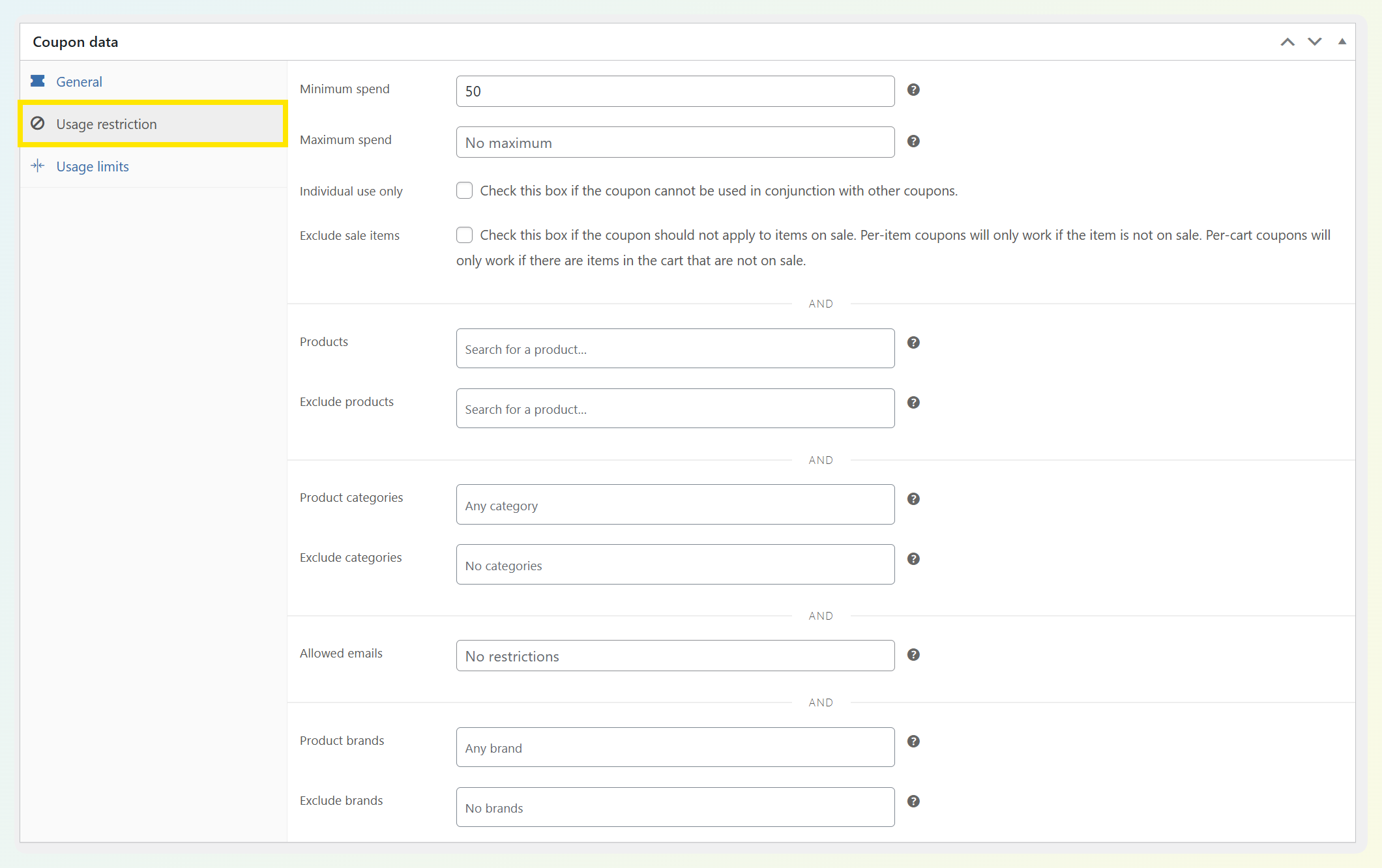
As we already mentioned, there are many options available here. We recommend paying close attention to the usage restrictions and limits, as these can help you avoid over-discounting your products.
Step 5: Publish your coupon
Once you’re happy with the setup, click Publish!
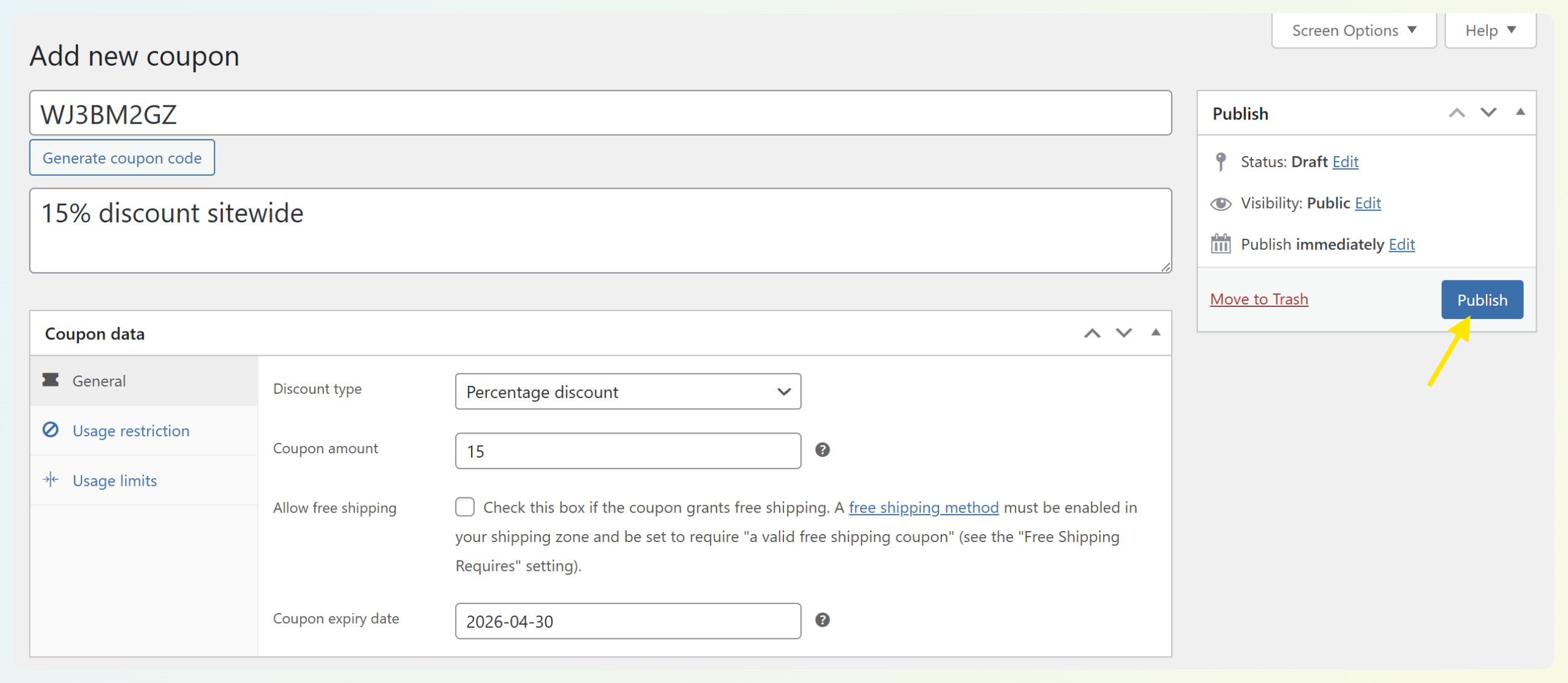
Customers can now enter the coupon code in the cart or checkout page to receive the discount.
WooCommerce Coupon Settings Explained
Once you’ve entered your coupon code, you’ll spend most of your time in the Coupon data panel. WooCommerce organizes coupon settings into three main areas: General, Usage restriction, and Usage limits.
From here, you can define what the discount does, who can use it, and how often it can be redeemed. Let’s take a closer look at what each tab controls and how you can make the most of these settings.
General Settings
The General tab defines the core discount: what kind of coupon this is and how much it takes off.
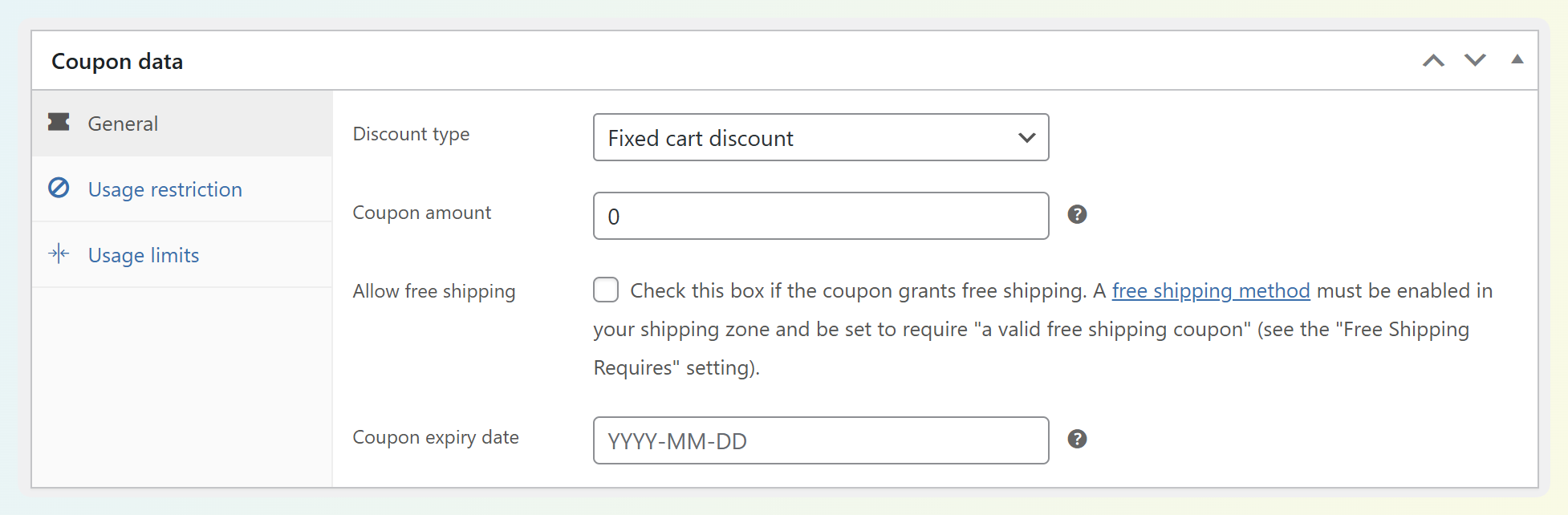
Here are the most important settings you’ll see here:
- Discount type: Choose how the coupon discounts the cart (for example: percentage off, a fixed amount off the cart, or a fixed amount off specific products).
- Coupon amount: Enter the number WooCommerce will use for the discount (a percentage or a currency amount, depending on the discount type).
- Coupon expiry date (optional): Add an end date if this is a limited-time promotion, seasonal sale, or flash deal.
- Free shipping (optional): If you want the coupon to unlock free shipping, enable this option (then make sure your shipping setup supports it).
What we’ve seen store owners run into: Setting the right discount type, but forgetting to enter the coupon amount (or using a fixed-cart discount when they meant a percentage discount).
Quick example: If you want 10% off everything, you’d typically choose a percentage discount and set the amount to 10. If you want $20 off orders over $100, you’d usually choose a fixed-cart discount, set the amount to 20, then handle the minimum spend in the next tab.
Usage Restriction Settings
The Usage restriction tab controls when the coupon applies and what it can be used on.
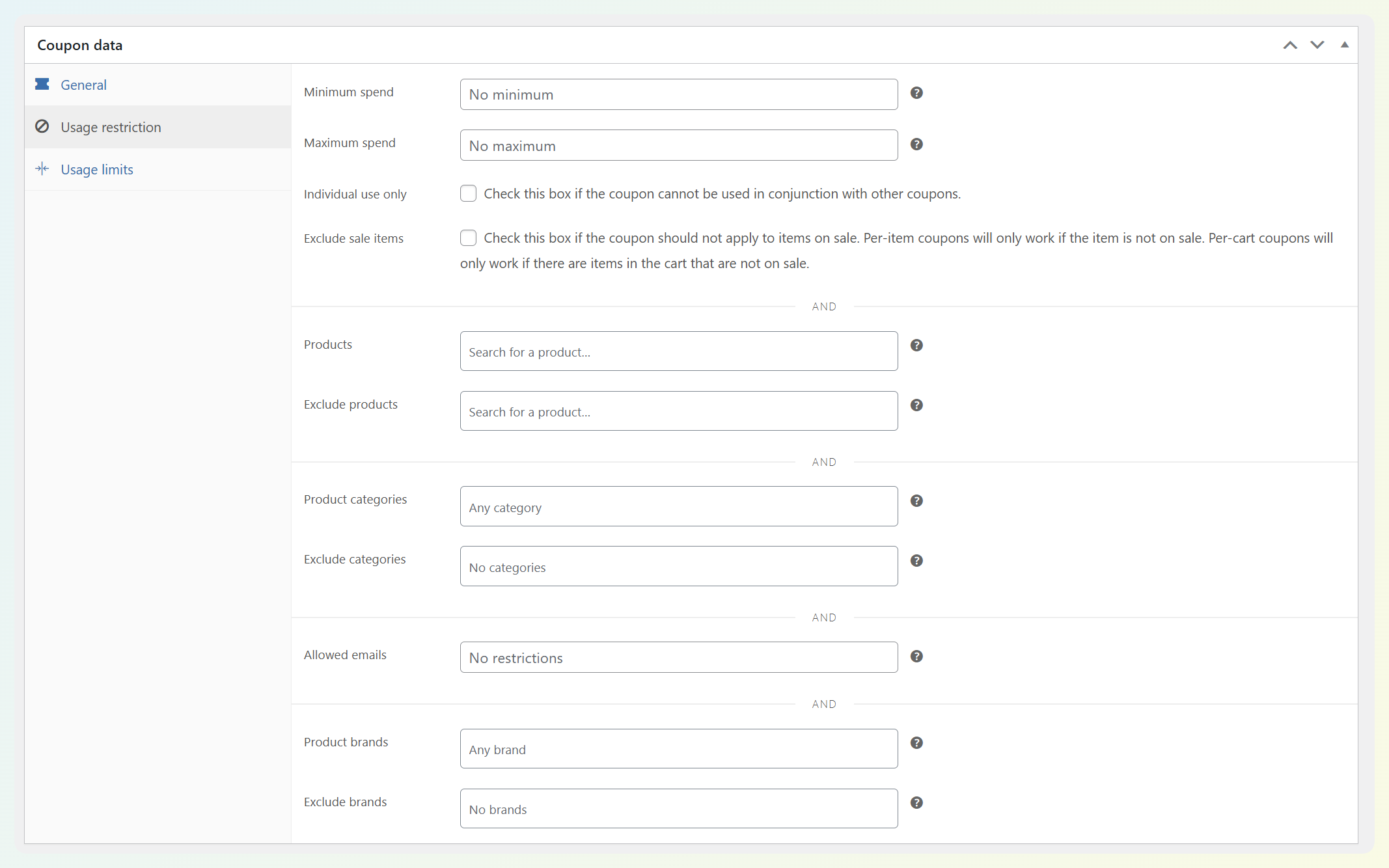
This is where you can define restrictions for your offers. Common settings you’ll see here include:
- Minimum spend / Maximum spend: Require a cart subtotal to qualify (great for boosting AOV and avoiding small-order discounts).
- Individual use only: Prevent this coupon from being stacked with other coupons.
- Exclude sale items: Stop the coupon from applying to products that are already discounted.
- Products / Excluded products: Choose exact products that should (or shouldn’t) qualify.
- Categories / Excluded categories: Limit the coupon to specific product categories (or block certain categories).
- Allowed emails: Restrict the coupon to specific customers (useful for VIP codes, customer service recovery coupons, influencer codes, or employee discounts).
What we’ve seen store owners run into: Coupons “not working” because a single item in the cart is excluded (sale item, wrong category, or the minimum spend isn’t met). If a coupon isn’t applying, this tab is usually the first place to check.
Quick example: If you want a VIP coupon for one customer, you can add their email under Allowed emails. If you want a promo that only applies to full-price items, enable Exclude sale items.
Usage Limits Settings
The Usage Limits tab controls how many times a coupon can be redeemed. This is one of the easiest ways to prevent coupon abuse and keep promotions under control.
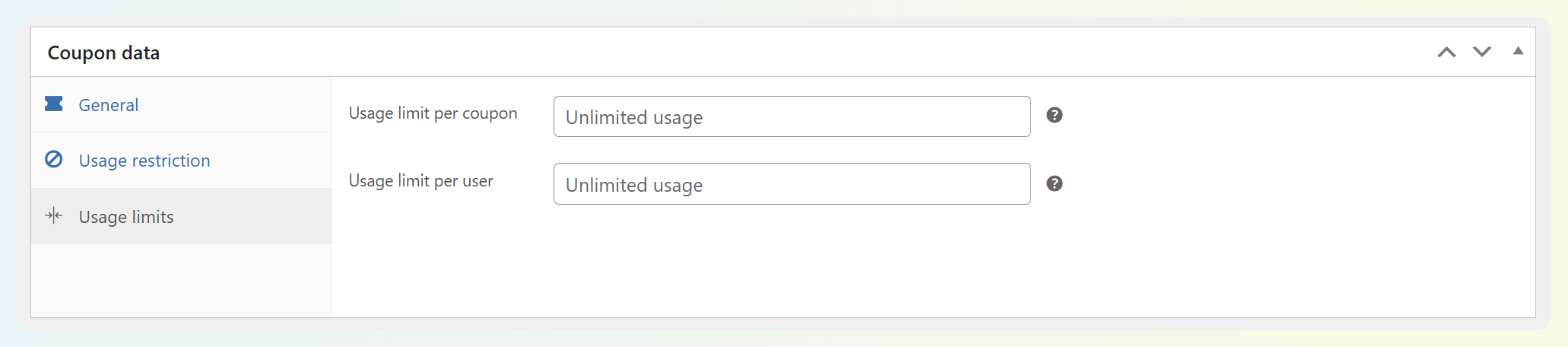
The most common settings are:
- Usage limit per coupon: The total number of times the coupon can be used overall (great for “first 100 customers” promos).
- Usage limit per user: Limits each customer to a set number of uses (for example: one-time welcome coupon).
- Limit usage to X items: Restricts how many items the coupon can apply to in the cart (useful for product-based promos where you don’t want the coupon discounting a large quantity).
What we’ve seen store owners run into: Forgetting to set usage limits on a public-facing code, which makes it easier for the coupon to get shared (and reused) more than intended.
Quick example: If you’re running a welcome offer like WELCOME10, you might set a per-user limit so customers can only redeem it once.
Extend WooCommerce Coupon Features With Advanced Coupons
WooCommerce coupons are great for running simple discounts — but as soon as you try to create more advanced promotions, you’ll usually hit a few limitations. For example, you might want coupons to apply automatically, build a true BOGO deal, or create automated promotions that only apply when certain cart conditions are met.
That’s exactly where Advanced Coupons comes in. This WooCommerce coupon plugin extends WooCommerce’s native coupon functionality so you can run smarter, more flexible promotions. Right after installing and activating the plugin, you’ll notice extra coupon tabs and settings added to the Coupon data panel:
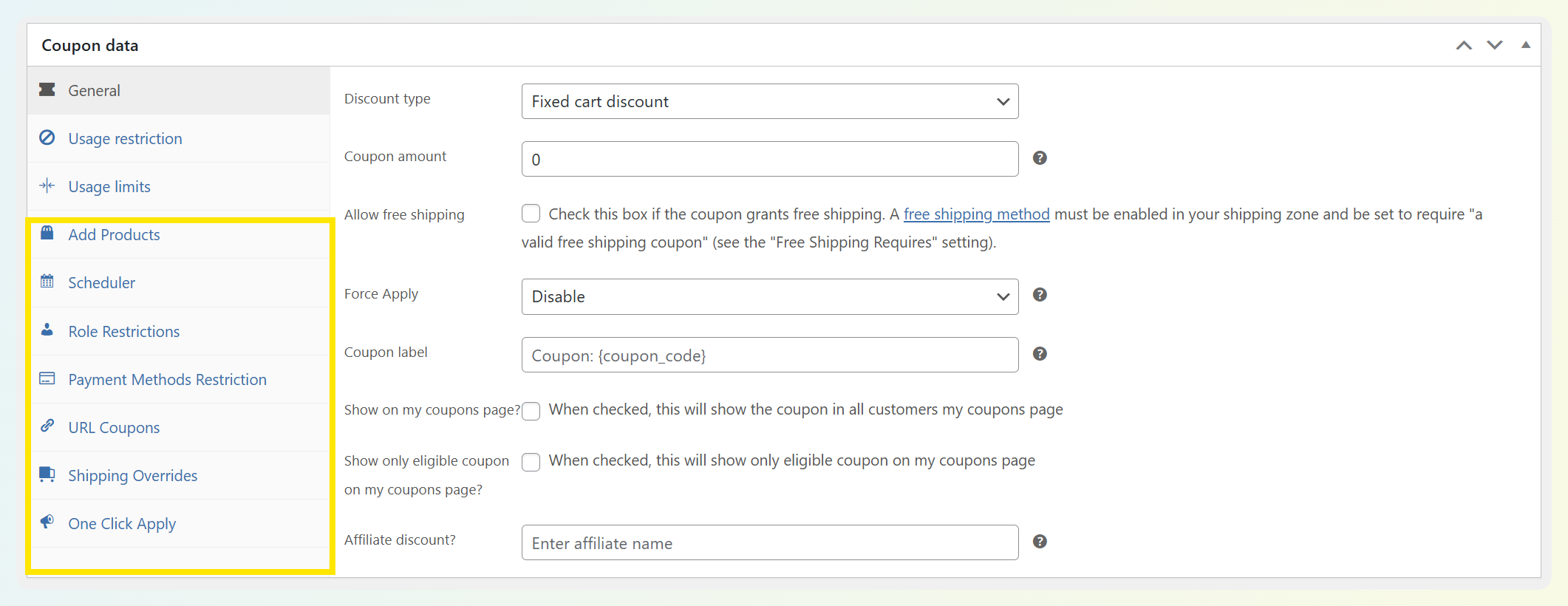
Here are just some of its most powerful features:
Auto-applied discounts
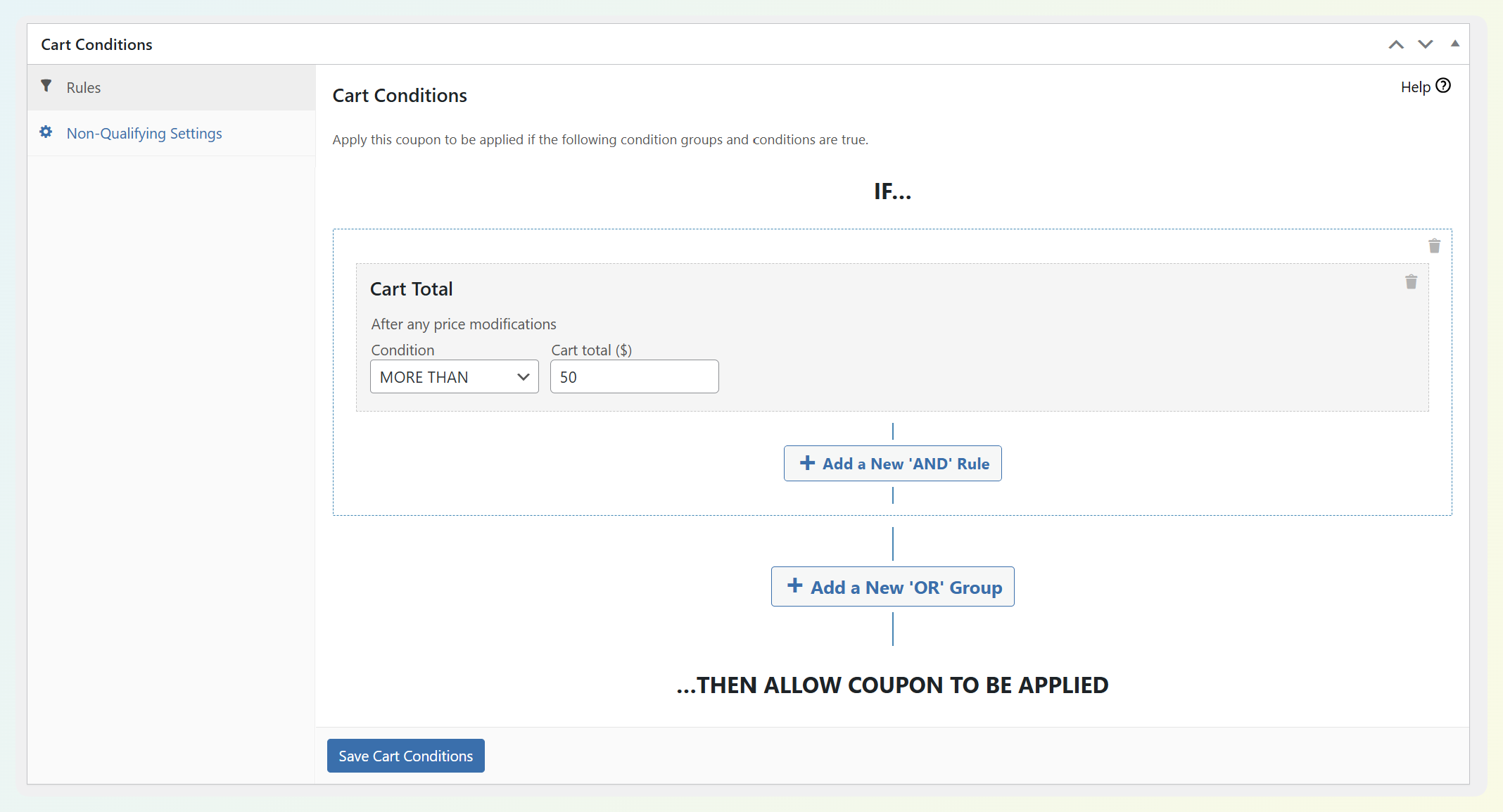
One of the biggest upgrades store owners love is removing friction at checkout. Advanced Coupons lets you auto-apply discounts so qualifying shoppers get the deal instantly. You can pair this with cart conditions so the coupon only triggers when it makes sense (for example: when the cart subtotal reaches a threshold, when certain items/categories are in the cart, or when the shopper matches a rule you’ve set).
Cart conditions (make discounts smarter and more targeted)
WooCommerce’s default coupon rules are helpful, but Cart Conditions take your promotions to another level by letting you control exactly when a coupon should apply. Store owners often use cart conditions to tailor deals based on things like cart contents, spend amount, customer type, or even purchase history, so offers feel more personalized and you stay in control of profitability.
BOGO deals (Buy One, Get One promos)
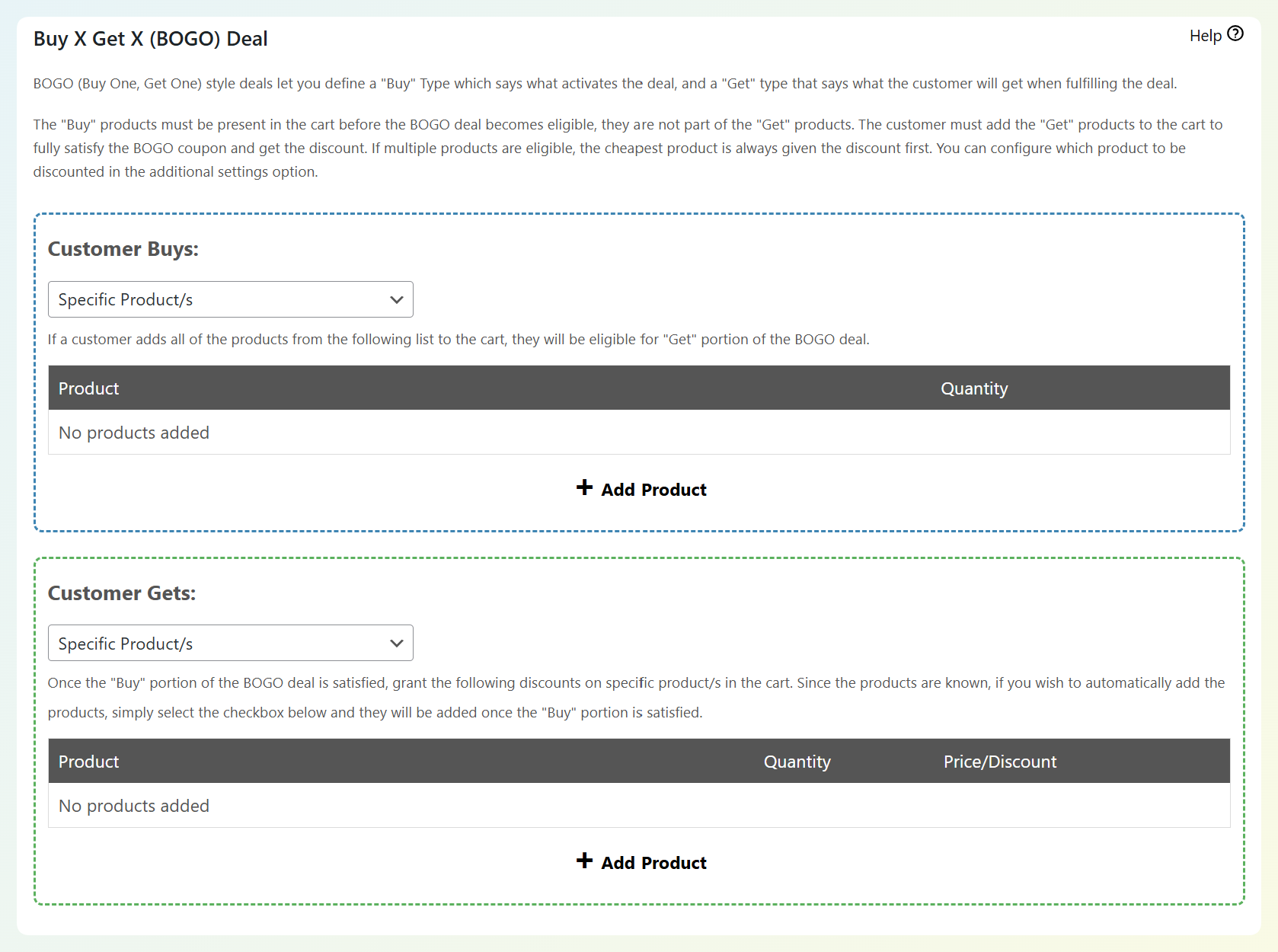
WooCommerce doesn’t offer true BOGO-style coupon types out of the box, which is why many store owners end up doing workarounds. Advanced Coupons adds BOGO functionality so you can run clear, high-converting “Buy X, Get Y” promotions that are easier to understand and easier to manage. This is a go-to strategy for increasing cart size, introducing new products as freebies, or moving inventory without running a sitewide sale.
Add products (auto-add free gifts, samples, or bonus items)
If you want your coupon to feel more exciting than “% off,” Add Products lets you automatically add a free gift, sample, or bonus product into the cart when a coupon is applied. This is especially powerful when paired with cart conditions—for example, only adding the freebie when the order hits a certain subtotal, contains specific products, or meets a campaign requirement.
URL coupons (One-click apply from links)
With URL coupons, you can apply a discount when someone clicks a link—perfect for email promos, influencer campaigns, and support gestures. It’s a small change that makes offers feel smoother and more intentional.
Store credit (refunds, goodwill, and repeat purchases)
Store credit is one of the most practical “relationship-building” promo tools we’ve seen. Instead of always refunding money back to a card, you can offer credit as a goodwill gesture, a customer-service recovery option, or a retention nudge that brings shoppers back for another purchase. Even better, the Advanced Coupons free plugin lets you launch a full store credit system, so you can start using it right away.
Advanced coupon scheduling
If you run flash sales, holiday promos, or recurring weekly deals, scheduling is a game-changer. Advanced Coupons adds a Scheduler feature so you can control start and end times with fine-grained timing, and even set day/time windows for recurring offers. This helps you plan ahead and avoid “we forgot to turn it off” discount leaks.
Advanced restrictions for targeted coupons
As your store grows, you’ll often want offers that aren’t for “everyone.” Advanced Coupons Premium supports more targeted coupon setups—like restricting discounts to specific user roles, or limiting coupons to certain shipping methods or payment types/gateways. This gives you precise control over who can redeem your offers and when.
⭐ Store Spotlight: How Mencare uses Advanced Coupons
Mencare is a great example of what “advanced promotions” look like in real life. In our interview with Edwin van der Panne (Founder of Mencare), he shared how they use auto-applied discounts to support campaigns like pre-orders, abandoned cart recovery, and review incentives — while store credit helps them handle refunds and goodwill gestures in a way that encourages repeat purchases.
Frequently Asked Questions
The information above is everything you need to get started with WooCommerce coupon codes. However, there are a few FAQs that come up concerning this feature that you might be curious about.
Where do customers enter WooCommerce coupons?
Customers can enter WooCommerce coupons in the coupon code field on the cart or checkout page (depending on your theme and store setup). After they click Apply coupon, WooCommerce recalculates the totals and shows the discount if the coupon qualifies.
Can customers use more than one WooCommerce coupon at a time?
It depends on how your coupon is set up. By default, WooCommerce can allow multiple coupons, but a coupon can also be configured to be “Individual use only,” which prevents it from being combined with other coupons. If customers report that their second coupon won’t apply, this is one of the first settings to check.
Why isn’t my WooCommerce coupon working?
Most of the time, a WooCommerce coupon doesn’t apply because one of the coupon rules blocks it. Common causes include not meeting the minimum spend, trying to use the coupon on excluded products/categories, having Exclude sale items enabled, the coupon being expired, or the usage limit already being reached. If you’re troubleshooting, start with the Usage restriction and Usage limits tabs in the coupon editor.
How do I get a promotional code in WooCommerce?
It’s fairly easy to come up with coupon codes to use for your WooCommerce discounts. However, if you need a randomized promotional code for your campaign, you can click on the Generate coupon code button in the editor. This will insert a random string of characters like the one in the image above into the Coupon Code field.
How do I disable a coupon code in WooCommerce?
If you have an active coupon code that you would like to disable, you have a few options. First, you can open the coupon in the editor and change the status from Published to Draft. You can also Trash coupons from the All Coupons screen:
If you want to set a coupon to disable itself after a specific period, you can add an expiration date to it. You’ll find this option in the General tab of the Coupon data section of the editor.
The code will stop working after the date you’ve entered. If you’re updating an existing discount, remember to save your changes.
Are WooCommerce coupon codes case-sensitive?
No, WooCommerce coupon codes are not case-sensitive. This was not the case in previous versions of the plugin, but if your copy is up to date, then it won’t matter if customers enter lower or upper case letters when typing in your code.
This is beneficial to you as it minimizes user friction. In other words, you shouldn’t have to worry about customers complaining that their discount didn’t work because they didn’t type it in using the proper upper or lower case characters.
How do I automatically apply a coupon code in WooCommerce?
WooCommerce doesn’t support auto-applying coupon codes by default. If you want coupons to apply automatically when shoppers qualify, you’ll need a plugin like Advanced Coupons. Once installed, open your coupon in WooCommerce, enable the Auto apply coupon option, then publish or update the coupon. From there, the coupon can apply automatically based on the rules and conditions you set.
We’ve published tutorials on how to automatically apply coupons in a variety of scenarios, including:
- Automatically apply a coupon based on the customer’s subtotal
- Add Buy One Get One (BOGO) products to qualifying carts automatically
- Enable tiered discounts with automatically applied coupons
- Automatically apply free shipping to orders over a certain amount
- Apply coupons without requiring the customer to type anything
Note that you will need the premium version of the plugin to access this feature.
Conclusion
WooCommerce coupons are one of the simplest ways to run strategic promotions without constantly changing product prices. With the built-in coupon editor, you can create discount codes, control who can use them, and set smart restrictions and limits so your offers stay intentional.
In this guide, we walked through how to set up WooCommerce coupons step-by-step and explained the most important coupon settings—so you can launch promos with confidence and avoid common setup mistakes. Here’s a quick recap of what we’ve covered:
- What WooCommerce coupons are (and the main coupon types)
- How to create WooCommerce coupons step-by-step
- WooCommerce coupon settings (General, Usage restriction, Usage limits)
- How Advanced Coupons extends WooCommerce coupon features
If you’re ready to go beyond basic coupon codes, Advanced Coupons helps you run more flexible promotions like auto-applied discounts, cart-condition offers, BOGO deals, free gift campaigns, and more.
Do you have any questions about how to get started with WooCommerce coupons? Leave them for us in the comments section below!



Can coupon codes include special characters like @!#%*?
Hey Mischa, generally not a good idea. I don’t think it would break, but for customers its confusing.
Can coupon codes be randomly generated? We would like to create a coupon but the code must be unique for each use and we don’t want to have to create 100s of coupons with the same rule set. Would like just one coupon with random/unique coupon codes
Hi James, yes, you can use our Virtual Coupons feature for this. More detail in this KB article here.
The quick summary is:
1. Create the perfect coupon code with all your settings the way you want them
2. Generate Virtual Coupons (you can generate thousands at a time)
3. The “parent” code is no longer claimable on its own, the customers claim the coupon via one of the virtual coupons (which are single use).
Virtual Coupons can been assigned to users, or fed into email marketing software, whatever you need.