Well-placed product badges can do a lot for your WooCommerce store. They help guide shopper attention, highlight promotions, and make important product details easier to spot. If you’re running a sale or simply want to highlight bestsellers, WooCommerce custom product badges can help draw attention to the right products.
We’re here to help you make the most of this strategy! In this complete guide, we’ll walk you through how to create WooCommerce custom badges. You’ll learn how to set up your first product badge, customize its design, target the right products, and schedule it for the right campaign.
Let’s get right into it!
What Are WooCommerce Custom Product Badges?
WooCommerce custom product badges are visual labels that appear on your product listings to highlight deals or important information. Store owners often use them to announce promotions or highlight low-stock items, new arrivals, and other messages they want shoppers to notice quickly.
WooCommerce does include a default Sale badge for discounted products, but it’s fairly simple. If you want to highlight more than a simple sale, that default option can feel limiting. Thankfully, custom product badges and labels are easy to set up using plugins like Advanced Promo Kit. This plugin lets you create custom product labels and badges that better match your store, products, and promotions.
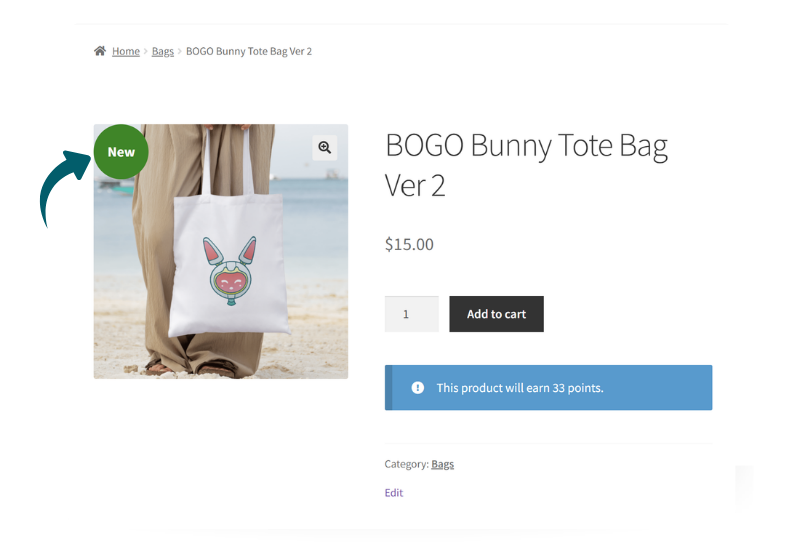
With customized product labels and badges, you can give shoppers instant visual cues that make your store easier to browse and help important products stand out faster. They allow you to:
- Highlight promotions instantly so shoppers can quickly spot discounted or featured products
- Bring attention to specific items such as bestsellers, new arrivals, or limited-stock products
- Support seasonal campaigns by showing badges for holiday sales, flash deals, or special launches
- Make your store easier to scan by helping customers understand product highlights at a glance
- Create a smoother shopping experience with badges that match your store’s branding and marketing goals
How To Create WooCommerce Custom Product Badges With Advanced Promo Kit
Now that we understand how product badges and labels can help your store, let’s walk through how to set them up! With Advanced Promo Kit, you can build eye-catching WooCommerce custom product badges, control where they appear, and tailor them to the products and campaigns you want to promote.
In the steps below, we’ll show you exactly how to set up your first badge from start to finish.
Step 1: Install and activate Advanced Promo Kit
The first thing you need to do is install and activate Advanced Promo Kit on your WooCommerce store.
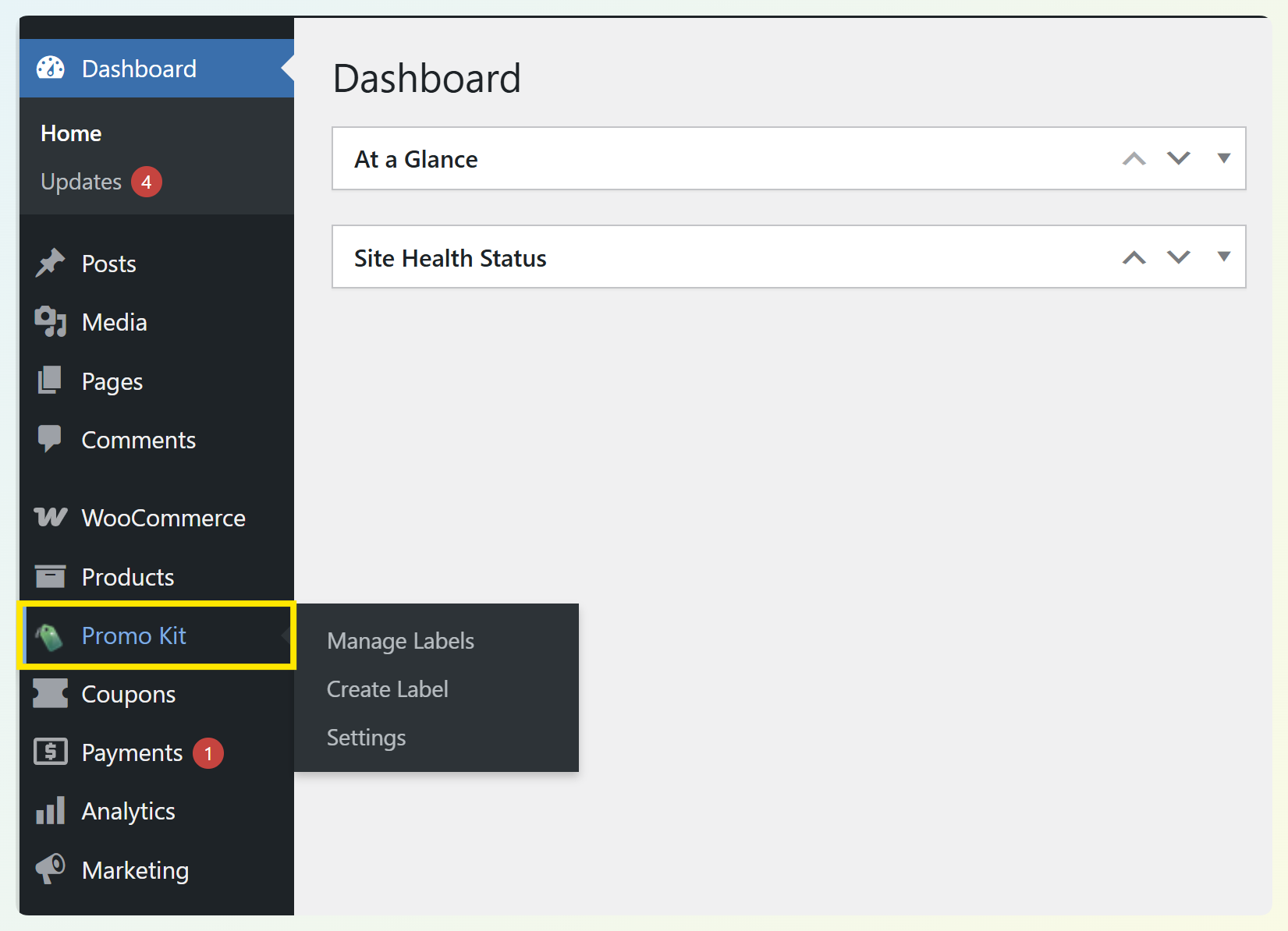
After activation, a new “Promo Kit” option will appear in the left-hand WordPress dashboard menu. This is where you’ll manage your product badges and labels and begin setting up your first campaign.
Step 2: Configure general badge display settings
If it’s your first time using Advanced Promo Kit, it helps to review the plugin’s general settings first. This lets you control how your badges behave across your store before you start creating them.
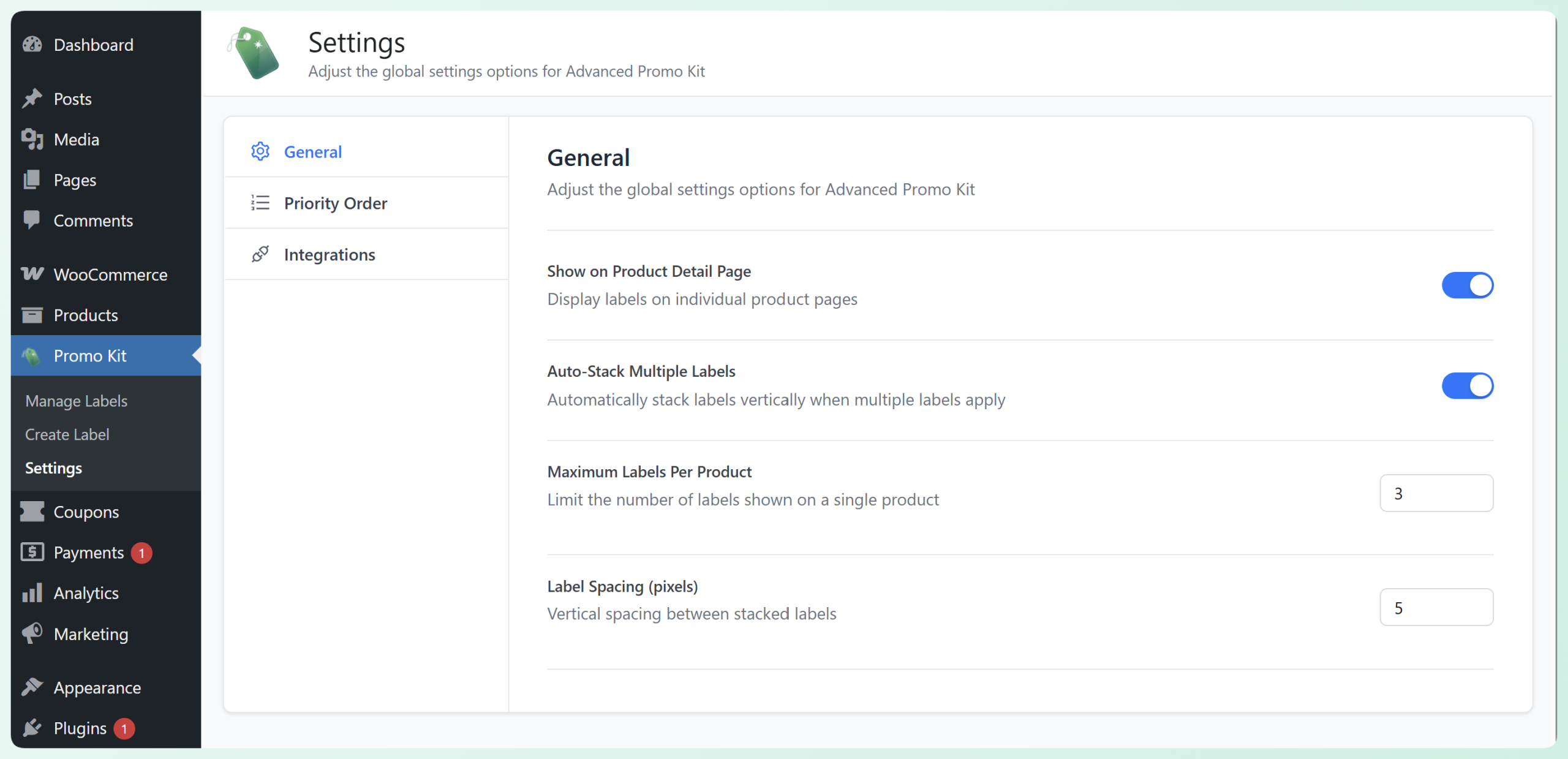
Simply head to your WordPress dashboard > Promo Kit > Settings.
In the General tab, you can:
- Choose whether badges appear on individual product pages
- Enable auto-stacking for multiple labels so badges display neatly when more than one applies to the same product
- Set the maximum number of labels per product
- Adjust the spacing between stacked labels
You’ll also see a Priority Order tab, where you can control which badges appear first when multiple labels apply to the same product. If you have not created any labels yet, you can come back to this later.
In the Integrations tab, you can enable features that work with other Advanced Coupons plugins. For example, you can display coupon discounts, cashback offers, gift card values, and loyalty points on your product labels.
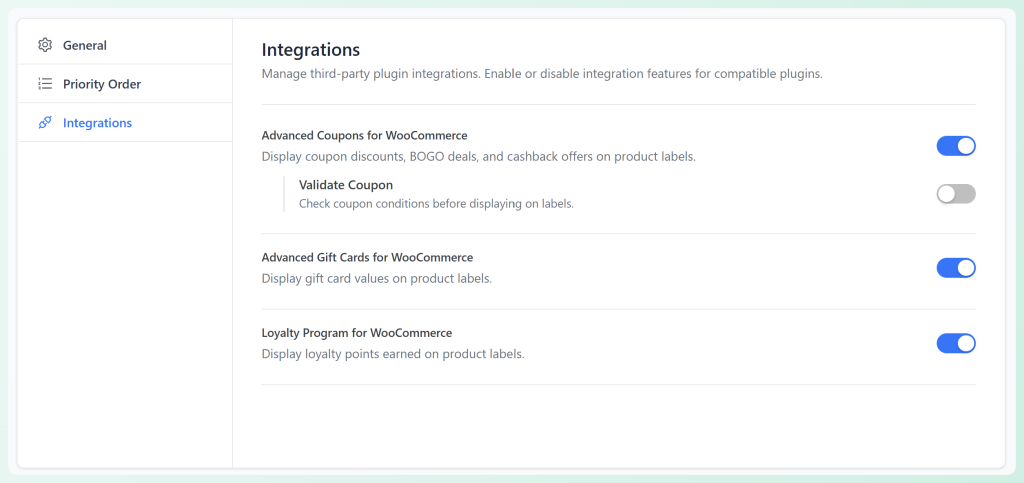
You do not need to spend too much time here right away, but it’s helpful knowing these options are available.
Step 3: Create your first WooCommerce custom product badge
After configuring the basic settings, it’s time to create your first badge! From your WordPress dashboard, head to Promo Kit > Create Label. This will open the label builder.
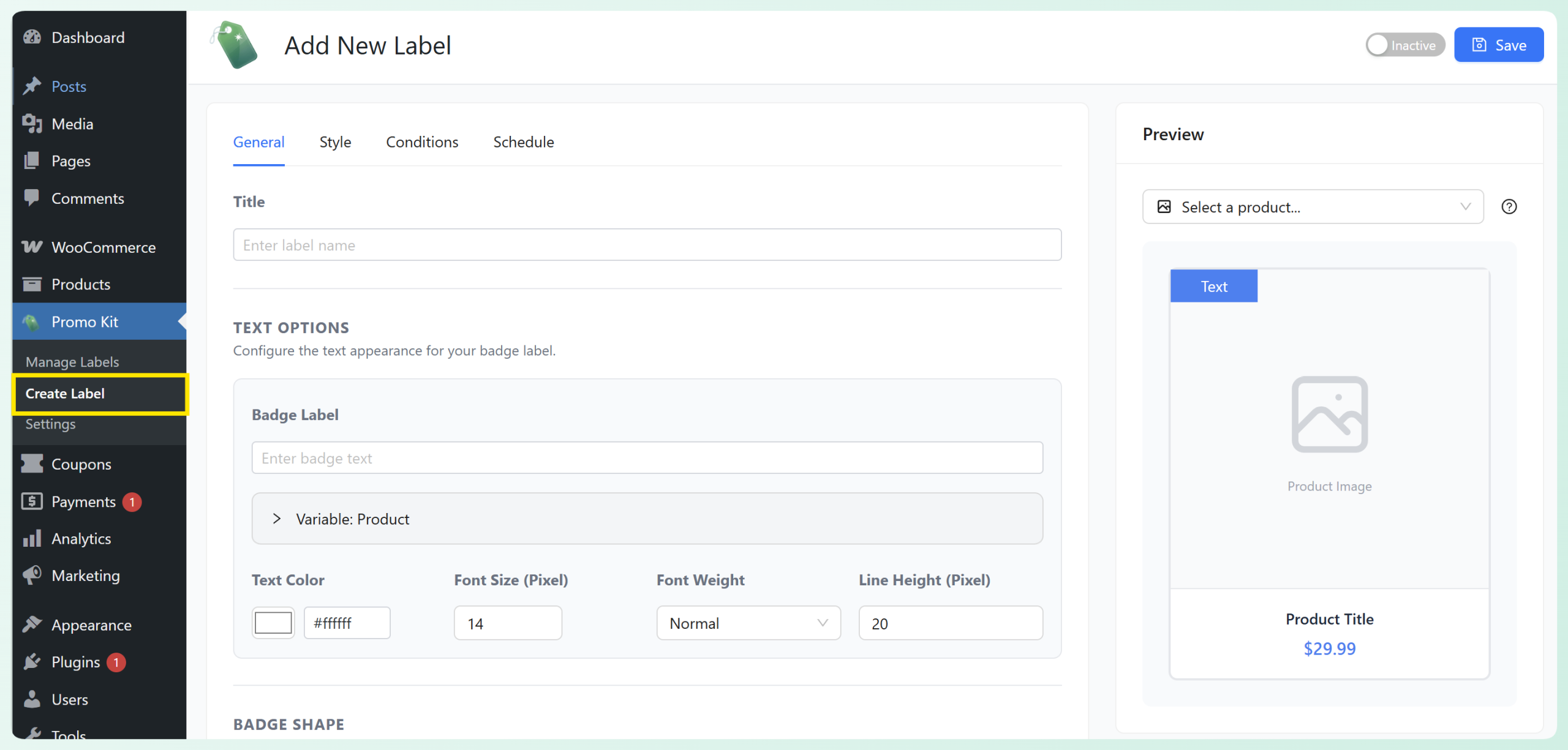
From the General tab, start by adding a title for your label. Next, enter the text you want shoppers to see in the Badge Label field. In this example, we’ll be adding a “Best Seller” label to specific items. You can also adjust the text settings here, including color, size, weight, and height.
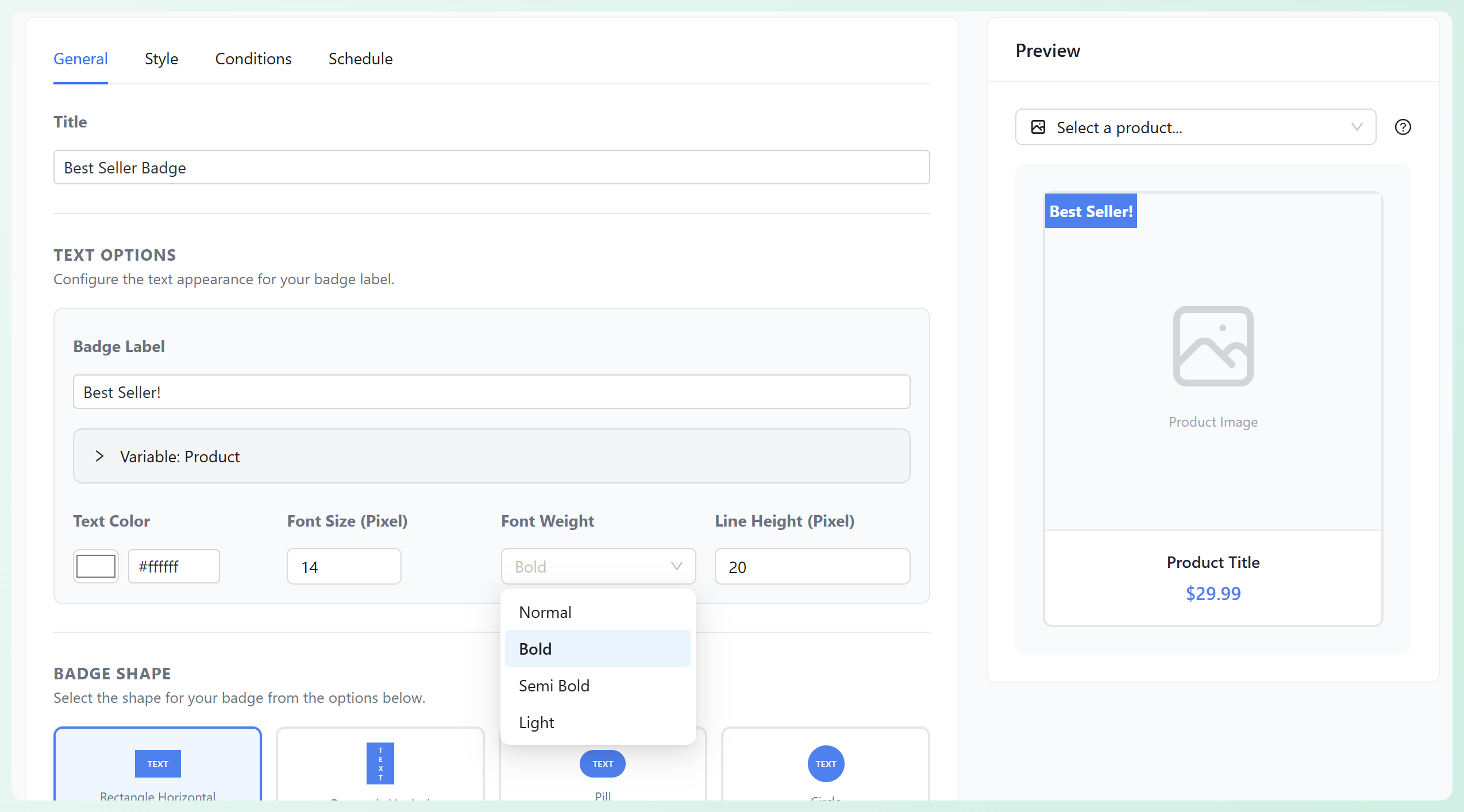
Below, you can choose your desired badge shape. Advanced Promo Kit gives you several options to choose from, including rectangles, pills, circles, ribbons, tags, banners, and even a custom image badge. For our example, we’re choosing a Pill-shaped badge.
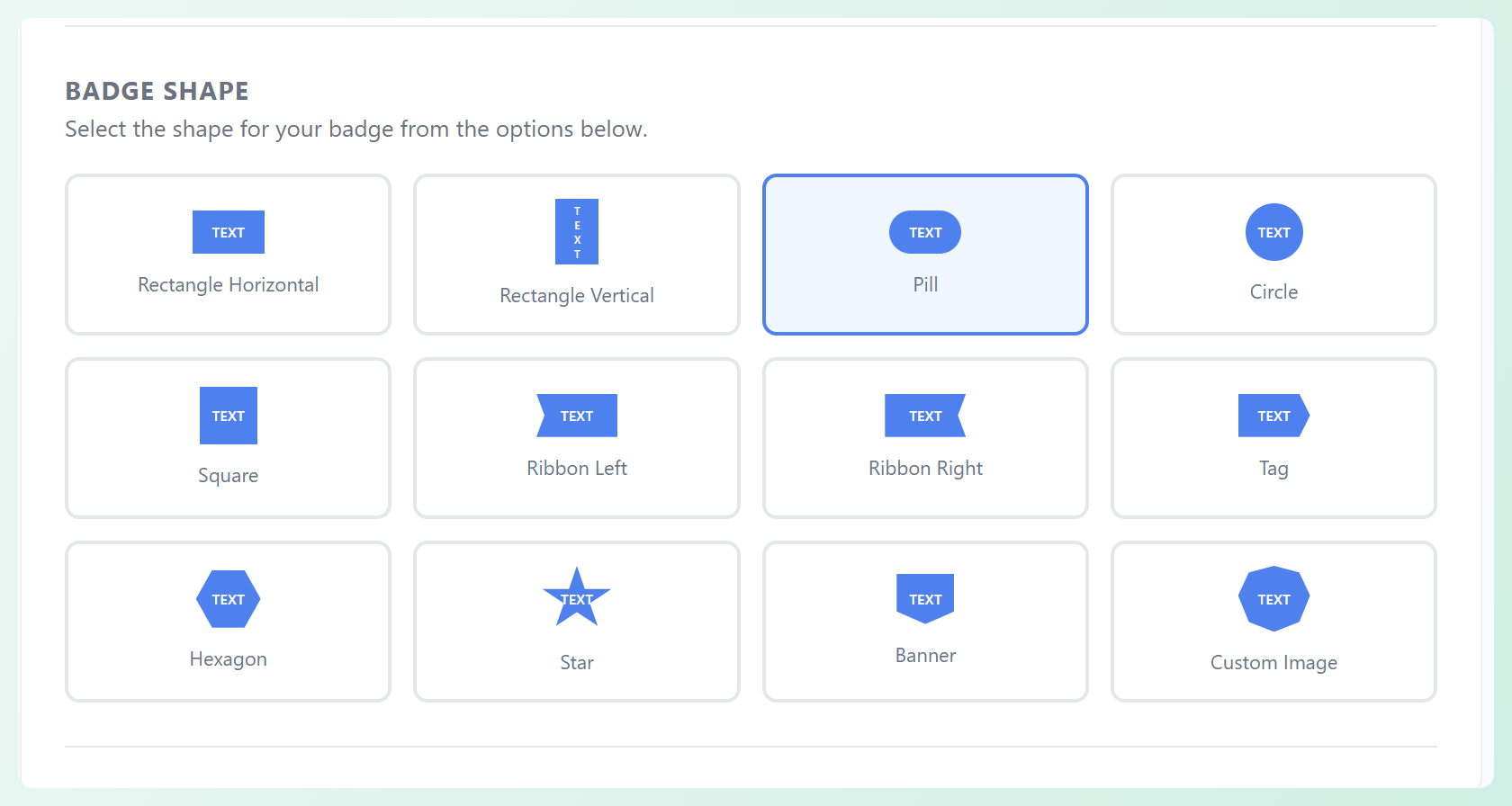
Step 4: Customize your badge to match your store’s branding
Next, head to the Style tab to customize how your badge looks on your store. Here, you can adjust basics like:
- Badge color
- Width and height
- Border radius
- Opacity
- Text direction
- Badge placement and position
In our example, we’ll style the Best Seller badge using an orange color so it stands out clearly on the product image.
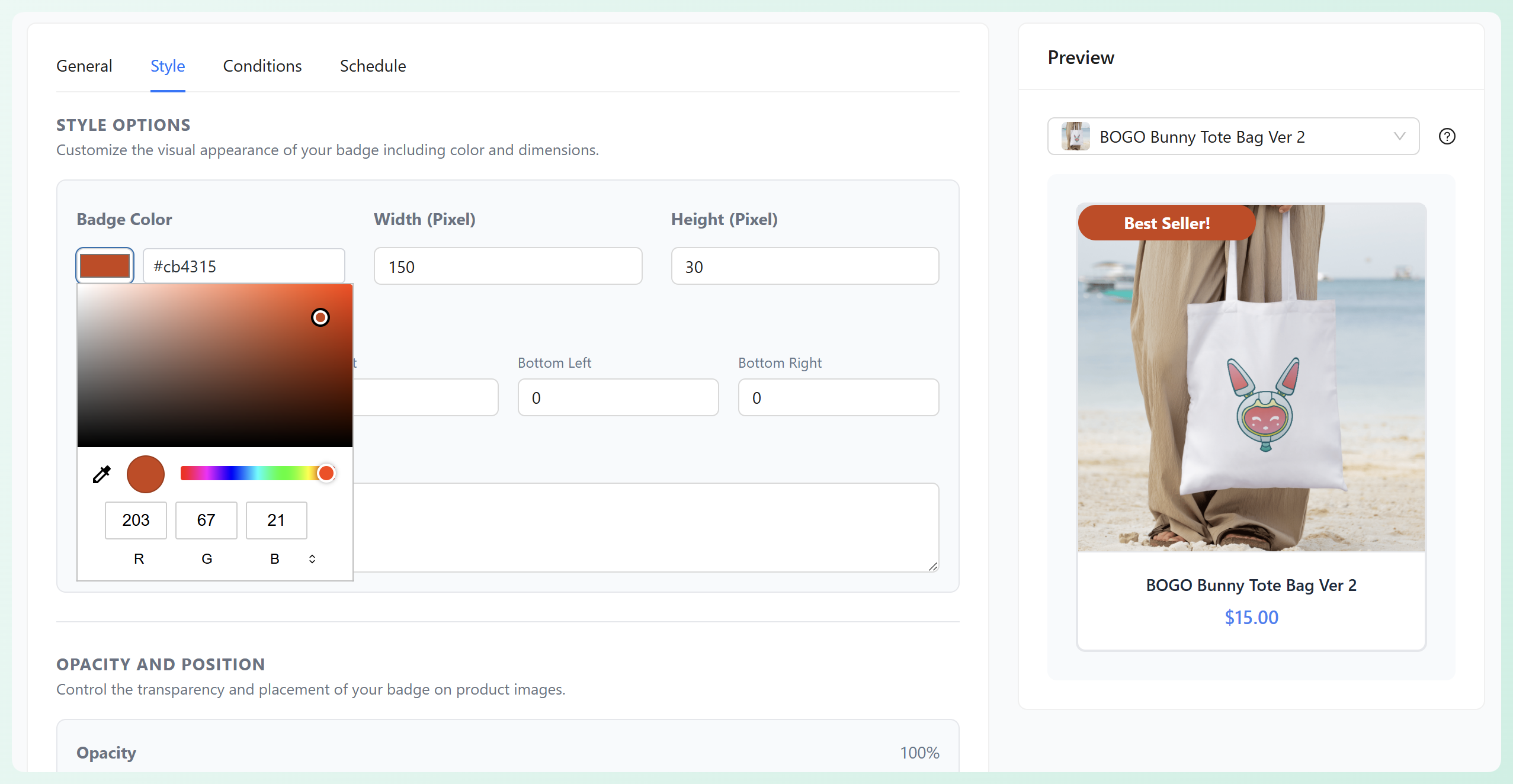
🎯 POWER TIP: Use the Preview panel on the right-hand side of the screen to check how your badge will look on a product card as you build it. You can even select a specific product from the dropdown above the preview area to test it on certain items.
You can edit the badge placement and position in the Opacity and Position panel.
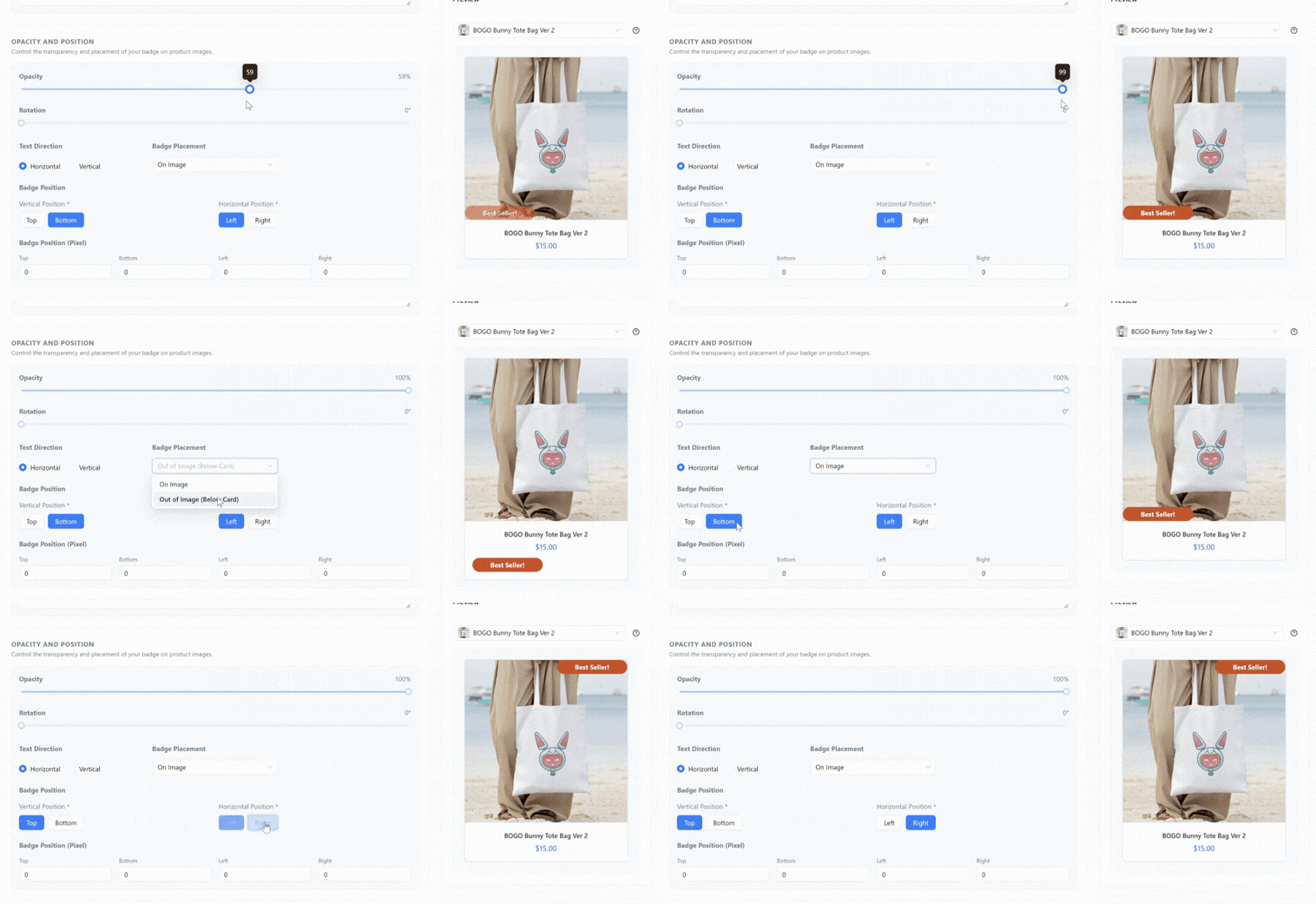
If you want to make your badge more eye-catching, Advanced Promo Kit also gives you extra styling options like gradients, shadows, and animations.
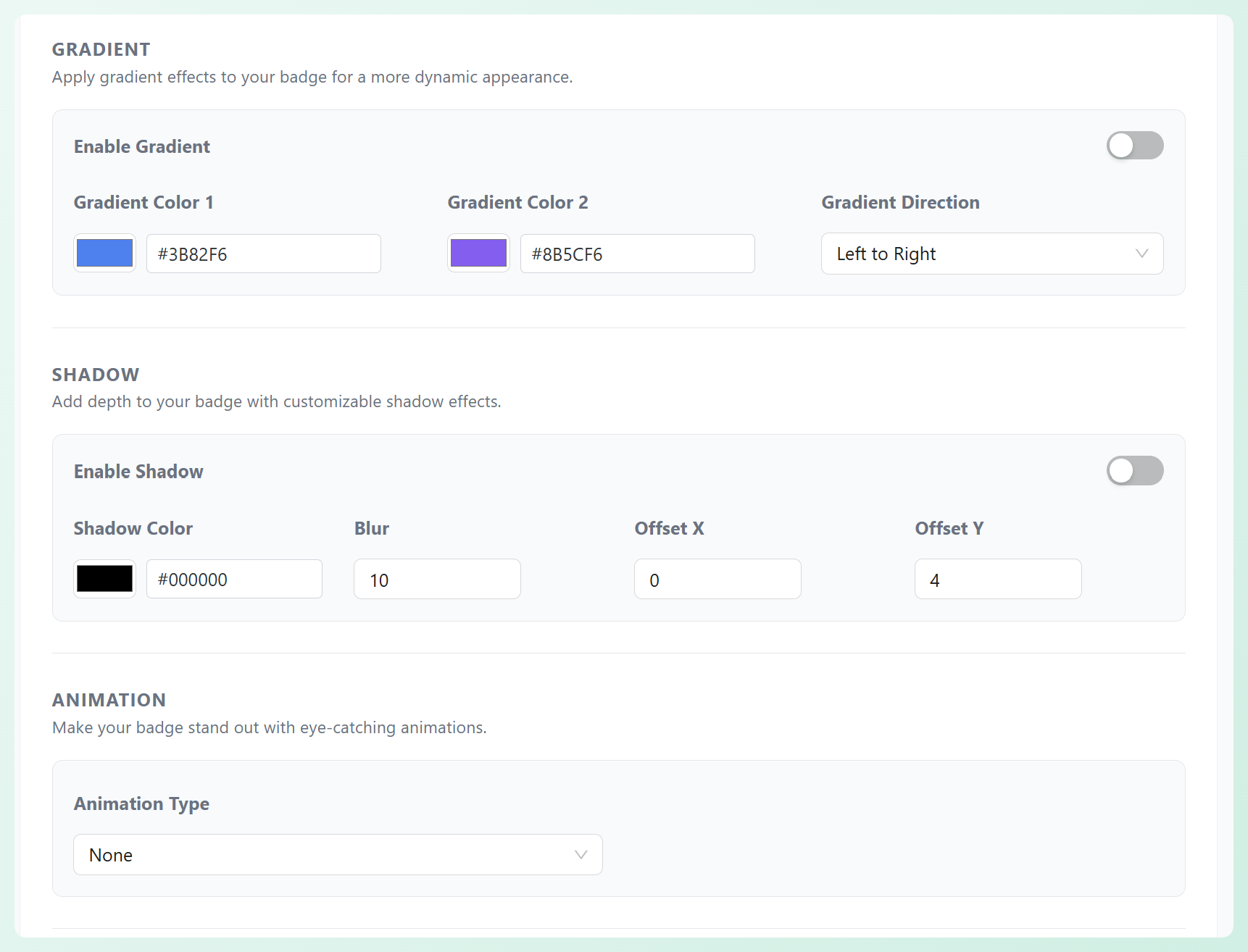
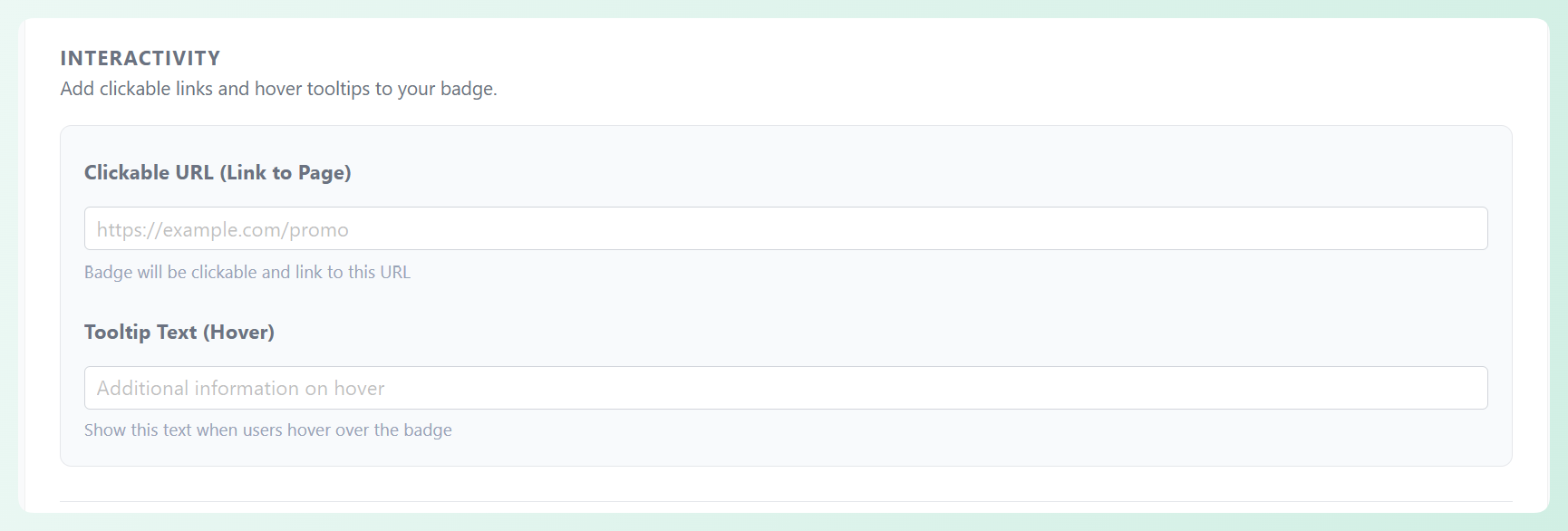
You can even add a clickable URL or tooltip text if you want the badge to do more than just display a message. This option is perfect if you want to direct shoppers to a sale page or give them extra context when they hover over the badge.
Step 5: Set conditions to target the right products
Once your badge looks the way you want, head to the Conditions tab to choose which products should display it. This step is important, as it helps you show the right message on the right items.
With Advanced Promo Kit, you can target badges using different conditions, such as sale status, stock status, product categories, tags, specific products, and more. Feel free to explore the condition dropdown and choose the option that best matches the goal of your badge.
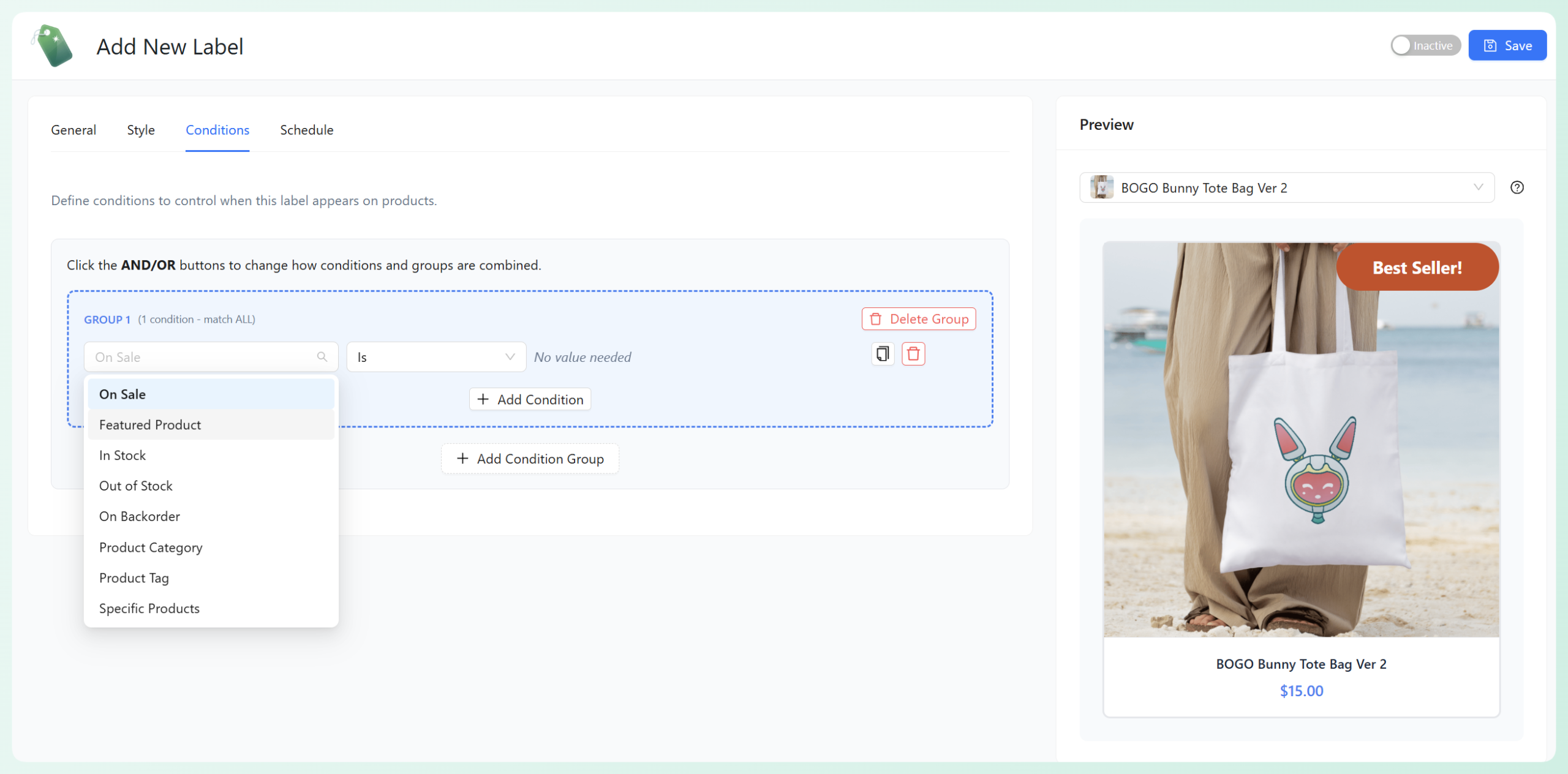
For our Best Seller badge, we’ll choose the Specific Products condition so the badge appears only on selected items. After choosing Specific Products from the list, select the products you want to apply the badge to by typing their name in the search box.
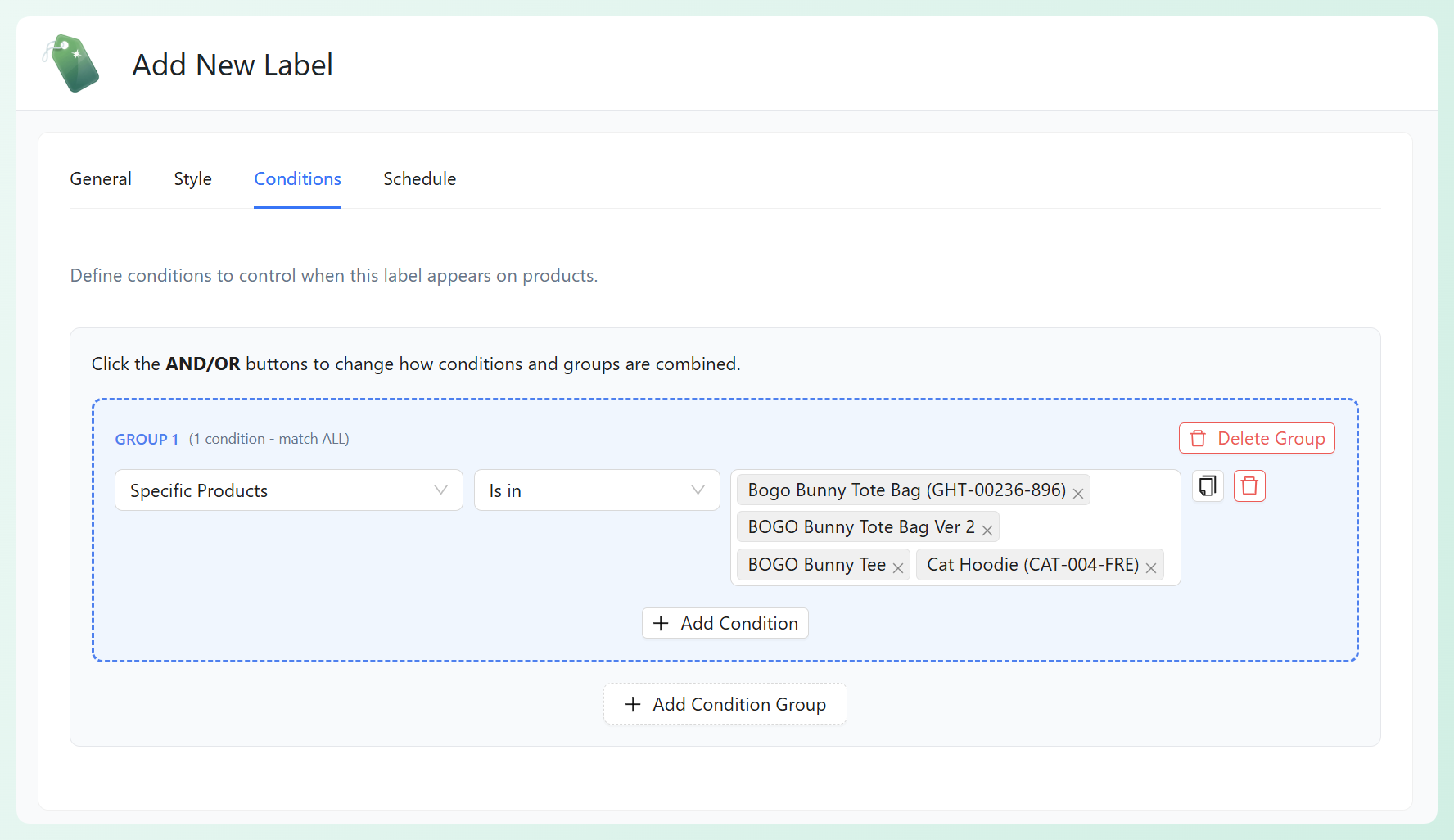
🎯 POWER TIP: You can add multiple conditions or condition groups to build more targeted rules. This is especially helpful when you’re running advanced promotions and want to show badges only for certain user roles, products, or categories.
Step 6: Schedule the badge and save your changes
Almost there! The last step is setting when your badge should appear. In the Schedule tab, you can set:
- Start Date if you want the badge to appear at a specific time
- End Date if you want it to stop showing after a campaign ends
If you do not want to schedule the badge, simply leave these fields empty. The label can show immediately and stay visible until you change it later.
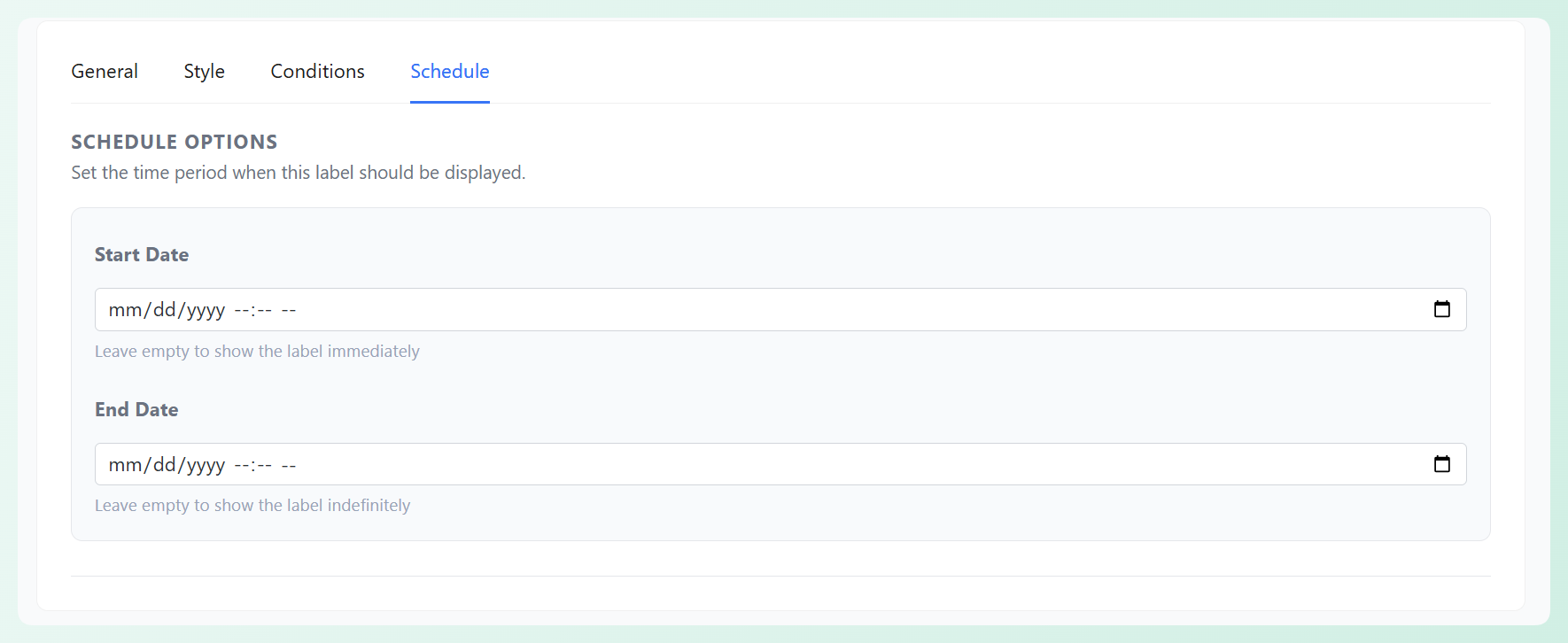
Having this option is useful if you’re setting up WooCommerce custom badges for limited-time offers or seasonal campaigns.
Once you’re happy with the schedule, click Save and switch the label to Active to publish your changes. Your badge should now appear on the products that match the conditions you set.
Here’s how our finished badge looks to customers:
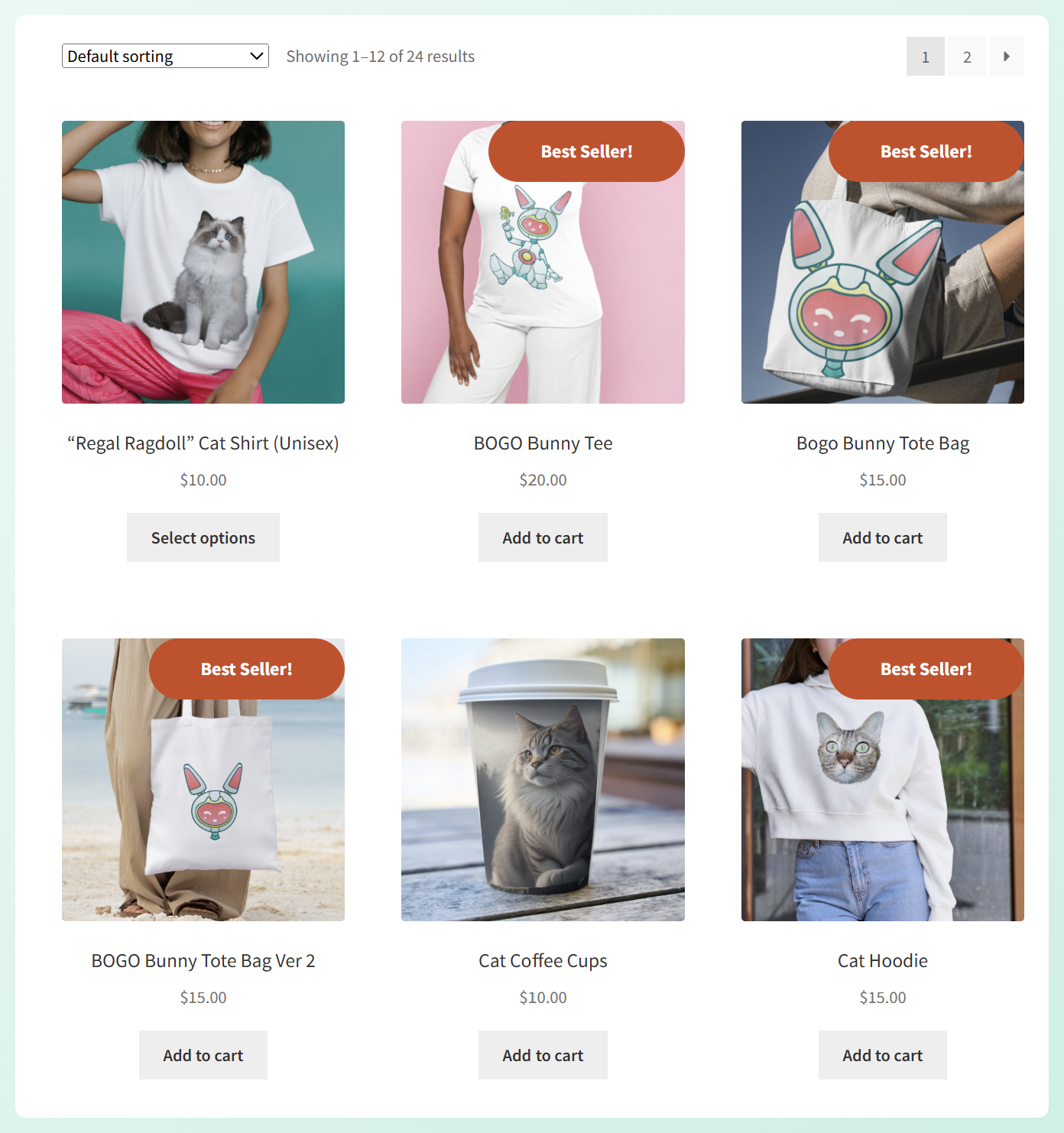
Pretty awesome, right? 🎉
Frequently Asked Questions
Do I need coding skills to create WooCommerce custom product badges?
No, you do not need coding skills to create WooCommerce custom product badges. With plugins like Advanced Promo Kit, you can easily create custom product labels and badges with an easy-to-use visual builder. You can change your badge text, choose a shape, style it to match your store, set conditions, and schedule it right from your WordPress dashboard.
Can I show more than one product badge on the same WooCommerce product?
Yes, you can show more than one badge on the same WooCommerce product. Advanced Promo Kit includes settings for auto-stacking multiple labels and lets you control the maximum number of labels shown per product. This is helpful if you want one item to display more than one message, such as “Best Seller” and “On Sale.”
Can I schedule product badges for flash sales and seasonal campaigns?
Definitely. Advanced Promo Kit lets you add a start date and end date for each badge, which makes it easy to schedule labels for flash sales, holiday promos, limited-time offers, and other seasonal campaigns. This means you can plan badges ahead of time instead of turning them on and off manually.
Wrapping Up
If you’re looking for an easy way to get your best offers noticed by your customers, it’s worth adding WooCommerce custom product badges to your store. These badges help highlight the right products, guide shopper attention, and make offers easier to spot at a glance.
In this complete guide, we walked you through the full setup process so you can create your own badge from start to finish. Here’s a quick recap of the steps:
- Install and activate Advanced Promo Kit
- Configure general badge display settings
- Create your first custom product badge
- Customize your badge to match your store’s branding
- Set conditions to target the right products
- Schedule your badge and publish it
Advanced Promo Kit gives you an easy way to create eye-catching product labels and badges for your store. With this plugin, you can control how your badges look, where they appear, and which products they apply to, so your promotions feel more targeted and more effective.
We hope this guide helped! ⭐