Every WooCommerce store has products that deserve extra visibility: the items that keep selling and the fresh additions customers haven’t discovered yet. The challenge with trying to highlight bestsellers and new arrivals in WooCommerce is that most store owners either do it manually or skip it entirely. Manual labeling sounds simple enough until your catalog shifts and those “Bestseller” badges are stuck on products that stopped selling weeks ago.
That mismatch can make your product labels less trustworthy. Shoppers often look for cues that help them decide what to buy, and social proof plays a real role in that process. For example, research from the Spiegel Research Center at Northwestern University found that products with five reviews had a 270% greater purchase likelihood than products with no reviews. Bestseller labels are a different type of signal, but they work toward a similar goal: helping shoppers notice products other buyers already trust.
This tutorial walks you through setting up bestseller and new arrival labels using Advanced Promo Kit, so your badges appear based on the criteria you choose instead of being added to products one by one.
Why You Should Highlight Bestsellers And New Arrivals
Bestseller labels work as social proof. When a shopper sees that a product is popular with other buyers, it reduces their hesitation and builds confidence in the purchase. New arrival labels serve a different purpose: they signal freshness and give returning visitors a reason to browse again without scanning the entire catalog.
Both label types help shoppers make sense of your catalog faster. Bestseller labels point attention to popular products, while new arrival labels make fresh items easier to spot. For stores with large catalogs, these visual cues can help shoppers find the products that matter most without scanning every item one by one.
The problem is that manual labeling doesn’t scale. If you add bestseller badges product by product, every catalog update creates another cleanup task. Over time, labels can stay attached to products that no longer deserve the extra attention, while newer standouts go unnoticed.
💡 Practical tip: Bestseller labels work best when the criteria behind them stays current. If you use a product tag or another manual marker to identify bestsellers, review that marker regularly so the badge continues to highlight products that genuinely deserve extra attention.
The solution is rule-based labels that update based on clear product conditions. Instead of adding a badge to each product manually, you can create a global label and choose the rules that decide where it appears. For bestseller labels, that might mean using a WooCommerce product tag, category, or another marker you use to identify top products. For new arrivals, you can use a product-age condition so the label appears only during your chosen time window.
What You Will Need
To follow this tutorial, you’ll need:
- A WooCommerce store running any recent version
- Advanced Promo Kit installed and activated (get it from the Advanced Promo Kit product page or as part of the All Access Bundle)
No coding is required. Everything in this tutorial is configured through the WordPress admin dashboard. Once a label is active, Advanced Promo Kit handles where it appears based on the conditions you set.
If you’re still evaluating your options, check out our full guide to creating custom product badges for a broader overview of what’s possible with sale badges and product labels for WooCommerce.
How To Auto-Label Bestselling Products In WooCommerce
This walkthrough shows you how to highlight WooCommerce bestsellers with a “Bestseller” label that appears on products meeting your chosen criteria, using Advanced Promo Kit’s smart condition groups.
Step 1: Create a new product label
Start by navigating to Advanced Promo Kit’s label creation area. From your WordPress dashboard, head to Promo Kit > Create Label.
In the General tab, add a title for your label, then enter “Bestseller” or “Best Seller!” as the badge label. This is also where you can choose your badge shape, such as a pill, circle, ribbon, tag, star, banner, or custom image.
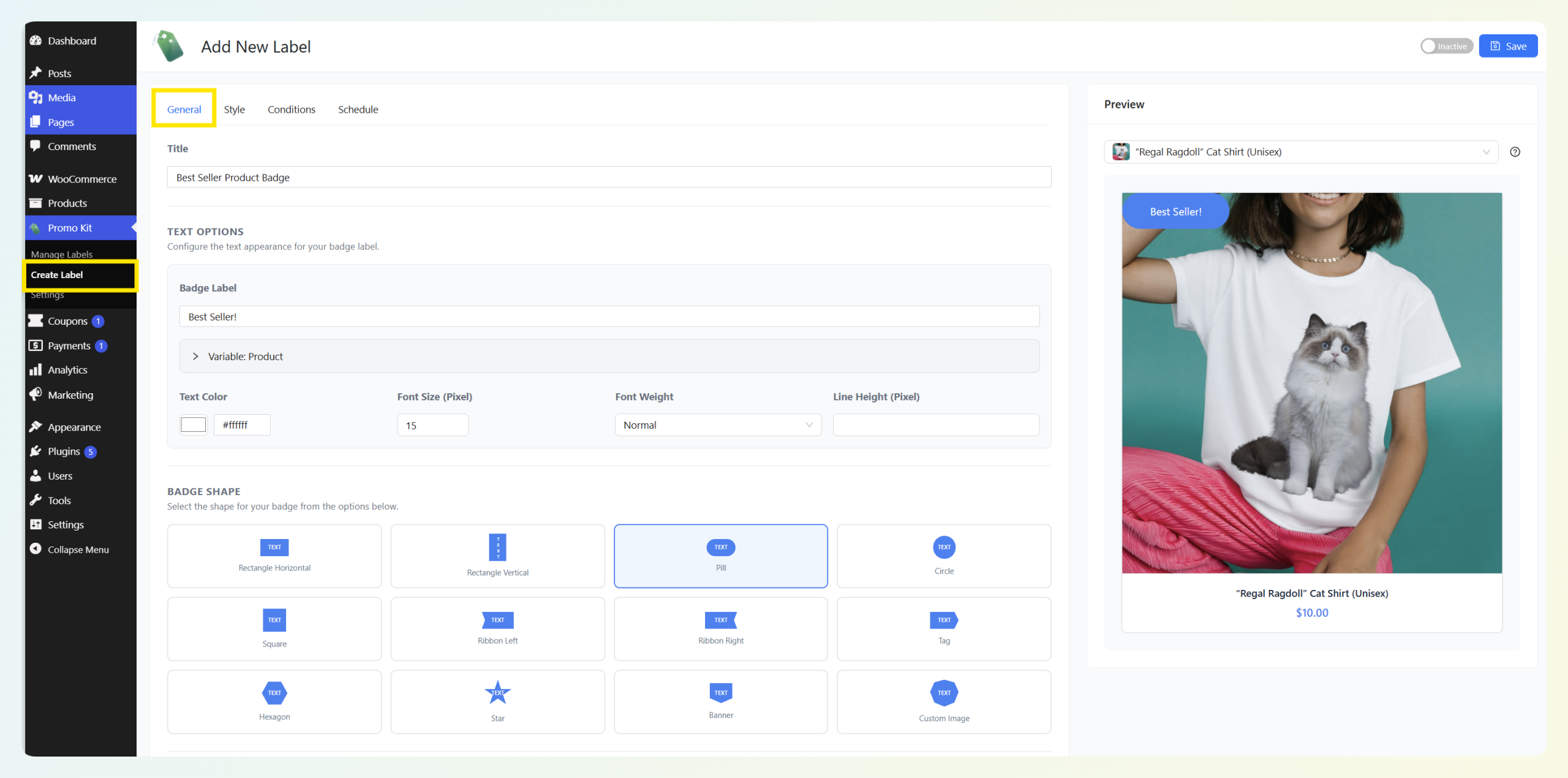
You’ll want to create a global label for this setup, since global labels can appear across your store based on conditions instead of being added to individual products one at a time.
Step 2: Customize the badge style and position
Next, open the Style tab to customize how your badge looks on product images. Here, you can adjust the badge color, width, height, border radius, opacity, rotation, text direction, and placement.
Choose where the badge appears on your product images by setting the badge placement and position. For example, you can place your bestseller badge at the top-left or top-right of the product image, then fine-tune the spacing with pixel controls if needed.
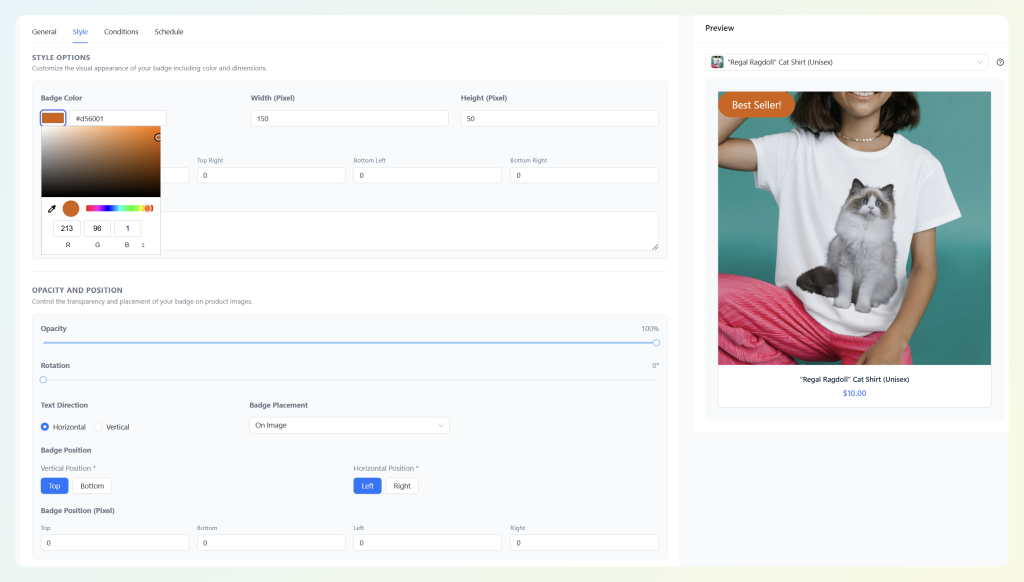
By default, labels appear on your shop and archive pages. If you also want them to appear on individual product pages, leave the store-wide Show on Product Detail Page setting enabled in Advanced Promo Kit’s settings. You can find this by heading to Promo Kit > Settings > General.
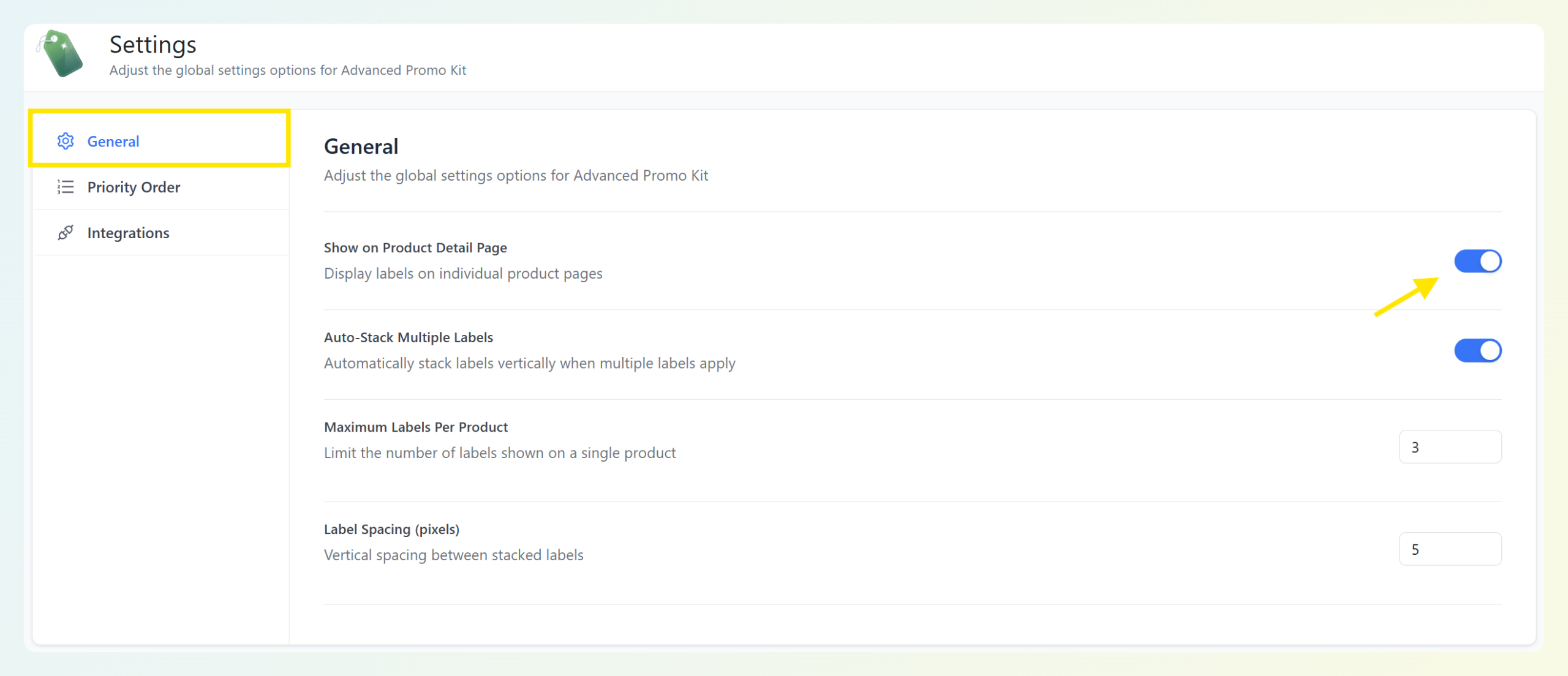
Consider your store’s layout when choosing a position. If you run sales frequently and plan to use sale badges too, pick a spot that won’t overlap with other labels.
Step 3: Set the smart condition for bestselling products
This is where the targeting happens. Open the Conditions tab for your new label and add a smart condition group.
Advanced Promo Kit offers condition types such as on sale, featured product, stock status, product category, product tag, and specific products. For a bestseller label, one practical option is to tag your high-volume products with a “bestseller” product tag in WooCommerce, then set the label condition to display on products with that tag.
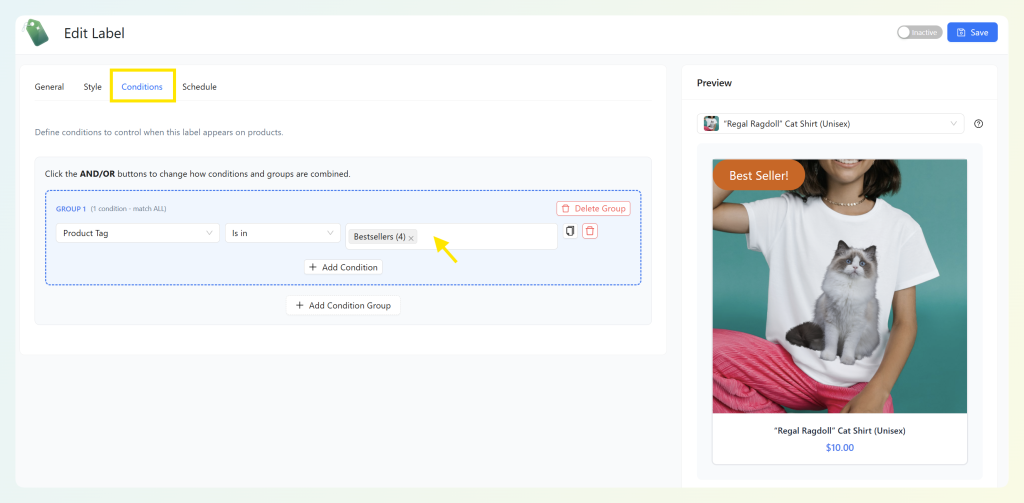
To choose the right approach for your store, think about your catalog size and sales velocity. A store with 50 products will have a different bestseller threshold than one with 5,000. The goal is to label the top tier of your catalog so the badge feels meaningful to shoppers.
You can also combine conditions when you need more control. For example, you could show a bestseller label only on products with a specific tag and within a specific product category.
Step 4: Review the schedule, preview, and activate
Before publishing the label, open the Schedule tab. If you want the bestseller badge to appear immediately and run indefinitely, you can leave the start and end date fields empty. If you’re creating a seasonal version, such as a holiday bestseller badge, you can add a start date and end date.
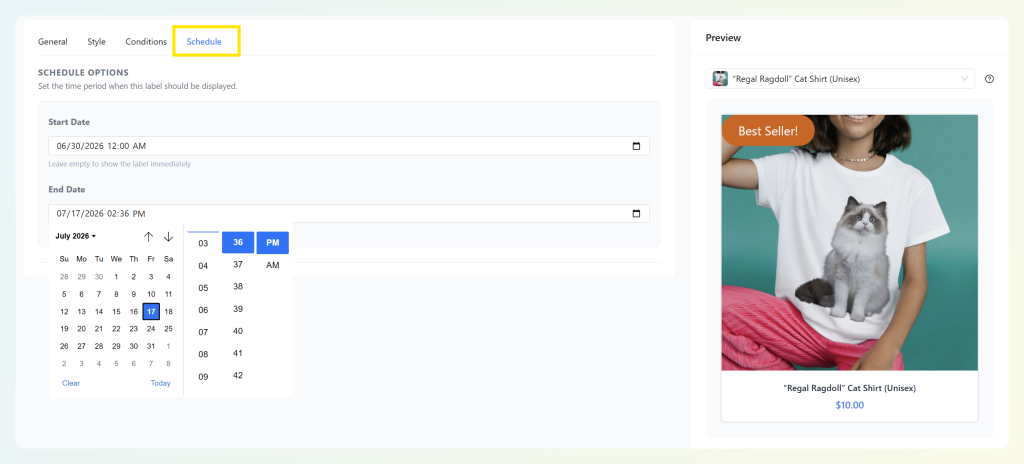
Finally, use the preview panel to check how the badge looks before going live. You can select a product to preview the badge against, which helps you confirm that the design works with your product images.
Once everything looks right, activate the label and save your changes. Then, visit your store’s front end to confirm the badge appears on the correct products.
How To Auto-Label New Arrivals In WooCommerce
This second walkthrough creates a “New” or “Just In” label that appears on recently added products and automatically disappears once they age past your chosen window.
Step 1: Create a new arrival label
From your WordPress dashboard, go to Promo Kit > Create Label again to create another global label.
In the General tab, give your label a clear internal title, then enter “New,” “Just In,” or “New Arrival” as the badge label. Choose a shape that looks different from your bestseller badge so shoppers can quickly tell the two labels apart.
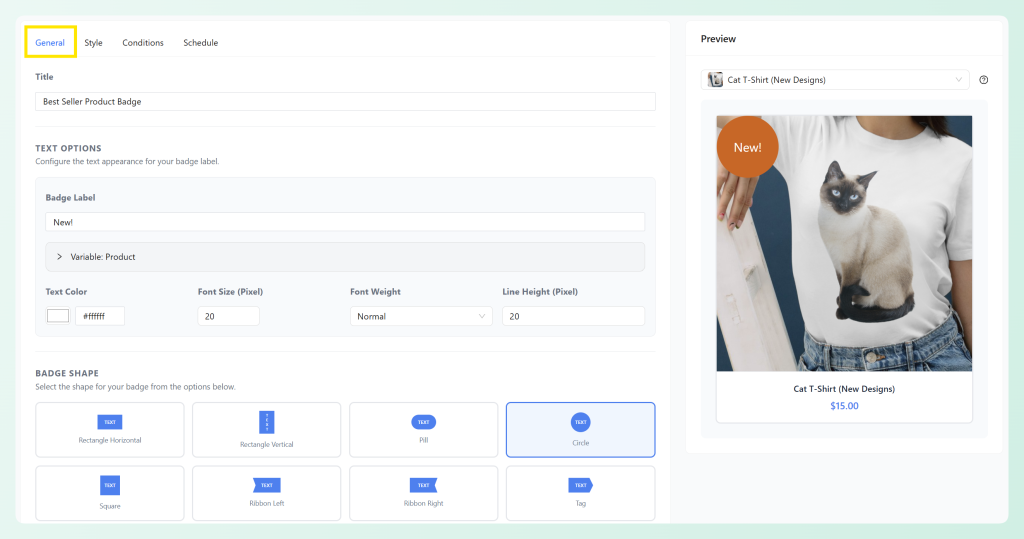
Step 2: Style the new arrival badge
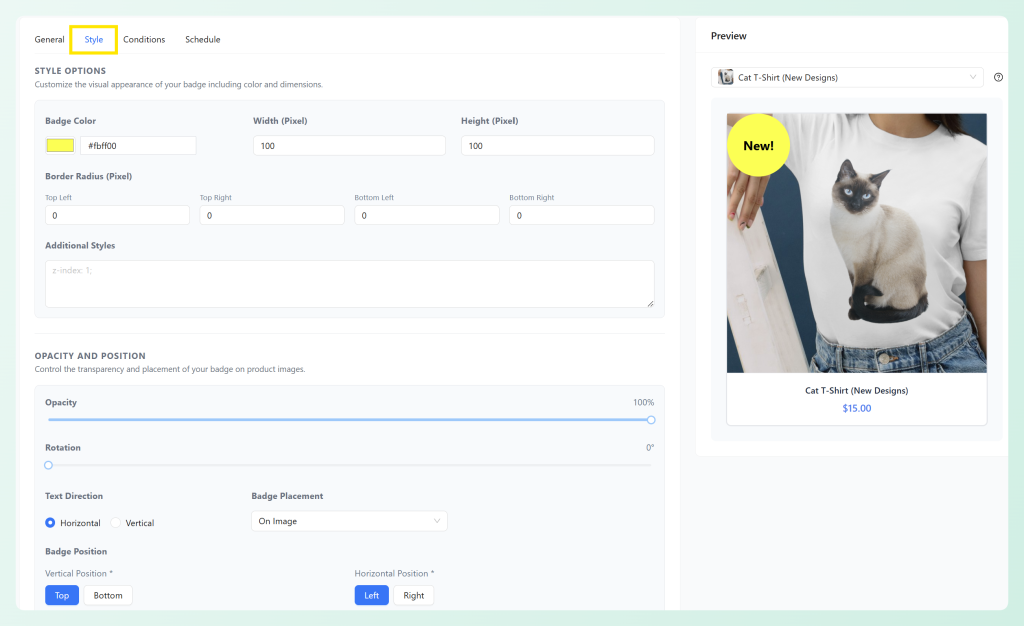
Next, open the Style tab and customize the badge color, size, border radius, opacity, rotation, and placement. Since this badge is meant to signal freshness, choose a design that stands out without competing too much with your product image.
If your bestseller badge appears in one corner, place your new arrival badge in a different position. This helps prevent overlap when a product qualifies for more than one label.
Step 3: Set the new arrival product-age condition
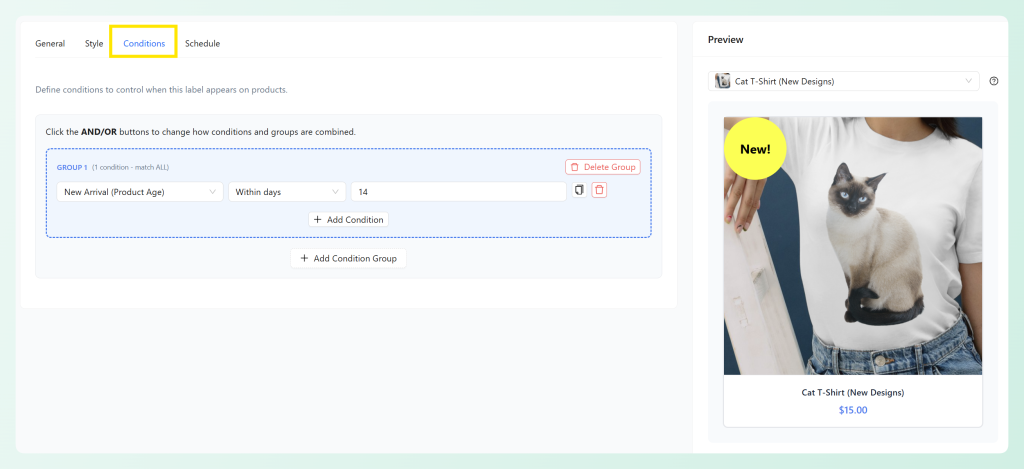
Open the Conditions tab and add a smart condition group. For this setup, choose the new arrival product-age condition, then define the time window for recently added products.
For example, you might show the badge on products created within the last 14 days. Once a product ages past that window, it no longer qualifies for the condition and the badge stops appearing automatically.
Choosing the right window depends on how often you add products. If you add products weekly, a shorter window can keep the label fresh. If you update your catalog less often, a longer window can give new products more time to be noticed.
You can also combine the new arrival condition with other rules. For instance, you could restrict the label to a specific product category so only new items in that collection receive the badge.
Step 4: Check the schedule, preview, and activate
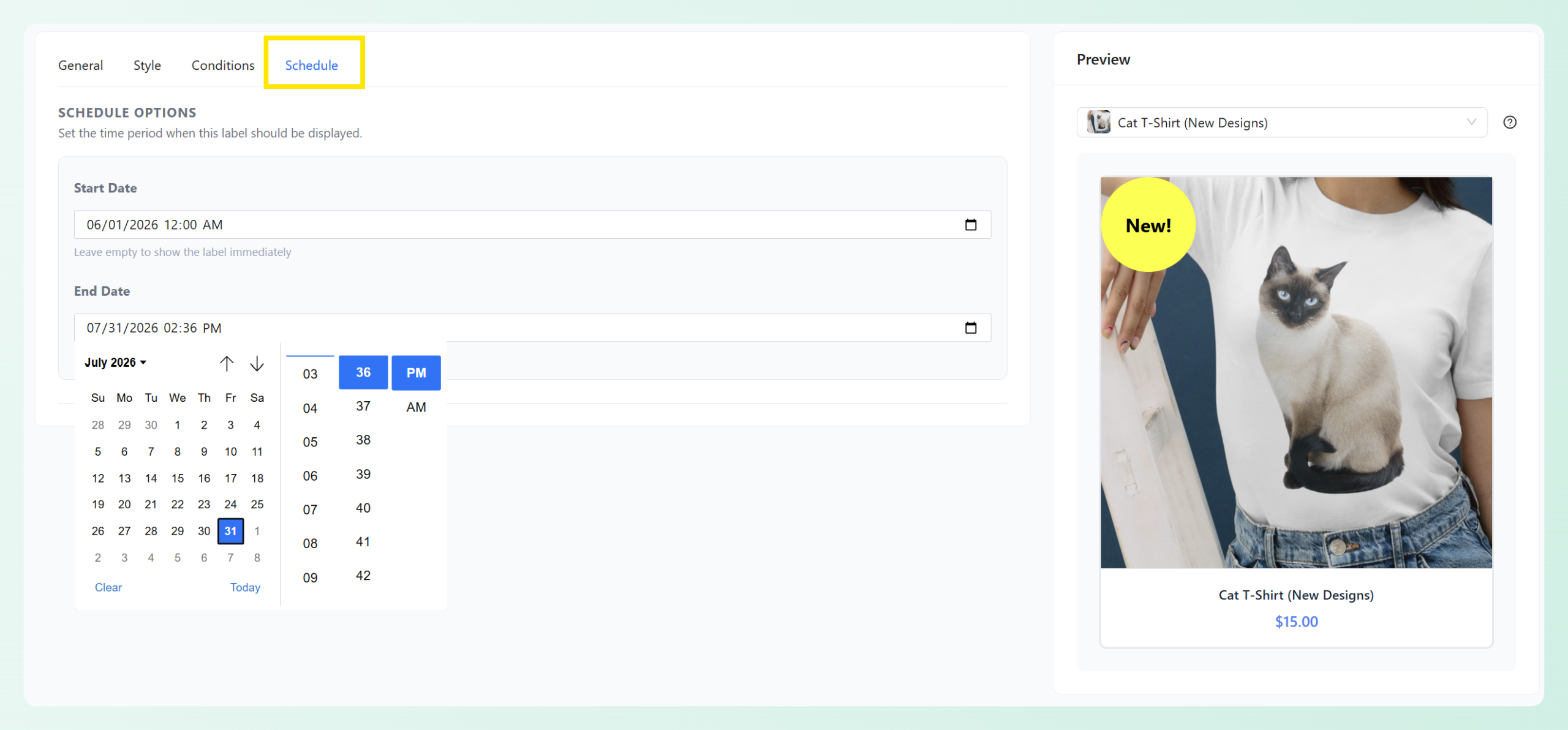
The product-age condition controls when a product qualifies as new. The Schedule tab controls when the label itself is allowed to display. For a standard new arrival badge, you can usually leave the start and end date fields empty so the condition can run continuously.
If you’re creating a campaign-specific version, such as a “New This Season” badge, you can use the schedule fields to limit when that label appears.
Use the preview panel to check how the badge looks on your product image, then activate the label and save your changes. After that, visit your shop page to confirm the new arrival badge appears on the right products.
Bonus: Advanced Label Strategies For Bestsellers And New Arrivals
Once you have the basics running, Advanced Promo Kit’s condition engine supports more sophisticated setups.
Combine labels with strategic positioning
When a product qualifies for both “Bestseller” and “New” conditions (a newly launched product that’s already selling well), both badges can appear simultaneously. The key is using different badge positions so they don’t overlap. Place your “New” badge in one corner and your “Bestseller” badge in another for a clean layout that reinforces both signals.
Schedule seasonal variations
Advanced Promo Kit supports scheduling with start and end dates, so you can create seasonal badge variations without rebuilding your conditions. For example, swap your standard “Bestseller” badge for a “Holiday Bestseller” design during Q4, with the schedule handling the switchover automatically.
Segment by category
Not all categories have the same sales volume. A product with 50 sales might be a top seller in a niche category but average in a high-volume one. Use category-specific tags or conditions to decide which products deserve the label in each department, so your bestseller badges stay meaningful across your catalog.
💡 Practical tip: Bestseller labels can feel more meaningful when they reflect the context of each category. A product that stands out in a niche category may not have the same sales volume as a product in your busiest department, so consider using category-specific tags or conditions when you want more precise bestseller callouts.
Make labels clickable
Advanced Promo Kit lets you attach a custom URL to any label, turning it into a clickable element. Point a “New Arrivals” badge to your dedicated new arrivals collection page, or link a “Bestseller” badge to a curated bestsellers landing page. This gives shoppers a path to discover more products in the same category.
Frequently Asked Questions
Do I need to add bestseller labels to products one by one?
No. You can create a global label and use smart condition groups to decide where it appears. For example, you can show the label on products with a specific WooCommerce product tag, category, featured status, or another condition that fits how you organize your bestsellers. If your bestseller criteria changes, update the tag or condition behind the label so the badge continues to appear on the right products.
What happens to the “New Arrival” label after the time window expires?
The label removes itself. Since the condition is based on the product’s age, once a product ages past your defined time window, such as 14 days from its creation date, it no longer qualifies and the badge stops appearing. No cleanup required.
Can I show bestseller labels on product pages too?
Yes. Labels appear on shop and archive pages automatically, and Advanced Promo Kit includes a store-wide Show on Product Detail Page setting that controls whether labels also appear on individual product pages. This setting is enabled by default.
Does this work with WooCommerce variable products?
Yes. Advanced Promo Kit can work with WooCommerce variable products, but the exact behavior depends on the condition type and your store’s Variable Product Matching setting. For example, some price, stock, discount, and sale conditions can be evaluated using variation-based matching, while category and tag conditions are typically based on the parent product.
Can I use multiple labels on the same product at the same time?
Yes. If a product qualifies for more than one label’s conditions, all qualifying labels can appear. Use different badge positions (for example, one in the top-left corner and another in the top-right) to prevent overlap and keep the display clean.
How many labels can I create in Advanced Promo Kit?
You can create as many global labels as your store needs, each with its own design and set of smart conditions.
Start Highlighting Bestsellers And New Arrivals In Your WooCommerce Store
Automated product labels make two of your strongest conversion signals, social proof and freshness, easier to manage. Instead of adding badges to products one by one, you can create global labels that appear based on the criteria you choose. Bestseller labels can follow the product markers or conditions you set, while new arrival labels can use product age to appear and expire automatically.
Here’s what to do next:
- Set up your first bestseller label using a smart condition that targets your top-performing products
- Create a new arrival label with a date-based condition that auto-expires
- Explore advanced strategies like category-specific thresholds, seasonal scheduling, and clickable labels
Still deciding which tool to use? Compare the best WooCommerce product badge plugins before you commit. Ready to set this up on your store? Get Advanced Promo Kit and have your first automated labels running in minutes, or grab the All Access Bundle for the complete Advanced Coupons promotional toolkit.