

How much should your gift cards be worth? There isn’t one set of denominations that works for every store. The best amounts depend on what your customers typically spend and the kinds of products you sell.
That means the usual $10, $25, $50, $100, and $250 lineup isn’t always the best fit. If your average order is around $42, for example, it may make more sense to build your options around that number instead of copying the amounts used by a much larger retailer.
In this guide, we’ll look at how to choose gift card denominations using your own order data, when to offer custom amounts, and how to set everything up in WooCommerce.
Why Gift Card Amounts Matter
Gift card value can influence what feels like a natural redemption amount. Research on denomination-spending matching found that consumers tend to prefer purchases where the gift card amount and spending amount are similar. That makes your average order value and common product prices useful reference points when choosing denominations, without assuming that any one amount will guarantee a larger basket.
Holiday demand for gift cards is strong. According to the National Retail Federation, gift cards were the gift consumers most wanted to receive in its 2025 holiday survey, named by 50% of the 8,247 adults asked. The same organization’s December 2025 analysis found 43% of shoppers planned to buy at least one gift card that season, with total gift card spending expected to reach $29 billion.
NRF’s holiday surveys also give you a useful seasonal benchmark. In the National Retail Federation’s 2023 holiday survey, shoppers planned to buy three to four cards and spend an average of $49.43 per card. Two years later, the same body reported shoppers aged 65 and over expected to spend $58 per card, about $5 more than the average shopper. If those figures are close to your own typical basket, a roughly $50 tier is worth testing rather than treating it as a universal default.
Some recipients spend beyond a gift card’s face value, but the amount itself does not guarantee a larger basket. Unredeemed balances also remain outstanding until they are used or otherwise handled under your accounting rules. In the US, 12 CFR 1005.20 generally requires the underlying funds on covered store gift cards to remain available for at least five years after issue or the last load. Other rules and exclusions may apply depending on the card and jurisdiction. Choosing amounts that are easy to use can help reduce lingering balances.
If you’re weighing whether to sell gift cards at all or to lean on store credit for retention, our store credit vs gift card guide covers the difference. Everything below assumes you’re selling cards and want the amounts right.
How To Build A Denomination Ladder For Your Store
Start with a recent view of your average order value, then place amounts around it. A 90-day window is a practical starting point if your sales are fairly stable. WooCommerce Analytics can show your average order value for the date range you select; our guide on average order value explains how to read and lift it. The ladder below is one framework to test:
- Entry tier: slightly under your average order. This leaves room for the recipient to top it up if their order comes in higher.
- Core tier: at or just above your average order. Use this as your main benchmark tier and see how it performs.
- Upper tier: higher than your average order, as a more generous option for higher-priced baskets. Use your product range to decide how far above the core tier it should sit.
- Higher-value tier: a clearly higher value that still makes sense for your catalog. Keep it only if your products and buyers can realistically support it.
Here’s what this looks like in practice (example data, set amounts from your own order history):
| Store AOV | Example presets | Custom amount minimum / step | Higher-value tier |
|---|---|---|---|
| ~$40 | $25 · $50 · $75 | $20 / $5 | $100 |
| ~$120 | $50 · $100 · $150 | $50 / $10 | $250 |
| ~$300 | $100 · $200 · $300 | $100 / $25 | $500 |
Round numbers keep gift amounts easy to scan and compare. If you use an odd amount, give it a clear reason. For example, an $89 card labeled “covers our best-selling starter kit” ties the value to something specific instead of making it feel arbitrary.
As a starting point, keep the visible options to three to five so the page stays easy to scan. If you want more flexibility than that, a custom amount field can cover the values between your presets without lengthening the list.
Ways To Offer Gift Card Amounts
There are three practical ways to present gift card amounts in a WooCommerce store: separate fixed-value products, one variable product with several preset amounts, and a customer-entered amount. These options can overlap. In Advanced Gift Cards, for example, one variation on a variable gift card can be your custom-amount option alongside fixed-value variations.
| Model | How the buyer sees it | Best for |
|---|---|---|
| Fixed cards (one product per amount) | Separate listings: “$25 Gift Card,” “$50 Gift Card” | Stores with one or two amounts, or amounts tied to a specific product |
| Variable card (one product, several amounts) | One listing with a dropdown or buttons for each value | Stores offering several amounts; keeps the catalog tidy and lets each amount carry its own design |
| Custom amount (buyer enters a value) | One listing, an amount field with a minimum, optional maximum, and preset buttons | Stores with a wide price range, corporate buyers, or gift-givers who have a specific total in mind |
Fixed cards work well when you only need one or two amounts or want to promote a specific value. A variable card keeps several denominations on one product page so shoppers can compare their options in one place. A custom amount adds flexibility for buyers with an exact budget in mind, whether that’s a relative giving $60 or a company working with a set reward amount.
The minimum and step shape how useful a custom amount field feels. Set the minimum high enough to make sense for your catalog, and use a step that matches the increments you want shoppers to choose. A $20 minimum with a $5 step allows $20, $25, and $30; a $1 minimum with the default currency step can allow values such as $3.17. The custom amount gift cards feature in Advanced Gift Cards handles this with a minimum, an optional maximum, a step, and up to five preset buttons, so shoppers can use a quick preset or enter another allowed value on the same page.
A very low minimum can also create awkward gift amounts. A $5 card, for example, may cover only a small part of a $12 item and leave the recipient paying most of the order out of pocket. Set the minimum near your entry tier so the custom option stays useful for the kinds of products you sell.
Seasonal And Occasion Denominations
For November and December, consider whether your holiday ladder should shift upward. The National Retail Federation’s figures above put average holiday gift-card spending near $50 per card, so a store with an average order around $40 could test $50 as a prominent holiday tier rather than assuming $25 should stay at the center. Keep lower tiers if they still fit your catalog.
For birthdays, keep the denomination ladder tied to your usual order data rather than lowering the values by default. A birthday-specific design can make the same amounts feel more appropriate for the occasion.
Corporate and bulk buyers may need predictable values and clear records. Fixed tiers such as $25, $50, and $100 are easy to budget around, while a custom field can cover a specific rewards amount. For campaign ideas around each season, including the year-end rush, see our gift card promotion ideas post.
How Advanced Gift Cards Handles Denominations
Advanced Gift Cards is a WooCommerce plugin that lets you sell gift cards as products in your store. Once a recipient claims their gift card, the value is added to their store credit balance and can be used at checkout. You can create a simple Advanced Gift Card with one fixed value or a Variable Advanced Gift Card with several amounts, each with its own value, design, and expiry.
If you want to give shoppers more flexibility, you can also let them enter their own gift card amount. On a simple Advanced Gift Card, this applies to the whole product. On a Variable Advanced Gift Card, you can enable it for one variation, so your fixed denominations can sit alongside a single “Custom amount” option.
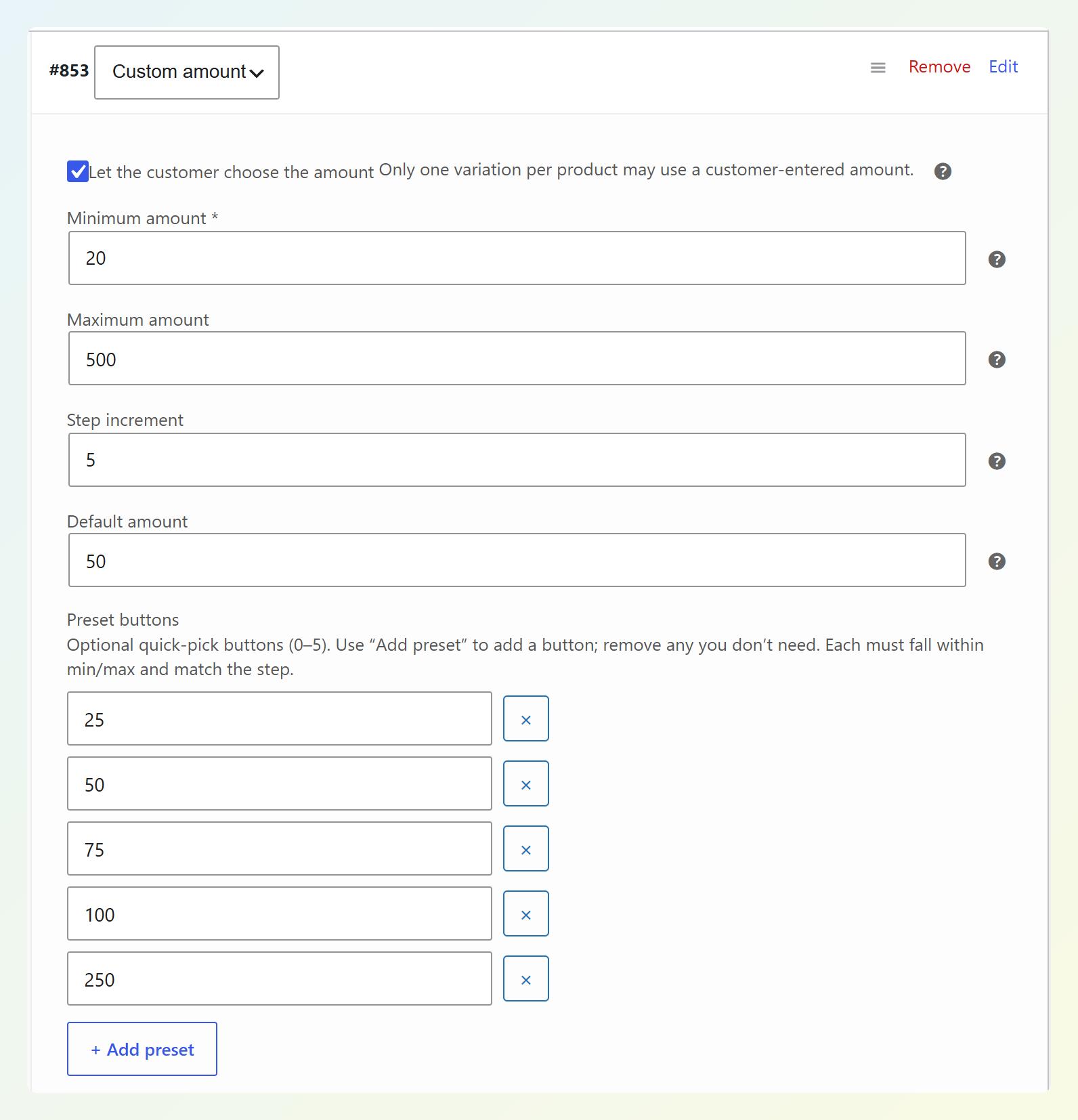
From there, you can set a required Minimum amount, an optional Maximum amount, a Step increment, and a Default amount. For example, a $20 minimum with a $5 step lets shoppers enter $20, $25, $30, and so on.
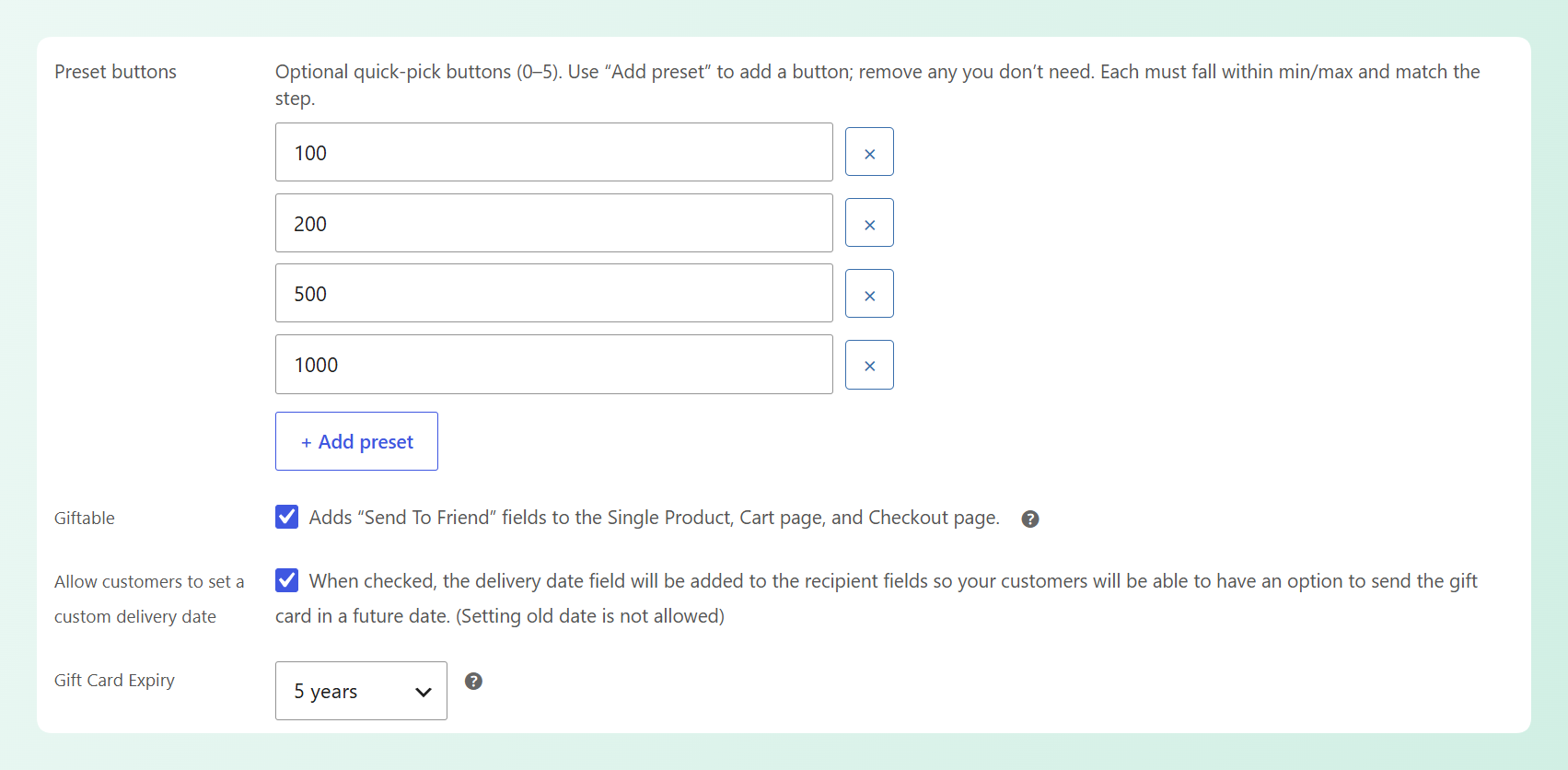
You can also add up to five preset buttons to give shoppers quick choices while still leaving the custom field open for other values. The minimum becomes the listed price for a simple custom-amount card, while variable cards display a price range based on their variations.
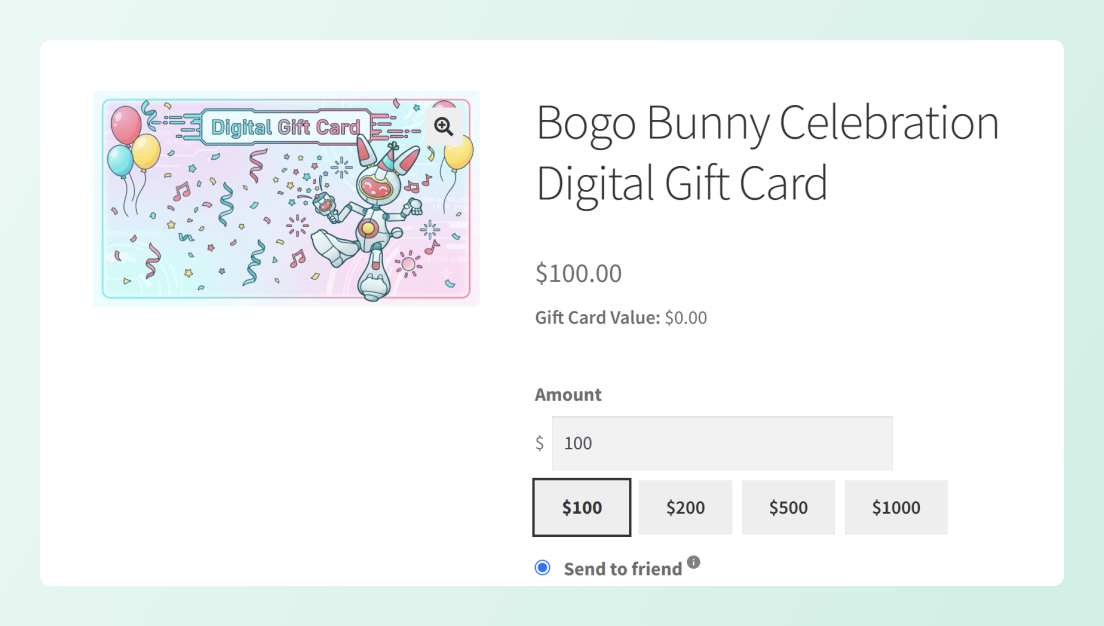
These limits are checked again when the shopper adds the gift card to their cart. If the amount falls below the minimum, goes above the maximum, or doesn’t match the step, the gift card won’t be added and the shopper will see a validation message. For multi-currency stores, the minimum, maximum, step, and preset amounts can also be converted into the shopper’s currency, depending on the currency switcher you’re using.
You can customize the look and expiry of each gift card product or variation too. Advanced Gift Cards includes three built-in designs: Default, Birthday, and Thank You. You can also upload your own 500 by 300 pixel image or customize the built-in gift card images with your branding. Product-level custom backgrounds take priority over the default designs. Gift cards expire after five years by default, but the plugin also lets you choose one to four years, no expiry, or a custom number of days. Before choosing a shorter expiry, check the rules that apply to the gift cards you sell and the customers you serve.
Setting Up Your Denominations In WooCommerce
The steps below cover the amount settings only. For the complete build, from creating the product to the redemption form, follow our how to sell gift cards in WooCommerce guide.
- Pick the product type. In the WooCommerce product editor, choose Advanced Gift Card for a single fixed amount or Variable Advanced Gift Card for a ladder in one listing.
- Add one variation per rung. For a variable card, create a variation for each preset in your ladder and give it a price and a Gift Card Value. The higher-value tier goes here too; it’s one variation, not a separate product.
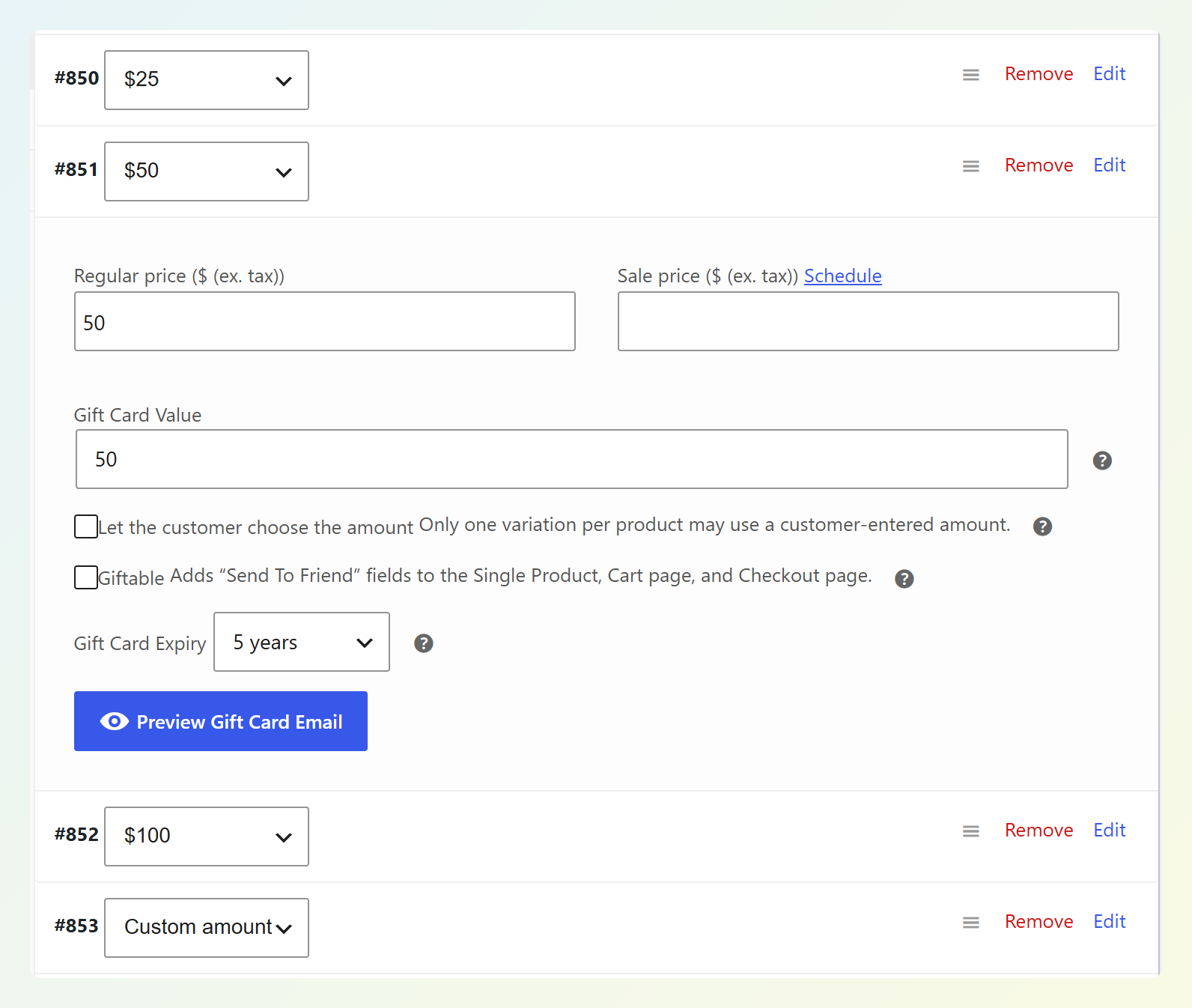
- Switch on custom amounts and set the bounds. On a simple card, tick Let the customer choose the amount in the product’s gift card settings. On a variable card, add one more variation (for example, “Custom amount”) and tick it there, since only one variation per product can take a customer-entered amount. Then fill in Minimum amount, Maximum amount (optional), Step increment, and Default amount. Choose a minimum that fits your entry tier and a step that matches the increments you want to offer.
- Add the presets. Click + Add preset for each button, up to five. These are the buttons the shopper sees, so use the ladder from the table above and leave the free-choice field for everything in between.
- Choose the design and expiry. Select a built-in design or upload your own for each product or variation. You can leave the five-year default, choose no expiry, or use one of the shorter or custom options when it fits the rules that apply to your store and customers.
- Check the storefront. Open the product on the front end. The price should show your minimum (or a price range on a variable card), the preset buttons should appear under the amount field once the custom option is selected, and an off-step value should be rejected when you add to cart.
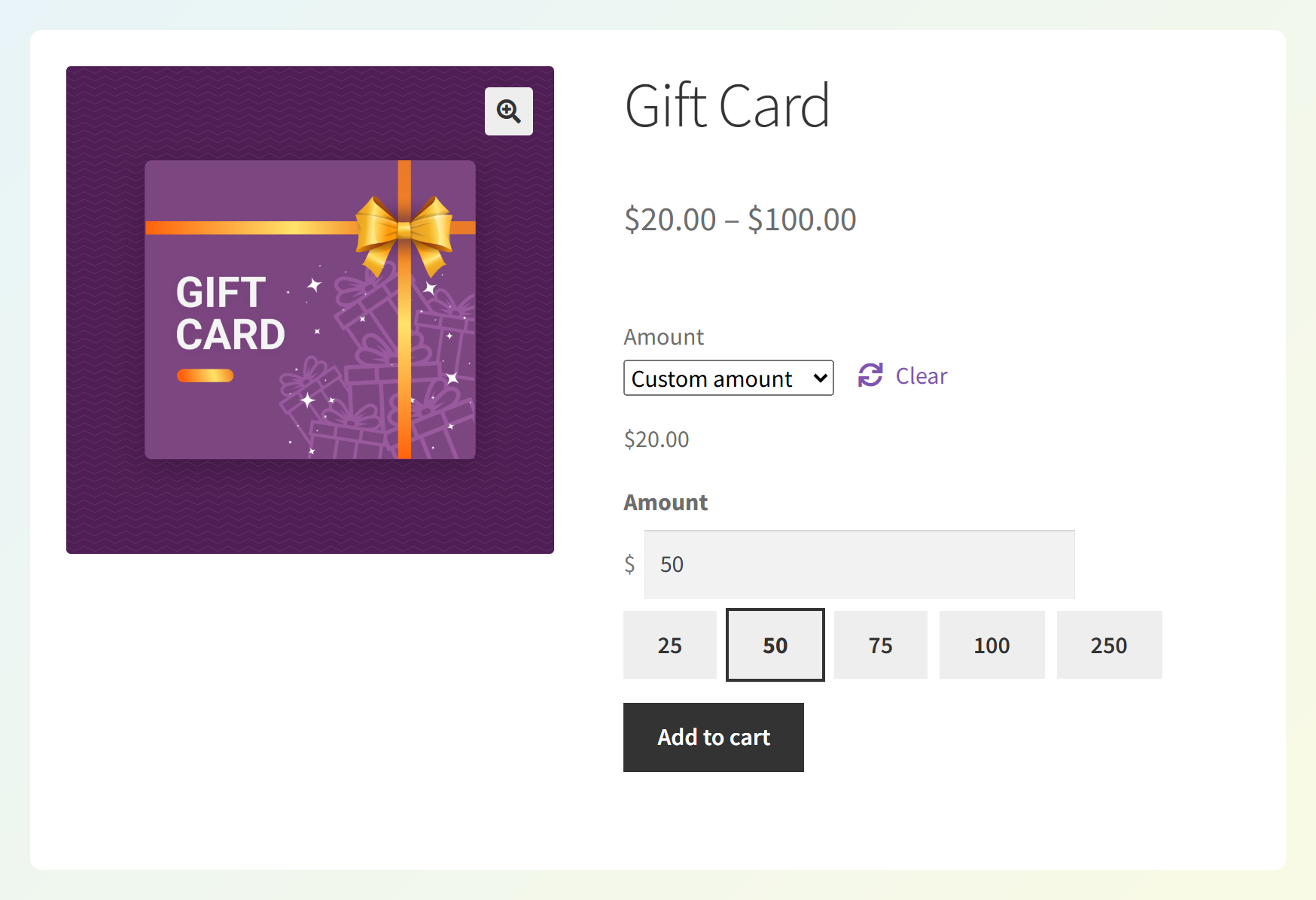
One setting can be easy to miss. Leaving Step blank defaults it to the smallest unit of your currency, so the field can accept $23.47. That can be useful for exact budgets, but if you want round gift amounts, set the step to $5 or $10. The step also counts up from the minimum, not from zero: a $23 minimum with a $5 step accepts $23, $28, and $33 but rejects $25.
If you want round-number presets, choose a minimum that lines up with the step, and check every preset follows it, because one off-step preset stops custom amounts from being switched on when you save.
What To Measure After Launch
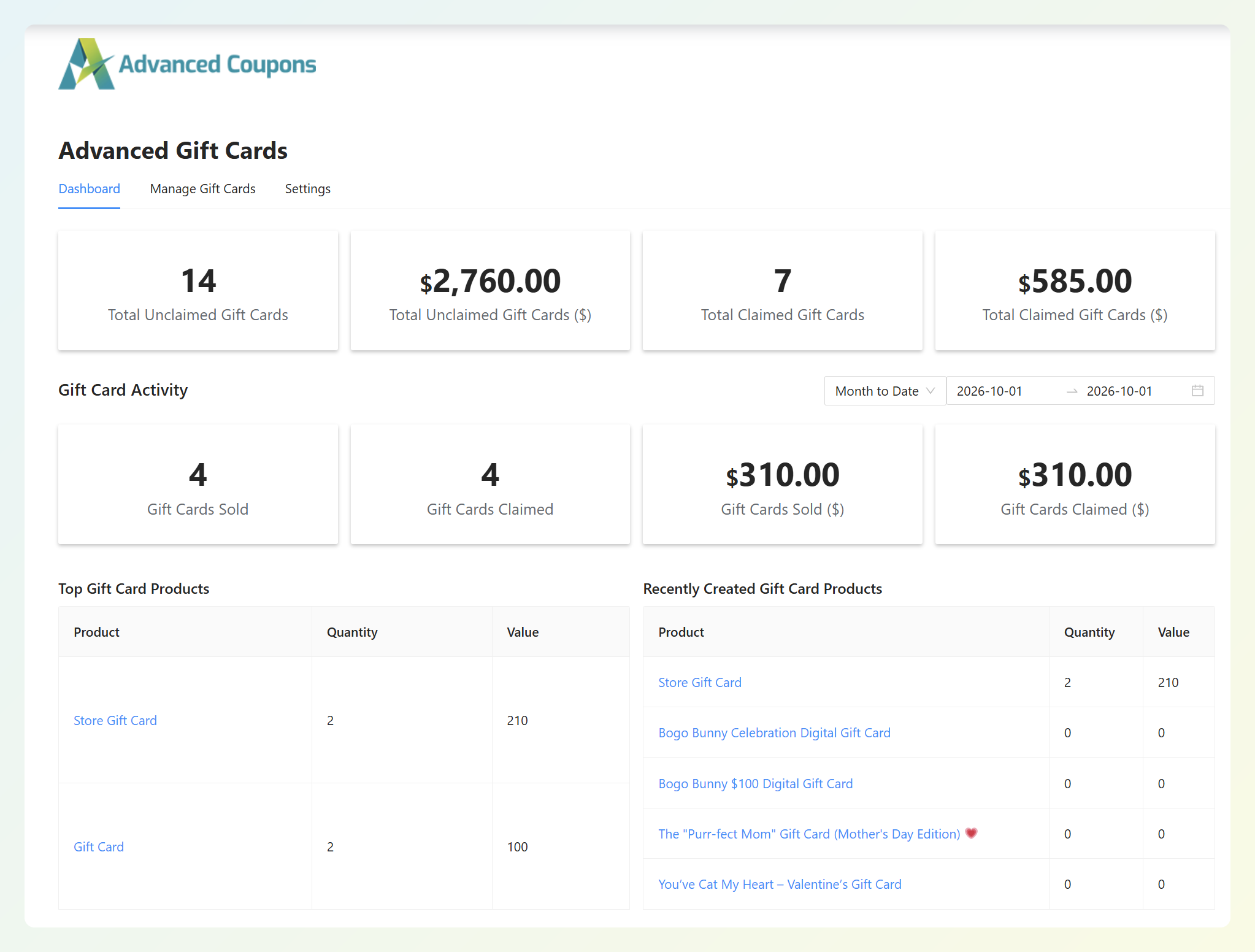
Watch three metrics after launch. The Gift Cards Sold and Gift Cards Claimed widgets in the Advanced Gift Cards dashboard show how many cards are being bought and how many have been redeemed, and the Total Unclaimed Gift Cards widget shows the value still outstanding.
Next, compare orders that use redeemed gift card credit with the related card value. When redeemed gift card store credit is used on an order, Advanced Gift Cards adds an order note that identifies the related gift card. Use that alongside the order total to see whether shoppers tend to spend above, near, or below the original card value. Treat the pattern as a signal to test your tiers rather than proof that a denomination is too high or too low.
Finally, look at which presets sell. If the higher-value tier never moves, test a lower value or remove it. If the entry tier dominates, test whether your core tier is too high for the amounts shoppers prefer to give. Revisit the ladder periodically and again before the holidays.
Frequently Asked Questions
What are the most common gift card denominations?
Common preset examples are $25, $50, and $100, and the National Retail Federation’s holiday surveys have put average spend per gift card near $50. Treat those as reference points, not rules. Your own average order value and product prices are better guides for deciding which gift card denominations belong in your store.
Should I let customers choose their own gift card amount?
A custom amount can be useful alongside presets when buyers may have a specific budget in mind, such as a company setting a reward amount or a relative who wants to give exactly $60. Keep a few presets visible for quick choices, and set a minimum and step so the free-choice field stays within the range you want to offer.
What minimum should a custom gift card have?
Set the minimum at or near your entry tier, usually below your average order value. Choose a floor that still feels useful against your lower-priced products and typical shipping costs. There isn’t one universal dollar amount that fits every store. In Advanced Gift Cards, the minimum also becomes the price shown for a simple custom-amount gift card.
How many gift card amounts should I offer?
Three to five is a practical starting point, not a rule. Use enough presets to cover lower, typical, and higher-value gifts without making the list hard to scan. Advanced Gift Cards allows up to five preset buttons, and a custom amount field can cover values between them.
Do gift card amounts affect how much people spend?
They can influence how recipients use the card, but the effect isn’t as simple as “higher card = higher basket.” Research on denomination-spending matching suggests people tend to prefer purchases where the gift card amount and spending amount are similar. That makes your average order value and common product prices useful reference points when setting a core tier, then you can adjust it based on your own redemption data.
Choosing Your Gift Card Denominations
A useful set of gift card denominations should make the buyer’s choice clear and give the recipient an amount that fits your catalog. Start with your own order data, not another retailer’s price list. Build a short ladder around your average order value, keep a higher-value option only when it makes sense, and use a custom field for buyers who need something in between.
Here’s what to do next:
- Why Gift Card Amounts Matter: pull your average order value and the per-card figures above, and see how far apart they are.
- How To Build A Denomination Ladder For Your Store: choose your core tiers and round them to simple values that fit your catalog.
- Ways To Offer Gift Card Amounts: choose the model that fits your store. If you want several presets plus flexible amounts, a variable card with one custom-amount variation can cover both.
- Setting Up Your Denominations In WooCommerce: enter the values, presets, step, and design, then test an off-step amount on the storefront.
- What To Measure After Launch: review Sold vs Claimed and compare related order totals with card values periodically.
Ready to put your gift card denominations in front of buyers? Get Advanced Gift Cards for WooCommerce and set up your ladder, presets, and custom amount field on one product page.