

Running a sale gets tricky when different products need different discounts. Product Discount Rules in Advanced Coupons Premium makes that much easier by letting you set different percentage or fixed discounts for specific products and categories inside a single coupon. With these WooCommerce product discount rules, you can give each part of your catalog the offer that makes sense, while shoppers still only need one code.
That means more flexibility for your promotions and a simpler experience for your customers. It’s especially useful for bigger sales, where one storewide discount might be too generous for some products and too limited for others. In this guide, we’ll show you how Product Discount Rules works, how to set it up, and a few practical ways to use it in your store.
How Product Discount Rules Work
Product Discount Rules is a new discount type in Advanced Coupons Premium. You’ll find it in the same Discount type dropdown as Percentage discount, Fixed cart discount, and Buy X Get X Deal (BOGO). Once you pick it, your coupon gets a Discount rules panel where you build a list of rules.
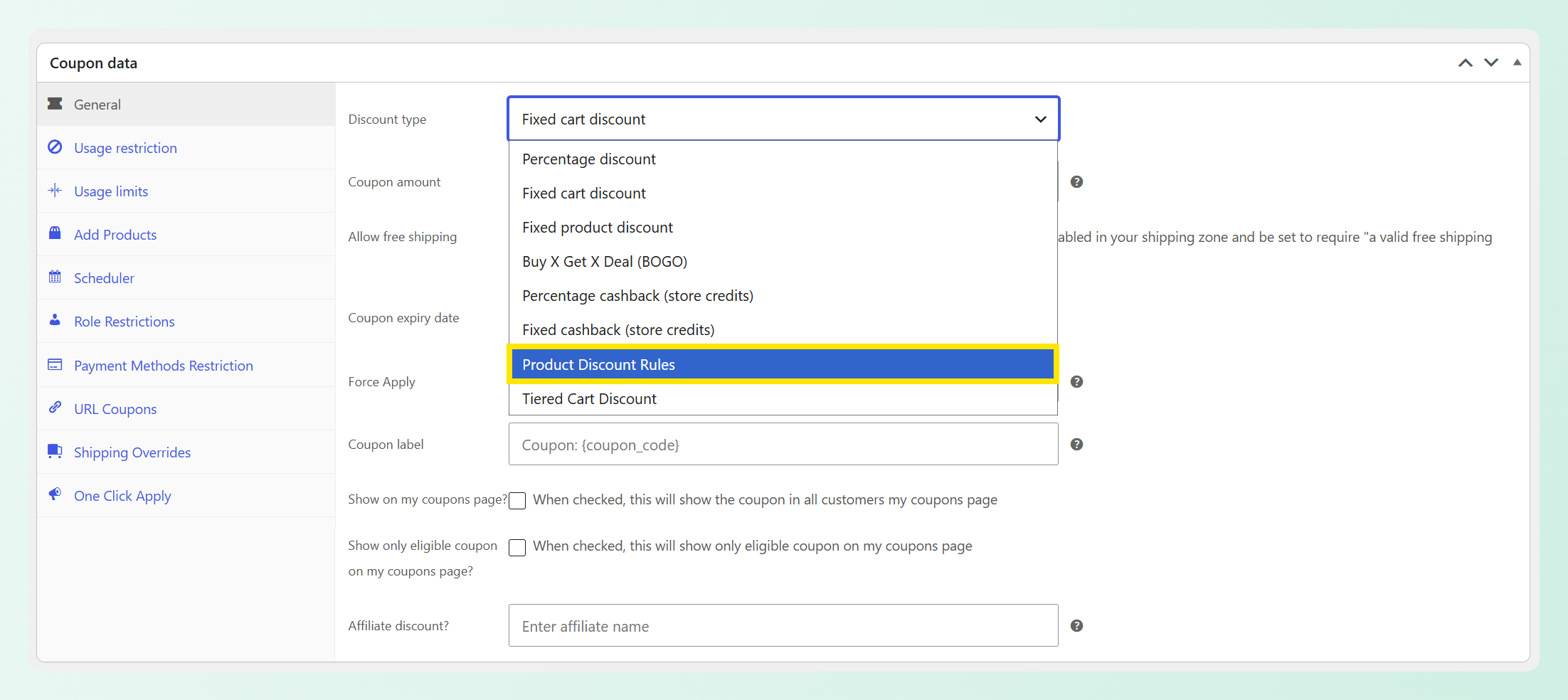
Each rule has three parts: what it targets (specific products or whole categories), the discount type (a percentage or a fixed amount), and the discount value. Here’s how the coupon decides what each item gets:
- Rules are checked from top to bottom. Every item in the cart takes the discount of the first rule it matches.
- Each product gets one discount per coupon. If an item matches two rules, the higher one in your list applies, so discounts never double up.
- Items that don’t match any rule stay at full price. They can sit in the same cart without changing anyone else’s discount.
- Fixed amounts apply to each unit. A $5 rule takes $5 off every unit in the cart, so two units get $10 off.
- Categories include their subcategories, and products include their variations. A rule on your Clothing category also covers a Hoodies subcategory underneath it, and a rule on a variable product covers every one of its variations.
The Product Discount Rules coupon type is available in Advanced Coupons Premium.
Product Discount Rules Vs Other Discount Types
WooCommerce includes several core coupon types, and Advanced Coupons adds more ways to structure your offers. Here’s a quick comparison:
| Discount type | How it works | Use it when |
|---|---|---|
| Percentage discount | One percentage for the whole coupon, which you can limit to certain products or categories | Every eligible item should get the same rate |
| Fixed product discount | One fixed amount off each eligible item | You want the same dollar amount off every eligible product |
| Tiered Cart Discount | The cart subtotal decides which spend tier applies, and the coupon gives one cart-wide discount | You want bigger rewards for bigger carts |
| Product Discount Rules | Each product or category gets its own percentage or fixed amount, all in one coupon | Different parts of your catalog need different discounts |
If spend thresholds are what you’re after, our guide to WooCommerce tiered cart discounts covers that setup. If you need different rates across products or categories instead, Product Discount Rules is designed for that.
How To Set Up Product Discount Rules (Tutorial)
To set up WooCommerce product discount rules, you’ll need Advanced Coupons Premium installed and updated before following along with this tutorial. If you haven’t done so already, you can get the plugin here.
For this tutorial, we’re building a coupon for a small cat-themed store: a special deal on the Cat Mug, 20% off the Mugs, Cups & Tumblers category, and 15% off Clothing.
Step 1: Choose the Product Discount Rules type
First, head to WordPress dashboard > Marketing > Coupons and click Add coupon, or open an existing coupon you’d like to use. In the Coupon data box, stay on the General tab and set Discount type to Product Discount Rules.
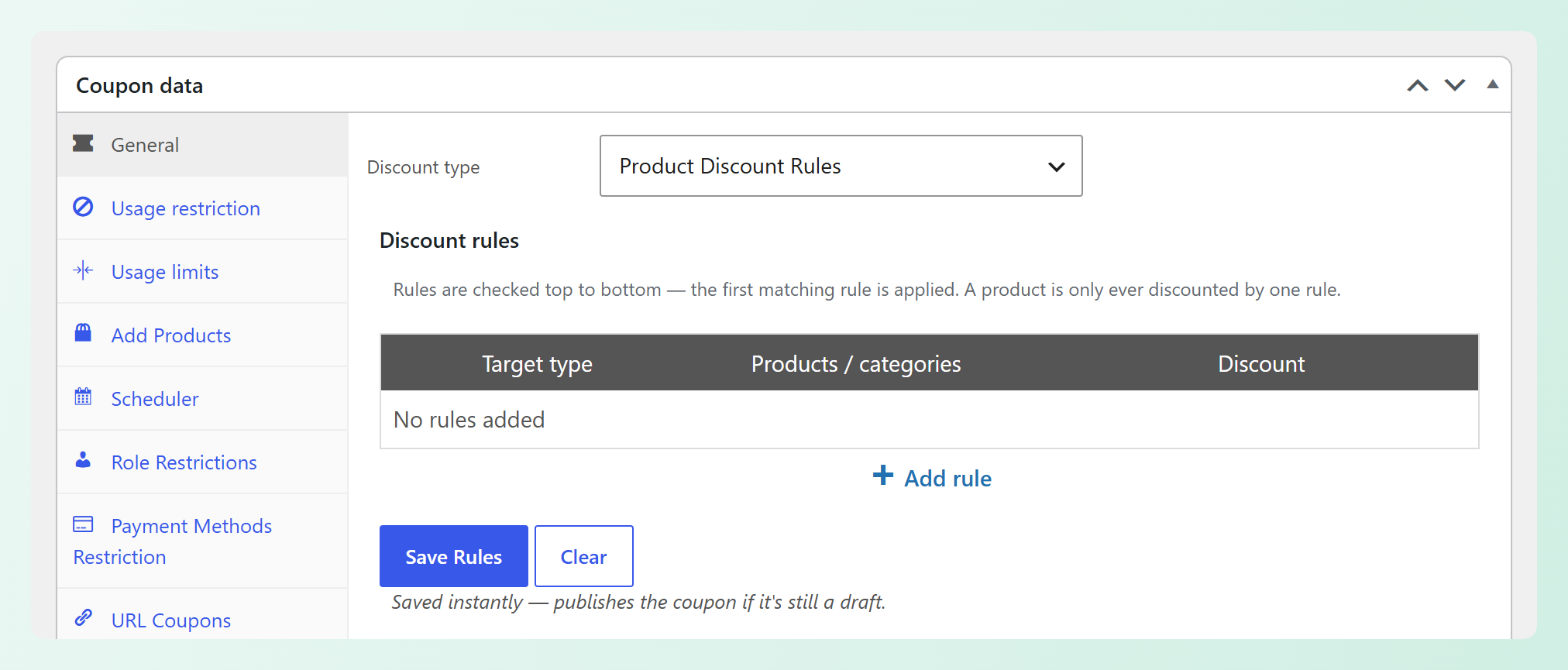
The Discount rules panel appears right below it. You’ll also notice the usual Coupon amount field disappears, because each rule carries its own discount value instead.
Step 2: Add your first rule
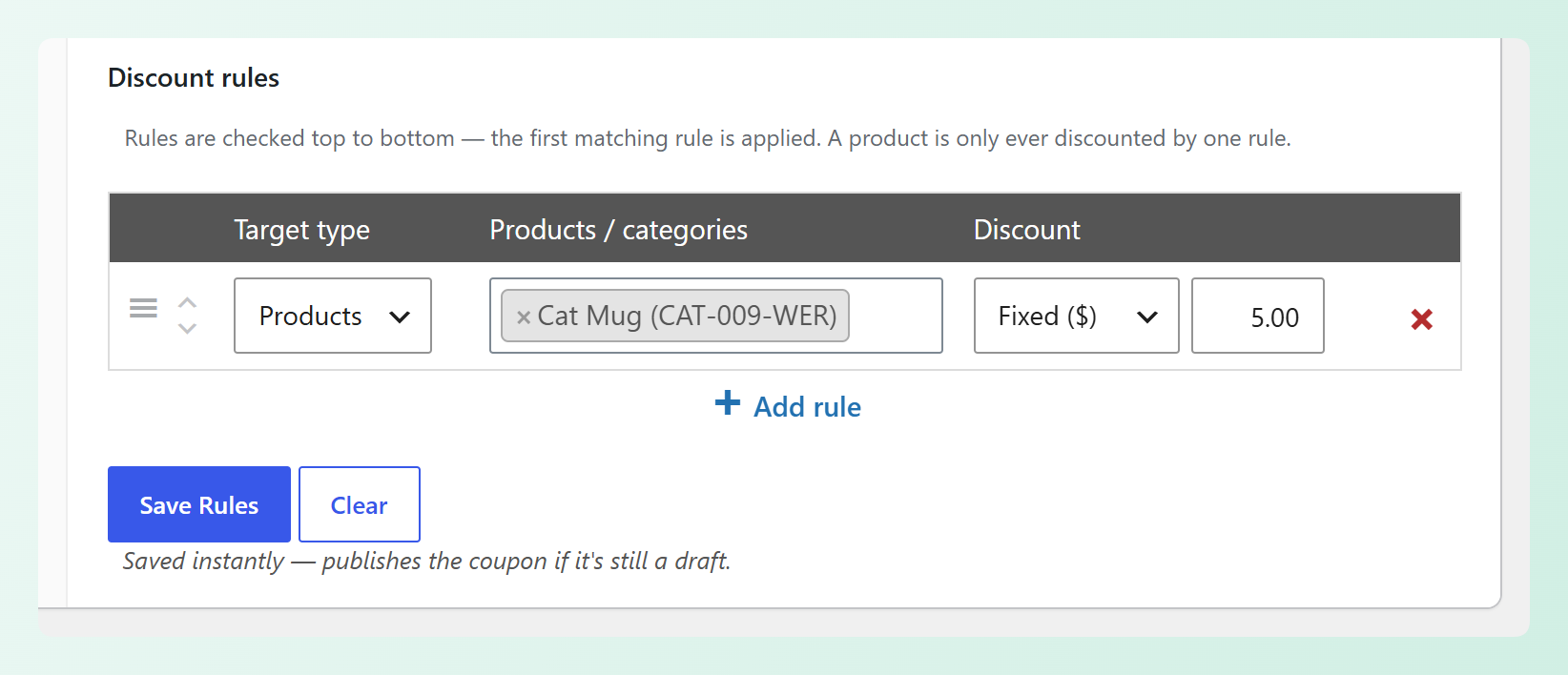
Click + Add rule to create your first row. Each rule has three settings:
- Target type: choose Products to target specific items, or Categories to target whole categories.
- Products / categories: search for the products or categories this rule covers. You can add more than one.
- Discount: pick Percent (%) or Fixed ($), then enter the value.
In our example, we’re starting with a product rule for the Cat Mug and setting it to Fixed ($) 5.00. This means that every Cat Mug in the cart gets $5 off.
Step 3: Add your category rules
Click + Add rule again for every extra rule you need. Category rules let you cover a whole section of your store at once. Products in subcategories beneath the selected category are included too.
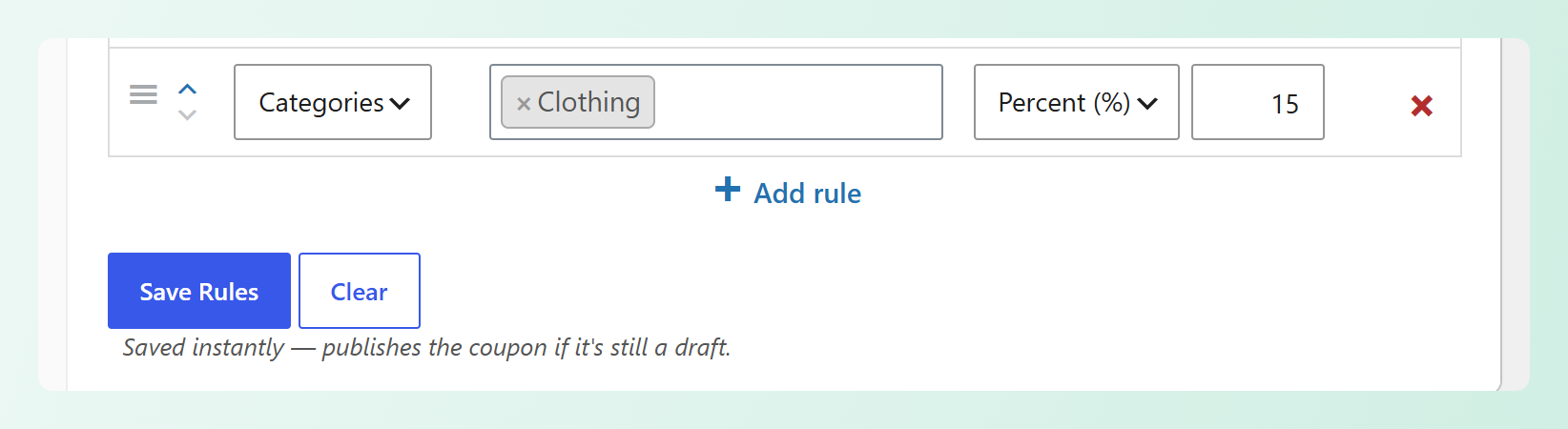
In the example below, we’ve added Mugs, Cups & Tumblers at Percent (%) 20 and Clothing at Percent (%) 15.
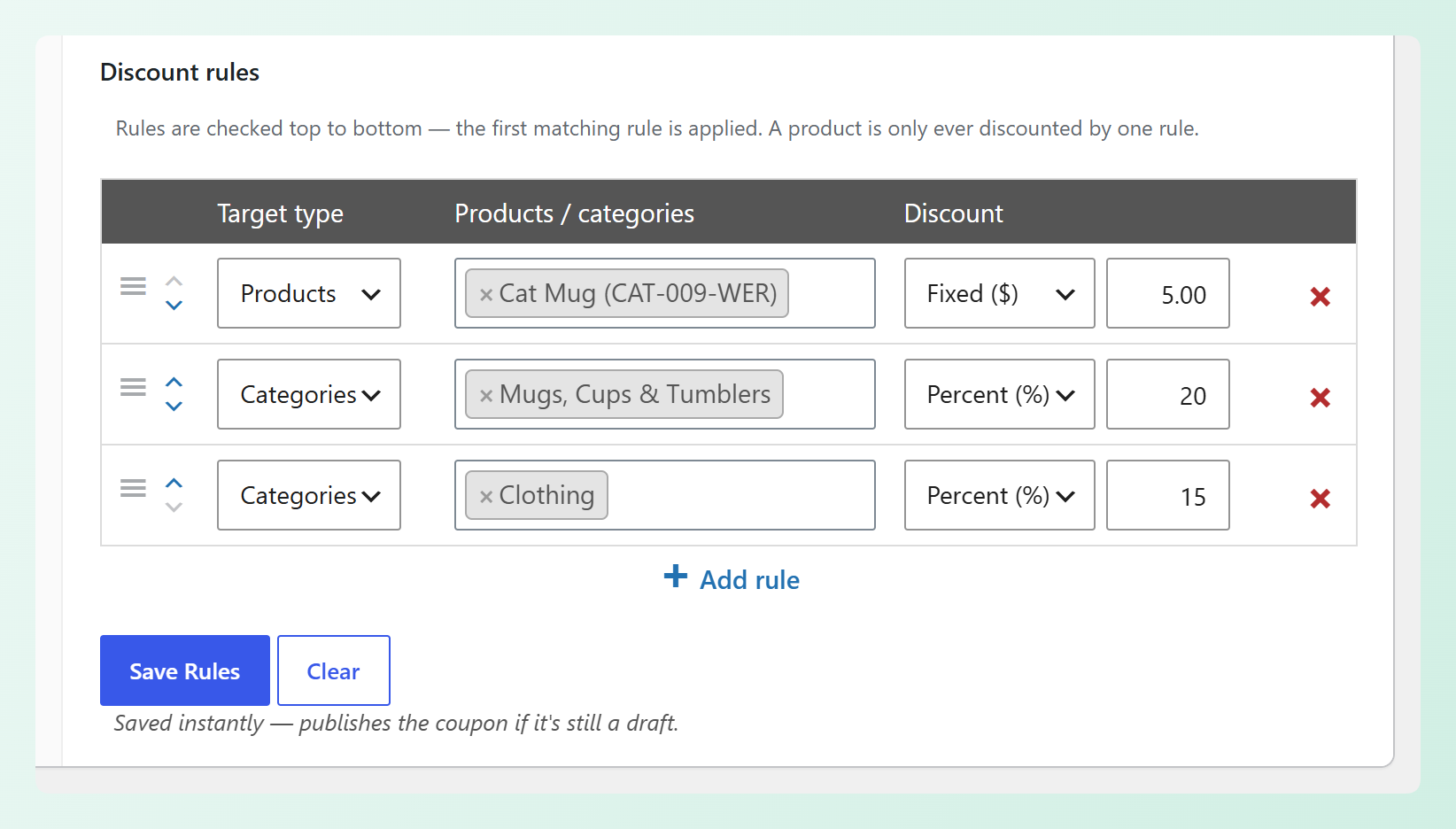
This means that a Cat Tumbler gets 20% off and a Cat Shirt gets 15% off. But the Cat Mug is also in the Mugs, Cups & Tumblers category, which brings us to our next step!
Step 4: Put your rules in order
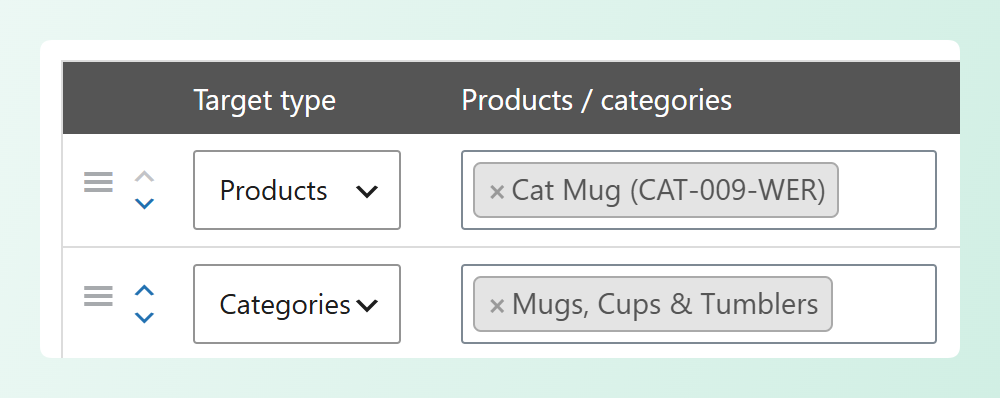
Since the coupon checks your rules from top to bottom, the order of the rows matters. You can drag a rule by the handle on its left, or use the small up and down arrows beside it to move it one row at a time.
In our example, the Cat Mug rule sits above the Mugs, Cups & Tumblers rule. So the Cat Mug takes the $5 fixed discount, while the other mugs and tumblers get 20% off. If we swapped those two rows, the Cat Mug would get 20% off like the rest of its category instead.
Step 5: Save your rules
Once your rules look good, click Save Rules below the table. This button is separate from the coupon’s own Publish or Update button, and it saves your rules right away. As the note beside it says, saving also publishes the coupon if it’s still a draft.
Want to start over? The Clear button removes every rule from the coupon after asking you to confirm.
Before you move on, here’s a quick reminder about rule order:
🎯 POWER TIP: Keep your most specific rules at the top. A product rule that sits below its own category rule never gets a chance to apply, because the category rule reaches that product first.
What shoppers see
When a shopper applies the code, the cart shows the total coupon discount along with a line for each discounted item, so it’s easy to see exactly where their savings came from.
In the example below, our shopper has two Cat Mugs, a Cat Tumbler, a Cat Shirt, and a pack of Cat Stickers in their cart. After applying catsale, they get $10 off the mugs ($5 each), $5 off the tumbler (20%), and $2.25 off the shirt (15%), for a total of $17.25 off. The Cat Stickers don’t match any rule, so they stay at full price.
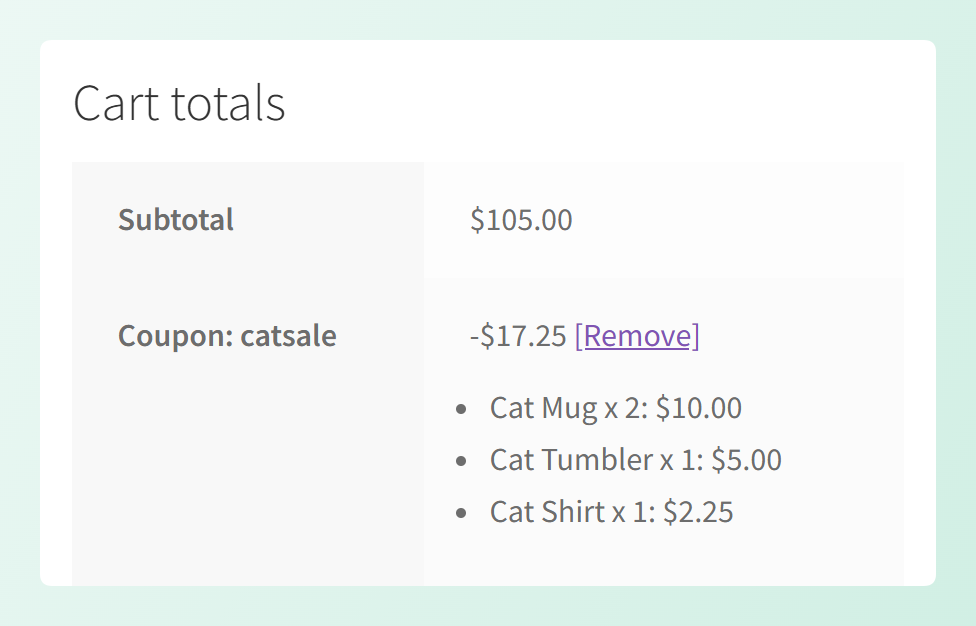
The same breakdown appears on the checkout page, and each order records the discount against the individual products it was applied to.
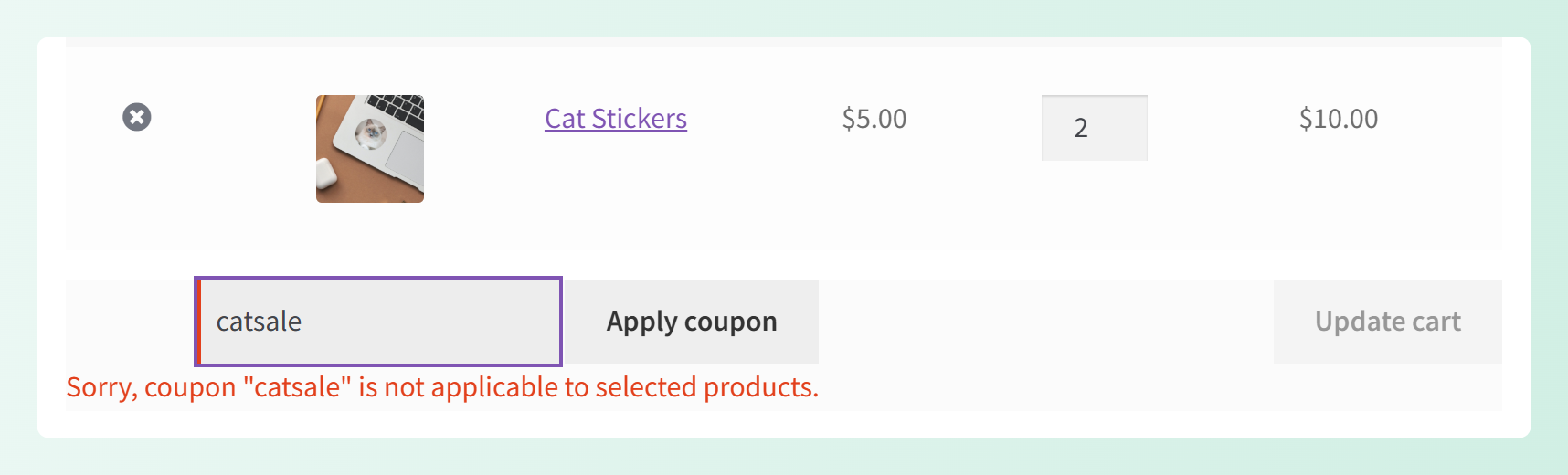
If a shopper’s cart has nothing that matches any of your rules, WooCommerce lets them know the coupon isn’t applicable to the products in their cart.
6 Ways To Use Product Discount Rules
Because every rule can target different products and categories, one coupon can support a range of sale setups. Here are six ways you can use Product Discount Rules, each with an example you can adapt for your store:
1. Different discount rates for different categories
Give each category the discount its margins can handle. Categories with healthier margins can carry a bigger discount, while tighter ones get a smaller one, and your shoppers still only need one code. That also makes your sale easier to promote, since every email, banner, and social post can point to the same coupon.
Example: Black Friday. Set 25% off Mugs, Cups & Tumblers and 20% off Clothing in one coupon. Then open the Scheduler tab and set your sale dates, so the code only works during your Black Friday window. Looking for more ideas? Check out these Black Friday coupon code ideas.
2. Specific rates first, then a lighter rate for everything else
Put your targeted rules at the top and a broader category rule at the bottom. Anything the first rules don’t catch still gets a smaller discount from that final rule, so shoppers get something off everything in the category.
Example: Black Friday, extended. Below the two rules above, add a final 10% rule on a broader category that holds most of your catalog. Items in it that aren’t mugs or clothing get 10% off, while mugs and clothing keep their bigger discounts. You can also set a Minimum spend of $50 in the Usage restriction tab, so the offer only applies once the cart meets that minimum.
3. A category sale with a featured product
Want one product to stand out from the rest of its category? Add a product rule above the category rule, and that item gets a deal of its own. It’s a nice way to put a spotlight on a hero product while the rest of the collection is on sale.
Example: Halloween. Set 25% off your Halloween category, then add a rule above it that gives your featured item, like a spooky cat painting, $5 off each. Shoppers get 25% off the collection, and your featured painting gets its own fixed discount. For more seasonal inspiration, here are some Halloween promotions to drive sales.
4. A category sale that leaves out a bestseller
Sometimes you want to run a category sale while keeping a bestseller at full price. A 0% rule for that product, placed above the category rule, keeps it at its regular price while everything else in the category is on sale.
Example: 20% off Mugs, Cups & Tumblers, with a 0% rule for your top-selling tumbler at the top of the list. Every other mug and tumbler gets 20% off, and your bestseller keeps its full price. If a cart only holds that bestseller, the code applies with nothing taken off.
5. Dollars off each unit
A fixed rule takes its amount off every unit, so the savings grow as shoppers buy more. It’s a simple way to move stock without changing the price on your product page.
Example: Clearance. Give an overstocked product $3 off each unit, and add a 10% rule for the rest of its category below it. A shopper who buys four of the overstocked item gets $12 off those units, plus 10% off anything else from that category.
6. A free product once the cart reaches a threshold
A 100% rule makes a product free. Pair it with Cart Conditions, and the freebie only unlocks when the cart meets the condition you set.
Example: A holiday stocking stuffer. Set Cat Stickers to 100% off and mugs to 15% off, then add a Cart Subtotal condition set to MORE THAN $50. Once the cart subtotal goes over $50, the stickers in the cart are free and the mugs are 15% off. Carts at $50 or below get a message that the coupon’s conditions haven’t been met yet.
These are just some of the combinations you can build. Mixing product and category rules with percentage and fixed discounts gives you plenty of flexibility within one coupon.
Good To Know Before You Launch
When you choose Product Discount Rules, a few standard coupon fields are hidden because your rules take care of them:
- Coupon amount, since each rule has its own discount value.
- Products and Product categories in the Usage restriction tab, since your rules decide which products get a discount.
- Limit usage to X items in the Usage limits tab.
Several other coupon settings also work with Product Discount Rules, including Minimum spend, Maximum spend, Individual use only, Usage limit per coupon, Cart Conditions, the Scheduler, and URL Coupons. With URL Coupons, you can share your sale as a link that applies the code for shoppers.
A few other details are handled automatically:
- A rule with no product, category, or value is discarded, and a notice tells you how many were removed.
- A percentage above 100 is saved as 100.
- A fixed discount is capped at the item’s price, so the item total won’t go below $0.
- If you delete a product that’s in one of your rules, that rule simply stops matching it.
Frequently Asked Questions
How is Product Discount Rules different from Tiered Cart Discount?
Tiered Cart Discount uses the cart subtotal to determine which spend tier applies, then gives one cart-wide discount. Product Discount Rules assigns percentage or fixed discounts to specific products or categories instead. You can still combine Product Discount Rules with spend requirements when you need them.
Can a product get discounts from two rules in the same coupon?
No. Each item takes the first rule it matches, starting from the top of your list, so it’s only ever discounted by one rule. To change which rule a product gets, move that rule higher in the list.
What happens if nothing in the cart matches a rule?
The coupon isn’t applied, and WooCommerce shows the shopper a notice that the coupon is not applicable to the selected products. If only some items match, the coupon applies to those items and the rest stay at full price.
Is a fixed discount taken off each unit or the whole line?
Each unit. A $5 fixed rule takes $5 off every unit of the matching product, so a shopper buying two gets $10 off. The discount is capped at the item’s price, so the item total won’t go below $0.
Do category and product rules cover subcategories and variations?
Yes. A category rule covers products in its subcategories, while a product rule on a variable product covers all of that product’s variations.
Is Product Discount Rules available in the free version of Advanced Coupons?
No, the Product Discount Rules coupon type comes with Advanced Coupons Premium.
RELATED READ: New! Offer WooCommerce Tiered Cart Discounts With Coupons
Wrapping Up
With Product Discount Rules, one coupon can give different products and categories their own discounts. The coupon applies the first rule each item matches, and shoppers can see the savings breakdown for each discounted item in their cart.
To recap:
- How Product Discount Rules Work
- How it compares with other discount types
- How to set up your first Product Discount Rules coupon
- Ways you can use Product Discount Rules
- What to know before you launch
You can find Product Discount Rules under Marketing > Coupons whenever you’re ready to try it. ❤️
Have a question about the new feature? Let us know in the comments. We’re happy to help!