

Managing WooCommerce store credits is easy when you’re updating one customer. But when you need to reward a whole customer group, clean up old balances, or correct credits across many accounts, one-by-one edits can quickly become a lot of manual work!
That’s exactly what bulk store credit adjustment solves in our latest Advanced Coupons update. Now, you can increase, decrease, reset, or delete store credit balances for multiple customers at once, with targeting filters, a preview step, optional customer emails, and background processing built in.
In this guide, we’ll walk through how the new Bulk Adjust feature works, how to use it safely, and where it can help you manage store credits more efficiently.
What Is Bulk Store Credit Adjustment?
Bulk store credit adjustment is a new Advanced Coupons Premium feature that lets you update the store credit balances of many customers at once. It lives in a new Bulk Adjust tab on the Manage Store Credits page, right alongside the Dashboard, Customers, and Automations tabs you already know. It sits alongside other store credit controls, such as flexible store credit expiry settings.
Here’s what you can do with it:
- Increase or decrease balances: Add or remove credit for every customer that matches your filters.
- Fixed or percentage amounts: Give everyone the same dollar amount, or adjust each balance proportionally (like a 10% bonus).
- Target precisely: Filter customers by role, balance range, registration date, last order date, or hand-picked selections.
- Notify customers automatically: Optionally send each affected customer the store credit adjustment email.
- Run it in the background: Large operations are processed in batches, so you don’t have to keep the page open.
Every adjustment is also recorded as its own store credit entry with your admin note attached, so your audit trail stays complete.
How To Bulk Adjust Store Credits In WooCommerce
To get started, head to Coupons > Manage Store Credits in your WordPress dashboard and open the new Bulk Adjust tab. The whole process takes four steps.
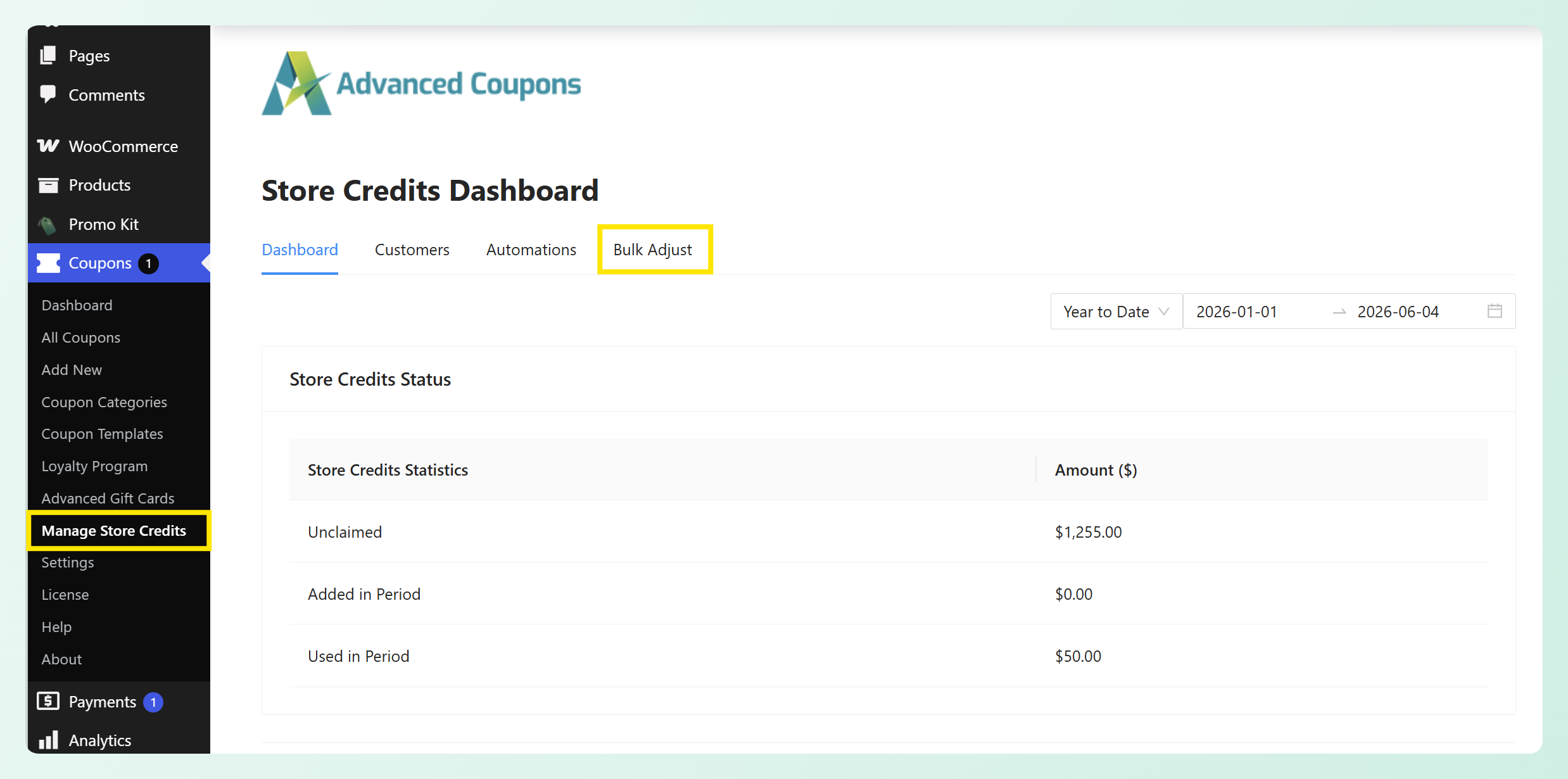
Step 1: Filter the customers you want to target
First, choose who the adjustment applies to. You can combine any of these filters, and customers must match all of them to be included:
- User role: For example, only wholesale customers.
- Balance range: Set a minimum and/or maximum current balance.
- Registration date: Target customers who signed up within a date range.
- Last order date: Reach recently active customers, or inactive ones.
- Include or exclude specific customers: Hand-pick individual users to add or remove from the results.
This targeting matters because it keeps credits away from the wrong accounts. A promotion meant for wholesale buyers stays with wholesale buyers.
In the example below, we’re targeting customers with a minimum store credit balance of $150.00 who registered between January 1, 2025 and June 30, 2026. Two specific users are also included manually, so they stay part of the matched list.
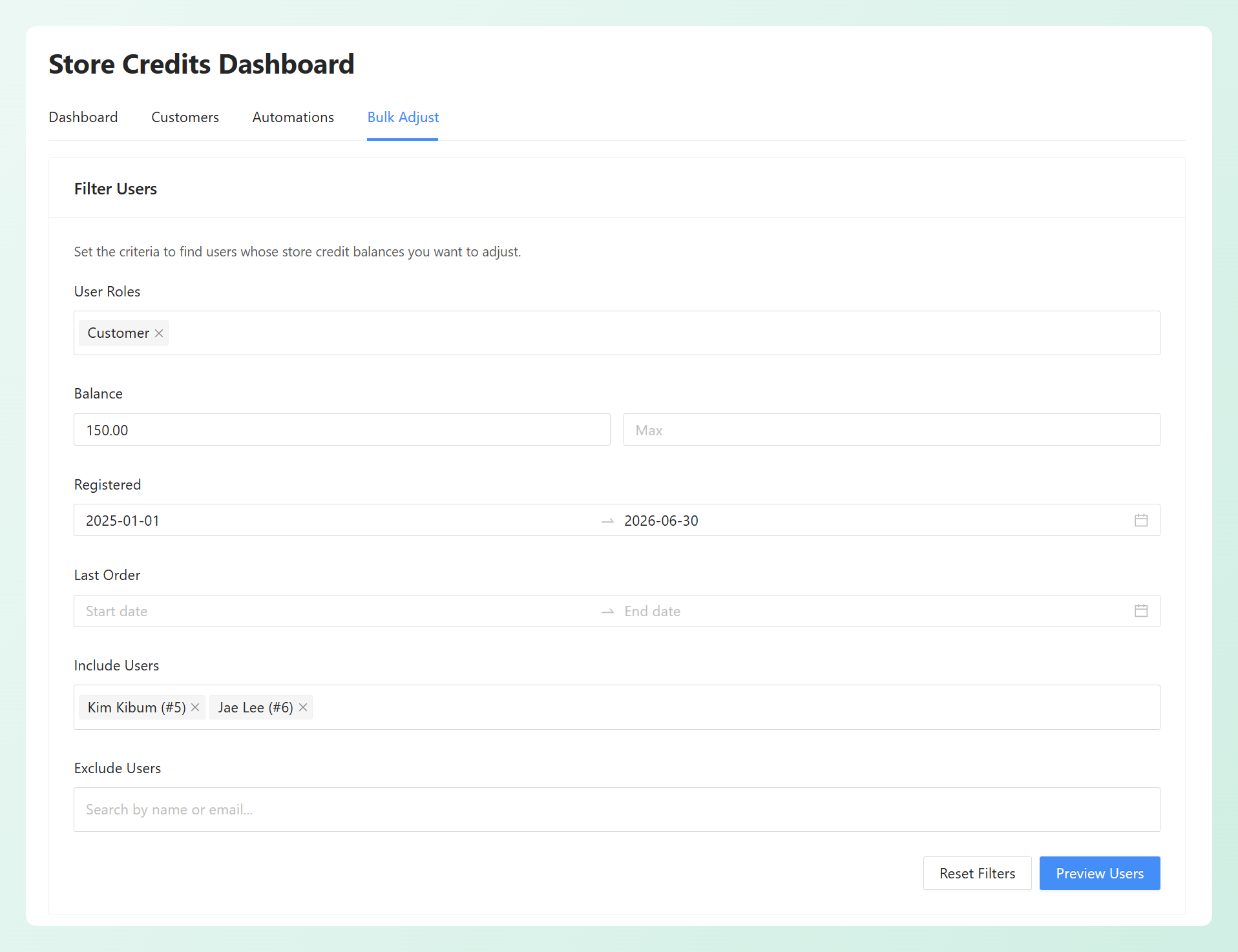
Once you’ve set up your filters, click Preview Users to review the customers who match your criteria before applying any changes.
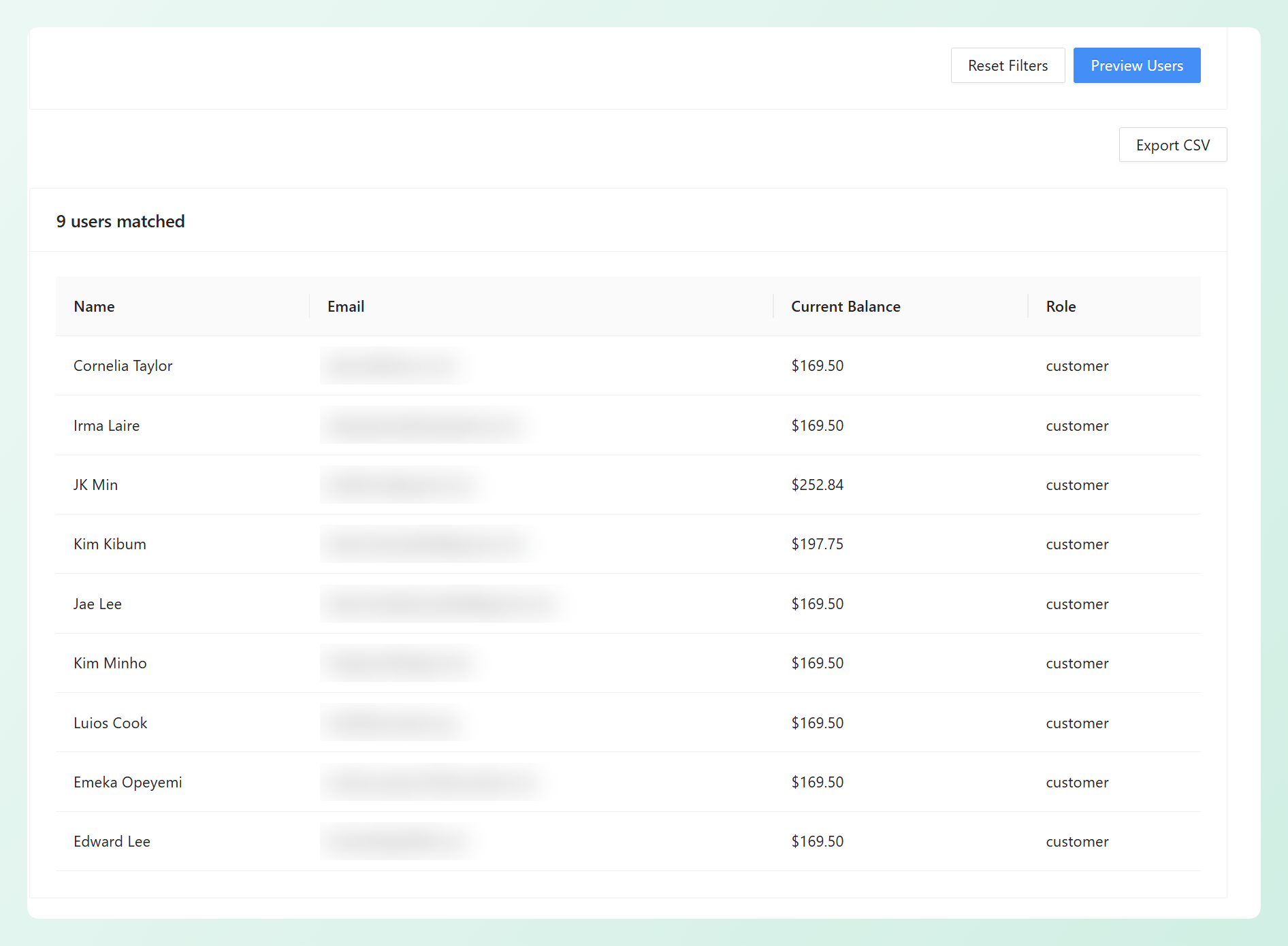
🎯 Tip: Use the Export CSV button if you want to keep a copy of the matched users and their current balances before making changes.
Step 2: Configure the adjustment
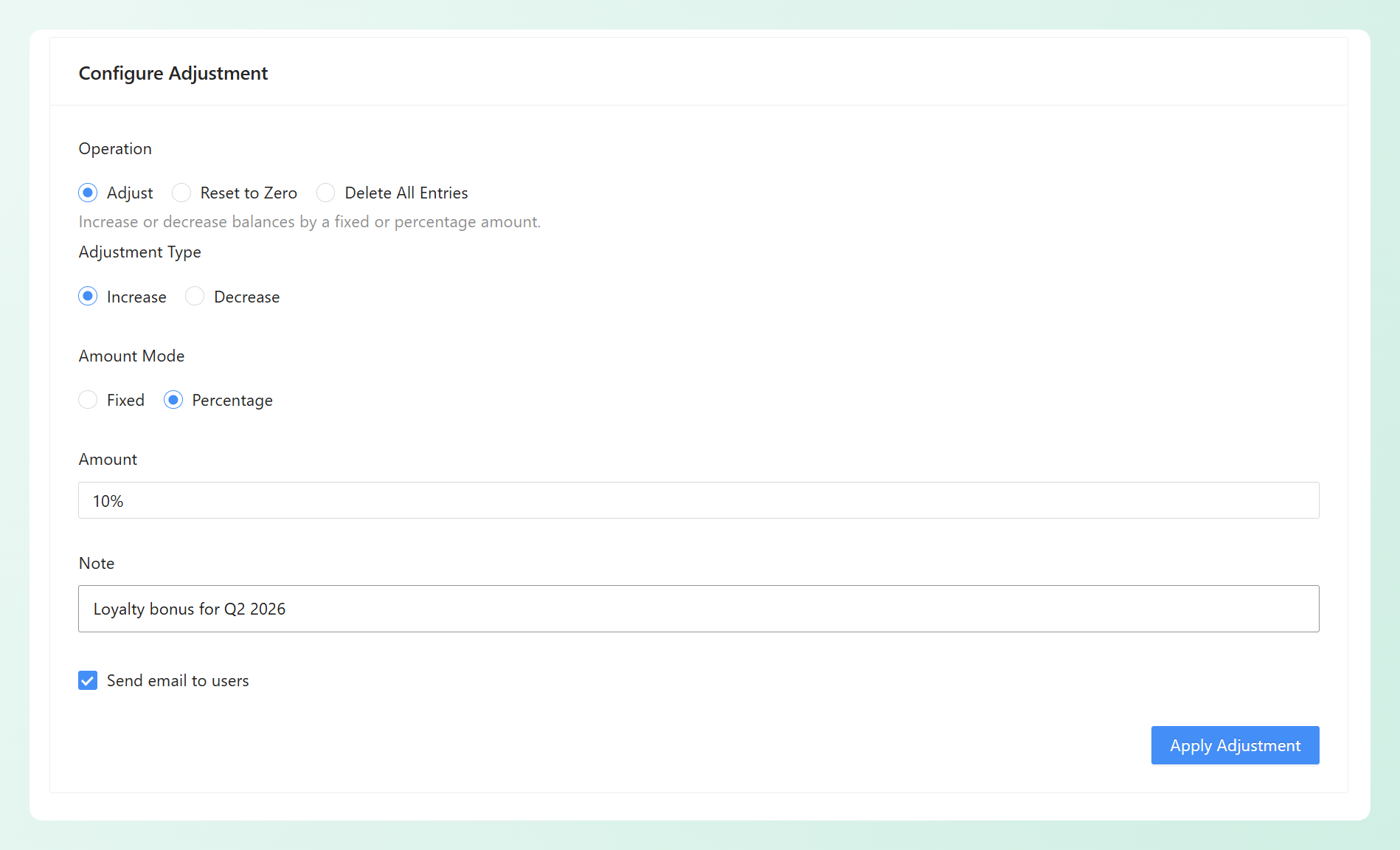
Next, scroll down to set up what the adjustment actually does:
- Type: Increase or decrease balances.
- Amount mode: A fixed amount (everyone gets $25) or a percentage of each customer’s current balance (everyone gets 10% more).
- Note: An admin note that’s saved with every entry, so you’ll always know why an adjustment happened.
- Send email to users: Tick this to notify each customer with the standard store credit adjustment email, which shows the amount and their new balance.
In the example below, the adjustment increases each matched customer’s current store credit balance by 10%. The admin note records the reason for the change, and the email option is enabled so affected customers can be notified.
🎯 TIP: Percentage mode is great for proportional rewards. Here’s what a 10% increase looks like in practice (example data):
| Customer balance | Adjustment | New balance |
|---|---|---|
| $200.00 | +$20.00 | $220.00 |
| $75.50 | +$7.55 | $83.05 |
| $0.00 | $0.00 | $0.00 |
One safety detail worth knowing: decreases are always capped at each customer’s current balance. No balance can ever drop below zero.
Step 3: Preview and confirm
Before anything runs, you can check the full preview of every matched customer, including their name, email, role, current balance, the exact adjustment amount, and their new balance. You’ll also see the total number of customers and the total credit being distributed or deducted.
We designed this step as your safety net. Applying credits to the wrong customers costs real money, so nothing executes until you’ve reviewed the numbers and confirmed.
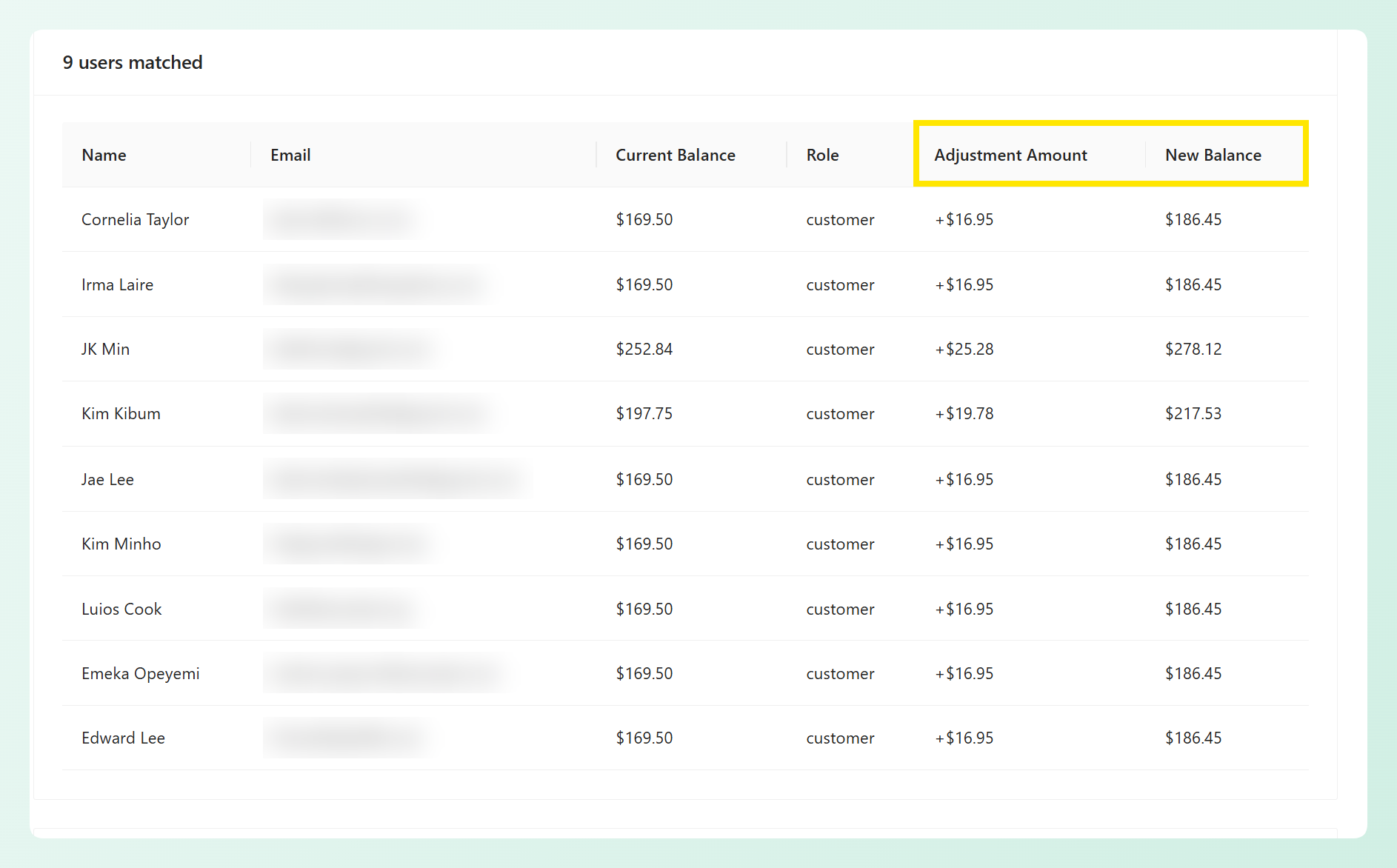
An additional confirmation window will also appear before the adjustment starts. This summarizes the number of users affected, the adjustment type, the total credits involved, and whether email notifications will be sent.
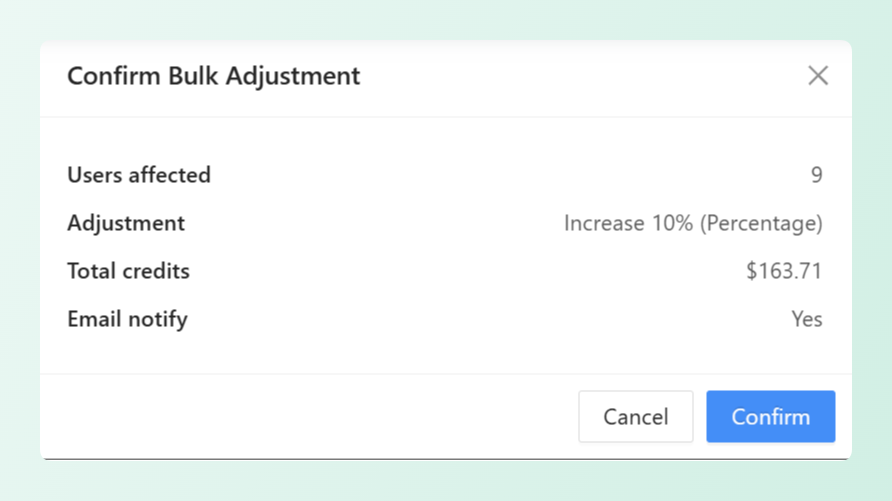
Simply click Confirm once you’ve reviewed the details and you’re ready to run the bulk adjustment.
Step 4: Track the progress
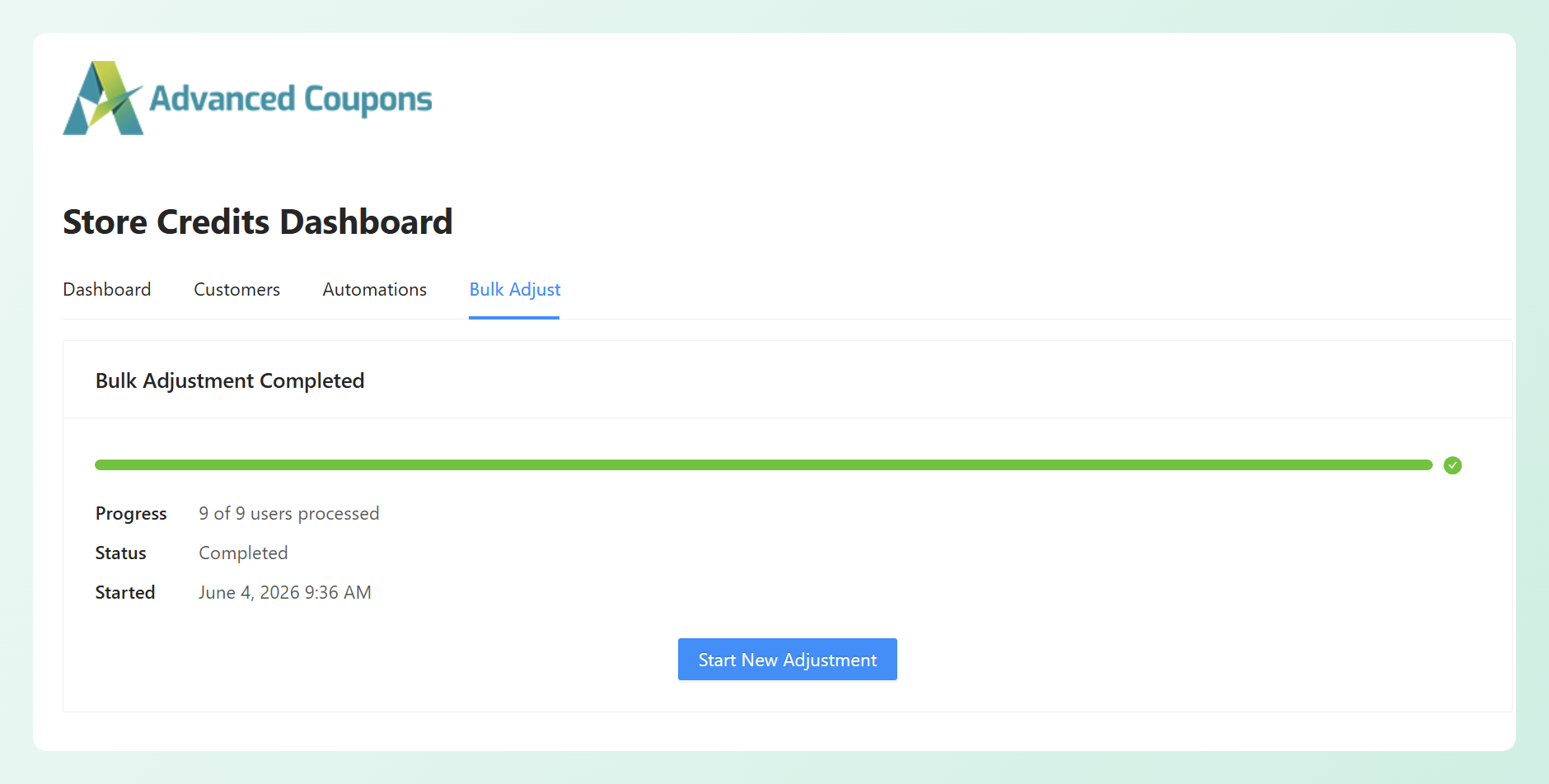
Once confirmed, the operation runs in the background in batches. A progress bar shows how many customers have been processed (like “75/120”) along with the current status: Queued, In Progress, Completed, or Failed.
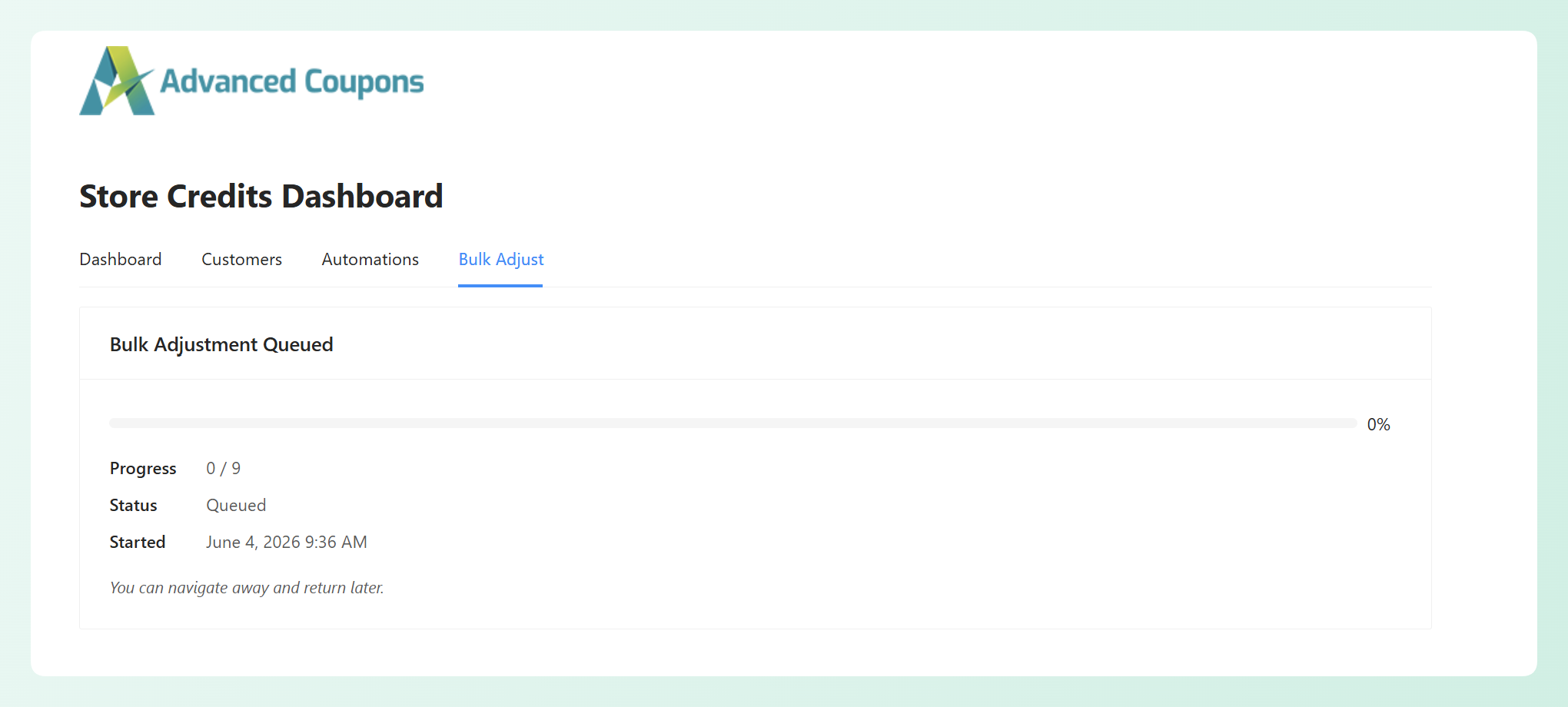
You can navigate away and return later. The progress view will still be there when you come back, and the form stays locked while an operation runs, so you can’t accidentally start two at once. When it finishes, a summary appears with a Start New Adjustment button.
More Bulk Store Credit Tools
Bulk adjustments are the headline, but this Advanced Coupons Premium update also adds two more tools for managing store credits in bulk.
Bulk reset or delete store credits
You can also reset matched customers’ balances to zero or delete their store credit entries entirely. Resetting is useful when you want to clear balances while keeping history, while deleting entries is better reserved for cases where you truly need to remove the records.
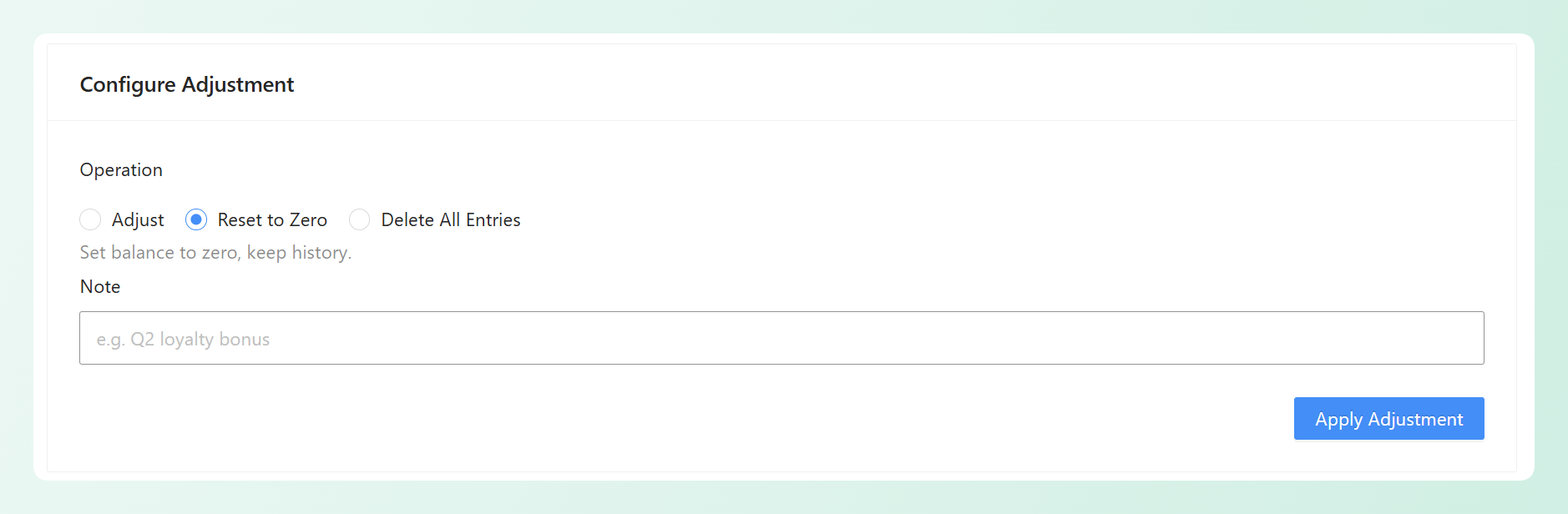
Both actions come with a clear warning before execution, and you can export a CSV backup of balances first. We strongly recommend doing that, since delete operations can’t be reversed.
WP-CLI command for large stores
For developers and large stores, Advanced Coupons Premium also includes a WP-CLI option for bulk store credit adjustments. This gives technical teams another way to manage larger credit operations through command-line workflows.
If your store relies on scripts or developer-managed processes, this can be a practical alternative to running the adjustment from the WordPress admin area.
How Bulk Store Credit Adjustment Helps Your Store
The mechanics are simple, but the use cases are where this feature earns its keep.
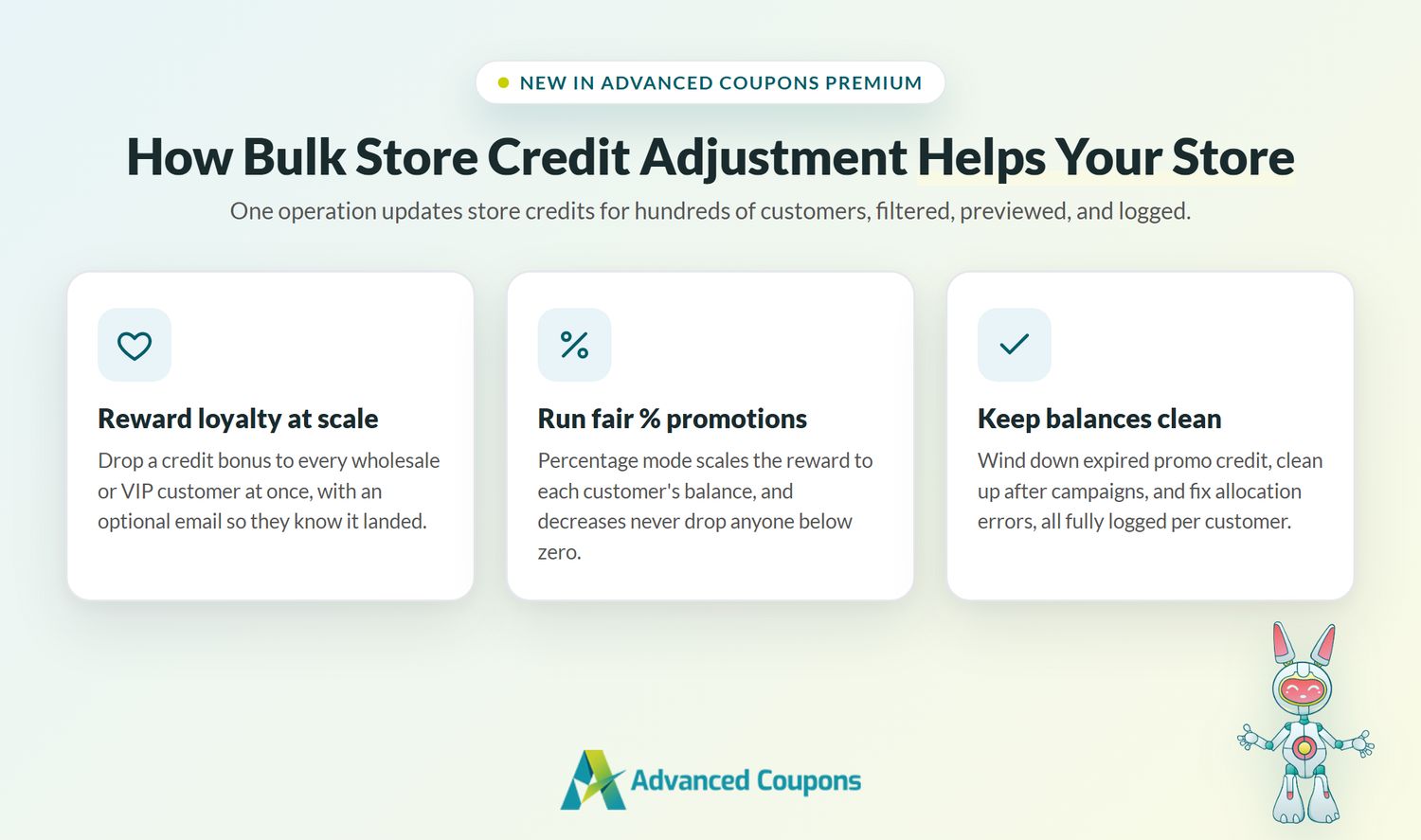
Reward loyal and wholesale customers at scale
Store credit can be a practical way to encourage repeat purchases and reward your best customers. According to Capital One Shopping, customers enrolled in loyalty programs spend 12% to 18% more than unenrolled customers. A bulk credit drop, paired with a customer email, gives shoppers a clear reason to come back and use their balance.
It also pairs naturally with converting loyalty points to store credits if you run our loyalty program alongside Advanced Coupons.
Run percentage-based credit promotions
A flat $25 treats a customer holding $10 in credit the same as one holding $1,000. Percentage mode scales the reward to each customer’s existing balance, which keeps big promotions fair and predictable. It works for corrections too, like trimming all balances by 5% after a pricing error.
Keep balances clean and under control
Returns are a fact of ecommerce life. According to the National Retail Federation, consumers were expected to return $849.9 billion in merchandise in 2025, about 15.8% of retail sales. Many stores handle those returns as store credit, which means balances accumulate fast.
Bulk tools let you wind down expired promotional credit, clean up after campaigns, and fix widespread allocation errors in less time. Combined with controls like minimum redemption amounts and store credits for subscription renewals, you get more control over how store credits are issued, used, and maintained over time.
Frequently Asked Questions
Is bulk store credit adjustment available in the free plugin?
No. Bulk store credit adjustment is an Advanced Coupons Premium feature. You’ll need Premium to access the Bulk Adjust tab, bulk reset/delete tools, and the WP-CLI command.
Can a bulk decrease make a customer’s balance negative?
No. Decreases are capped at each customer’s current balance, whether you use a fixed amount or a percentage. If a customer holds $10 and the adjustment would remove $25, their balance simply becomes $0.00, and the recorded entry reflects the $10 that was actually removed.
Are customers notified when their balance changes?
Only if you want them to be. The adjustment configuration includes a “send email to users” option. When enabled, each affected customer receives the standard store credit adjustment email showing the amount and their new balance. Emails are handled as the bulk adjustment processes in batches.
Do I have to keep the page open while it runs?
No. Bulk adjustments are processed in the background in batches, so you can navigate away and return later. The Bulk Adjust tab will show the live progress whenever you come back, and a completion summary appears when the operation finishes.
Can I undo a bulk adjustment?
There isn’t a one-click undo for bulk adjustments, so it’s important to review the preview carefully before confirming. If you need to correct an increase or decrease later, you may be able to run a separate adjustment for the affected customers. For reset and delete operations, export a CSV backup first, because deleted credit records can’t be restored.
Wrapping Up
Bulk store credit adjustment turns what used to be hours of one-at-a-time edits into a filtered, previewed, and fully logged operation that runs in the background. Whether you’re rewarding wholesale customers, running a percentage bonus, or cleaning up after a campaign, your store credit program just became much easier to manage at scale.
Here’s how to get started:
- Learn what bulk store credit adjustment can do
- Follow the four steps to run your first bulk adjustment
- Explore the reset, delete, and WP-CLI tools
- Pick the use case that fits your store
Ready to manage WooCommerce store credits in bulk? Get Advanced Coupons Premium today to start using bulk store credit adjustment.
We hope this guide helped out! Let us know if you have any questions about the new feature in the comments below.