
Some WooCommerce spam orders begin with coupon abuse. A shopper finds a way to reuse a discount, places repeated orders, or keeps returning under different details. The most practical response is to tighten the coupon rules that allowed the misuse, then block a known repeat offender from completing checkout.
This lets you protect your promotions without removing them altogether. Advanced Coupons helps you control how and when a discount can be used, while Checkout Guard gives you a direct way to refuse checkout attempts that match details you’ve added to your block list.
How Coupon Abuse Turns Into WooCommerce Spam Orders
Coupon abuse can lead to WooCommerce spam orders when a shopper repeatedly uses a promotion beyond its intended limits. In your dashboard, this may look like several orders tied to the same customer details or a group of accounts with small variations.
For example, a first-order coupon may be reused through different email addresses, or a private discount may spread beyond the audience it was created for. The exact pattern can vary, but the result is the same: more orders to review and a promotion that costs more than you planned.
This type of misuse is part of a wider ecommerce fraud problem. In its 2024 report, the Merchant Risk Council found that refund and policy abuse, together with first-party misuse, had become merchants’ leading fraud threats for the first time in 25 years, overtaking phishing in North America and Europe (Merchant Risk Council, 2024). Coupon abuse is only one part of this broader problem, but it shows why stores need clear promotion controls before repeat misuse grows.
Tighten Your Coupon Limits First
Before blocking a specific customer, review the coupon settings that allowed the repeated use. Clear limits and restrictions can prevent many straightforward forms of coupon abuse before they lead to more orders you need to investigate.
With Advanced Coupons, you can set usage limits for the coupon and each customer, control which products, carts, or customers qualify, schedule an expiry date, and cap the total number of redemptions. These settings help keep the offer focused on the shoppers and purchases it was created for.
For help configuring these controls, see our guide to WooCommerce coupon restrictions. Planning them before launching the promotion can save you from having to correct preventable misuse later.
💡 A Practical Example: Imagine a first-order coupon that can be redeemed more often than intended. Usage limits and restrictions can reduce straightforward repeat use, but they may not solve every case when the same shopper returns with different details. Once you have identified a repeat offender, Checkout Guard adds another layer by refusing checkout attempts that match the details on your block list.
When Coupon Limits Aren’t Enough
Coupon limits and restrictions help control how a promotion is used, but they focus on the discount itself. They do not give you a direct way to refuse every order from a customer you have already identified as a repeat problem.
That distinction matters when the same shopper keeps returning after the coupon loophole has been closed. At this point, you need a rule that applies to the customer details you know, not another adjustment to the promotion. This is where a manual block list becomes useful. If your store also takes quote requests, the same thinking applies earlier in the funnel, and Wholesale Suite’s guide to rate limiting guest quote requests by IP and email shows how to stop abuse before an order is ever placed.
Block Repeat Offenders With Checkout Guard
When you have identified a repeat offender, Checkout Guard, a sister plugin from Visser Labs, lets you add their details to a manual block list. It is designed to stop WooCommerce spam orders from customers whose information you already know.
You can create a blocked entry using a customer’s first and last name together, email address, or exact IP address, then add an optional note for your records. When the details entered during checkout match an active blocked entry, Checkout Guard refuses the checkout and shows the denial message you have set. It supports both the WooCommerce Checkout Block and the classic shortcode checkout.
Unlike an automated risk-scoring tool, Checkout Guard does not try to decide which shoppers look suspicious. It follows the blocked entries you create, making it most useful when you already know which customer details need to be stopped. Using specific, verified information helps keep each rule focused on the intended offender.
How To Set Up Checkout Guard On Your Store
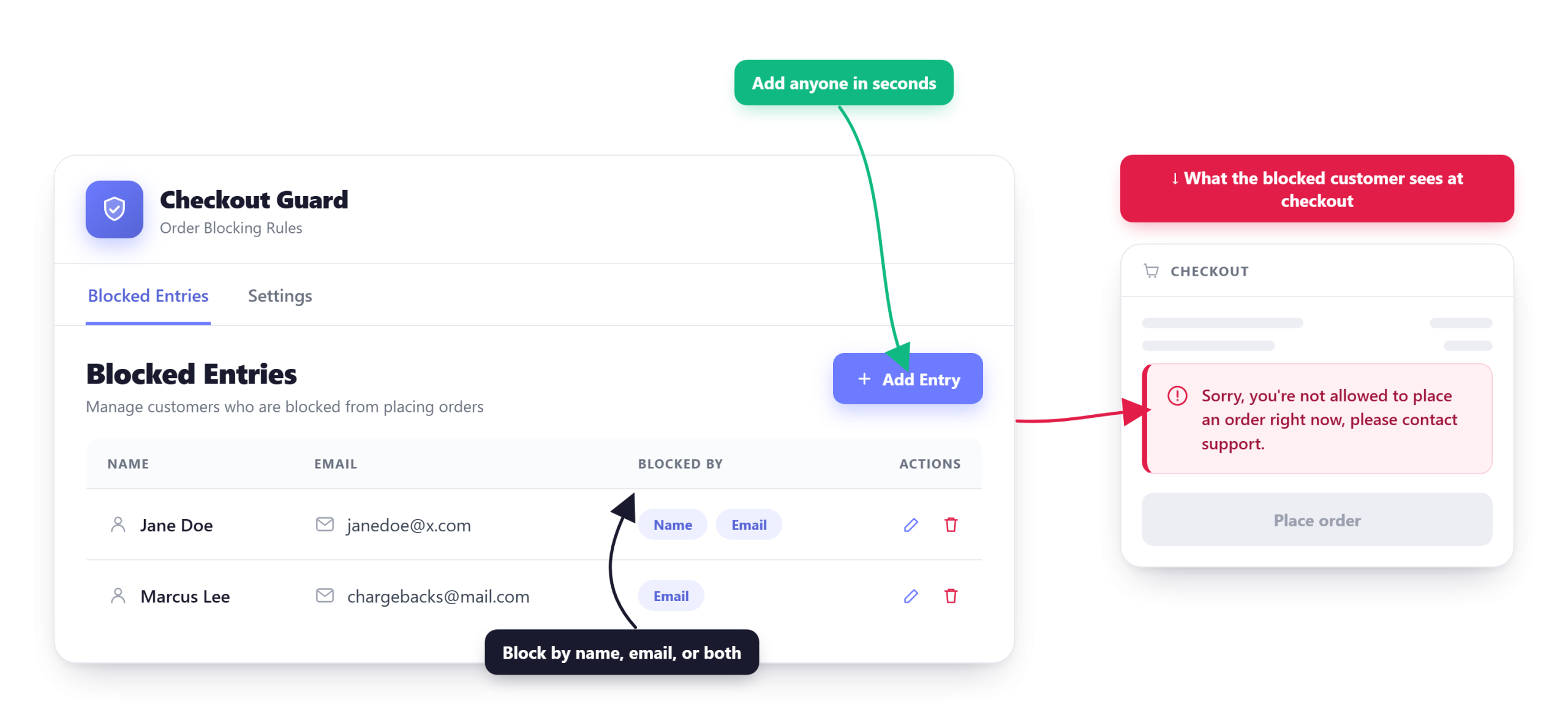
You can set up Checkout Guard in three simple steps: open the plugin screen, add the customer details you want to block, and customize the message shown at checkout. After that, checkout attempts that match the blocked entry will be refused automatically.
Step 1: Open the Checkout Guard admin screen
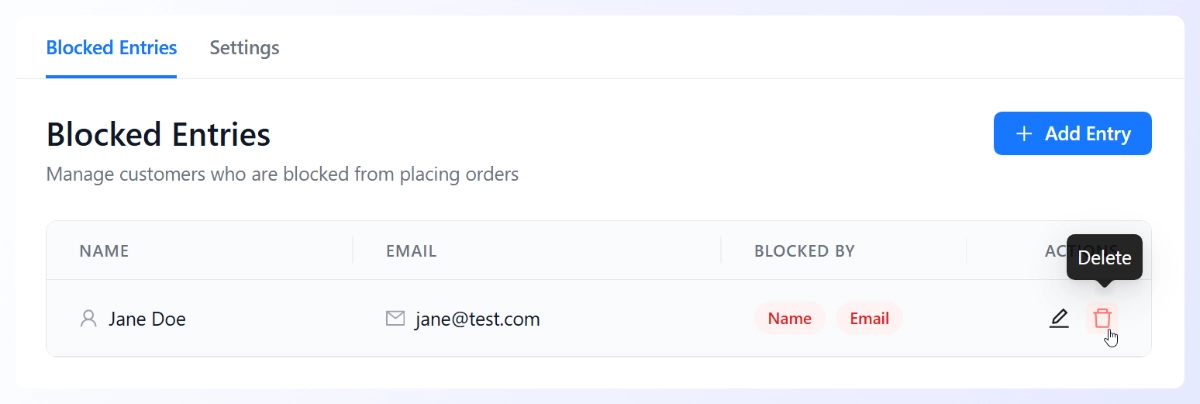
Once Checkout Guard is installed and active, open its admin screen from your WordPress dashboard. You’ll see two tabs: Blocked Entries, where you manage the customer details you want to block, and Settings, where you control the message shown when a checkout attempt is refused.
Step 2: Add the customer details you want to block
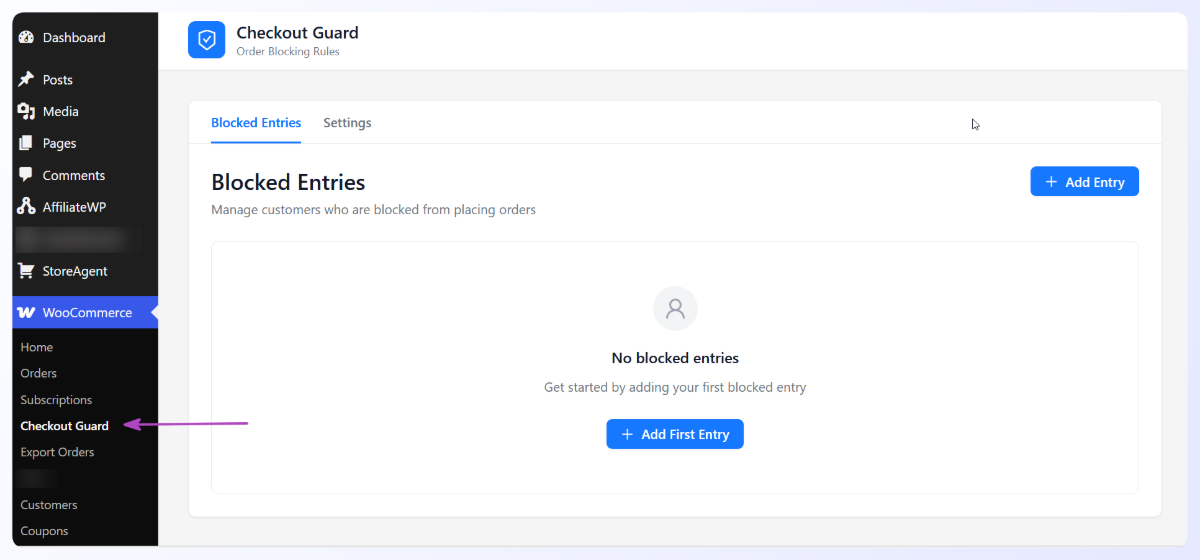
On the Blocked Entries tab, click Add Entry to open the Add Blocked Entry dialog. Enter the identifying details available from the offending order. You can block an exact Email Address or IP Address, or enter both the customer’s First Name and Last Name to create a name match. At least one type of identifying information is required to save the entry. You can also add a short note explaining why it was created.
Step 3: Review your list and set the denial message
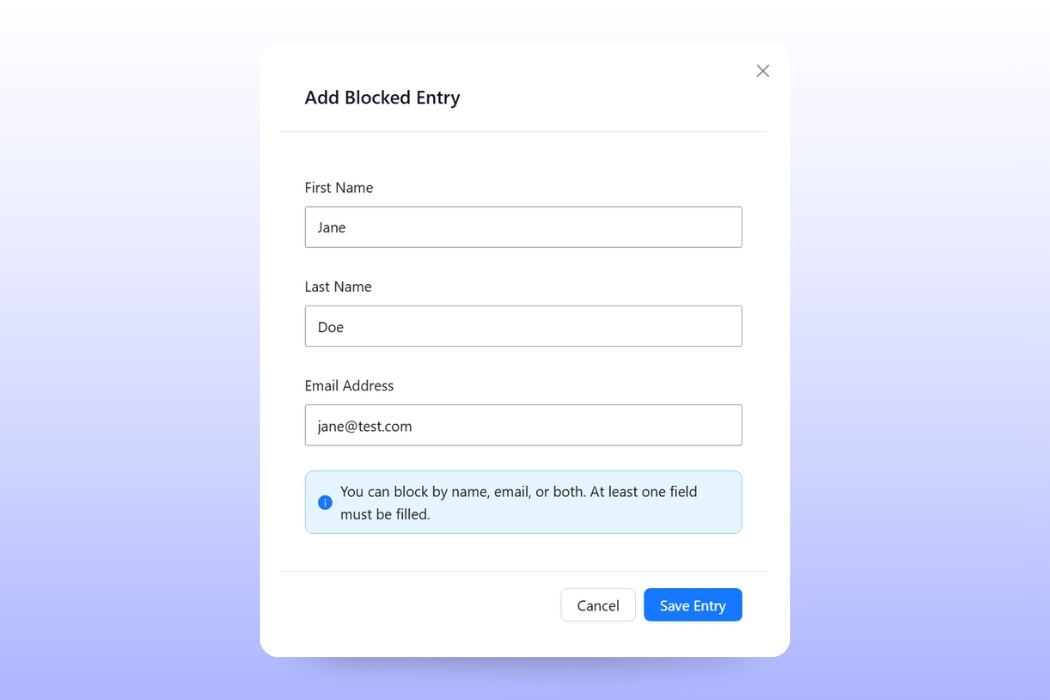
Back on the Blocked Entries tab, your list shows everyone you’ve blocked, so you can review it, edit an entry, or remove anyone added by mistake.
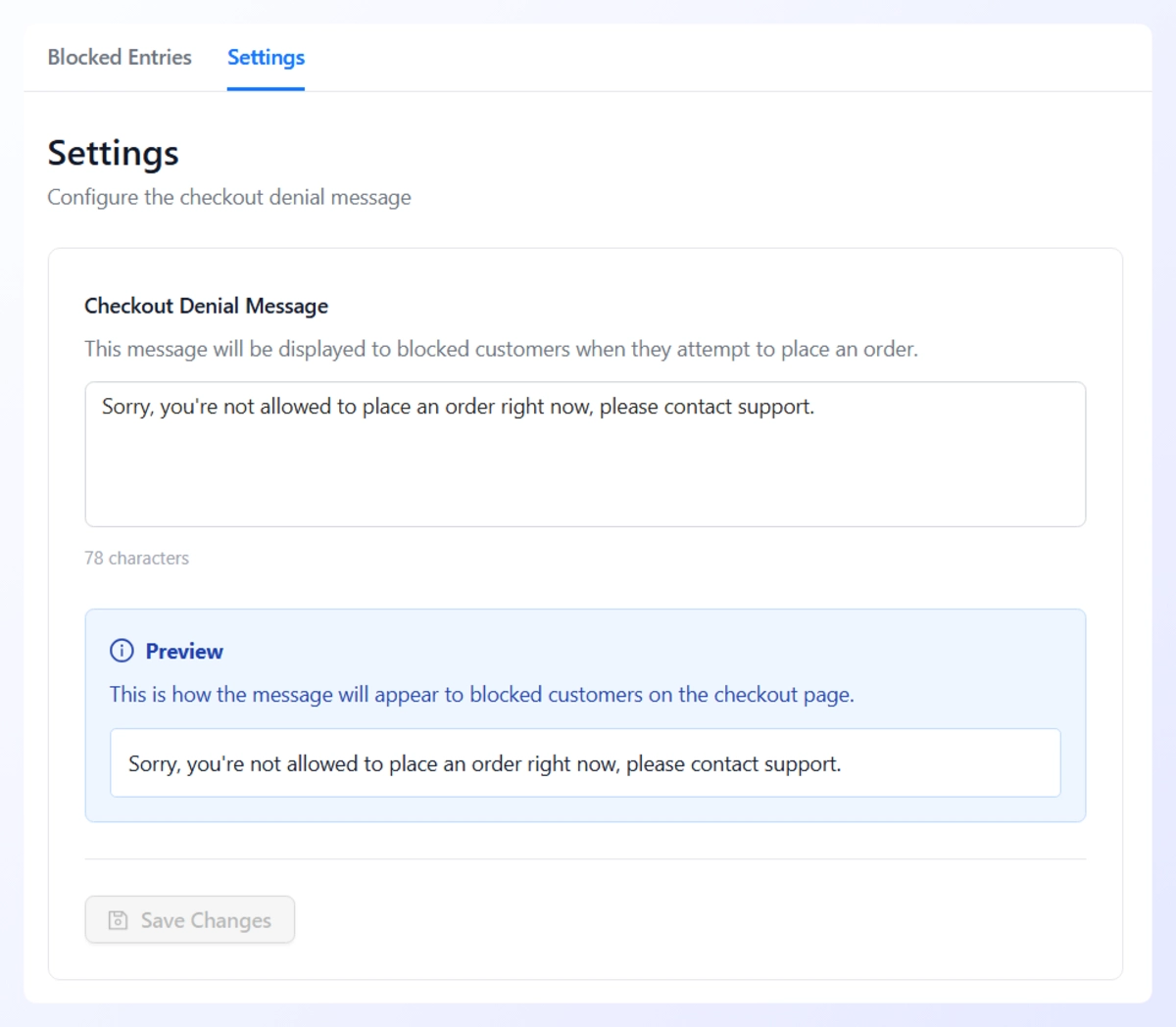
Then open the Settings tab and set the Checkout Denial Message, which appears when a checkout attempt matches one of your blocked entries. You can update this message whenever your store’s needs change.
How Advanced Coupons And Checkout Guard Work Together
Advanced Coupons and Checkout Guard address two related parts of coupon abuse. Advanced Coupons helps you control how a promotion can be used through limits, restrictions, and expiry dates. Checkout Guard gives you a separate way to refuse checkout attempts that match the details of a known repeat offender.
Start by strengthening the coupon itself so the offer is harder to misuse. If the same customer continues placing orders after those controls are in place, you can add their verified details to Checkout Guard. Together, these tools help you keep promotions available to genuine shoppers while responding more directly to repeated abuse.
For more ways to protect your promotions, see our guide on how to prevent coupon fraud and abuse.
Frequently Asked Questions
What counts as coupon abuse in WooCommerce?
Coupon abuse happens when someone uses a discount beyond the limits or audience it was intended for. Examples include repeatedly redeeming a one-time code through different email addresses, publicly sharing a private offer, combining discounts that were not meant to be used together, or placing repeated orders to claim the same reward. This can lead to WooCommerce spam orders when the same pattern continues across multiple purchases or customer details.
Can coupon usage limits stop a determined abuser?
Usage limits can prevent straightforward repeat redemptions and should be part of a carefully planned coupon setup. Per-customer limits, total redemption caps, product restrictions, and expiry dates all help reduce misuse. However, a shopper may still return under different details or place orders without the coupon. When you have identified a specific repeat offender, Checkout Guard lets you address that customer separately from the promotion.
How is blocking a person different from a coupon restriction?
A coupon restriction controls how a discount can be used, including who qualifies, how often it can be redeemed, and which products or cart conditions apply. Checkout Guard works at the checkout level. When the details entered during checkout match a blocked entry, the order is refused even if no coupon is being used. Restrictions protect the promotion, while the block list helps you respond to a known repeat offender.
Will Checkout Guard block my legitimate customers?
Checkout Guard only applies the blocked entries you create, so the accuracy of your list matters. Use verified, specific customer details and avoid relying on a broad identifier when a more precise one is available. The plugin does not assign risk scores or automatically decide who looks suspicious; it follows the matching rules you have set.
Does Checkout Guard work with the WooCommerce Checkout Block?
Yes. Checkout Guard supports both the WooCommerce Checkout Block and the classic shortcode checkout. When a checkout attempt matches a blocked entry, the order is refused and your custom denial message is shown.
Stop Coupon Abuse Before It Creates More Spam Orders
Coupons should support your sales strategy, not create a stream of orders you have to clean up. When coupon abuse leads to WooCommerce spam orders, start by tightening the promotion’s limits and restrictions. Then use Checkout Guard when you need to stop a known repeat offender whose details you can identify.
Quick recap:
- Spot the pattern: look for repeated orders tied to the same promotion or customer details.
- Strengthen your coupon rules: set usage limits, restrictions, and expiry dates that match the offer.
- Identify repeat offenders: separate a known customer problem from a coupon-setting problem.
- Use Checkout Guard: add verified customer details to a manual block list.
- Review your setup: keep your blocked entries and checkout message up to date.
- Use both tools together: protect the promotion first, then address known repeat abuse.
If your coupon rules are already in place and the same customer keeps returning, see how Checkout Guard helps stop WooCommerce spam orders using a block list you control.