When shoppers click on a discount, they’re usually ready for one thing: to see the offer and use it easily. But if they land on your homepage, browse around, and still have to search for the coupon code, that excitement can turn into friction fast. That’s where a coupon landing page can help.
Instead of scattering your deals across ads, emails, banners, and product pages, you can bring your active promotions into one clear place. Shoppers can see what’s available, choose the offer that fits, and claim the discount through a URL coupon link without typing a code manually.
In this guide, we’ll walk through how to build a WooCommerce coupon landing page using Advanced Coupons. You’ll learn how to create URL coupons, structure your deals page, highlight featured products with sale badges, and use the page as a cleaner destination for email campaigns, social ads, affiliate links, and other promotions.
What Is A Coupon Landing Page (And Why Your Store Needs One)
A coupon landing page is a single, dedicated page on your WooCommerce store where shoppers can see active promotions in one place and claim discounts through URL coupon links. Instead of scattering promotions across different pages, you give customers a single destination that removes guesswork and friction from the buying process.
How coupon landing pages reduce cart abandonment
Manual coupon entry is one of the biggest friction points in online checkout. When customers see a “coupon code” field at checkout and don’t have a code handy, many will leave your site to search for one. Some never come back.
According to Baymard Institute, the average documented online cart abandonment rate is 70.22%. Their research also found that 18% of U.S. online shoppers have abandoned an order because checkout was too long or complicated, and that the average large-scale ecommerce site can gain a 35.26% increase in conversion rate through better checkout design. A coupon landing page supports the same goal by removing one extra step from the promotion flow: instead of making shoppers find and type a code, you can send them to a deal link that applies the discount when clicked.
Use cases: email campaigns, social ads, affiliate links
A coupon landing page becomes the universal destination for every marketing channel you run. In email campaigns, you embed the URL coupon link in your call-to-action button so recipients click and the discount applies without any manual entry. For social media ads, you use the URL coupon link as the ad destination so there’s less friction between seeing the ad and getting the discount. Affiliate partners can also share partner-specific URL coupon links if you create a separate coupon for each partner, which makes redemption tracking cleaner.
The page works because the URL itself carries the discount. Wherever you share that link, the coupon follows.
How To Build A WooCommerce Coupon Landing Page (Step By Step)
To build a coupon landing page, you need three simple pieces: coupons configured in Advanced Coupons, URL coupon links for each promotion, and a WordPress page that brings the offers together.
Step 1: Create your coupons in Advanced Coupons
Start by setting up the promotions you want to feature on your deals page. This might include percentage discounts, BOGO deals, free shipping offers, or cart-based discounts.
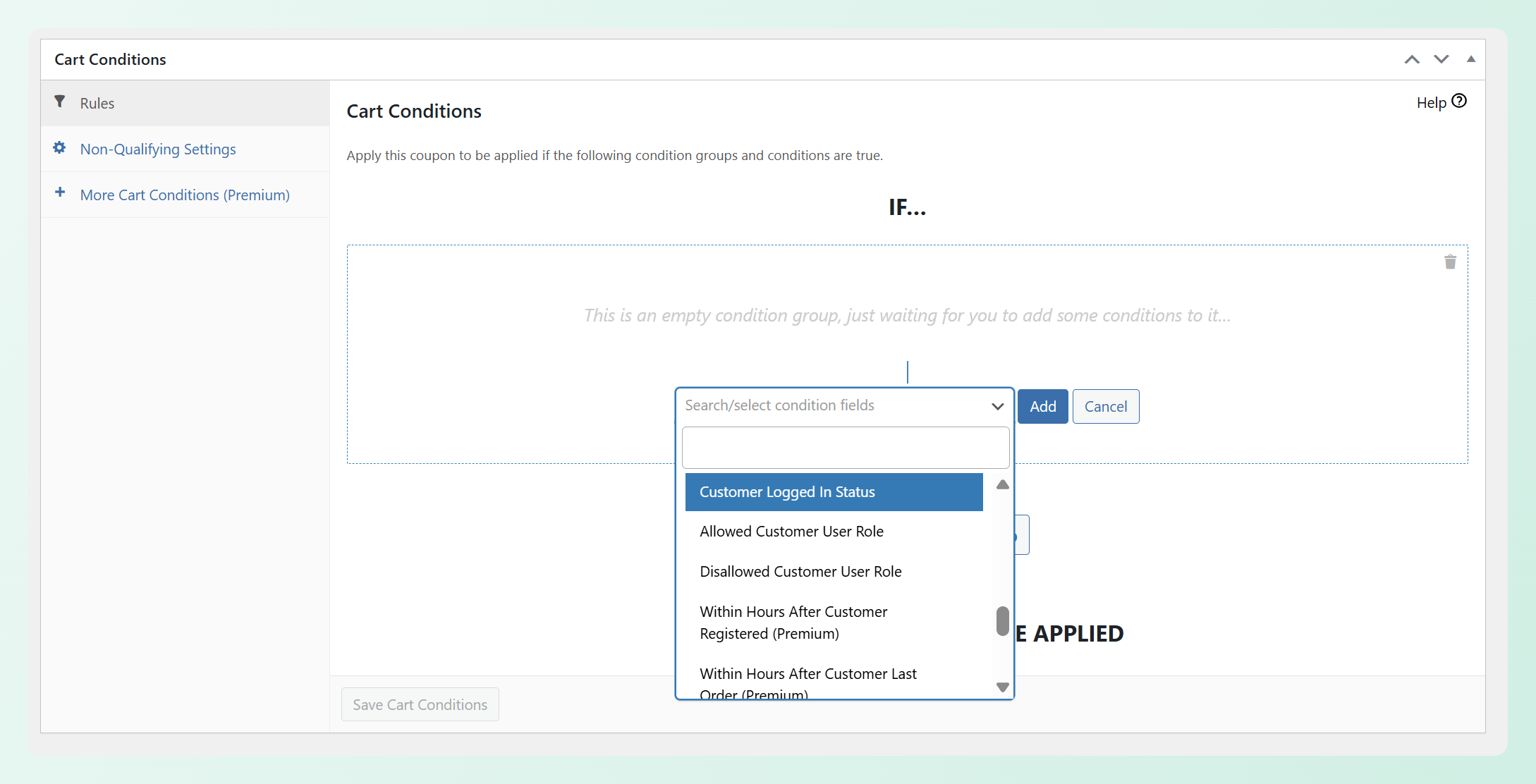
In your WordPress dashboard, go to Coupons > Add New to create a new coupon for each promotion. With Advanced Coupons installed, you’ll see additional coupon settings and tabs, including Cart Conditions. This is where you can control when each coupon applies. For example, you can require a minimum cart subtotal or restrict the coupon to specific product categories.
A practical starting point is to feature a few promotions with different appeal: one percentage-based discount for general shoppers, one BOGO deal for specific products, and one free shipping offer to lower the perceived cost barrier. This gives different shoppers more than one reason to click through.
Step 2: Generate URL coupons for each promotion
URL coupons are unique links that apply a discount when a customer clicks them. It’s a built-in feature of Advanced Coupons, available in the free version. When you create a coupon with the plugin installed, a unique URL is automatically generated for that coupon. You can copy this URL and use it anywhere: buttons, links, emails, blog posts, and social media.
In the coupon editor, scroll down to the Coupon data panel and open the URL Coupons tab. From there, check Enable Coupon URL. Advanced Coupons will generate a unique Coupon URL for that promotion, which you can copy and use in buttons, emails, ads, blog posts, or social media. When a customer clicks that link, Advanced Coupons can apply the coupon without the shopper typing a code manually.
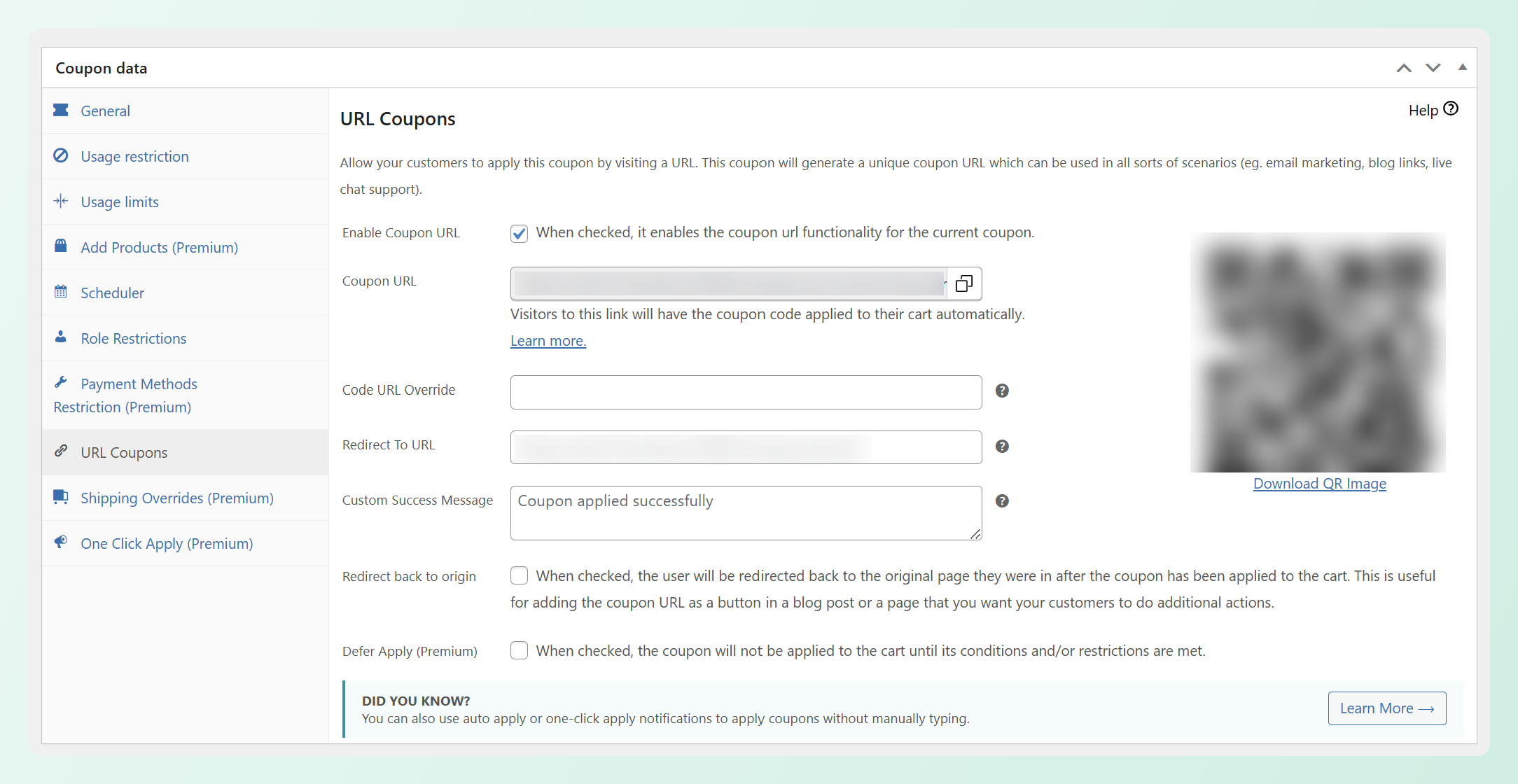
When a shopper clicks a URL coupon link, Advanced Coupons attempts to apply the coupon automatically. If the coupon’s requirements are met, the shopper does not need to type a code manually, which keeps the promotion flow much smoother.
Step 3: Build the deals page in WordPress
Create a new page in WordPress using the block editor. This page will be your centralized coupon landing page where all active promotions live.
Organize the page with clear sections for each promotion. Use headings to label each deal (for example, “20% Off All Summer Styles” or “Buy 2, Get 1 Free on Accessories”). Under each heading, add a brief description of the promotion, the products it applies to, and a product grid or product images. The most important element is the call-to-action button for each promotion. Each “Shop This Deal” button should link to that promotion’s URL coupon so shoppers can claim the discount without typing a code manually.
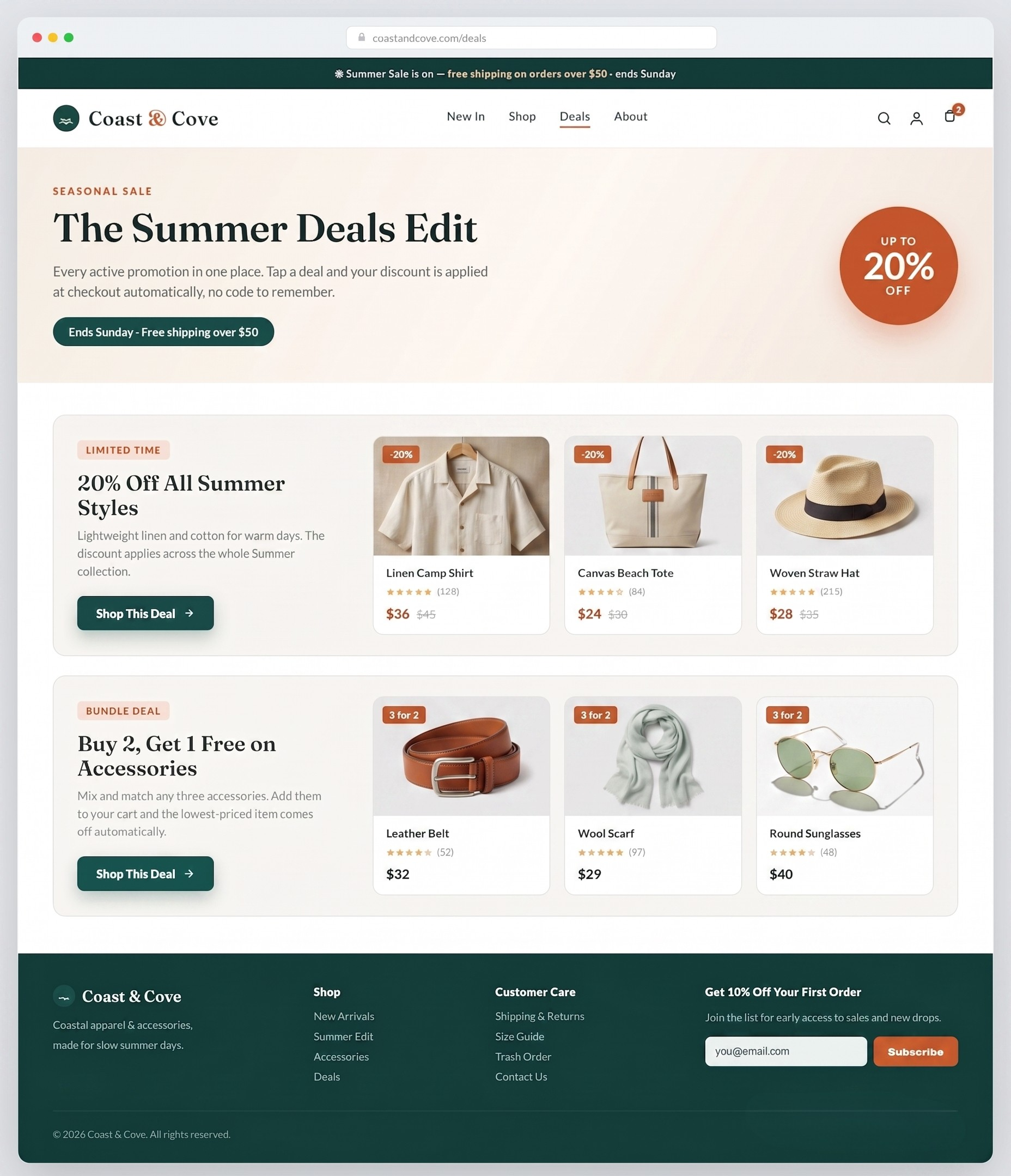
Keep the page structure simple. A heading, a short description, product images, and a CTA button for each promotion. Shoppers visiting a deals page want to scan quickly and find something relevant.
Step 4: Add sale badges to featured products
Sale badges make deal products visually stand out on your coupon landing page and across your store. Advanced Promo Kit is part of the Advanced Coupons family of tools, and it’s designed to help WooCommerce stores create custom sale badges and product labels without CSS or coding. You can choose from multiple shapes and layouts, customize colors and backgrounds, and even add animations to highlight specific deals.
A useful feature here is smart condition groups. Instead of manually adding badges to individual products, you can automate which products display a badge based on conditions like product tags, stock quantity, discount percentage, or even “new arrival” timing. This makes your deals page easier to maintain as promotions change. For more on setting this up, see the guide on adding sale badges and product labels to your WooCommerce products.
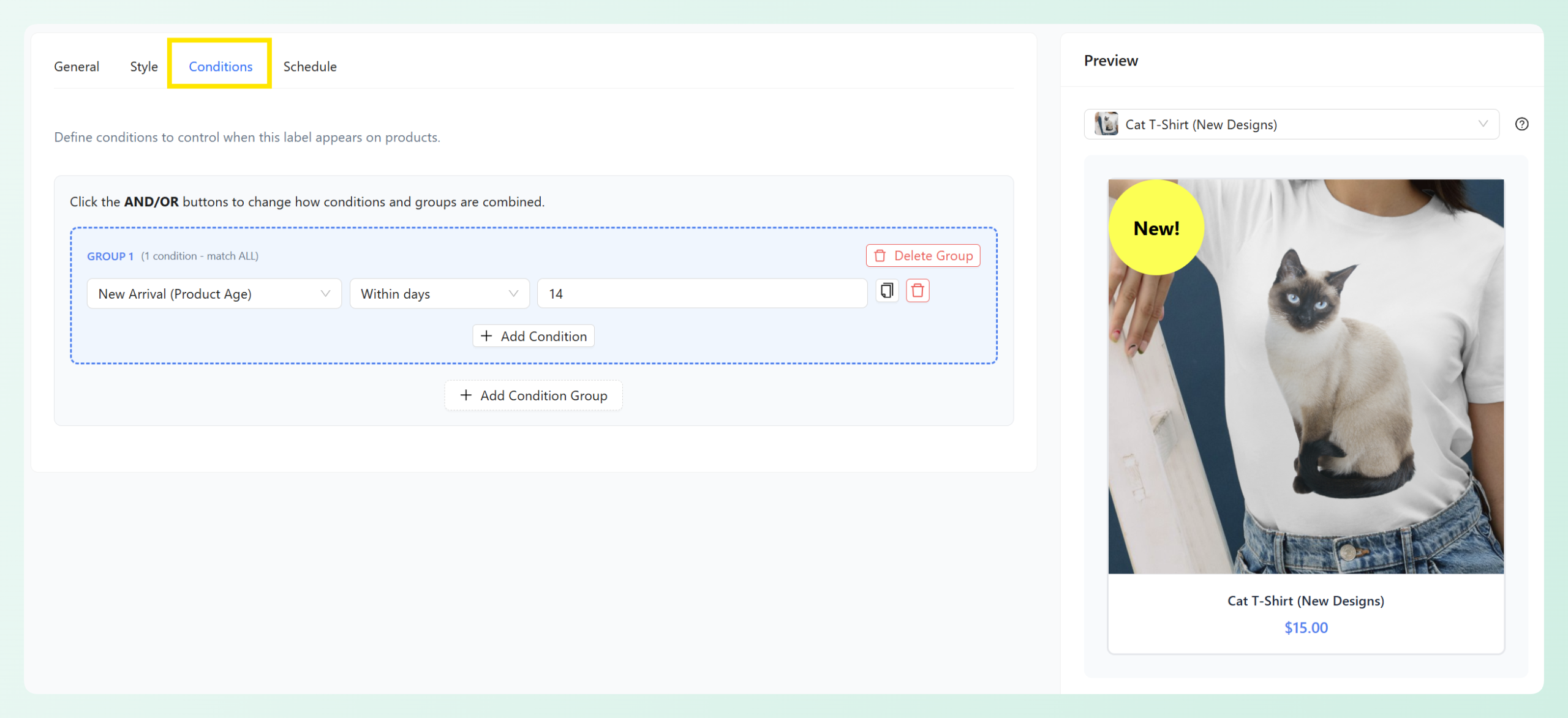
🎯 Quick tip: One common mistake is building a deals page and forgetting to remove expired promotions. A coupon landing page with dead coupons can hurt trust because shoppers may click a deal, reach checkout, and find that the offer no longer works. Set calendar reminders to update the page whenever a promotion ends, or use Advanced Coupons’ scheduled coupons feature so expired deals auto-deactivate.
Design Best Practices For A High-Converting Deals Page
The layout and visual design of your coupon landing page directly affect how many visitors convert. A cluttered or confusing page sends shoppers away; a clean, scannable page keeps them engaged.
Layout and visual hierarchy
Structure the page so the highest-value promotions sit at the top. Use clear section headers for each deal, product images that show the discounted items, visible pricing with the discount highlighted, and prominent CTA buttons. Each promotion section should follow the same visual pattern so shoppers can scan the entire page quickly without re-learning the layout.
A stronger approach is to give each promotion its own section with a clear offer, supporting product details, and a visible CTA. Backlinko’s landing page statistics roundup also points to clear CTAs and simple copy as important conversion factors, which fits the way a deals page should be structured: easy to scan, easy to understand, and easy to act on.
Urgency and scarcity elements
Adding time-based urgency to your deals page encourages faster decisions. Display countdown timers for promotions with firm end dates, “limited stock” indicators for products running low, and “ends soon” labels next to seasonal campaigns. These elements give shoppers a reason to buy now rather than bookmarking the page for later.
For time-sensitive promotions, consider combining your coupon landing page with flash sale techniques. You can learn more about running a WooCommerce flash sale to add urgency to specific deals on your page.
Mobile optimization
According to Firework’s mobile commerce report, 78% of global ecommerce traffic now comes from mobile devices. Your coupon landing page needs to work flawlessly on phones and tablets.
Use a single-column layout on mobile so promotions stack vertically. Make CTA buttons large enough to tap easily with a thumb (at least 44px by 44px). Compress images so the page loads fast on cellular connections. Test the URL coupon links on a mobile device to confirm they apply the discount correctly on smaller screens.
How To Drive Traffic To Your Coupon Landing Page
A well-built coupon landing page only works if people find it. Once the page is live, you need to actively drive traffic from multiple channels.
Email campaigns
Embed URL coupon links directly in your promotional emails. When subscribers click the CTA button in your email, they can claim the offer without typing a code manually. This works well for welcome series emails, seasonal campaign emails, and VIP-exclusive deals for your best customers. The key is using the URL coupon link as the button destination rather than linking to a generic page and asking the customer to remember a code.
Social media ads
Use the URL coupon link as the destination URL in your social media ads. Whether you’re running ads on Facebook, Instagram, or Pinterest, the customer can click the ad and claim the discount without copying a code from the ad creative. This is especially useful for retargeting campaigns where you’re showing deals to visitors who already browsed your store.
On-site navigation
Don’t hide your deals page behind search or deep menu structures. Add a “Deals” or “Current Promotions” link to your main navigation menu, your footer, and your announcement bar. Repeat visitors should always be able to find current promotions with one click. For deeper strategies on promoting deals across your store, see the guide on coupon marketing strategies.
Channel comparison: how to use your coupon landing page
- Email campaigns: Embed the URL coupon link in CTA buttons so recipients can claim the offer without typing a code.
- Social media ads: Use the URL coupon link as the ad destination to create a smoother path from promotion to purchase.
- Affiliate partners: Create partner-specific URL coupon links when needed. This makes it easier to compare redemptions by partner.
- On-site navigation: Add a “Deals” page to your menu and footer so repeat visitors can find current promotions.
- QR codes (print/packaging): Generate a QR code pointing to the URL coupon link so offline shoppers can claim the offer online.
Conversion Optimization Tips For Your Deals Page
Building the page is step one. Optimizing it for higher conversion rates is an ongoing process.
Test different page layouts, CTA button copy, and promotion order. Move your highest-converting deal to the top and see if overall page revenue increases. Try different CTA text (“Shop This Deal” versus “Get 20% Off Now”) to see what drives more clicks.
Track page performance with WooCommerce analytics or Google Analytics. Look at page views, click-through rates on individual promotion links, and the coupon redemption rate for each URL coupon. These numbers tell you which deals are resonating and which need to be replaced.
Refresh the page at least monthly with new promotions. A stale deals page gives repeat visitors no reason to return. If your store runs seasonal campaigns, use Advanced Coupons’ scheduling feature to auto-activate and auto-deactivate promotions, which keeps the page fresh without manual updates every time a deal starts or ends. For more ideas on structuring promotions, read about ecommerce promotion ideas that drive sales.
Use auto-apply coupons as a fallback for your most important offers. If a customer returns later and meets the coupon’s cart conditions, auto-apply can apply the discount without requiring them to re-click the URL coupon link. Auto-apply is an Advanced Coupons Premium feature, and it helps keep eligible discounts visible when shoppers come back ready to buy.
Frequently Asked Questions
Can I auto-apply a coupon from my deals page?
Yes, as long as the shopper clicks the URL coupon link for that promotion. Advanced Coupons’ URL coupon feature generates a unique link for each coupon, and the discount is applied when that link is clicked. You can use these links as CTA buttons on your deals page so shoppers can claim each promotion without typing a code. URL coupons are available in the free version of Advanced Coupons.
How many promotions should I feature on a coupon landing page?
For many WooCommerce stores, three to five active promotions is a practical starting point. Too few deals can make the page feel sparse, while too many can make it harder for shoppers to choose. Focus on variety: include at least one percentage discount, one product-specific deal, and one shipping promotion.
Do I need a page builder plugin to create a WooCommerce deals page?
No. The WordPress block editor (Gutenberg) has everything you need to create a functional deals page. You can add headings, product images, text blocks, and buttons natively. If you already use a page builder, it works fine too, but it’s not a requirement.
How do I track which promotions drive the most revenue from the landing page?
Advanced Coupons tracks redemption counts for each coupon, so you can see how many times each URL coupon was used. Pair this with Google Analytics event tracking on your CTA buttons to measure click-through rates per promotion. Comparing redemption counts across coupons tells you which deals resonate most with your audience.
What happens if a customer visits the deals page but doesn’t click a URL coupon link?
The customer won’t have a discount applied through the URL coupon link. URL coupons only activate when that specific link is clicked. If you want a safety net, you can enable Auto Apply in Advanced Coupons Premium for your most important coupons, so eligible discounts apply when shoppers meet your coupon conditions.
Should I create a new deals page for each promotion or use one permanent page?
Use one permanent page and update it with current promotions. A single, permanent URL is easier to share, link to in emails, include in navigation menus, and support with internal links over time. Just keep the content fresh by swapping out expired deals for new ones.
Start Building Your WooCommerce Coupon Landing Page
A dedicated coupon landing page gives your WooCommerce store a single destination for active promotions and removes the friction of manual coupon entry. When paired with URL coupons that apply discounts when shoppers click, the page becomes a useful destination for email campaigns, social ads, affiliate links, and on-site promotions.
Here’s what to do next:
- Create your coupons and generate URL coupon links
- Build the deals page with sale badges
- Drive traffic from email, social, and on-site navigation
- Optimize the page with A/B testing and monthly refreshes
Ready to build a coupon landing page that makes your offers easier to claim? URL coupons and coupon scheduling are available in Advanced Coupons for free, while Advanced Coupons Premium adds Auto Apply for discounts that apply when shoppers meet your coupon conditions. Check out Advanced Coupons pricing to find the plan that fits your store.