
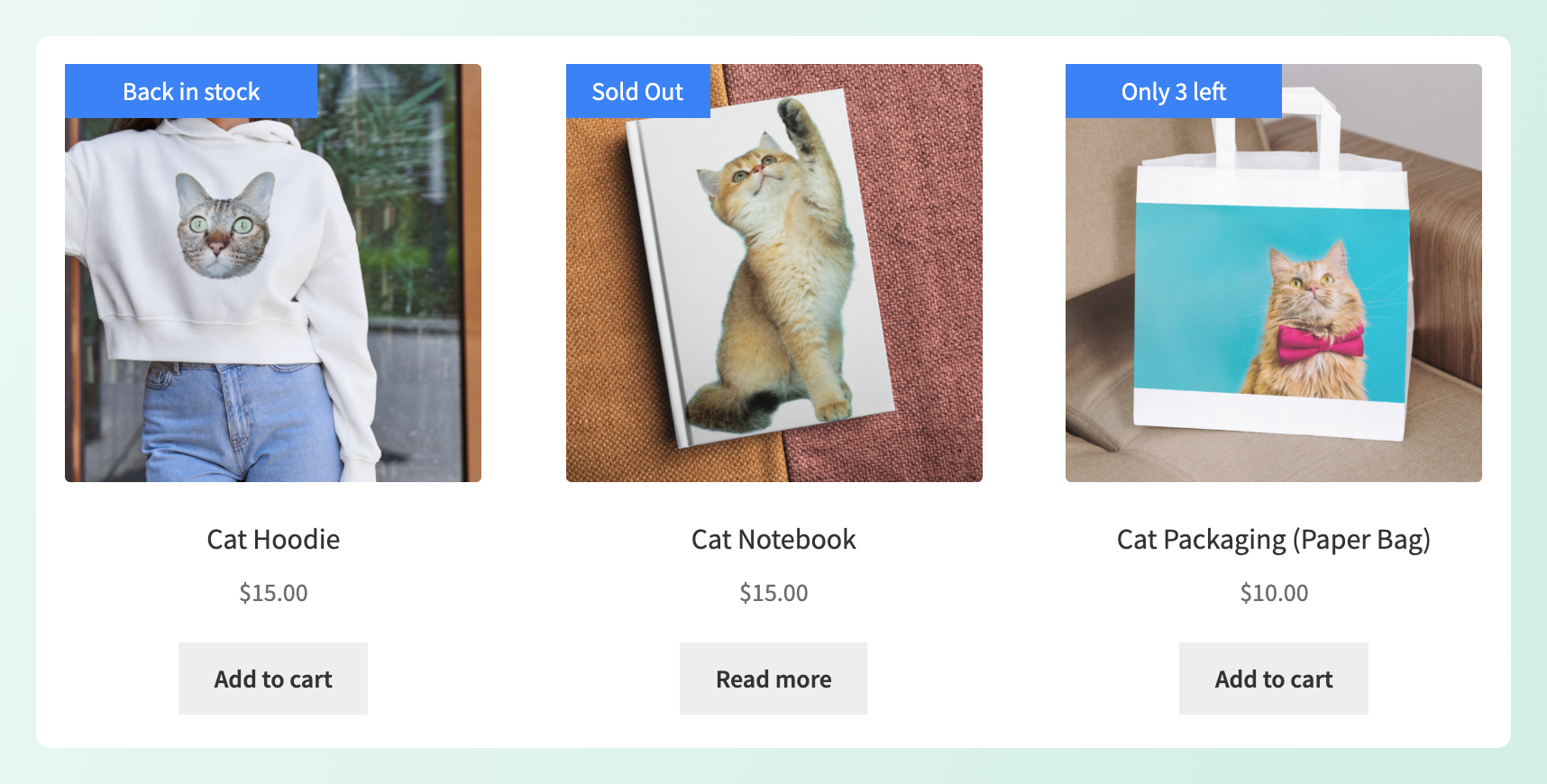
A WooCommerce sold out badge makes product availability clear before shoppers have to wonder why they can’t add an item to their cart. The same idea applies when stock is running low or has just returned: a clear label tells shoppers what’s happening at a glance.
That clarity can prevent confusing dead ends and make genuine low-stock urgency easier to notice.
We’ll build three useful stock labels: a sold out badge, a low stock badge with a threshold you choose, and a back in stock label. You can set them up without snippets or a child theme.
Why Stock Badges Change Buying Behavior
Stock badges help because they answer a question shoppers already have: is this product available right now? Online shoppers rely on the store to make that status clear.
The cost of staying quiet is measurable. According to Baymard Institute’s research on out-of-stock products, when users are simply told an item is out of stock, 30% are likely to abandon and look for the product elsewhere. The same benchmark found 68% of e-commerce sites don’t let shoppers order a temporarily out-of-stock item at all, which can turn an inventory gap into a lost customer.
Scarcity cuts the other way when you show it early. A 2023 experiment published in the Journal of Distribution Science compared limited-quantity and limited-time scarcity messages across 108 participants and found the limited-quantity version produced higher purchase intention. Small study, one product category, so treat it as a nudge in favor of quantity wording rather than proof.
Online shopping also represents a meaningful share of retail. The US Census Bureau put second-quarter 2026 retail e-commerce at 17.1% of total US retail sales, growing 12.2% year over year against 6.7% for retail overall.
One warning before you build anything. A label reading “Only 2 left” on a product with 200 units in the warehouse is misleading and can weaken trust in future badges. Tie the label to the real stock number so the message stays believable. For the broader case, see how product labels increase conversions.
Snippet, Single-Purpose Plugin, Or Rule-Based Labels?
There are three common approaches worth comparing: custom code, a dedicated sold-out plugin, or a rule-based label system. The right fit depends on how much flexibility you need beyond a simple sold out message.
A snippet can be free and fast, but it also depends on theme hooks that can change. A theme update may move the hook, duplicate the badge, or remove it from the expected spot. Basic snippets may also stop at is_in_stock(), which means no quantity threshold unless you build that logic yourself.
A single-purpose sold-out plugin can be more durable, but its feature set may stop at that one status. If it doesn’t support quantity thresholds, you’d need code or another tool for a message like “Only 4 left.” Our comparison of WooCommerce label plugins for promotions shows how five options handle display rules and conditions.
Rule-based labels take a different approach. You define a condition once, and matching products can get the badge automatically, including products you add later. The same engine reads stock, price, product age, and category, so you can build stock-aware labels with the same rule system that highlights bestsellers and new arrivals.
What Advanced Promo Kit Does With Stock Status
Advanced Promo Kit is a label and badge plugin for WooCommerce that runs on rules rather than snippets. WooCommerce is the only plugin it requires, so you can build every label in this guide with Advanced Promo Kit on its own. If you also run the free Advanced Coupons plugin, an optional integration lets your labels pull in coupon, BOGO, and cashback details as well.
Labels come in two shapes. Global labels live in the Promo Kit menu and apply to every product that matches their conditions. Product-specific labels are configured on a single product, and they carry a switch to exclude global labels on that product so a one-off message doesn’t collide with your store-wide rules.
Four of the plugin’s conditions read stock:
- In Stock, Out of Stock, On Backorder: each takes an “is” or “is not” operator, so a rule can fire on a status or on everything except that status.
- Stock Quantity: takes Equals, Not equals, Greater than, Greater than or equal, Less than, and Less than or equal, which is what makes a threshold label possible.
- Condition groups: every condition and every group carries its own AND/OR operator, evaluated left to right. The default is AND inside a group and OR between groups.
- Dynamic placeholders: badge text accepts a variable such as
{stock_quantity}, inserted from the Variable: Product panel, and a label whose placeholder resolves to empty is hidden automatically.
If you’ve never built a label here before, start with the basics of how to create custom product badges in WooCommerce, then come back for the stock conditions. Here’s what the three labels look like once they’re built:
| Label | Condition(s) | Badge text | Notes |
|---|---|---|---|
| Sold Out | Out of Stock, Is | Sold Out | Give it a style that reads differently from your sale badges |
| Low Stock | In Stock Is AND Stock Quantity Less than or equal to 5 | Only {stock_quantity} left | Hides itself when the quantity is empty; check Variable Product Matching for variable products |
| Back In Stock | In Stock Is plus a Schedule window, or a product-specific label | Back in stock | There is no automatic restock detection; you schedule or toggle it |
Step 1: Add A “Sold Out” Badge
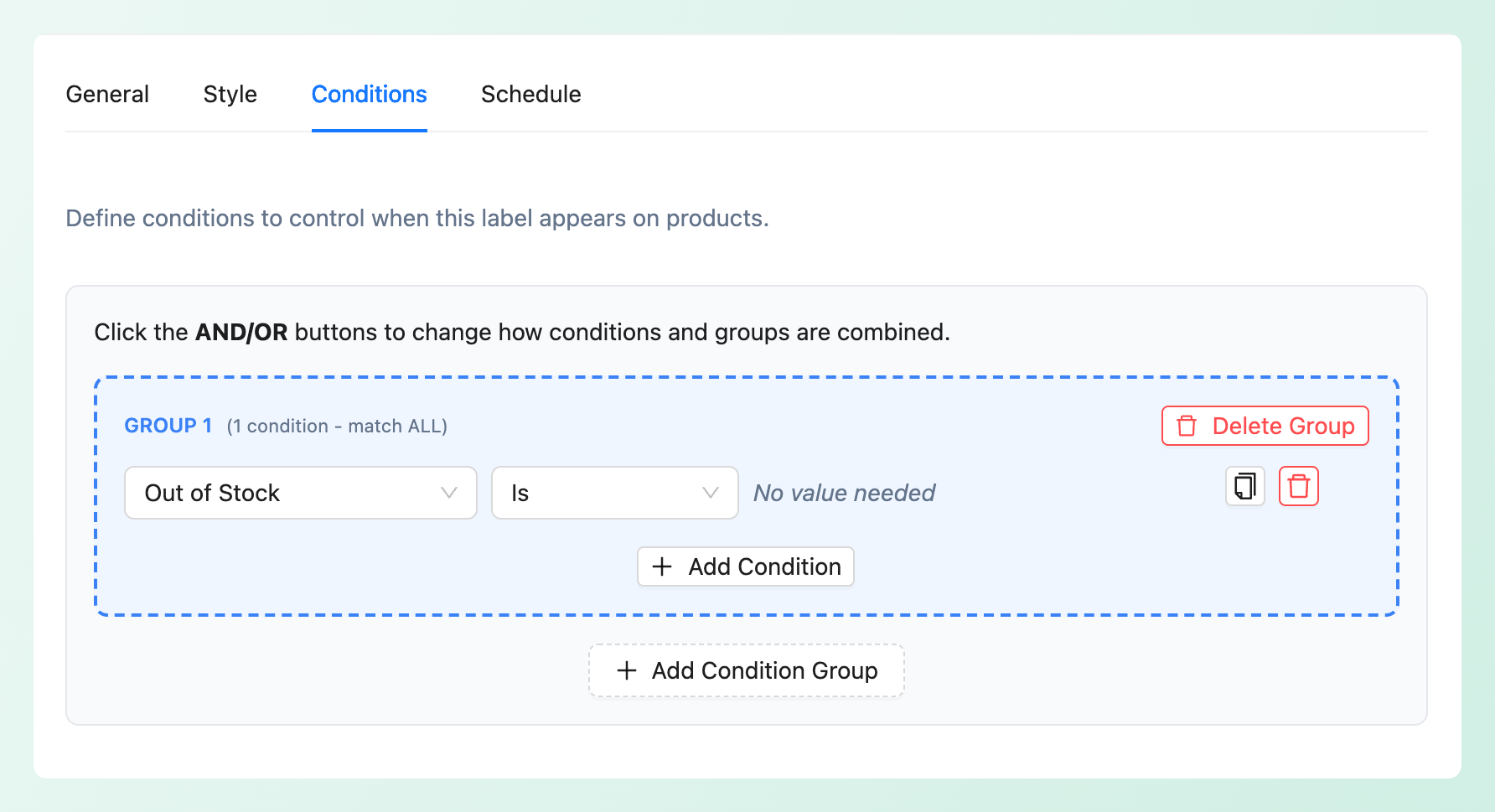
Create a global label, type “Sold Out” into Badge Label on the General tab, then open the Conditions tab and add a single condition: Out of Stock with the Is operator. It takes no value. That’s the whole rule. The badge appears on matching out-of-stock products and disappears when stock returns.
Style it so it reads as a stop sign, not a promotion. The Style tab gives you badge color, width and height, border radius, padding, opacity, rotation, gradient, and shadow, with a live preview while you edit. Text color, font size, and weight sit on the General tab beside the badge text. A muted gray or flat dark badge separates “you can’t buy this” from “this is on sale” at a glance.
Placement matters more than color here. Set the badge On Image, put it in a corner your product photography doesn’t use, then check a category grid to see how the badge reads beside other products. The full set of operators and grouping options sits in the knowledge base article on label display rules and conditions.
Step 2: Add A “Low Stock” Badge With A Threshold
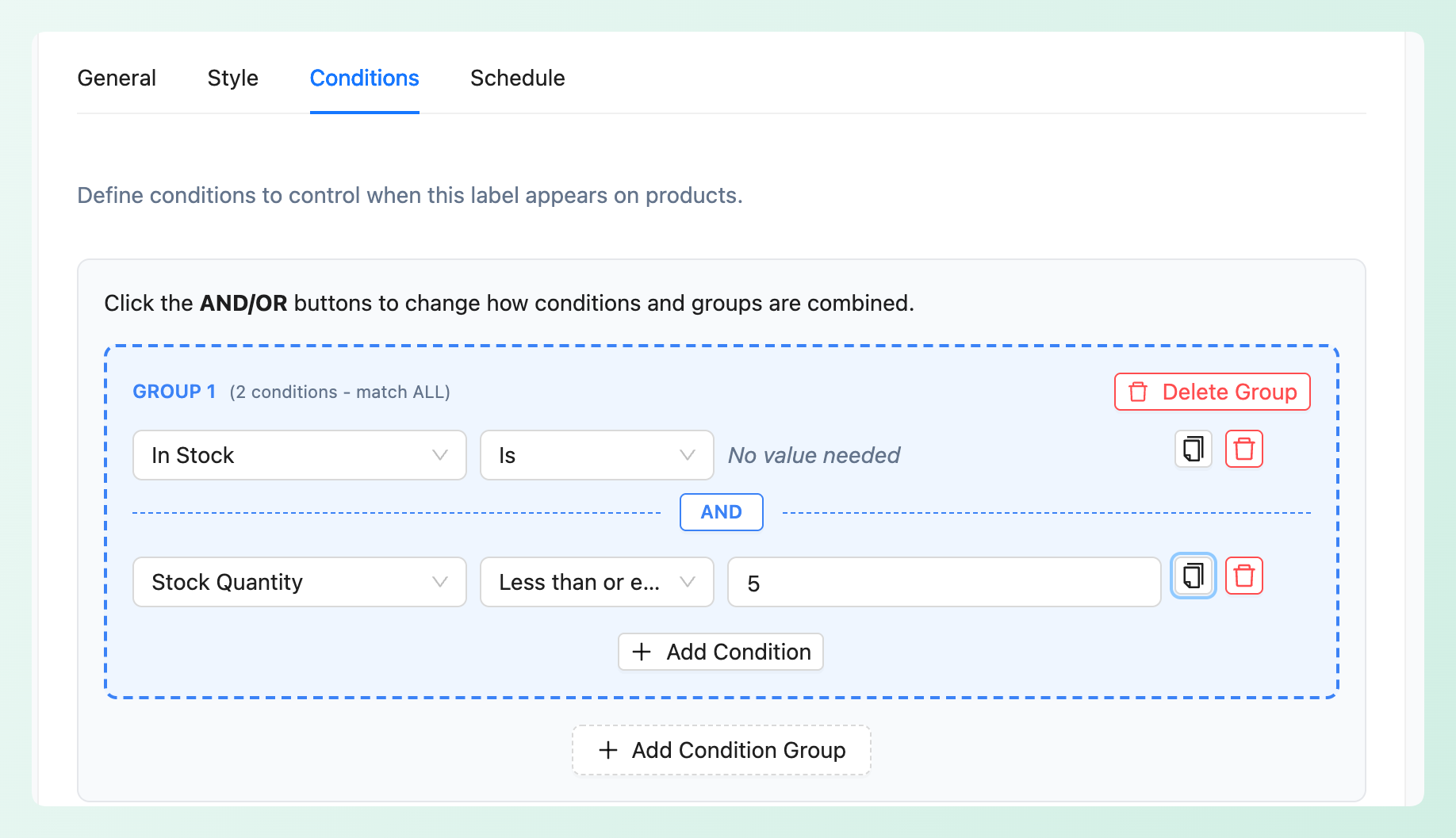
The low stock label needs two conditions in the same group: In Stock with the Is operator, AND Stock Quantity with Less than or equal and your threshold as the value. Both have to be true, which is why the group operator stays on AND. Without the In Stock half, a product sitting at zero would still satisfy “quantity is 5 or fewer” and pick up the wrong badge.
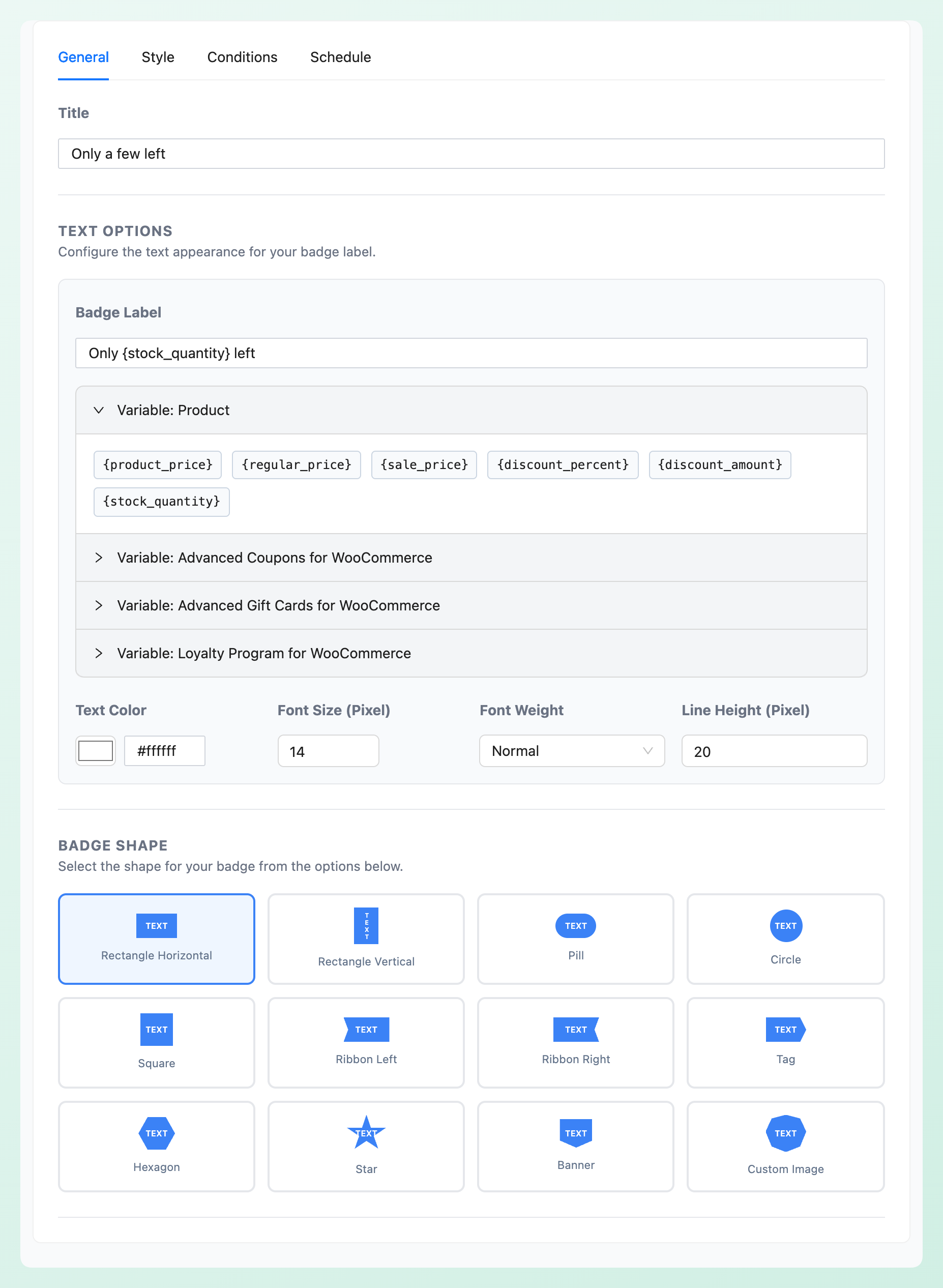
For the text, stay on the General tab and expand Variable: Product beneath Badge Label to insert {stock_quantity} so the badge counts down on its own: “Only {stock_quantity} left.” A label whose placeholder resolves to empty is hidden automatically, so products without a usable stock quantity won’t show an incomplete badge like “Only left.”
The threshold itself deserves some thought.
Set the low-stock threshold based on how quickly that product normally sells. If the threshold is too low, the badge may appear only briefly; if it’s too high, the message can stop feeling genuinely scarce. Start with a number that fits the product’s normal sales pace, then adjust it based on how often the badge appears.
Variable products need one more decision. In Settings > General, Variable Product Matching controls how a variable product is judged against Price, Stock Quantity, and Discount Percentage conditions. It defaults to “Use minimum value,” which tests the product itself; switch it to “Match any variation” and the condition fires as soon as a single variation qualifies, so a hoodie with 2 smalls and 40 larges matches a “5 or fewer” threshold on the strength of those two smalls.
One thing to know either way: {stock_quantity} reads the parent product’s stock number, so if you track inventory per variation there’s no figure for it to print and the label hides itself. For a countdown badge on a variable product, manage stock at the product level, or use fixed text like “Low stock” instead of the placeholder. The behavior is covered in the knowledge base article on dynamic placeholders.
Step 3: Add A “Back In Stock” Badge
Advanced Promo Kit doesn’t have a “recently restocked” condition. Its stock conditions are In Stock, Out of Stock, On Backorder, and Stock Quantity, so a back-in-stock badge needs to be scheduled or switched on manually instead of triggered by restock history.
You can handle this in two ways.
Method A, a scheduled global label. Build a label with the condition In Stock, Is, then use the Schedule tab to set a start date and an end date around your restock. The label hides itself outside the window with no cleanup from you. This fits a planned drop where a batch of products lands on a known day.
Method B, a product-specific label. Configure the label on the product that came back, then turn it off when the message is no longer needed. Labels can be set active or inactive, so the setup stays ready for the next restock. This works well for irregular restocks on a few products.
Use a scheduled global label when you know the restock window in advance. For irregular restocks on individual products, a product-specific label gives you more direct control.
Styling, Stacking And Scheduling Your Stock Labels
By default, up to three matching labels can appear on a product. Auto-Stack Multiple Labels is on, Maximum Labels Per Product is 3, and Label Spacing sits at 5px between stacked badges. Show on Product Detail Page is on too, and labels also render on shop, category, and tag archives.
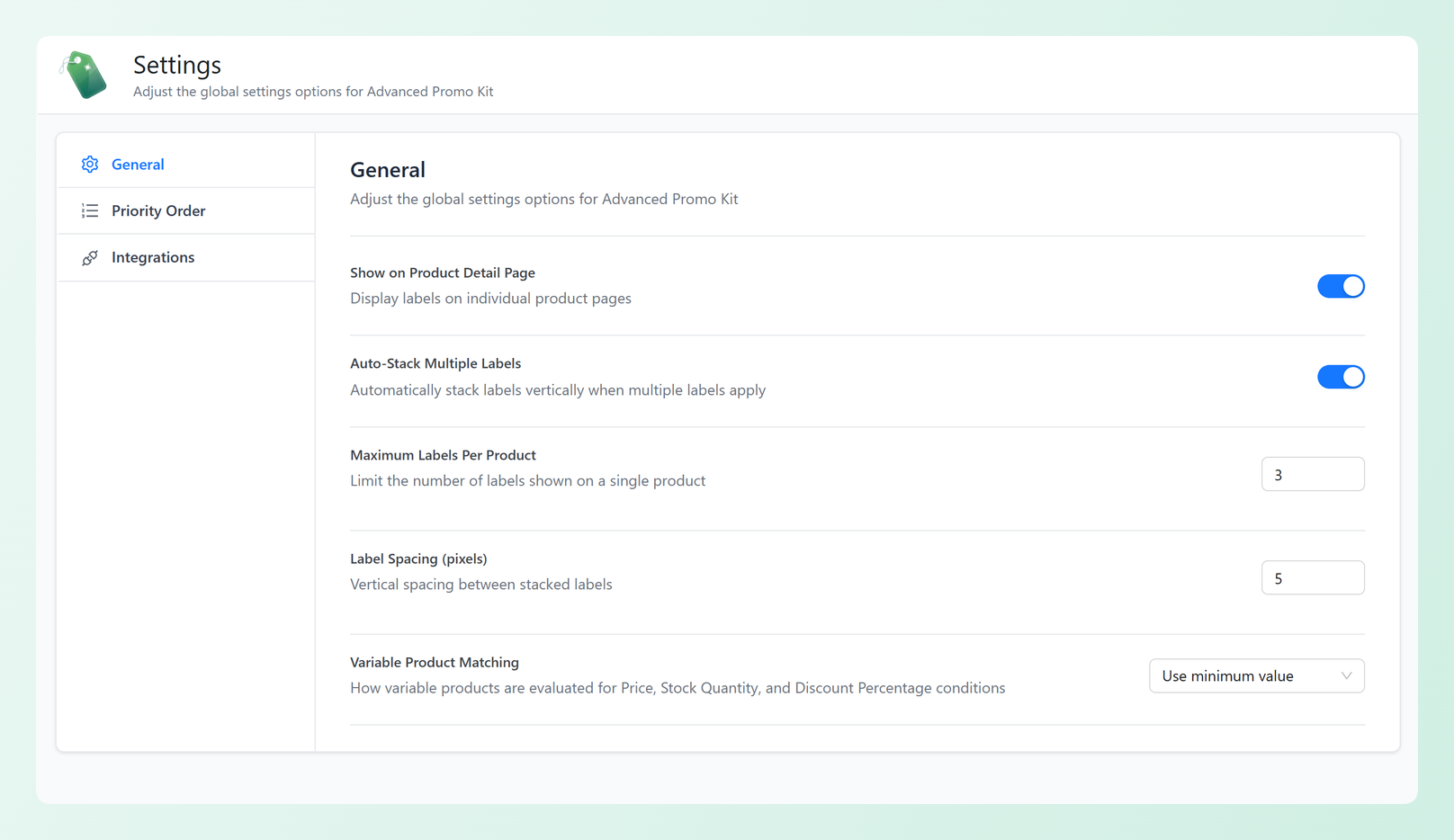
Twelve badge shapes are available: Rectangle Horizontal, Rectangle Vertical, Pill, Circle, Square, Ribbon Left, Ribbon Right, Tag, Hexagon, Star, Banner, and Custom Image for your own artwork. Each badge can sit On Image or Out of Image, in any of four corners, with pixel offsets and a horizontal or vertical text direction. Priority is set by dragging the enabled labels into order under Settings > Priority Order, where higher priority labels appear first, so a sold out badge can outrank a promotional one when both match.
Use that hierarchy deliberately. Sold out should look different from your sale badges, low stock should feel urgent without shouting, and back in stock should read as good news. If a product matches more labels than your display limit allows, priority determines which ones shoppers see first.
Frequently Asked Questions About WooCommerce Stock Badges
How do I show a WooCommerce sold out badge without code?
Use a label plugin with stock conditions. In Advanced Promo Kit you create a global label, type “Sold Out” into Badge Label, and add one condition: Out of Stock with the Is operator. The badge then appears on matching out-of-stock products and disappears when stock returns, with no template edits required.
Can I show how many items are left on a product?
Yes. Combine two conditions in one group: In Stock Is and Stock Quantity Less than or equal. Enter your threshold as the value, then put the {stock_quantity} placeholder in the badge text. The badge renders the live number, so “Only 4 left” becomes “Only 3 left” without anyone touching the label. If the quantity is empty, the label hides itself.
Do stock badges work on variable products?
They do, and one setting decides how. Variable Product Matching in Settings > General evaluates a variable product either by the product itself, which is the default “Use minimum value,” or by matching any variation. It applies to Price, Stock Quantity, and Discount Percentage conditions, so choose it before you fine-tune a threshold. Note that {stock_quantity} reads the parent product’s stock number, so if you track stock separately by size or color the placeholder has nothing to print and the label hides itself. Manage stock at the product level, or use fixed text, if you want a badge on that product.
Can WooCommerce show a back in stock label automatically?
Not from a stock condition alone. Advanced Promo Kit offers In Stock, Out of Stock, On Backorder, and Stock Quantity, with no “recently restocked” option. The workable methods are a global label with In Stock as its condition and a Schedule tab window around the restock, or a product-specific label you switch on when the stock lands.
Does Advanced Promo Kit need Advanced Coupons?
No. WooCommerce is the only plugin Advanced Promo Kit requires, and stock labels work without anything else installed. Advanced Coupons is one of three optional integrations, alongside Advanced Gift Cards and Advanced Loyalty Program, and each one simply adds more information your labels can display: coupon discounts, BOGO deals, and cashback offers in the case of Advanced Coupons. You’ll find them under Settings > Integrations. Beyond that, the plugin is designed to work with most modern WooCommerce themes and page builders.
Put Your Stock Levels To Work
Stock labels connect inventory information with what shoppers see on the storefront. As a product’s stock status or quantity changes in WooCommerce, matching labels can update with it, so shoppers get clearer availability cues without you editing each badge by hand.
Here’s the build order:
- Decide what a believable label looks like first: Why Stock Badges Change Buying Behavior
- One condition covers the dead end: Step 1: Add A “Sold Out” Badge
- Two conditions and a placeholder give you a threshold: Step 2: Add A “Low Stock” Badge With A Threshold
- Schedule it or toggle it when products come back in stock: Step 3: Add A “Back In Stock” Badge
- Set the cap and priorities so the most important labels show first: Styling, Stacking And Scheduling Your Stock Labels
Build the sold out rule first, because it’s one condition and it clears up a dead end that can send shoppers elsewhere. Then add the threshold label and let your catalog show what’s running low. Advanced Promo Kit product labels and badges lets you manage all three in the same label system.