Shipping costs are one of the biggest reasons online shoppers abandon their carts. A well-placed free shipping code can remove that friction and make it easier for customers to complete their purchase.
The challenge is that blanket free shipping on every order can eat into your margins fast. What most store owners actually need is a free shipping code that triggers only when it makes financial sense, like orders above a certain amount or during a specific promotion window.
In this guide, you’ll learn how to create a free shipping code in WooCommerce and how to make it more flexible with Advanced Coupons. We’ll also show you how to structure your offer so it supports conversions without hurting profitability.
What Is A Free Shipping Code?
A free shipping code is a coupon that removes or fully discounts delivery charges at checkout. The customer either enters the code manually or, with the right setup, it applies automatically when cart conditions are met.
In WooCommerce, free shipping codes work by connecting a coupon to a Free Shipping shipping method configured in your shipping zones. When the coupon is active and valid, WooCommerce makes the Free Shipping option available to the customer, replacing or supplementing your regular shipping rates.
There are two main approaches to setting up a free shipping code:
- WooCommerce native coupons: Use the built-in “Allow free shipping” checkbox on a coupon. This is simple and requires no extra plugins, but it offers limited control over when and how free shipping triggers.
- Advanced Coupons shipping features: Use cart conditions, shipping overrides, auto-apply, and URL coupons for more granular control. This lets you create free shipping promotions that protect your margins while still giving customers the incentive they need.
What We’ve Seen: Store owners often create a free shipping code but forget to add a Free Shipping method to their shipping zones. The coupon activates, but no free shipping option appears at checkout because WooCommerce has no method to display. Always check your shipping zone configuration first.
Why Free Shipping Codes Matter For Your Store
Free shipping isn’t just a nice perk. It directly influences whether customers complete their purchase or abandon the cart entirely.
Unexpected shipping costs are one of the biggest reasons shoppers leave without buying. That makes a well-structured free shipping code one of the simplest ways to reduce friction at checkout and improve conversions.
The business case for offering a free shipping code is straightforward:
- Lower cart abandonment: Removing the shipping surprise at checkout keeps more shoppers moving through to payment.
- Higher average order value: Setting a free shipping threshold encourages customers to add more items to qualify.
- Stronger customer loyalty: Shoppers remember stores that offer free shipping and are more likely to return.
- Competitive edge: With large marketplaces setting expectations for free delivery, a WooCommerce store that offers free shipping codes is better positioned against bigger competitors.
The key is structuring your free shipping code so it drives conversions without cutting into your profit margins. That’s where conditional logic, minimum thresholds, and smart coupon rules come in.
3 Steps To Create A Free Shipping Code With Advanced Coupons
WooCommerce can create a basic free shipping coupon on its own, but Advanced Coupons gives you more flexibility through auto-apply, cart conditions, URL coupons, and shipping-focused discount controls.
The steps below show how to build a more targeted free shipping offer using Advanced Coupons while keeping your promotion profitable.
Step 1: Set up your free shipping zone
With WooCommerce, you have the flexibility to set up multiple shipping ‘zones,’ each with its own unique rates. Offering various options can expand your reach to a wider customer base.
To create or modify these shipping zones, follow these steps:
- Navigate to WooCommerce > Settings > Shipping.
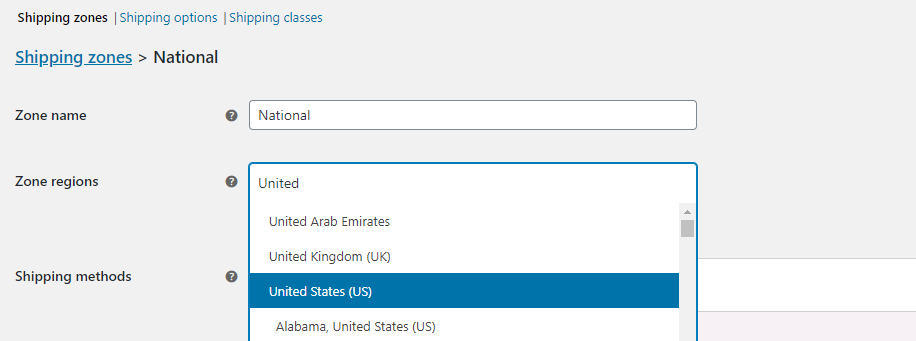
- Click on “Add shipping zone” and give it a name. Also, specify the regions it will cover:
From here, select “Add shipping method,” where you’ll find three options to choose from:
- Flat rate
- Free shipping
- Local pickup
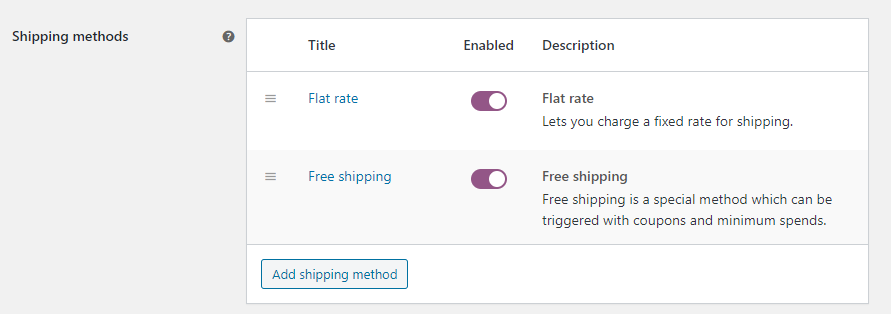
To provide both flat rate and free shipping options, select both of them. This way, customers can choose between these methods, and orders that don’t meet the criteria for free shipping will default to the standard shipping rates:
Lastly, save the changes for your designated region. Now, you’re ready to move on to creating that enticing free shipping coupon!
Step 2: Create a coupon and enable the “auto-apply” feature
Now that you’ve organized your shipping zones, let’s dive into creating your discount coupon:
Head to WooCommerce > Coupons > Add Coupon. Then, you’ll need to provide a coupon name of your choice, or you can let the system generate one for you.
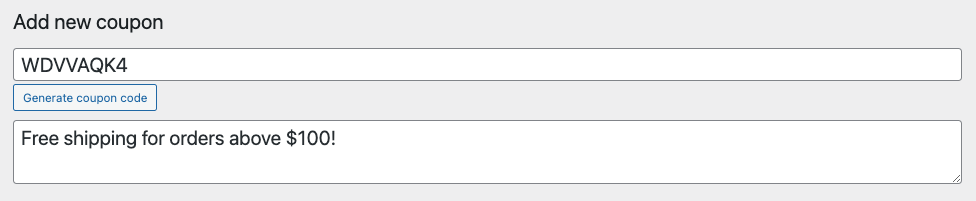
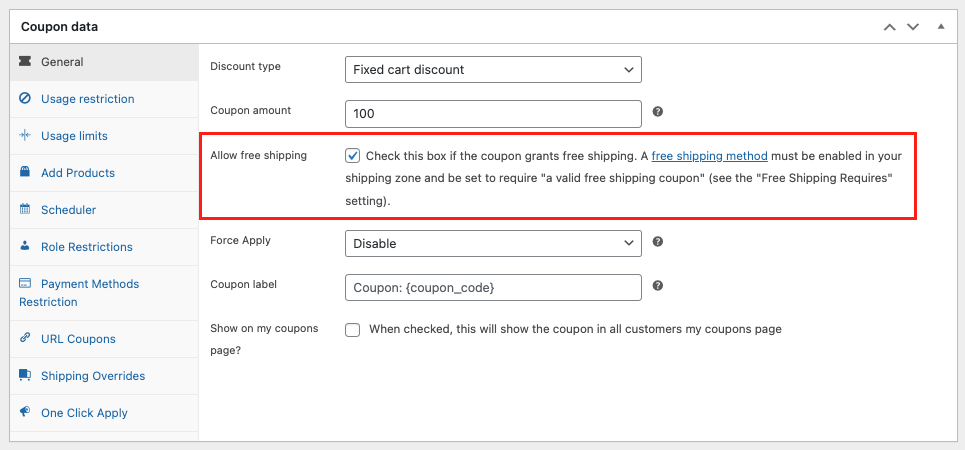
Additionally, since we’re aiming to provide free shipping, scroll down to the “General” tab under Coupon Data. In this tab, you’ll find an option labeled “Allow free shipping.”
Then, be sure to enable this option. This setup will ensure that your coupon grants customers the benefit of free shipping when they apply it during their checkout process:
Once you have that sorted, the next step is to enable the auto-apply feature:
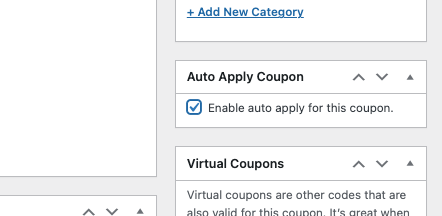
Finally, by enabling auto-apply, customers will enjoy a seamless shopping experience.
This is because the free shipping coupon will be automatically applied at checkout, sparing them the need to enter a code manually.
Step 3: Configure the coupon
Finally, it’s time to set the minimum requirements customers must fulfill to redeem the code.
As mentioned earlier, providing unrestricted free coupons can harm your business. If you’re not careful, it can result in profit losses as you will ultimately be responsible for covering the shipping costs.
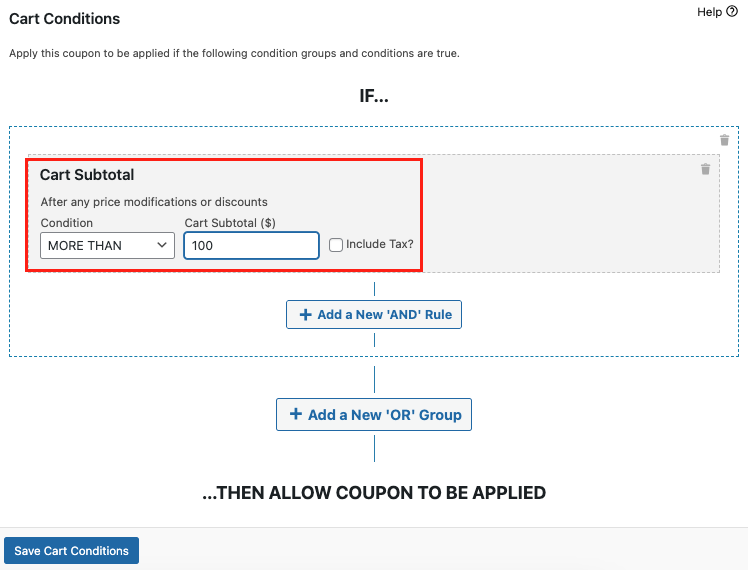
To avoid this, you must establish cart conditions to safeguard against potential misuse of your offer:
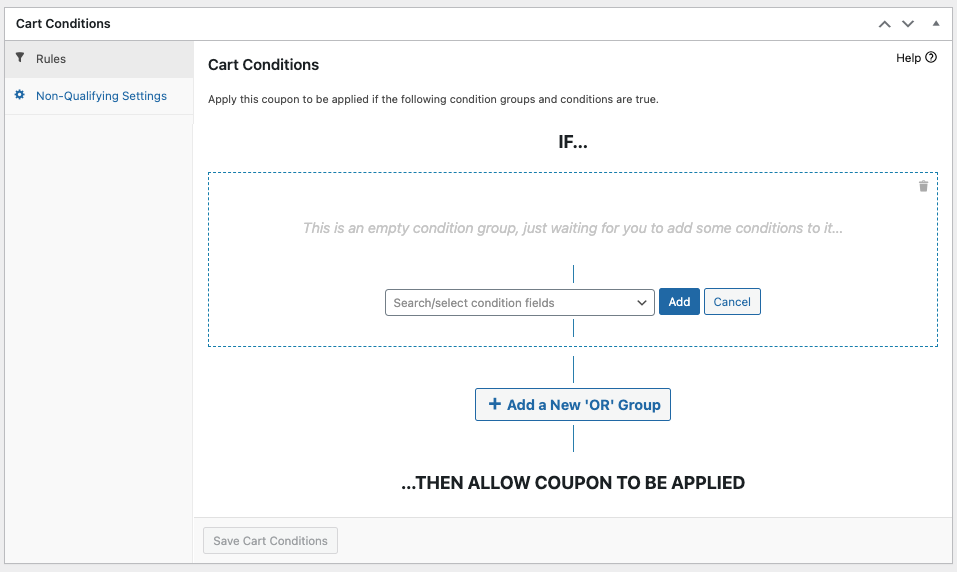
You have the freedom to explore different options. However, if you wish to provide free shipping for orders exceeding a specific value, you must choose the “Cart Subtotal” condition.
To achieve this, just pick the condition from the dropdown menu, choose “MORE THAN,” and enter the dollar amount:
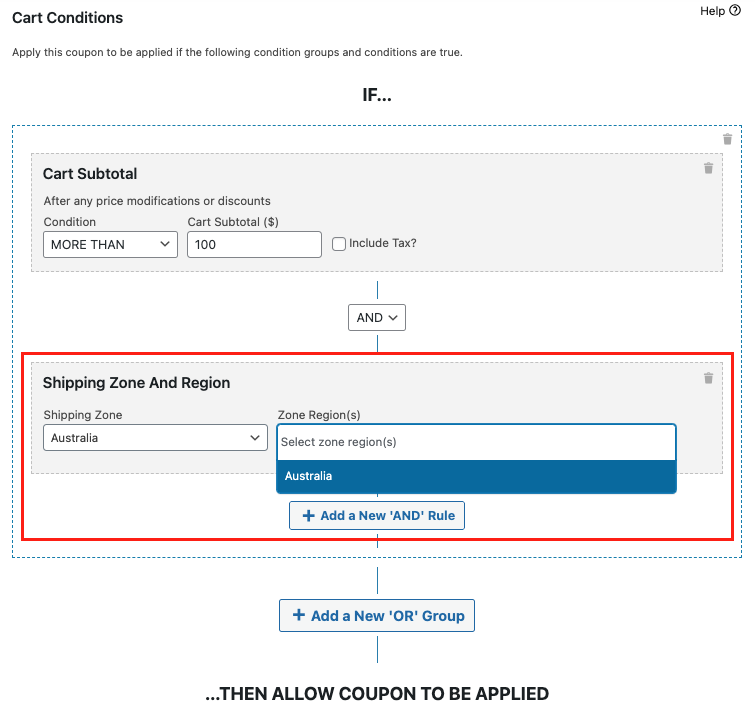
Furthermore, it’s important to ensure that the coupon is only valid for specific shipping zones, particularly the ones where you’ve enabled free shipping (as outlined in step one).
To do this, simply click on “Add a New ‘AND’ Rule” and select the “Shipping Zone and Region” condition. From here, choose the zone regions:
And there you have it! You’re now all set to implement free shipping offers in your store!
Frequently Asked Questions
How do I create a free shipping code in WooCommerce?
Go to WooCommerce > Coupons > Add Coupon, name your coupon, then check the “Allow free shipping” box under the General tab. You also need a shipping zone with “Free shipping” enabled and “A valid free shipping coupon” selected as the requirement. With Advanced Coupons, you can also use Shipping Overrides and cart conditions for more control.
Can I set a minimum order amount for free shipping?
Yes. In WooCommerce’s native free shipping method, set the requirement to “A minimum order amount OR a coupon.” With Advanced Coupons, you can add a Cart Subtotal cart condition to your coupon so it only applies when the order exceeds your chosen threshold.
What is the difference between a free shipping coupon and a shipping override?
A free shipping coupon uses WooCommerce’s built-in “Allow free shipping” checkbox and requires a Free Shipping shipping method in your zone. A shipping override, available in Advanced Coupons, directly discounts the cost of any shipping method by a percentage or fixed amount, giving you more flexibility without changing your zone configuration.
Can free shipping coupons be auto-applied in WooCommerce?
Not with the default WooCommerce coupon system. However, Advanced Coupons adds an auto-apply toggle that automatically activates your free shipping coupon when the customer meets your specified cart conditions. No code entry is needed at checkout.
How do I share a free shipping coupon via URL?
Advanced Coupons generates a unique URL for every coupon you create. When a customer clicks the link, the coupon is automatically applied to their cart. You can share the URL in emails, social media posts, or ad campaigns to drive traffic and conversions.
Does free shipping increase sales?
Yes. Free shipping is one of the strongest conversion drivers in ecommerce because it reduces the extra cost friction that often stops shoppers from completing their purchase.
Can I restrict a free shipping code to specific products or categories?
WooCommerce’s default coupon editor lets you restrict by product or category under the Usage Restriction tab. Advanced Coupons extends this further with cart conditions, allowing you to restrict based on product categories in the cart, customer role, shipping zone, and many other criteria.
Is there a free way to create shipping coupons in WooCommerce?
Yes. WooCommerce includes a basic built-in coupon system that supports “Allow free shipping” coupons at no extra cost. Advanced Coupons adds more flexibility for shipping-related promotions, with Premium unlocking the full feature set.
Start Using Free Shipping Codes To Grow Your WooCommerce Sales
A free shipping code is one of the simplest and most effective promotions you can run in WooCommerce. Whether you use a basic native coupon or go further with Advanced Coupons, the goal is the same: remove the shipping cost barrier that stops customers from completing their purchase.
Need to revisit a specific part? Jump to the section you need:
- What Is A Free Shipping Code?
- Why Free Shipping Codes Matter For Your Store
- 3 Steps To Create A Free Shipping Code With Advanced Coupons
- Frequently Asked Questions
If you want more control over your free shipping promotions with auto-apply, cart conditions, URL coupons, and shipping-focused discount tools, get started with Advanced Coupons.