

Customers often abandon checkout when the offer feels unclear or takes extra effort to claim. A discount applied at checkout removes that extra step by showing the savings automatically instead of making shoppers hunt for a coupon code.
Baymard’s benchmark still puts average cart abandonment at around 70%, and checkout friction remains one of the recurring reasons shoppers leave before finishing a purchase. Removing coupon-code friction is one practical way to make checkout feel smoother.
In this guide, we’ll explain what a discount applied at checkout means, why it can work so well for WooCommerce stores, and how to set it up with Advanced Coupons.
If you want a specific coupon code to apply itself, follow our tutorial on auto-applying a coupon in WooCommerce.
What Is A Discount Applied At Checkout?
A discount applied at checkout is a coupon or promotional rule that activates automatically when a shopper qualifies for the offer. Instead of manually entering a code, the customer sees the savings applied during the buying process.
In WooCommerce, this usually means the discount is triggered by rules such as cart total, specific products, customer eligibility, or other coupon conditions. With Advanced Coupons Premium, you can pair those rules with auto-apply so eligible shoppers get the deal without extra steps.
This type of discount is especially useful when you want to reduce friction and make sure qualified customers actually receive the promotion.
- No code entry needed: shoppers don’t have to copy or type anything
- Rule-based application: the offer appears only when your chosen conditions are met
- Clearer checkout experience: customers can immediately see the savings they unlocked
Stores often use this approach for first-order offers, cart-threshold promotions, category-specific deals, and repeat-customer rewards.
Native WooCommerce Vs Advanced Coupons
WooCommerce already gives you the basics for running coupons, including percentage discounts, fixed-cart discounts, and standard usage restrictions. Where Advanced Coupons stands out is in giving you more flexible promotion logic, including auto-apply and broader condition-based targeting.
| Feature | Native WooCommerce | Advanced Coupons |
|---|---|---|
| Percentage and fixed-cart coupons | Yes | Yes |
| Manual coupon entry | Yes | Yes |
| Built-in auto-apply coupons | No | Yes |
| Basic coupon restrictions (min spend, products, categories) | Yes | Yes |
| Expanded cart conditions and advanced targeting | Limited | Yes |
| BOGO promotions | No built-in | Yes |
| URL coupons and one-click apply options | No built-in | Yes |
| Advanced coupon scheduling | Basic expiry only | Yes |
If your goal is simply to create a standard coupon, WooCommerce can handle that. If you want the discount to appear automatically when shoppers qualify, Advanced Coupons Premium is the better fit.
See how Advanced Coupons compares to other WooCommerce coupon plugins in our complete comparison guide.
Why Offer Discounts Applied At Checkout?
Providing customers with discounts and coupons is a timeless marketing strategy. As ecommerce shopping continues to rise, making these discounts automatic and more convenient can be a game-changer for store owners.
Usually, customers need to enter a unique code at checkout in order to receive a discount. This coupon model makes sense when you’re targeting very specific users, such as newsletter subscribers or loyalty program members.
However, for the most part, this extra step can create friction in the shopping process—your customer might enter the code incorrectly or miss out on the deal completely. Automatic discounts remove that friction, ensuring that:
- Shoppers don’t miss out on eligible offers
- The checkout process is smooth and seamless
- Customers feel rewarded instantly, without confusion
Tools like Advanced Coupons give you full control. With cart conditions and advanced coupon settings, you can automatically apply discounts based on cart quantity, cart total, customer user roles, and so much more.
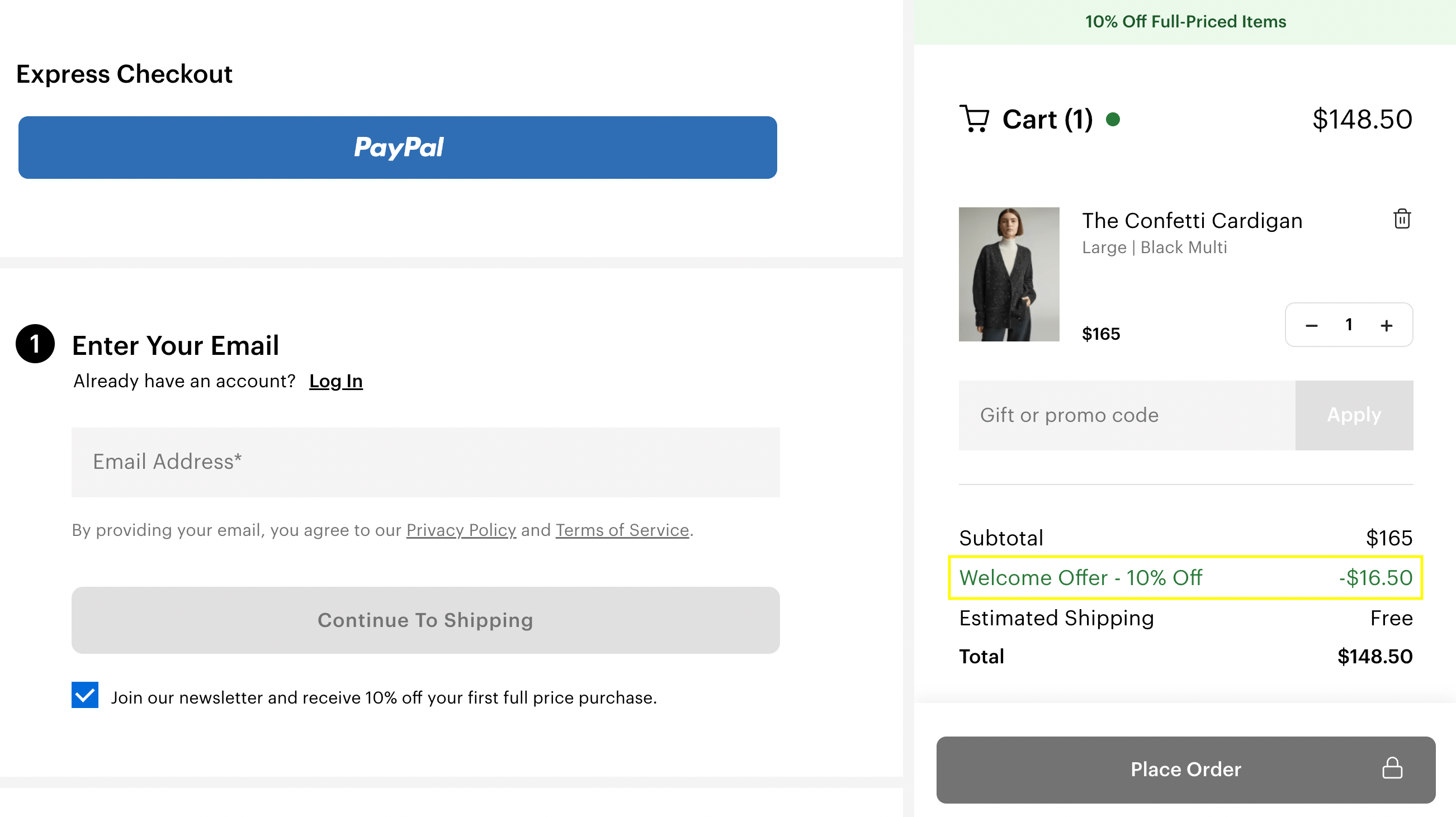
Most store owners we’ve supported over the years implement a hybrid approach where they use both automatic coupons for flash sales and sitewide offers, and manual codes for hyper-targeted promotions. This is a common (and often effective) dual approach.
3 Key Benefits Of Applying An Automatic Discount At Checkout
Let’s look at a few additional benefits of opting for automatic discounts at checkout!
1. Reduce cart abandonment rates
As we mentioned, cart abandonment is a huge problem for all e-commerce businesses. What’s more, the number one reason for abandoned carts is extra costs that are too high.
Therefore, one excellent way to increase conversions is by offering an automatic discount that allows for free shipping. You could give this deal to new shoppers or to those who spend a certain amount:
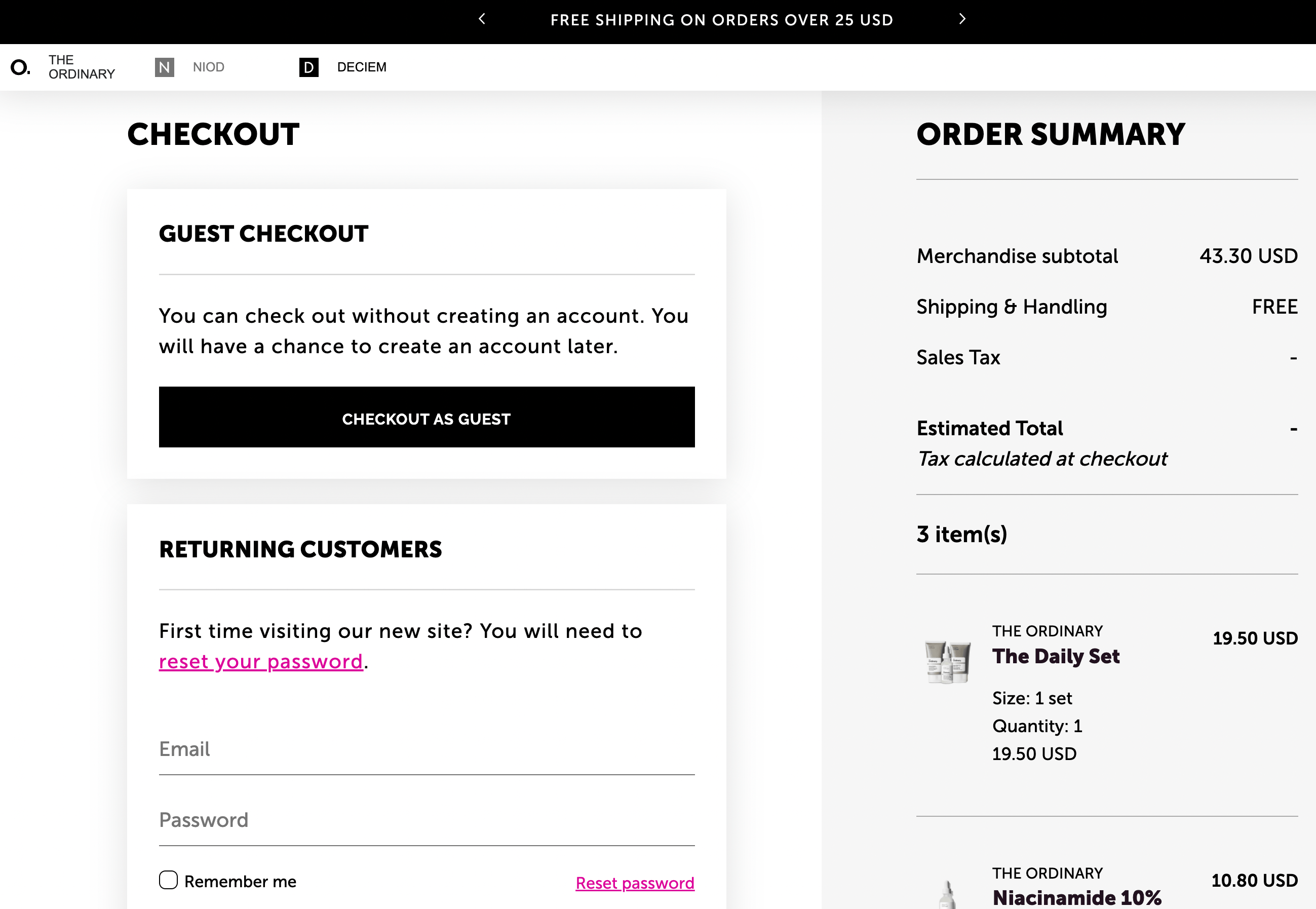
This way, you can likely boost your average order value (AOV) while increasing overall transactions.
2. Boost customer loyalty
If you’ve successfully convinced a customer to make their first purchase in your store, you should definitely be celebrating. Not only because you’ve made a sale, but also because this particular customer now has the potential to become a returning shopper.
You can reach pre-existing customers via email campaigns, social media marketing, etc. This way, you can advertise your promotions on various channels.
However, customers may be disappointed if they’re not sure how to apply a discount they saw advertised in your marketing materials. On the other hand, if the discount is applied automatically at checkout, then they won’t have to worry about it.
This can increase customer satisfaction and boost customer loyalty.
If you’re looking for additional ways to keep your customers coming back, you might want to consider our WooCommerce Loyalty Program plugin:
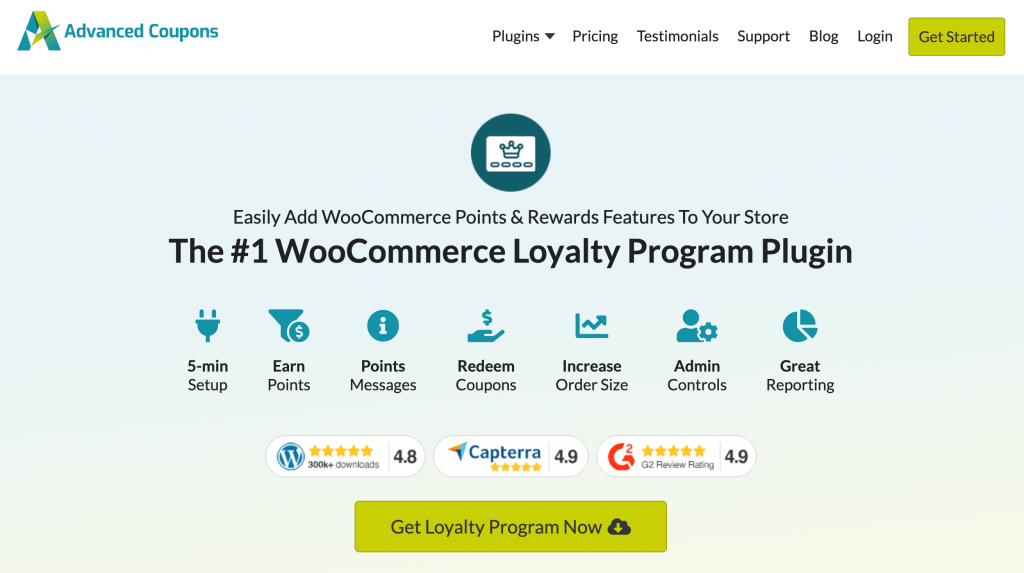
You can use this tool to set up a loyalty program more efficiently and manage customers and coupons more effectively.
Moreover, this will make it easier for you to apply automatic discounts for specific users and user groups. WooCommerce Loyalty Program is also compatible with the Advanced Coupons plugin, which we’ll use later on in this article for the tutorial.
RELATED READ: How To Start A WooCommerce Loyalty Program (Tutorial)
3. Streamline the checkout process
Another benefit of using a discount applied at checkout is that it can help streamline the ordering process. This can improve the overall user experience (UX) and keep your customers happy.
This is crucial since a complicated checkout process is another top cause of cart abandonment. For example, if a user sees that you offer discounts on first orders, but they can’t figure out how to apply it, that could translate to a lost sale.
Even worse, it might hurt your reputation, as users may think your website is confusing or dishonest. Furthermore, a straightforward checkout process can help reduce the number of requests your customer support team receives.
This can free up lots of time. As a result, your team may be able to focus on other tasks and improve your store’s overall customer service.
How To Apply An Automatic Discount At Checkout (In 3 Steps)
Now that you know about the many benefits of using automatic discounts at checkout, we’re going to show you how to create this type of discount using the Advanced Coupons Premium plugin:
Assuming that you already have this powerful plugin installed and activated, let’s go ahead and set up automatic discounts applied at checkout:
🎯 POWER TIP: Before you create the coupon, calculate your margin headroom with our free tool so you know how much room you have to discount safely.
Step 1: Create and customize your coupon
If you want to create an automatic discount in WooCommerce, the first step is to install and activate the Advanced Coupons Free plugin. Then, if you want additional features such as extra cart conditions (which will be featured later), you’ll need to select a plan and install Advanced Coupons Premium.
Once you’ve set up your tools and activated your license in settings, you’re ready to get started. To begin, go to Coupons > Add New:
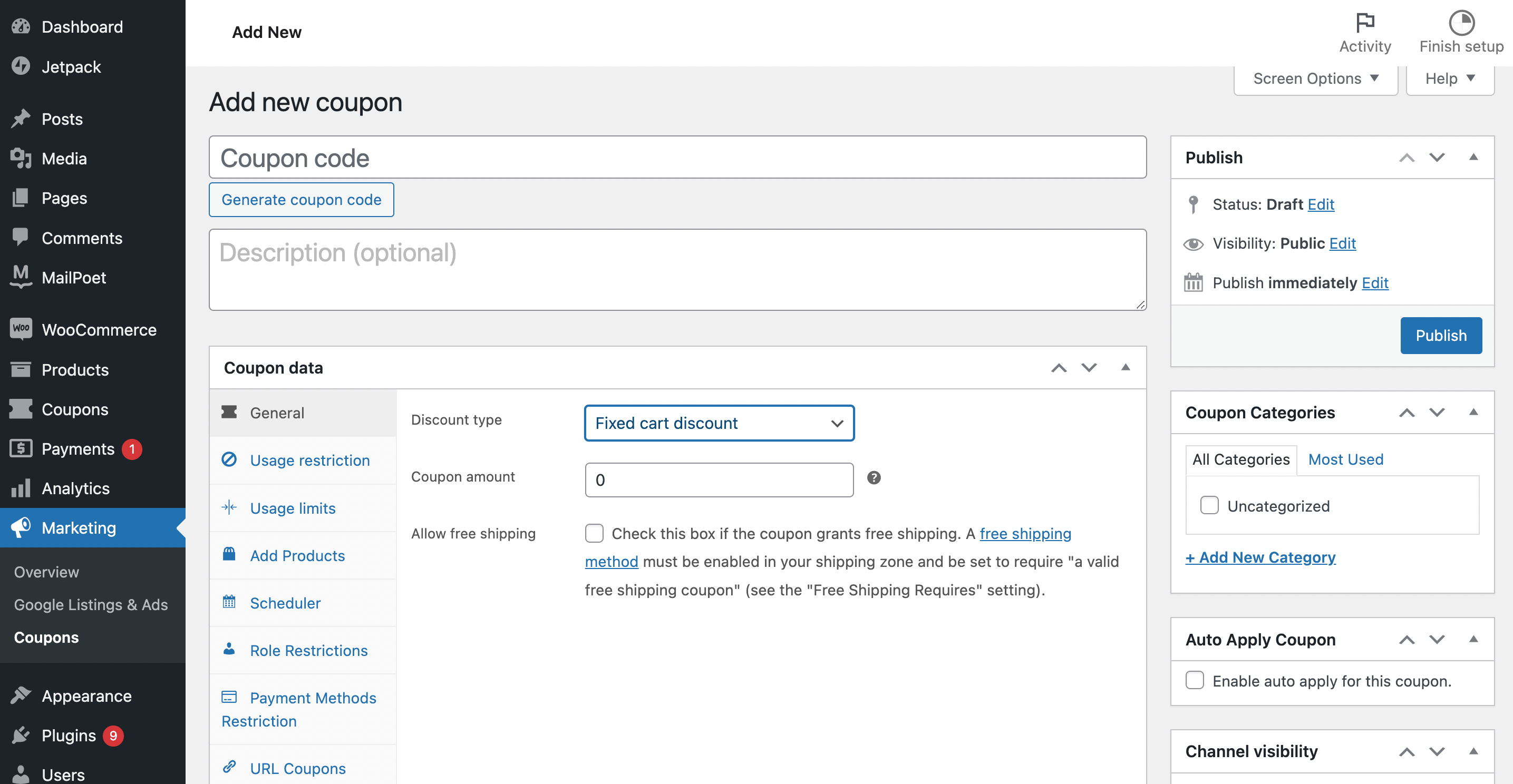
In the coupon editor, you’ll be able to generate a coupon code. This is a crucial step, even though you’re creating a discount that will be applied automatically.
Here, you can also give your coupon code a description and configure your deal under the Coupon data section. By default, the Discount type will be set to Fixed cart discount:
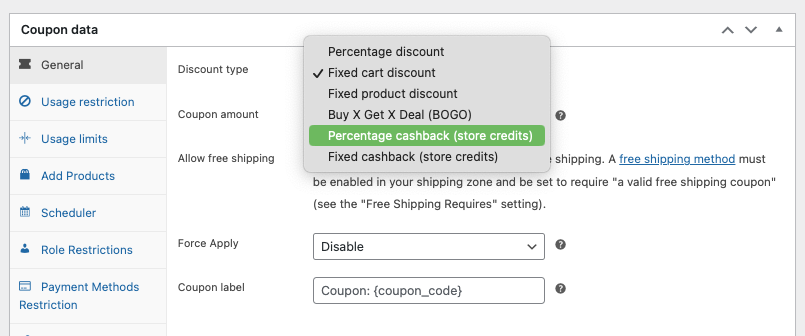
However, you may want to modify this to a Percentage discount or another choice. If you choose this option, be sure to enter a Percentage Discount Cap.
Next, you’ll want to take some time to customize your coupon settings. For instance, you may want to configure a Buy One Get One (BOGO) deal or create a coupon that’s only relevant to certain products or product categories.
These are just a few of the many potential coupon options. When you’re done with the Coupon data section, scroll down to Cart Conditions.
Step 2: Set up cart conditions
Although an automatic discount applied at checkout is likely meant for a large group of customers, you’ll still want to limit who receives this deal.
You can further refine your coupon settings under the Cart Conditions section:
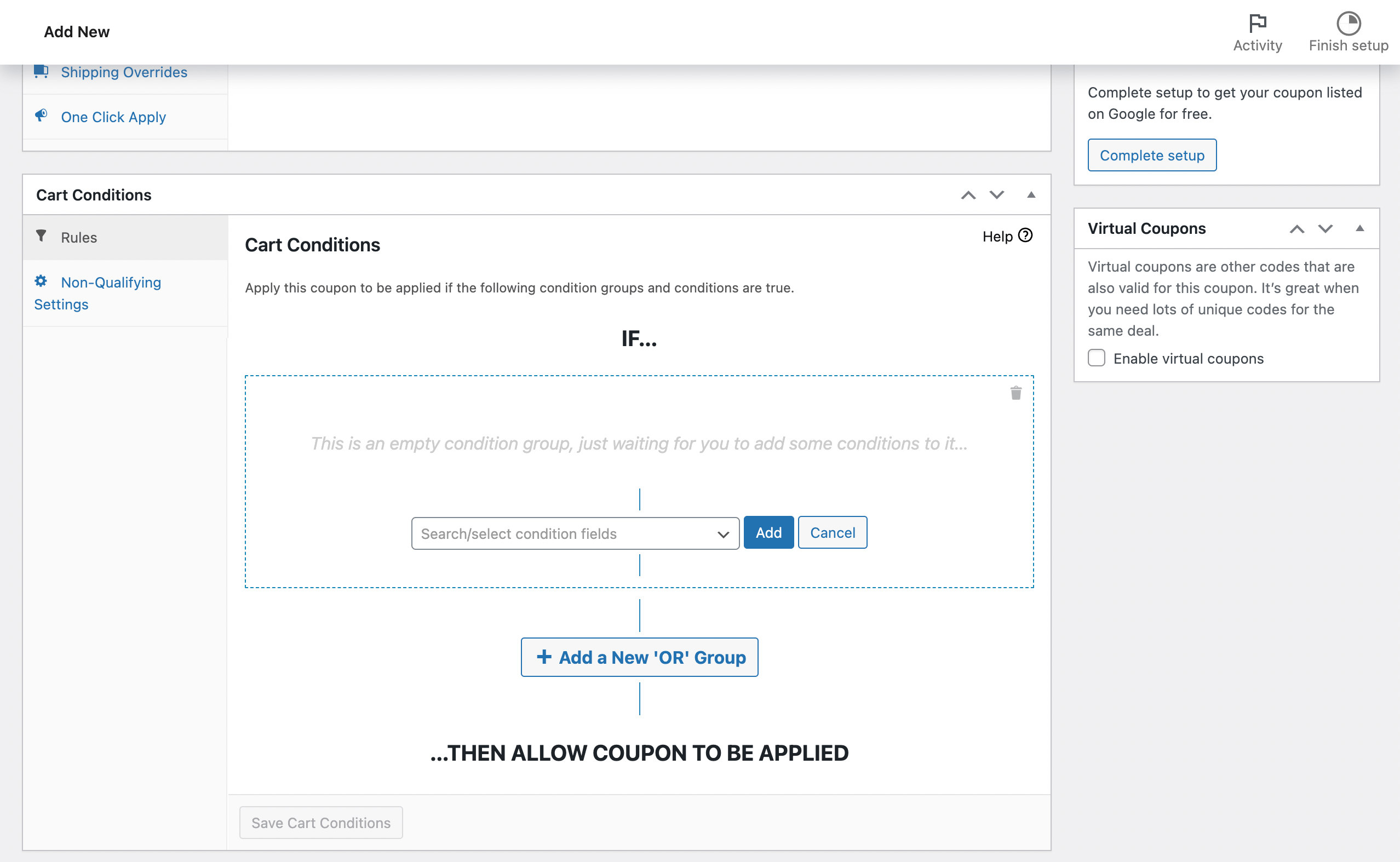
On the above screen, you can set up if/then conditions. You can create these simple ‘rules’ based on certain order features, such as Cart Items, Products, Product Categories, and Customers:
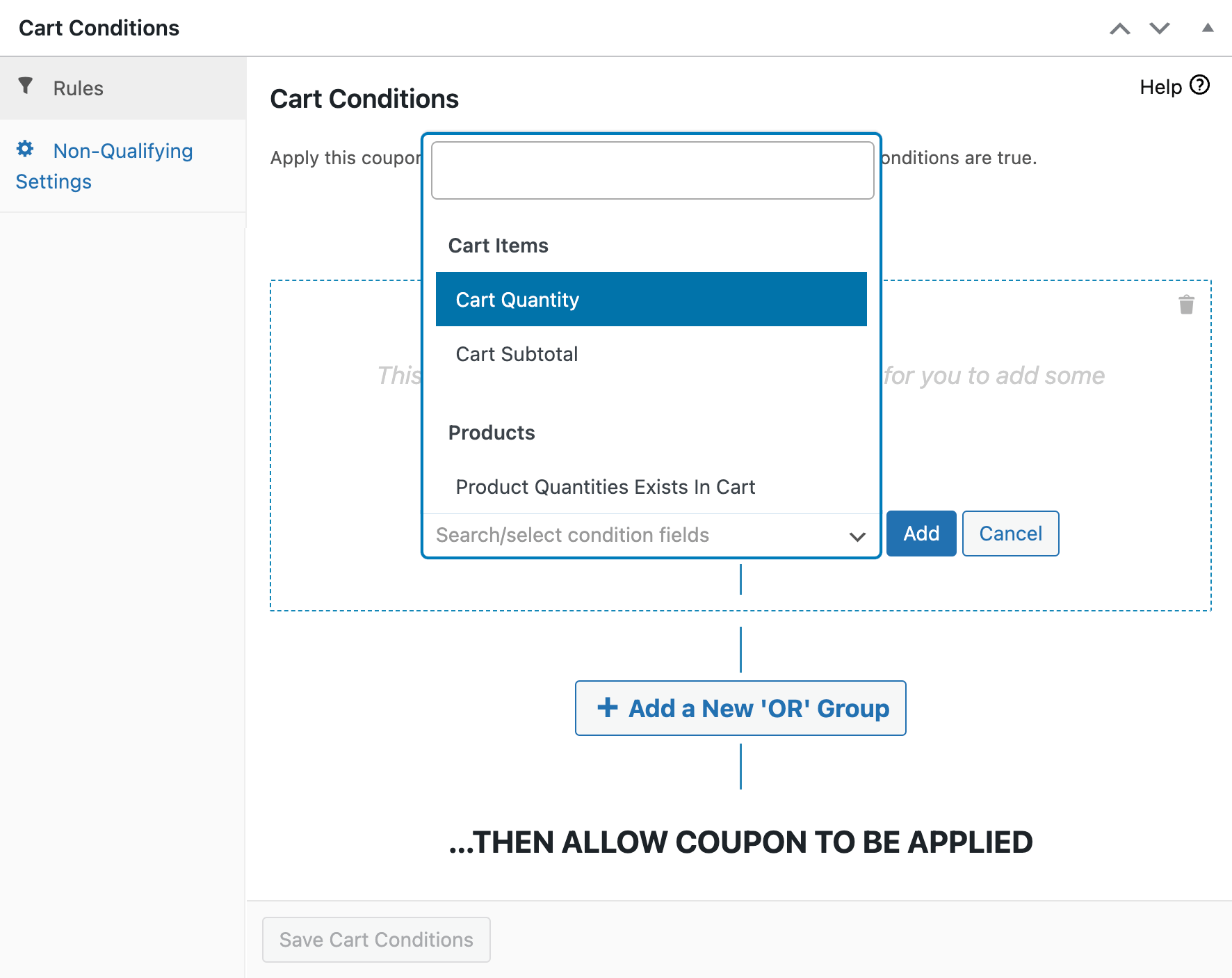
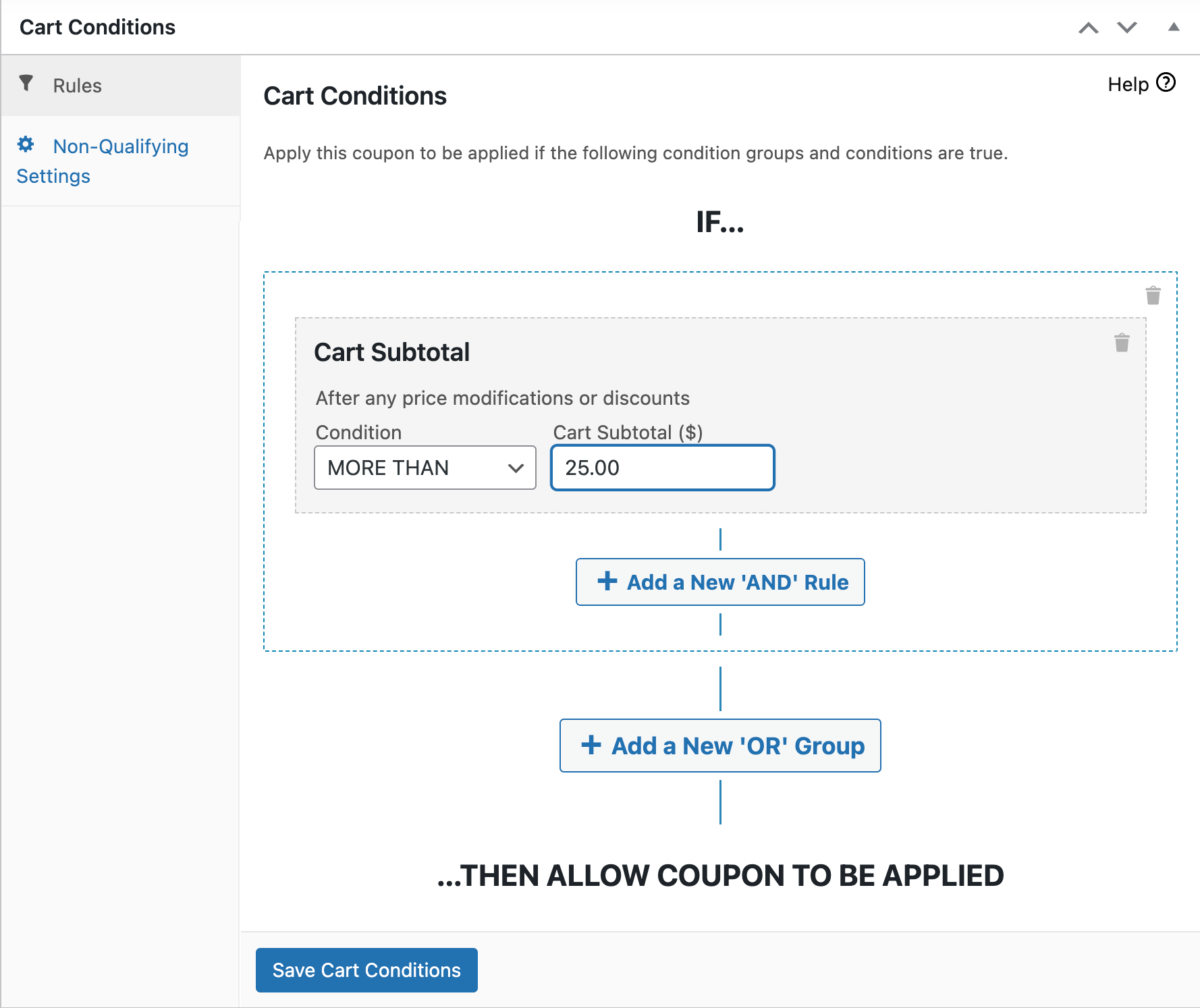
Simply select a condition in the dropdown menu and click on Add. Then, you’ll be prompted to complete the setup for your unique rule. For instance, if you choose Cart subtotal, you’ll then need to choose your Condition and a Cart Subtotal value:
Alternatively, you might want to encourage repeat customers by rewarding people who come back within a period of 90 days:
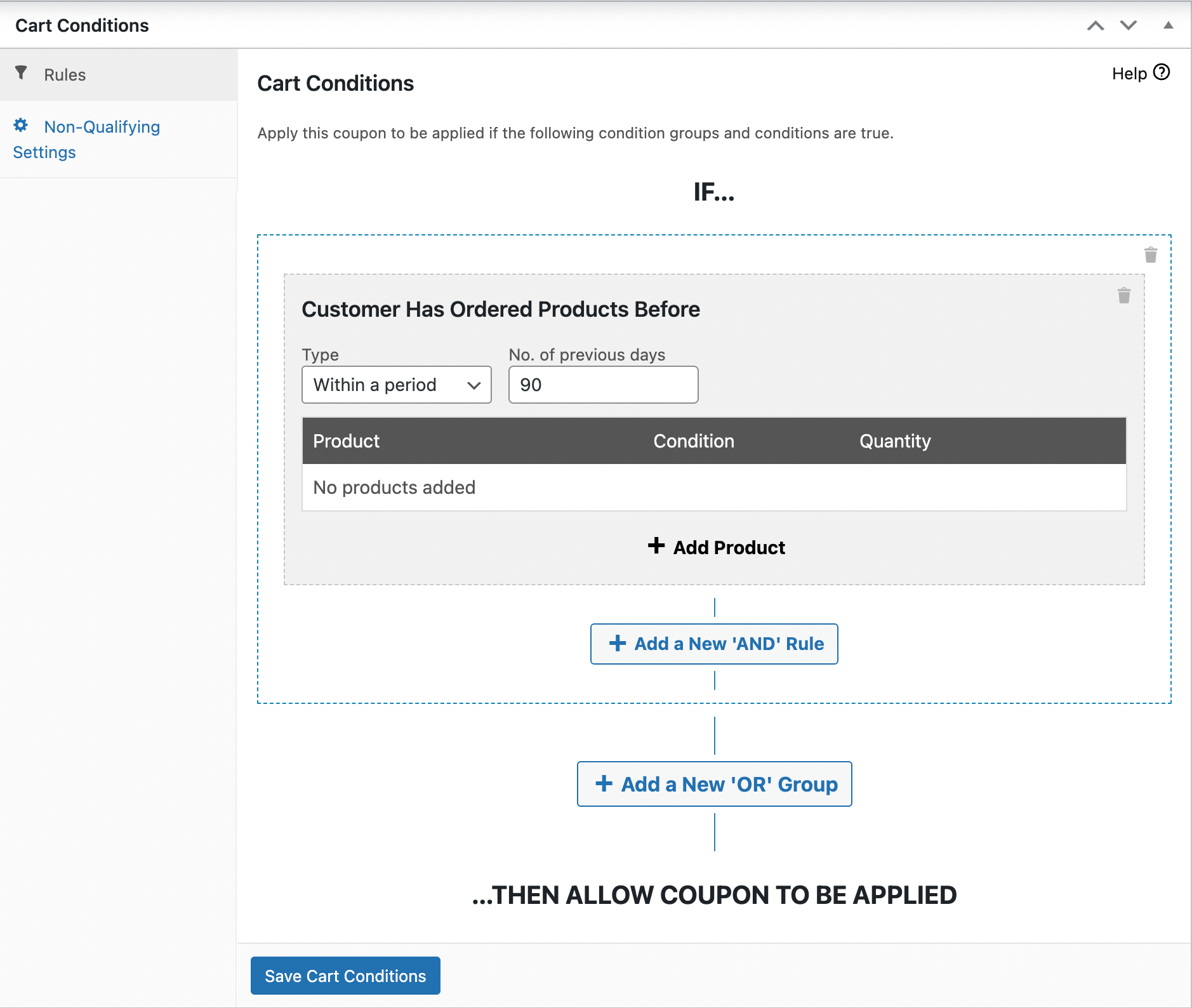
When you’re happy with your selections, make sure to click on Save Cart Conditions.
Step 3: Enable auto-apply coupons
Finally, all that’s left to do is enable auto-apply coupons.
To do this, simply locate the Auto Apply Coupon panel on the right-hand side of your screen. Then, check the box next to Enable auto apply for this coupon:
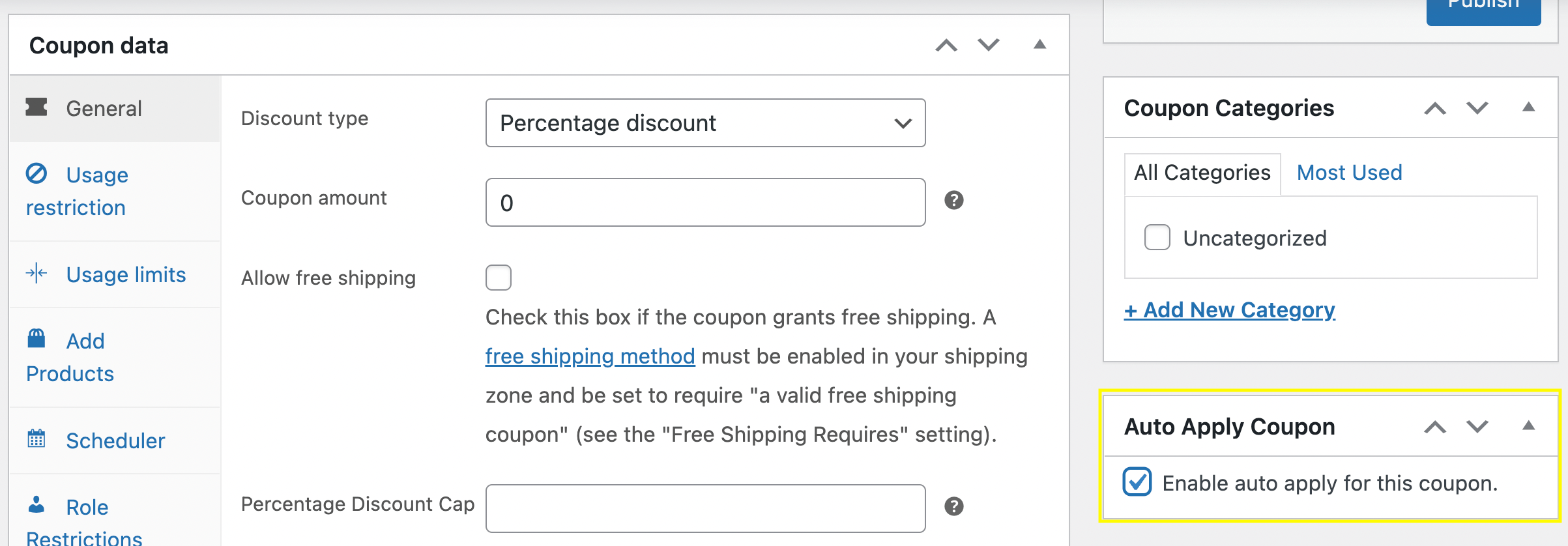
It’s as simple as that! To activate your new coupon click on the blue Publish button.
Best Discount Strategies That Work At Checkout
Once your automatic discount is set up, the next step is using it strategically. These approaches can help you turn a simple checkout discount into a stronger promotion.
Threshold-based cart discounts
Set a minimum cart subtotal to unlock the discount. This encourages shoppers to add one more item or increase their order value before checkout.
For example, you might offer “Spend $75 and get 10% off automatically.” This approach often works best when the threshold sits slightly above a shopper’s typical order value.
First-time buyer welcome discounts
Reward new customers with an automatic discount on their first order. This can be a simple way to reduce hesitation and make a first purchase feel more worthwhile.
Instead of relying only on shoppers to remember and enter a welcome code, an automatic discount helps ensure eligible customers actually receive the offer when they reach checkout.
Category-specific promotions
Apply discounts only when certain product categories are in the cart. This lets you run promotions on selected product lines without discounting your entire catalog.
For example, you could create a 20% discount that triggers only when items from a seasonal or clearance category are included in the order.
Loyalty rewards for repeat buyers
Automatic discounts can also work well for repeat customers. If you’re already rewarding loyalty through repeat purchases, applying the offer automatically makes the experience feel even smoother.
This can also pair nicely with the Advanced Coupons Loyalty Program if you want to build a broader retention strategy around rewards and repeat orders.
Best Practices For Launching Discounts Applied At Checkout
Launching auto-applied discounts is a powerful way to streamline the shopping experience. However, it’s important to set them up strategically to get the best results. Here are some best practices to keep in mind:
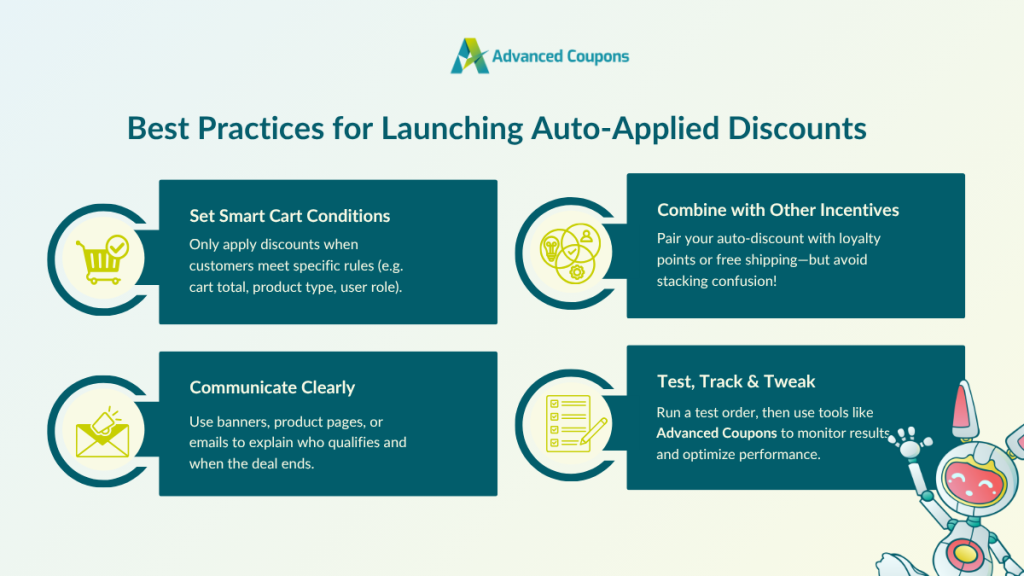
1. Set smart cart conditions
Setting cart conditions or coupon restrictions helps protect your profit margins and ensure only qualified customers get the discount. Tools like Advanced Coupons allow you to fine-tune how, when, and who qualifies for the offer.
For example, you can choose to auto-apply deals only when:
- Orders reach a certain cart total or quantity
- Specific products or product categories are in the cart
- The customer has made more than two purchases
- The customer belongs to a specific user role (like “Wholesale Buyer”)
2. Communicate clearly
If you’re offering a discount applied at checkout, you’ve likely set specific conditions for shoppers to qualify. Make sure you clearly communicate these requirements to avoid confusing customers. You can use a mix of website banners, email campaigns, or product page callouts to inform customers of who qualifies and until when the offer runs.
3. Consider combining with other incentives (strategically)
Sweeten the deal by pairing a discount applied at checkout with loyalty points or free shipping. Many WooCommerce store owners we’ve worked with combine auto-applied deals with a loyalty program to reward customer behavior and increase retention. Just make sure the offers don’t stack unintentionally or create confusion.
4. Test, track, and iterate
Before activating the coupon, consider placing a test order on your store to ensure the discount works as expected. This is especially important if you’ve set specific cart conditions or roles eligible for the offer. After the promotion, monitor how discounts perform. If you’re using Advanced Coupons, you’ll gain access to a comprehensive dashboard that summarizes coupon usage data and redemption. This allows you to assess which promotions are working.
Common Mistakes When Setting Up Checkout Discounts
Automatic discounts can improve the checkout experience, but they still need thoughtful setup. Here are some common mistakes to avoid when launching this kind of promotion.
Not testing with a real order
Always place a test order before going live. Double-check that the coupon appears correctly, applies at the right stage, and calculates the discount the way you expect.
- The discount appears correctly on the cart page
- The discount still applies properly at checkout
- The totals and percentages are calculated correctly
- The coupon does not stack with other active offers unless you want it to
Setting conditions too loose
A discount with no meaningful cart minimum or product restriction can end up applying too broadly. That may make the offer less strategic and can eat into your margins faster than expected.
Forgetting to set an expiry date
If the discount is meant to support a limited-time promotion, make sure you add an end date. Otherwise, the auto-applied offer may stay active longer than intended.
Conflicting coupon rules
If you’re running multiple promotions at once, review your coupon settings carefully so they don’t overlap in ways that create unintended stacking or confusion at checkout.
This is especially important when combining auto-applied discounts with free shipping, category promotions, or loyalty-related offers.
How Auto-Apply Discounts Improve Your Checkout Conversion Rate
One of the biggest benefits of automatic discounts is that they reduce friction at a key moment in the buying journey. Instead of asking shoppers to stop and look for a code, the discount appears when they qualify.
Fewer checkout interruptions. Shoppers can move through checkout without the extra step of copying, entering, or troubleshooting a coupon code.
Clearer value at the point of purchase. When the savings are already visible, customers can immediately see the benefit they unlocked.
A smoother mobile experience. Automatic discounts can be especially helpful on mobile, where extra steps and form fields can feel more frustrating.
Less friction around promotions. Instead of worrying about whether a code will work, shoppers can focus on completing the order, which helps create a more seamless checkout experience overall.
Frequently Asked Questions
What does discount applied at checkout mean?
A discount applied at checkout is a promotion that activates automatically when a shopper qualifies for the offer. Instead of entering a coupon code manually, the customer sees the discount applied during the buying process.
Can I auto-apply a coupon in WooCommerce without a plugin?
No. WooCommerce supports standard coupon creation and manual application, but it does not include a built-in auto-apply coupon feature. To apply discounts automatically when certain conditions are met, you’ll need an extension such as Advanced Coupons.
Do I need Advanced Coupons Premium to auto-apply coupons?
Yes. Auto-apply coupons are part of Advanced Coupons Premium. If your goal is to trigger discounts automatically at cart or checkout, that’s the version you’ll want to use.
Can I limit an automatic checkout discount to specific products or cart totals?
Yes. You can use coupon rules and cart conditions to control when the discount should apply. For example, you can require a minimum subtotal, specific products, product categories, or other eligibility rules before the coupon is triggered.
Can I create automatic discounts for first-time or returning customers?
Yes. Advanced Coupons gives you more control over customer targeting, so you can create promotions aimed at shoppers who meet certain customer-related conditions, such as order history or eligibility rules you want to enforce.
Will customers see the discount before placing the order?
Yes. When the shopper qualifies, the discount appears as part of the cart or checkout totals, helping make the savings clear before the order is completed.
Does auto-apply work on mobile checkout?
Yes. Since shoppers don’t need to copy or enter a code, automatic discounts can create a smoother checkout experience on mobile as well as desktop.
Can I schedule automatic checkout discounts?
Yes. Advanced Coupons supports coupon scheduling, so you can control when a promotion starts and ends instead of manually switching it on and off every time you run a campaign.
Can I stop automatic discounts from stacking with other coupons?
Yes. You can manage coupon rules and individual-use settings to reduce overlap and avoid giving away more discount than intended.
Conclusion
If you want to make promotions easier to claim, an automatic discount applied at checkout is a smart strategy to consider. It can help reduce friction, make qualifying offers more visible, and create a smoother buying experience for your customers. In this article, we covered:
- What a discount applied at checkout means
- How native WooCommerce compares with Advanced Coupons
- Why this type of discount can improve the customer experience
- How to create an auto-apply discount in WooCommerce
- Discount strategies that work well at checkout
- Best practices for running automatic discounts effectively
- Common mistakes to avoid when setting them up
- How auto-apply discounts can support a smoother checkout flow
- Frequently asked questions
If you’re ready to put this strategy into action, the Advanced Coupons coupon plugin makes it easier to build smarter WooCommerce promotions. You can create auto-apply coupons, set cart conditions, and run more advanced offers such as BOGO deals, shipping discounts, and URL coupons from one place.
Do you have any questions about using an automatic discount applied at checkout? Let us know in the comments section below!


